ClockWise HRGuideRequiring two-factor sign-in
Requiring two-factor sign-in
Two-factor sign-in asks for a code from a phone app as well as the password. Require it for a whole role or for one person; whoever must use it cannot get past the set-up page until it is done. If someone loses their phone, you reset theirs.
Your account must be allowed to manage two-factor. The people concerned need an authenticator app on their phone — Google Authenticator, Authy or similar.
Two-factor is decided in two places, and the person’s own setting wins:
| The person’s Require 2FA | Two-factor is |
|---|---|
| Inherit from Role | required if their role requires it |
| Force Enable | required, whatever the role |
| Exempt | not required, whatever the role |
1Require it for a role
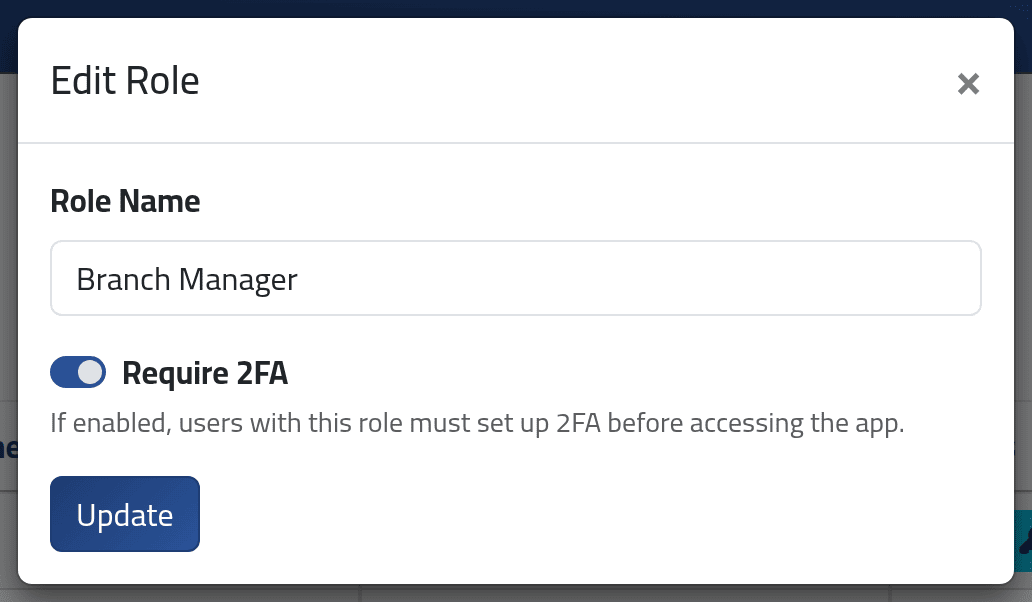
In the menu on the left, under Users, click Roles. Click Edit on the role, switch on Require 2FA and click Update.
Everyone holding the role must now use two-factor, unless their own setting says Exempt.
2Or for one person
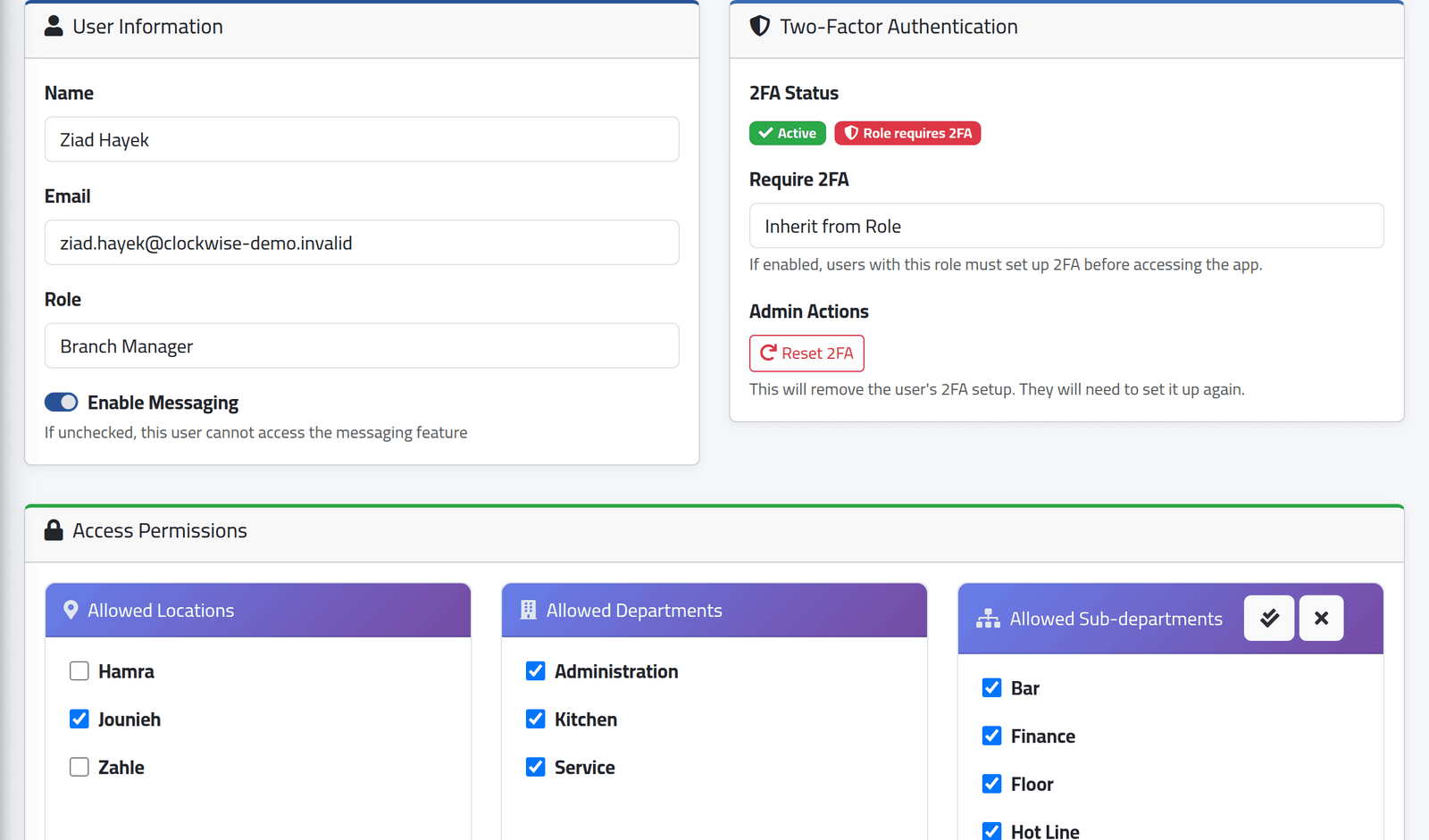
Open the person’s Edit page (see Adding a user). The Two-Factor Authentication box shows whether they have set it up, and why it is required. Choose Require 2FA and click Update at the foot of the page.
The box is not shown on your own Edit page: nobody changes their own requirement.
3Reset someone who lost their phone
On the person’s Edit page, click Reset 2FA and confirm. The button appears only once they have set two-factor up. Their codes stop working. If two-factor is required for them, they set it up again with the new phone at their next sign-in; if not, they sign in with the password alone.
4Set it up for yourself
Anyone can set up two-factor, required or not. In the menu on the left, click Two-Factor Auth.
That menu item appears only for someone whose own setting is
Force Enable. Anyone else — including someone whose role
requires it — opens the page by typing the address of ClockWise followed by
/2fa/setup. People who are required to set it up are taken there anyway
when they sign in.
- Click Generate QR Code.
- Scan the code with the app — or type the key shown under it.
- Type the six-digit code the app shows and confirm.
Then the page lists recovery codes. Keep them somewhere safe: each one signs you in once without the phone.

What happens next
At each sign-in, after the password, ClockWise asks for the code from the app — or a recovery code.
Someone required to use two-factor who has not set it up is sent to the set-up page after signing in, and no other page opens until they finish (see Signing in for the first time).
While two-factor is required for you, the set-up page offers no way to switch it off. When it is not required, you can switch it off yourself, with your password.
If it goes wrong
| What you see | What it means |
|---|---|
| The code is refused | The phone’s clock is wrong, or the code changed while you typed. Wait for the next code. |
| No phone and no recovery codes | Ask an administrator to reset your two-factor. |
| No Reset 2FA button | The person has not set two-factor up — there is nothing to reset. |
| No two-factor box on an Edit User page | It is your own account, or you may not manage two-factor. |
| Someone with a required role is not asked for a code | Their own setting is Exempt. |