ClockWise HRGuideRejecting and reopening a candidate
Rejecting and reopening a candidate
Turn a candidate down with a reason, and bring them back later if the position opens again. Reopening clears the reason. A hired candidate can be neither.
Your account must be allowed to change a candidate’s status.
1Reject
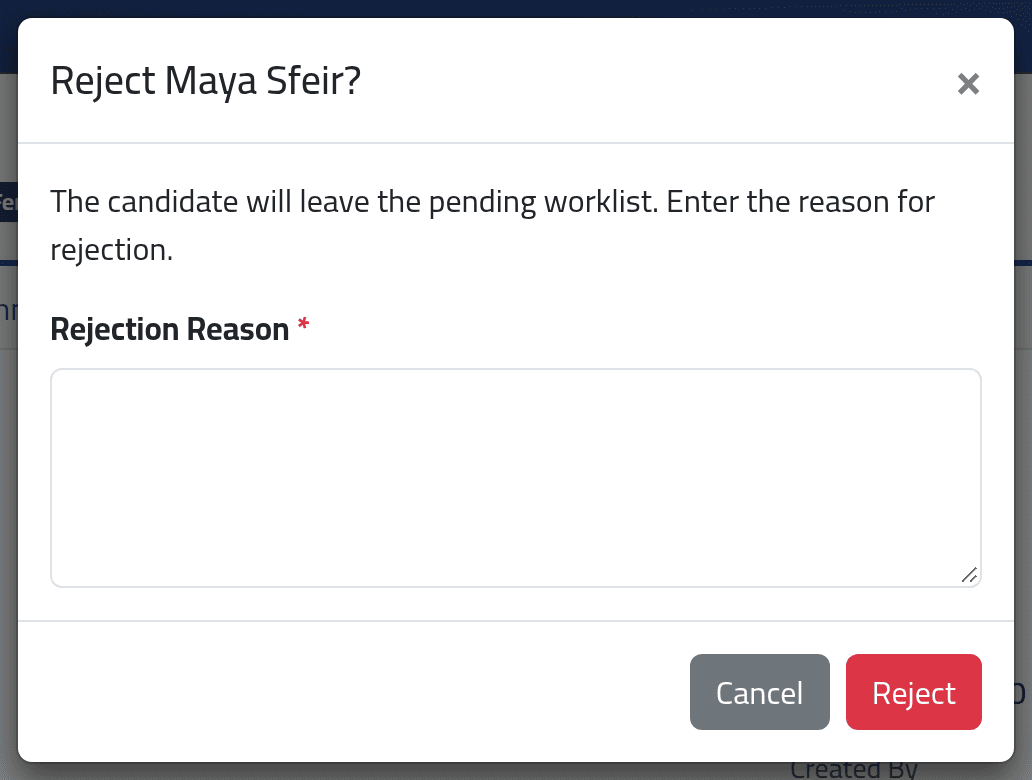
On the candidate’s profile, click Reject. Give a Rejection Reason — it is required — and click Reject.
Write the reason for whoever looks again: what was missing, and whether they are worth calling back.
2Read the reason
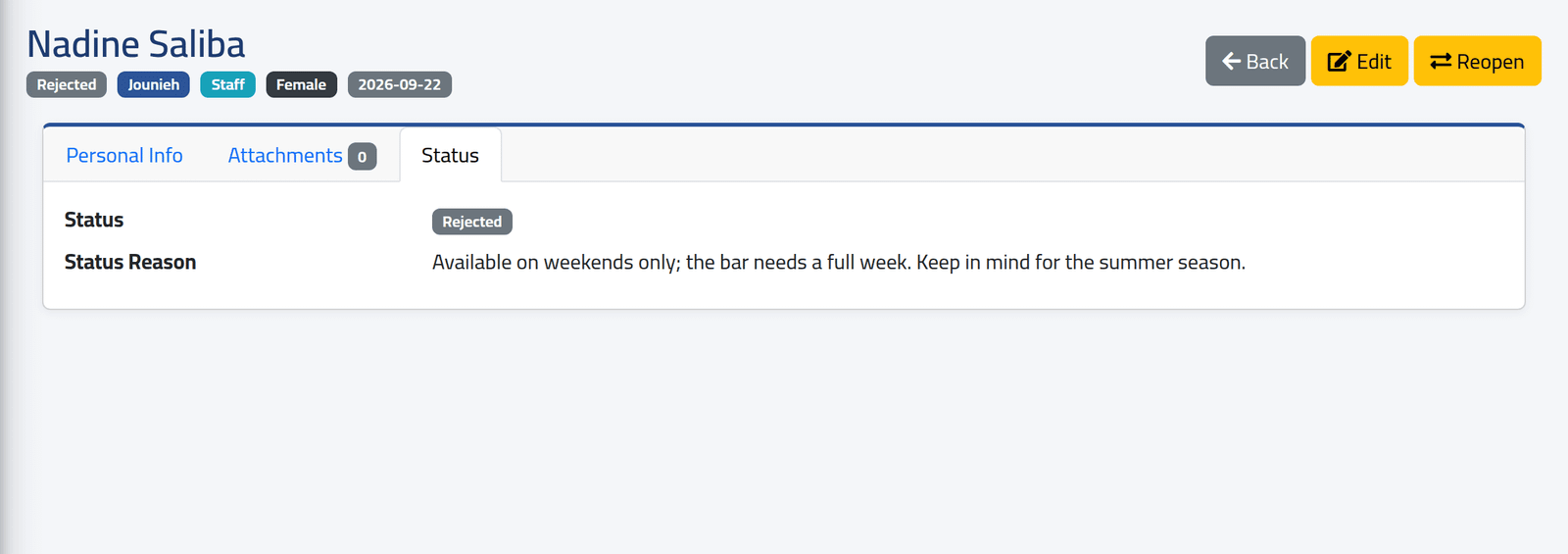
The candidate leaves the Pending list. To find them, set Status to Rejected on Candidates. Their profile shows Rejected, and the Status tab shows the reason.
3Reopen
On a rejected candidate’s profile, click Reopen, then Reopen. They are Pending again.
Reopening clears the rejection reason. It is not kept anywhere. If it still matters, copy it into the candidate’s Notes with Edit before you reopen.
What happens next
A rejected candidate can still be edited, given attachments and deleted. To hire them, reopen them first.
If it goes wrong
| What you see | What it means |
|---|---|
| A hired candidate is locked and cannot be changed or deleted. | They were hired. |
| That candidate status change is not allowed. | Only Pending → Rejected and Rejected → Pending are possible. |
| No Reject button | Your account may not change a candidate’s status. |