ClockWise HRGuideOne schedule for a whole branch
One schedule for a whole branch
Give everybody in a branch the same week from a given date. Their own schedules end the day before — and every day starts out as a day off until you set it.
Be sure the whole branch really works the same week. Everybody whose branch it is will be given it — supervisors, office staff and people who have left included.
Your account must be allowed to add schedules for a location.
1Open the branch's actions
In the menu on the left, under Company, click Locations. On the branch’s row, open Actions and choose Apply Schedule to All.
2Fill in the week
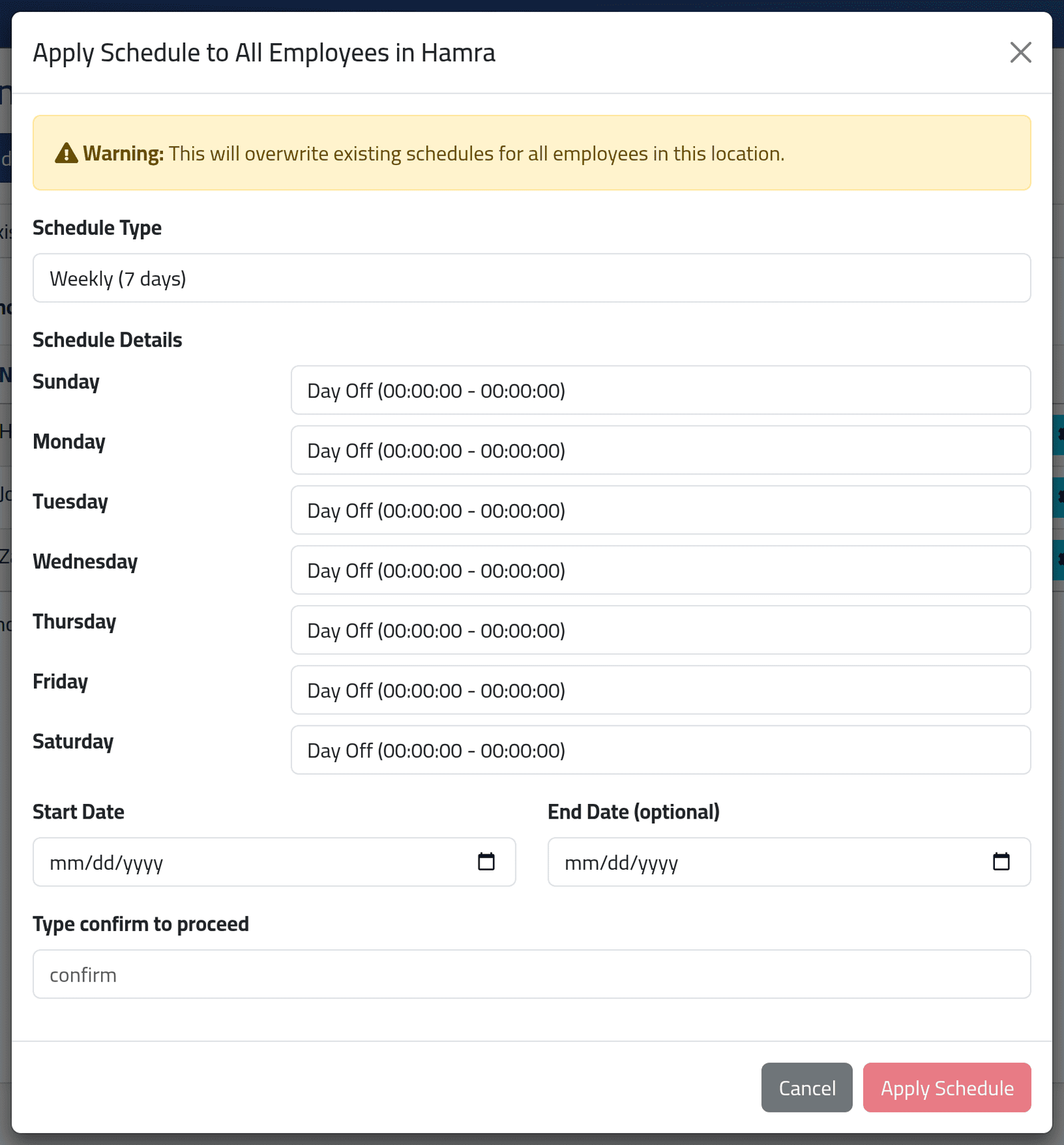
The form opens with a warning: it will overwrite the schedules of every employee in the branch.
Every day starts at Day Off. Set a shift for each working day before you do anything else. Applied as it opens, the form gives the whole branch seven days off.
Choose the shift for each day, then the Start Date — the first day of the new week — and, if it is temporary, an End Date.
3Confirm
Type confirm in the last box. Apply Schedule becomes active; click
it.
What happens next
Every employee of the branch has a new schedule from the start date, and their previous schedule ends the day before. A message says how many people were changed.
Their attendance is not recalculated straight away. Days already worked are measured against the new schedule the next time they are recalculated — see Recalculating a branch.
This form does not check closed salary periods. A start date in the past writes new schedules over days that may already be paid; those days are protected from recalculation, but the schedules shown for them no longer match what was worked. Use a start date in the future, or today.
If it goes wrong
| What you see | What it means |
|---|---|
| No employees found in this location. | The branch has nobody in it. |
| Apply Schedule stays pale | confirm is not typed exactly. |
| One person should not have the new week | Change their schedule afterwards — see Giving someone a schedule. |