ClockWise HRGuideCompany settings
Company settings
One page of company-wide choices: the name and logo, how leave years run, whether overtime is paid, how messages look, automatic employee numbers, and two safety catches for adjustments and assets.
Every choice here applies to the whole company, every branch, from the moment you save. Whoever can open this page can change all of it.
1Open the page
In the menu on the left, under General Settings, click System Settings.
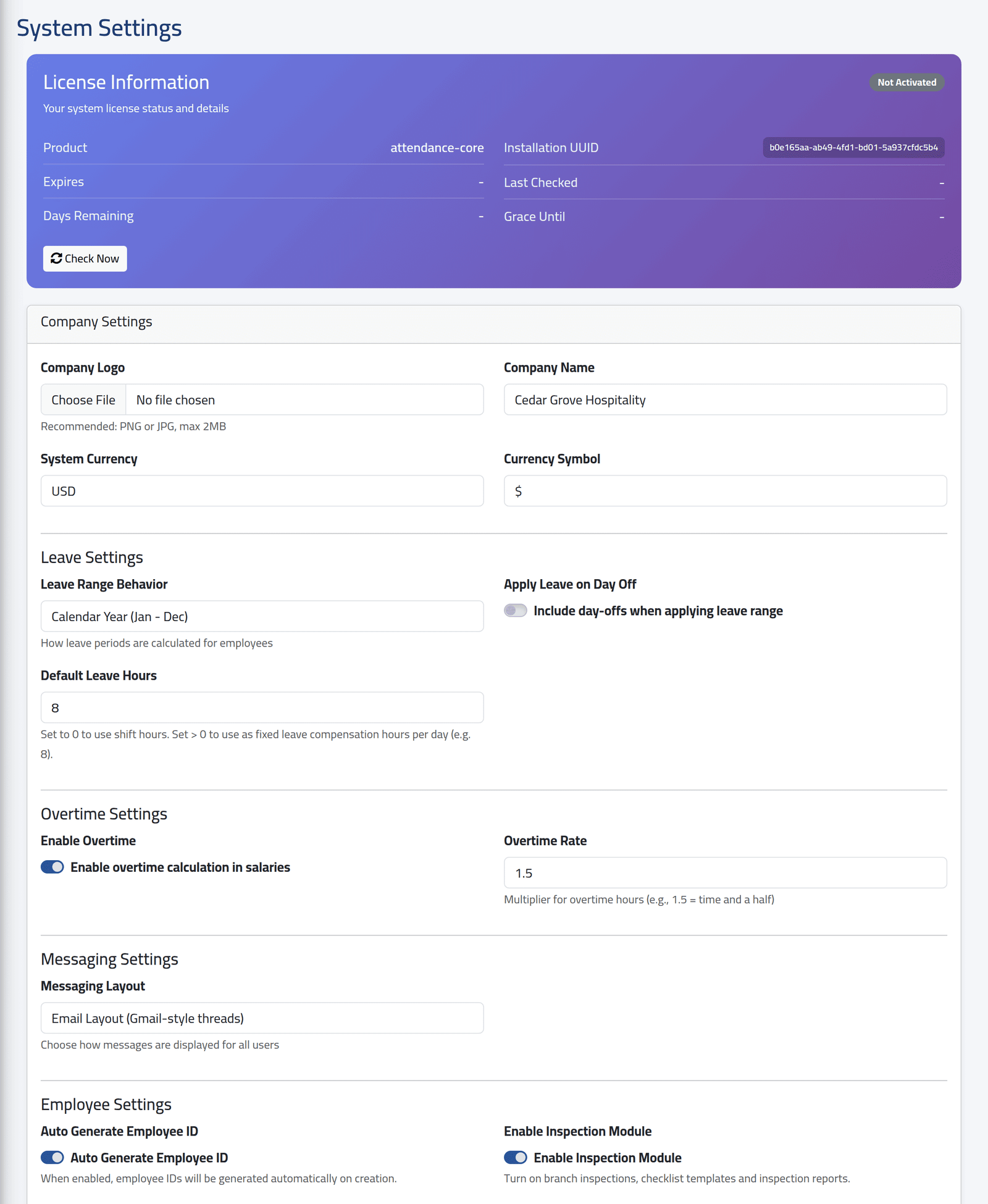
The licence card at the top shows the product, when the licence expires and when it was last checked. Check Now asks the licence server again.
Below it, the company settings, section by section:
- Company Logo and Company Name — a PNG or JPG of up to 2 MB.
- System Currency and Currency Symbol — a label only. Pay is calculated in the default currency under Currencies and exchange rates; keep the two the same.
- Leave Range Behavior — whether a leave year is the Calendar Year (Jan - Dec) or runs from each person’s Employment Anniversary.
- Apply Leave on Day Off — on, days off inside a leave range count as leave; off, they are left out.
- Default Leave Hours — the hours one day of leave is worth.
0uses the length of the person’s shift that day. - Enable Overtime and Overtime Rate — whether overtime is
paid in salaries, and at what multiple of the hourly rate:
1.5is time and a half. - Messaging Layout — chat bubbles or email threads, for everyone (see Sending a message).
- Auto Generate Employee ID — on, a new employee gets the next free number; off, you type it (see Adding an employee). The Enable Inspection Module switch beside it is covered in Switching modules on and off.
2The safety catches
Further down:
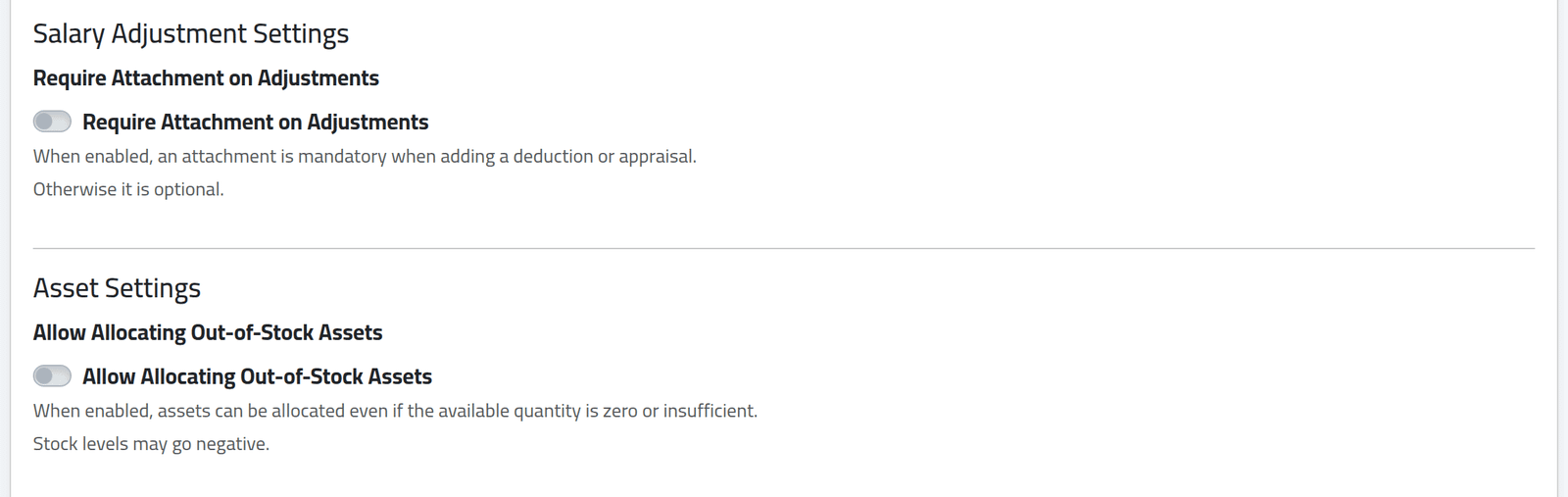
- Require Attachment on Adjustments — on, a deduction or appraisal cannot be saved without a document (see Adjustments for the coming salary).
- Allow Allocating Out-of-Stock Assets — on, an asset can be given out even when the stock shows none, and the stock goes below zero (see Giving out an asset and adjusting stock).
3Save
Click Save Settings at the bottom of the page. The page reloads with Settings saved successfully.
What happens next
The new values apply from the next thing anyone does. Nothing already recorded is recalculated: closed salary periods keep the overtime they were closed with, and leave already recorded keeps its hours.
Changing Leave Range Behavior moves every employee’s leave year at once, and so every balance. Change it at the start of a year, not in the middle.
If it goes wrong
| What you see | What it means |
|---|---|
| Not Activated on the licence card | The licence is not active on this installation. Click Check Now; if it stays, contact your supplier. |
| The logo is refused | It is over 2 MB, or not an image. |
| No Tips section | Your account may not change the tips settings. The rest of the page still saves. |
| Overtime does not show on salaries | Enable Overtime is off, or the period was closed before you switched it on. |