ClockWise HRGuideAdjustments for the coming salary
Adjustments for the coming salary
Bonuses and deductions noted ahead of the salary they belong to. An adjustment here is dated today or later, and it waits — Orphaned — until a salary period covering that date picks it up. For last month's period, use the period's own Adjustments tab instead.
Use this screen for something that belongs to a salary still to come: a bonus agreed today, a deduction for this month. The date must be today or later.
To adjust a period whose dates are already past — last month, still open — use Adjusting one period’s pay. It also offers Correction, which this screen does not.
Your account must be allowed to view adjustments (and to add, change or delete them), and allowed each type: appraisals and deductions are separate permissions. You see the people in your branches.
1Open the list
In the menu on the left, under Company, click Adjustments.
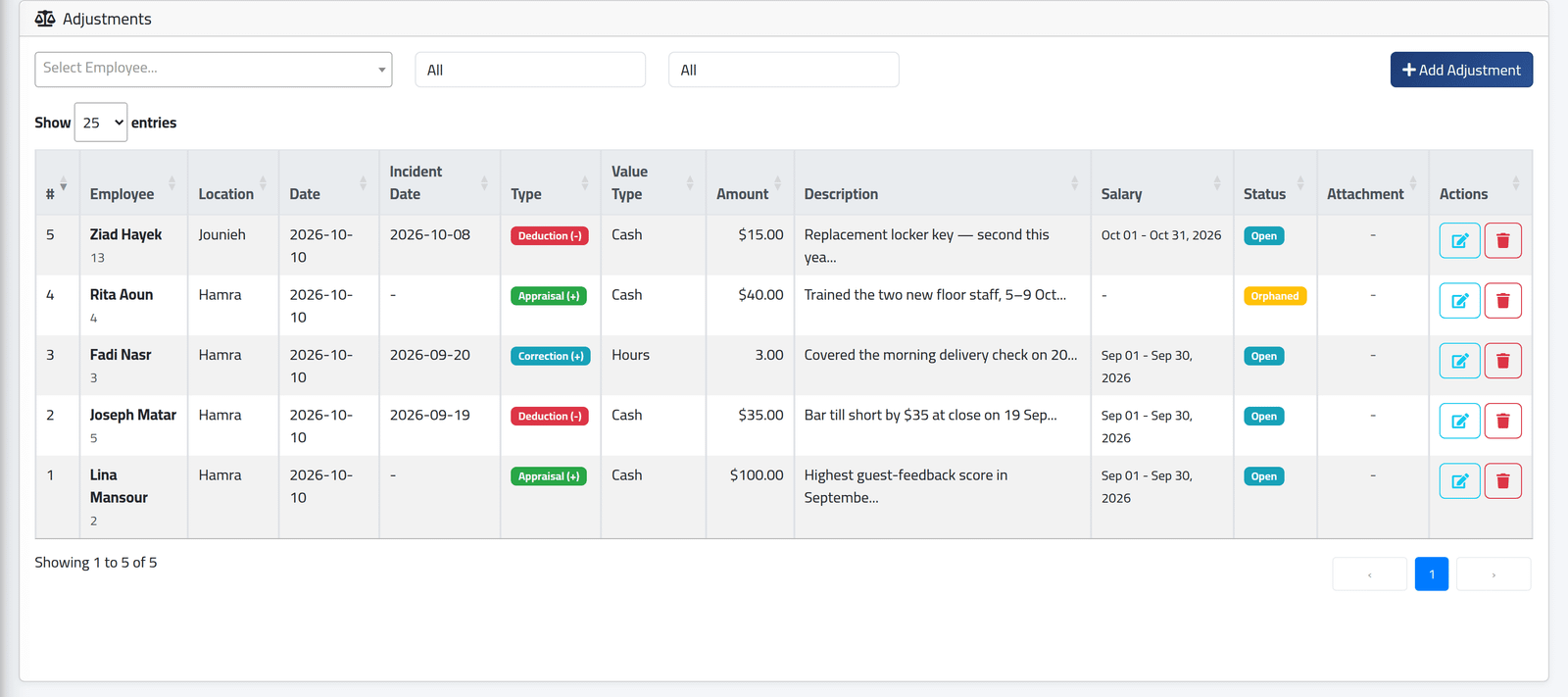
Every adjustment for your branches, newest first, wherever it was added. Narrow it by employee, by status and by type.
Status says where each one stands:
- Orphaned — waiting: no salary period has picked it up yet;
- Open — part of an open period, shown in Salary;
- Closed — part of a closed period; it can no longer be changed;
- Dismissed — the person’s salary for that period was dismissed.
2Add one
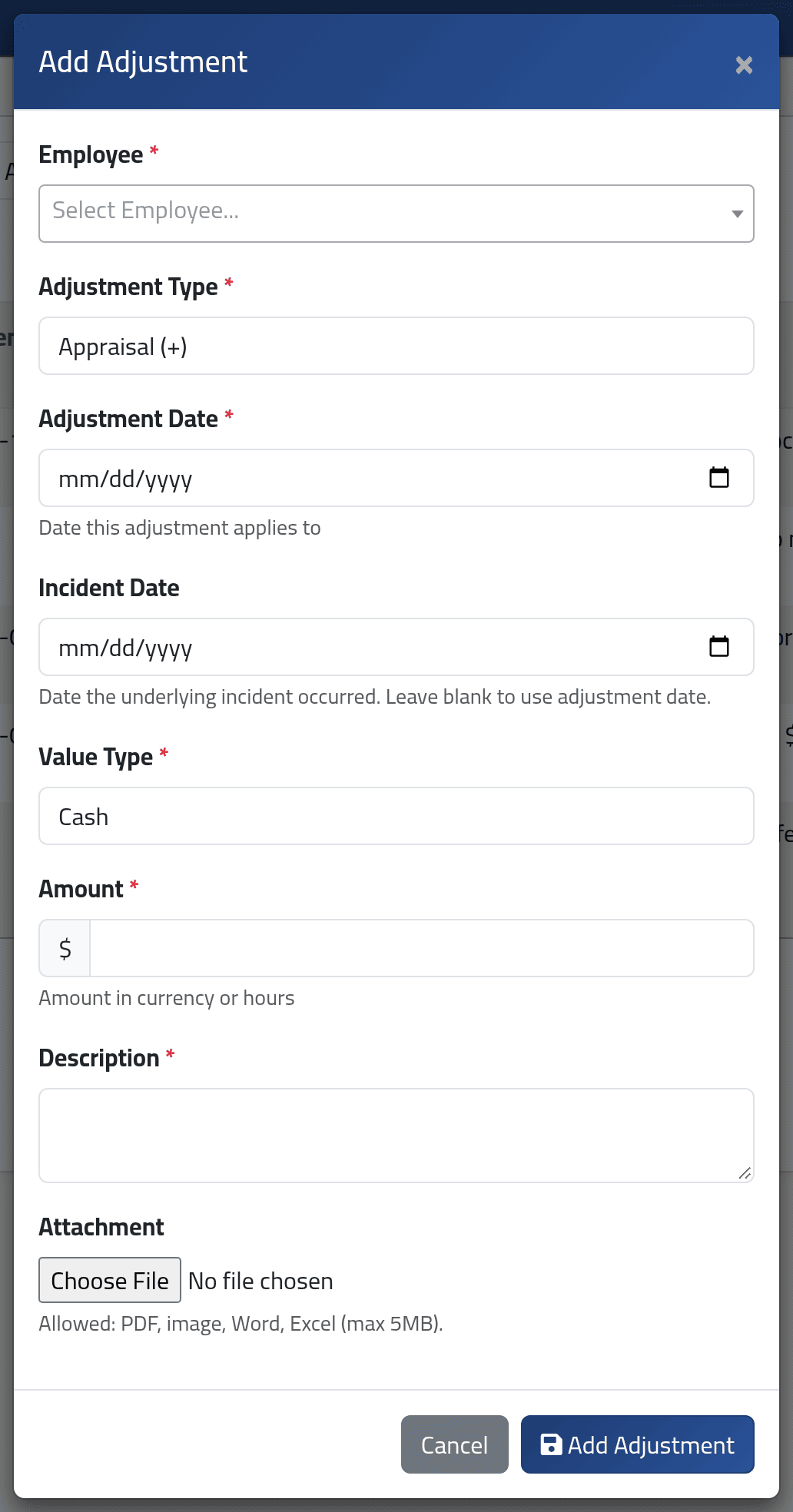
Click Add Adjustment.
- Employee.
- Adjustment Type — Appraisal (+) or Deduction (-).
- Adjustment Date — today or later. This date decides which salary period it goes into.
- Incident Date — when it happened, before today. Optional.
- Value Type — Cash, or Hours for someone paid by the hour (the choice appears only for them).
- Amount — zero or more. A deduction is entered as a positive amount; the type does the subtracting.
- Description — the reason, required.
- Attachment — if your company requires one.
Click Add Adjustment.
3Or add it from the person's file
The same adjustments, for one person, are on their file: open it (see Finding an employee) and click the Adjustments tab. Adding works the same way.
If your account can only view employee files, the tab has no edit or delete buttons. Use this screen instead.

4Change or delete one
The pencil and the bin work while an adjustment is Orphaned or Open. Changing the date moves it: into the open period covering the new date, or back to Orphaned if there is none. It is never moved into a closed period.
What happens next
A new adjustment is Orphaned — even when a period covering its date already exists. It joins that period when the period is recalculated (see Recalculating and locking a period), or when the period is created if it does not exist yet. From then on it is in the person’s Net Total.
In the picture, Rita Aoun’s appraisal is still Orphaned: Hamra’s October period exists but has not been recalculated since. Ziad Hayek’s deduction joined Jounieh’s October when that period was recalculated.
An Orphaned adjustment is in nobody’s salary. Before closing a period, filter this list by Orphaned and recalculate any period that should have picked one up.
If it goes wrong
| What you see | What it means |
|---|---|
| The adjustment date field must be a date after or equal to today. | This screen cannot date an adjustment in the past. For a period whose dates have passed, use Adjusting one period’s pay. |
| Adjustment date must be after the last closed salary period ending on … | That date belongs to a closed period. |
| Hours value type is only available for hourly employees. | Enter the amount in Cash. |
| An adjustment stays Orphaned | No period covers its date yet, or the period has not been recalculated since. |
| Cannot edit closed adjustment. | Its period is closed. A change now is a post-close adjustment on the period itself. |
| There is no Correction type | Corrections are made on the period: Adjusting one period’s pay. |