ClockWise HRGuideLeave balances
Leave balances
For every employee and leave type: how many days they are allowed in the leave year, how many they have used, and how many remain — on any date you choose.
Balances come from the allowances on each employee’s file — see Recording leave. An employee with no allowance set shows 0 everywhere.
1Choose
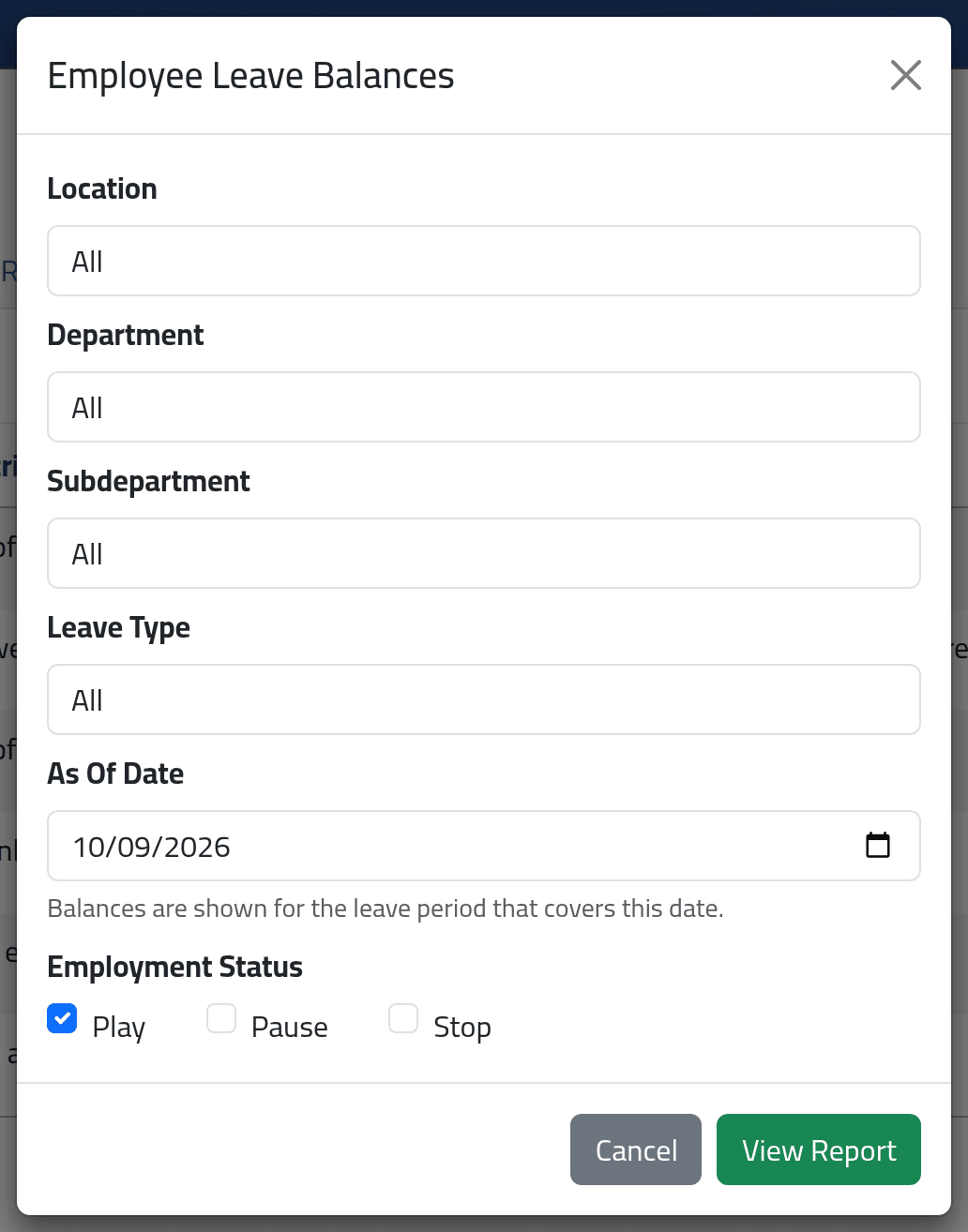
On Reports, List Reports, click Generate Report beside Employee Leave Balances. Choose the branch, department, sub-department, leave type, the As Of Date — the balance is for the leave year containing it — and which employment statuses to include. Click View Report.
2Read it
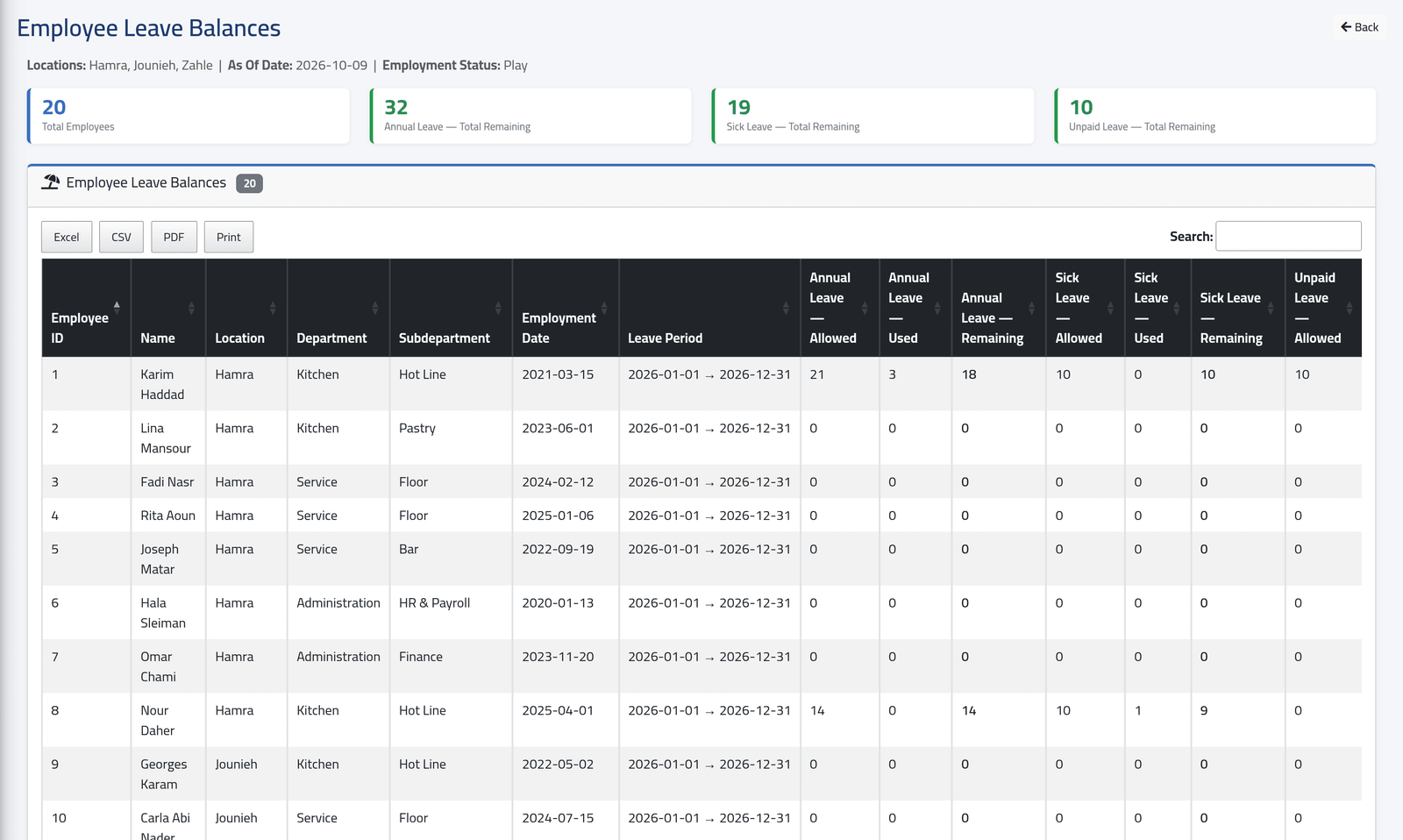
At the top, the number of employees and, per leave type, the days remaining across all of them. Then each employee with their leave year and, for each type, Allowed, Used and Remaining. Karim Haddad, here, has used 3 of his 21 annual days.
What happens next
Excel, CSV, PDF and Print export the table.
Every recorded leave day counts as a whole day, whatever its hours, and remaining never goes below 0 — an employee who took more than allowed shows 0, not a negative figure. Check their file for the detail.
If it goes wrong
| What you see | What it means |
|---|---|
| An employee shows 0 allowed for every type | Their allowances are not set for that leave year. |
| A leave type is missing | Choose All under Leave Type. |