ClockWise HRGuideThe dashboard
The dashboard
Four counts for this month, six charts for the last thirty days, and the one place ClockWise tells you a clocking machine has stopped sending punches.
Nothing to prepare. The dashboard is the first page after you sign in, and Dashboard at the top of the menu brings you back to it.
Everything on it is limited to the branches your account covers. Two people can open the dashboard at the same moment and see different numbers.
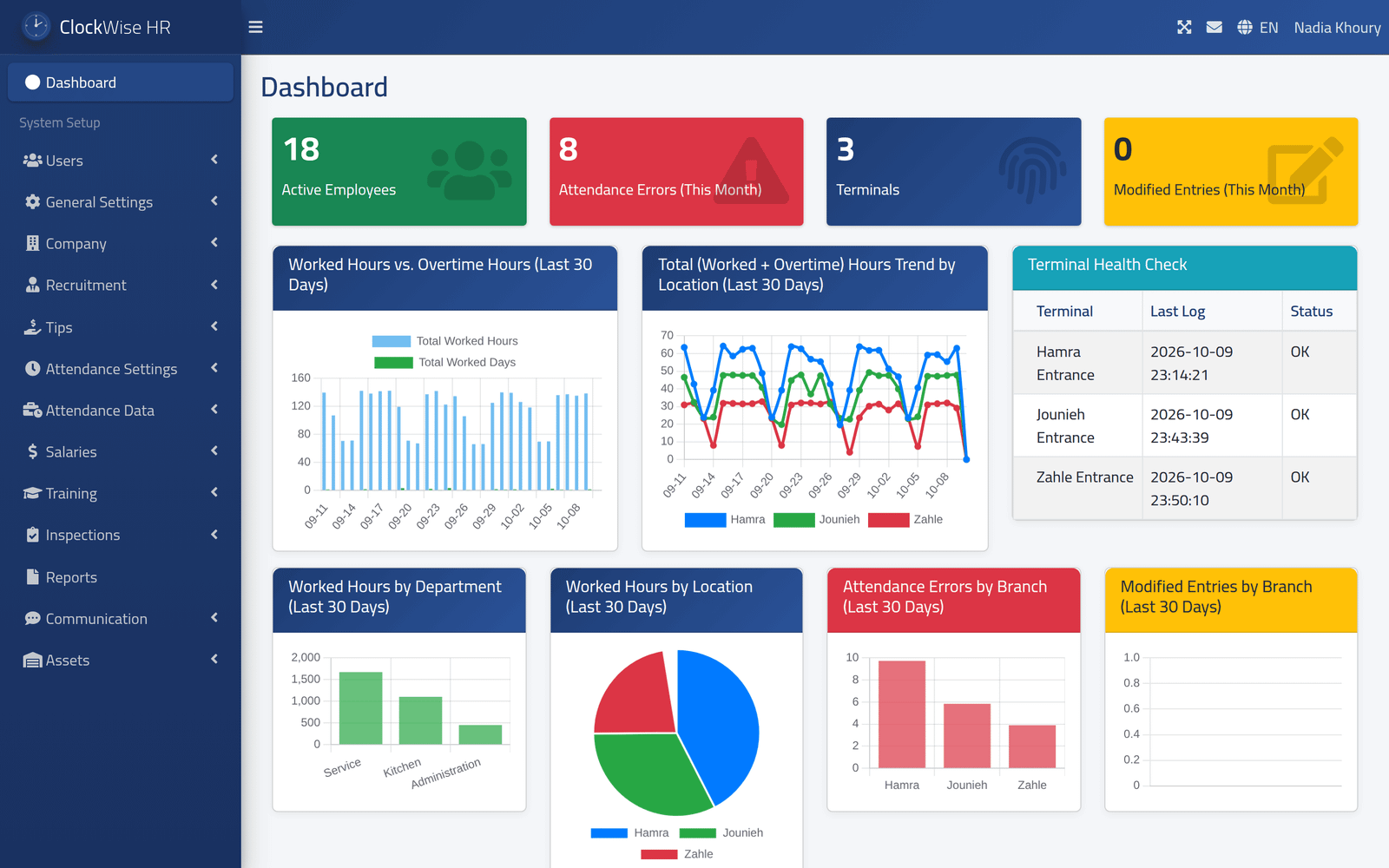
1Look at the whole page
The numbers arrive a moment after the page — grey placeholders show while they load.
2Read the four tiles
- Active Employees — people whose status is Play. Anybody on Pause or Stop is not counted.
- Attendance Errors (This Month) — days since the 1st that could not be worked out. Nearly always an odd number of punches — somebody punched in and not out — and occasionally a working day with no shift set in the person’s schedule.
- Terminals — clocking machines in your branches.
- Modified Entries (This Month) — days since the 1st that somebody has corrected by hand.
Attendance Errors does not count absences. A working day with no punches at all is a different kind of error and is not in this number. To see every kind, use Reading a day’s attendance.

3Check that every machine is sending punches
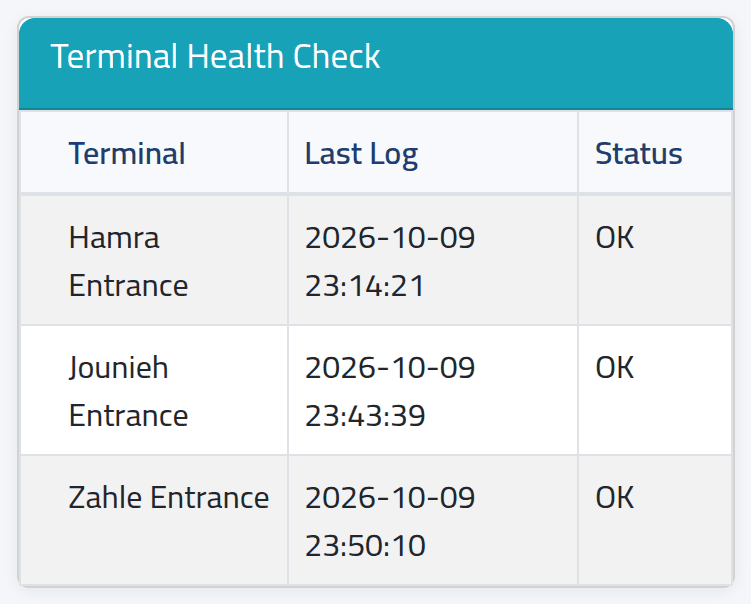
Terminal Health Check lists each machine and the time of the last punch it sent.
- OK — a punch arrived within the last twelve hours.
- No logs received for 12+ hours. — worth a look.
- No logs received for 24+ hours. — almost certainly a problem: the machine is off, unplugged, or cannot reach ClockWise.
- No logs received yet (check connection). — the machine has never sent one.
A silent machine does not raise an alarm anywhere else. The punches it fails to send simply never arrive, and the first anybody hears of it is a row of absences in next week’s attendance. This table is the early warning — read it every morning.
A branch that is closed overnight or for the weekend shows the warning for reasons that have nothing to do with the machine.
4Read the latest punches
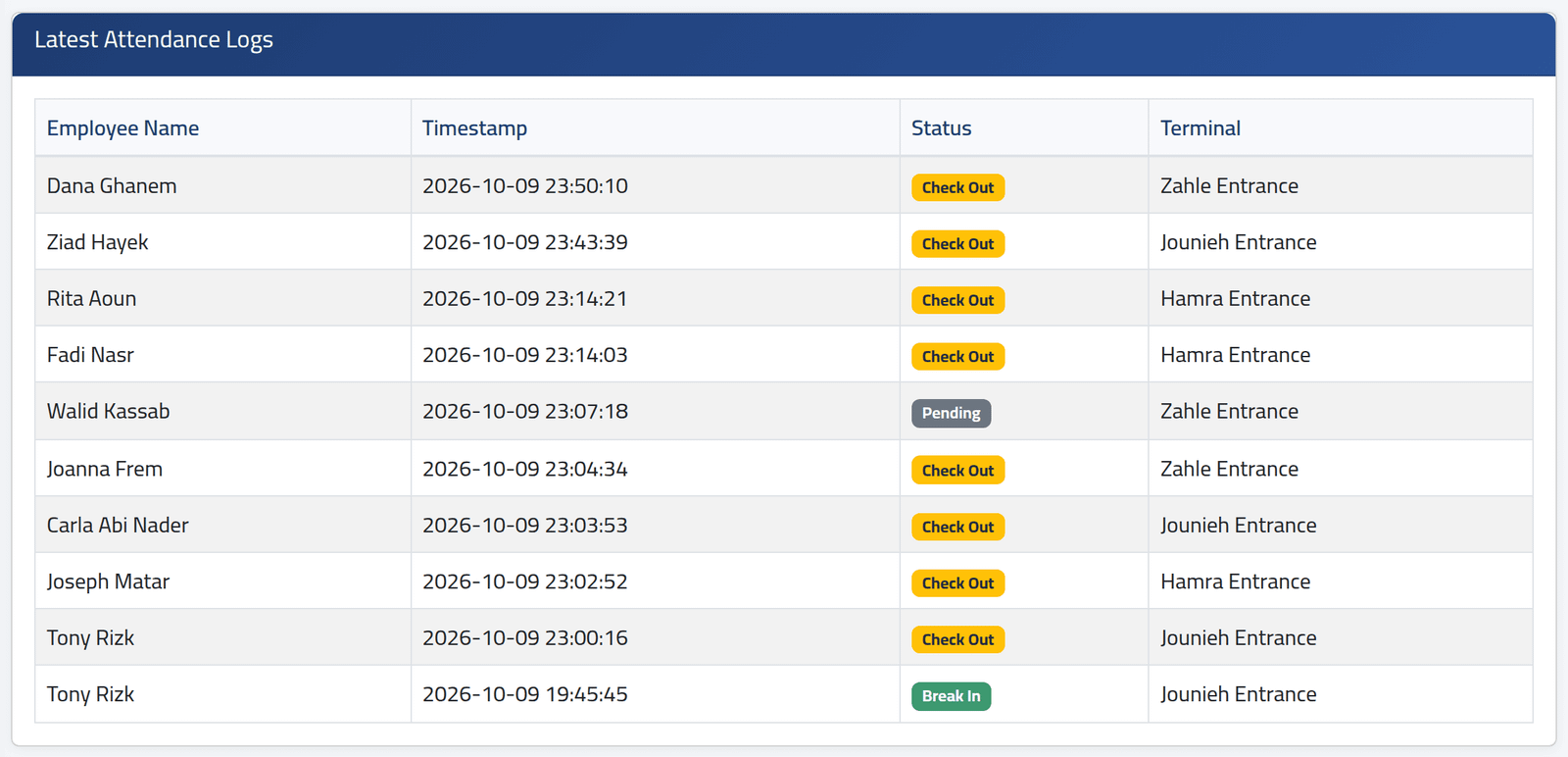
Latest Attendance Logs, further down, shows the ten most recent punches, newest first: who, when, which machine, and how the punch was read — Check In, Check Out, Break In, Break Out.
A punch marked Pending has arrived but has not been turned into attendance yet. That happens every two hours.
What happens next
Nothing on the dashboard changes anything. Use it to decide where to look: the errors go to Reading a day’s attendance, a silent machine to whoever looks after the machines.
The six charts cover the last thirty days, counted back from today, for your branches: hours worked, the trend per branch, hours by department and by branch, errors by branch and corrections by branch.
In the first chart, Worked Hours vs. Overtime Hours, the second set of bars is labelled Total Worked Days. It is overtime hours — the label is wrong, the numbers are not.
If it goes wrong
| What you see | What it means |
|---|---|
| The numbers are for the wrong branches | Your account covers different branches from the ones you expected. See Deciding what someone can see. |
| A machine you know is working shows a warning | Nobody has punched on it for twelve hours — normal for a branch that is closed. |
| A card called Background Jobs Status appears | ClockWise is still working through a recalculation somebody started, or some of that work failed. Wait for it to clear; if it shows failures, tell your administrator. |
| The card offers Stop All Jobs | Do not press it unless your administrator asks you to. It deletes every waiting job — recalculations included — for everybody, not only yours. |