ClockWise HRGuideAdding a shift
Adding a shift
A shift is the yardstick a day is measured against: when work starts and ends, which punches count, how long a break may be, and when extra time becomes overtime.
Decide the working hours, how early people may punch in and how late they may punch out, the break allowed, and when overtime should start counting.
There is no need to add a “day off” shift: Day Off is built in. It does not appear on this list, but it is always offered when you build a schedule.
1Open the list of shifts
In the menu on the left, under Attendance Settings, click Shifts.
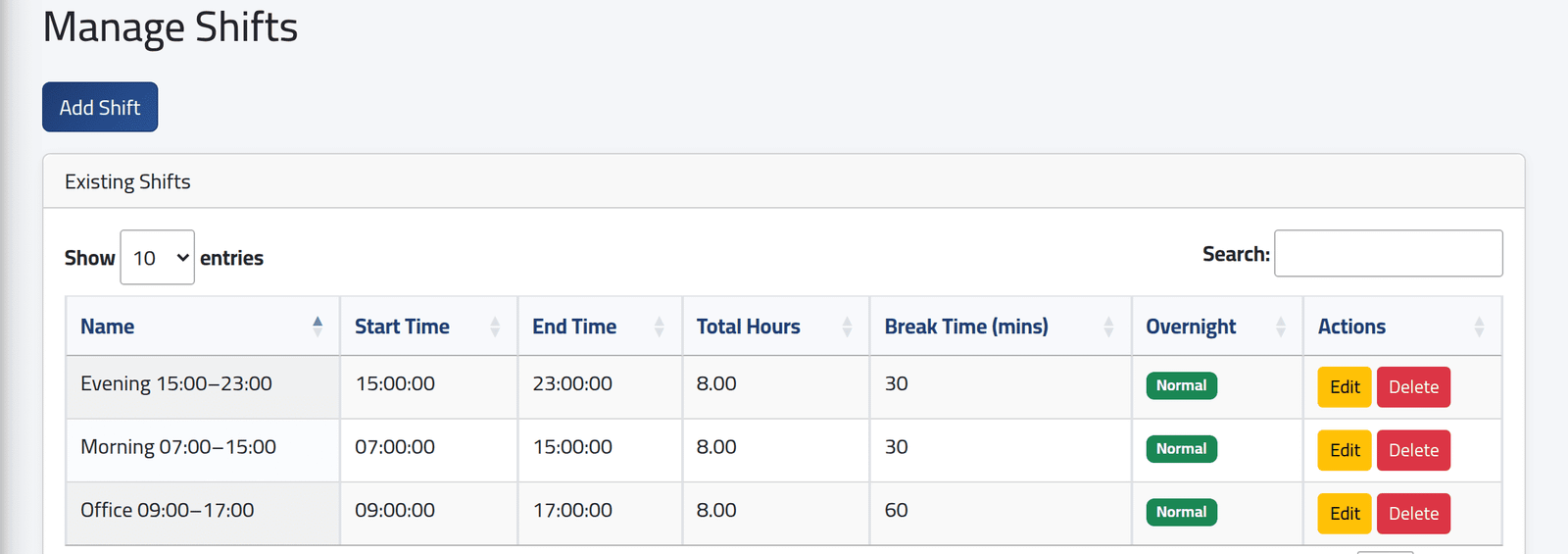
2Start a new shift
Click Add Shift and give it a Shift Name that says what it is — including the hours helps, because the name is all a schedule shows.
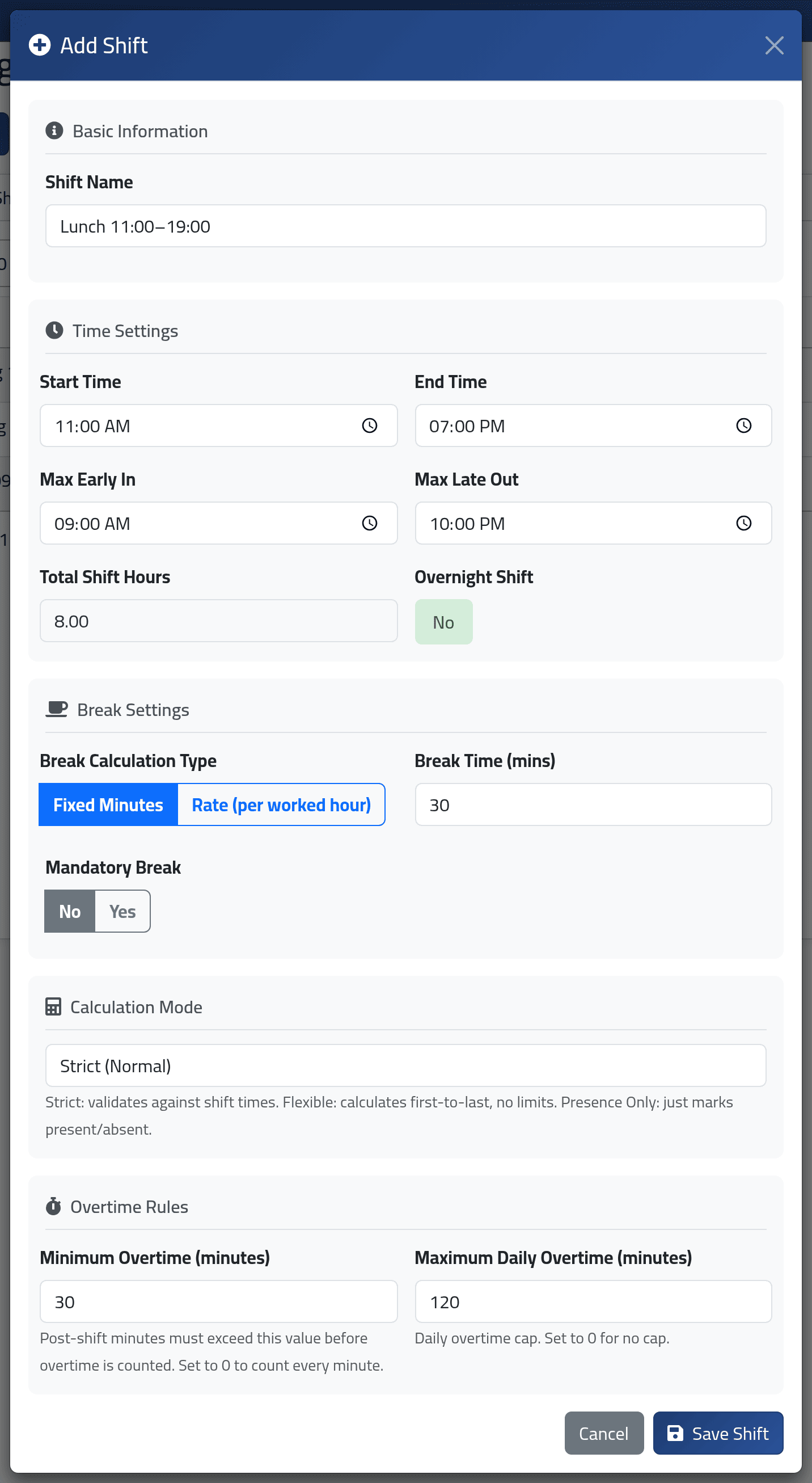
3Set the times
- Start Time and End Time — the working hours. A shift that ends after midnight is marked Overnight Shift by itself.
- Max Early In and Max Late Out — the window in which punches belong to this shift.
A punch outside the window is not counted at all. Somebody who punches in at 04:50 for a shift whose Max Early In is 05:00 has, as far as ClockWise is concerned, not punched in. Make the window wide enough for real mornings — but not so wide that it reaches into the next day’s shift.
4Set the break
Break Calculation Type:
- Fixed Minutes — Break Time (mins) is allowed per day.
- Rate (per worked hour) — so many minutes per hour worked, for people whose shifts vary in length.
Break time within the allowance costs nothing. Break time beyond it is taken off the hours worked.
Mandatory Break: when Yes and the person punched no break at all, the allowed break is deducted anyway, as a penalty.
5Choose how the day is calculated
Calculation Mode:
| Mode | What ClockWise does |
|---|---|
| Strict (Normal) | Measures against the shift: late arrival, early leave, breaks, overtime. Time before the start is not counted as work. |
| Flexible (First-to-Last) | Counts from the first punch to the last. No lateness, no breaks, no overtime. |
| Presence Only | Only records that the person came. No hours at all; a day with no punches is a day off, not an absence. |
Presence Only records no hours worked. Somebody paid hourly on a Presence Only shift is paid nothing for those days. Use it only for people on a fixed or daily salary whose hours do not matter.
6Set the overtime rules
- Minimum Overtime (minutes) — staying later than this many minutes after the end is overtime; staying less is nothing. Once past the minimum, every minute counts, not only those beyond it.
- Maximum Daily Overtime (minutes) — the most a single day can earn. 0 means no limit.
Overtime is only counted in Strict mode, and only paid to people on an hourly salary — see Setting an employee’s pay.
7Save
Click Save Shift.
What happens next
The shift can now be chosen in anybody’s schedule. Nothing is calculated with it until somebody is scheduled on it — see Giving someone a schedule.
If it goes wrong
| What you see | What it means |
|---|---|
| Somebody’s punch is not counted | It fell outside Max Early In to Max Late Out. |
| Two punches a few minutes apart count as one | Punches within five minutes of the previous one are treated as a double press and ignored. |
| Overtime shows 0 although they stayed late | They stayed less than the minimum, or the shift is not Strict. |
| An hourly employee earned nothing | Their shift is Presence Only. |