ClockWise HRGuideThe stock log
The stock log
Every movement of every asset in one list — opening stock, deliveries, losses, what was given out and what came back — with who did it and why.
Your account must be allowed to see the stock log.
1Open it
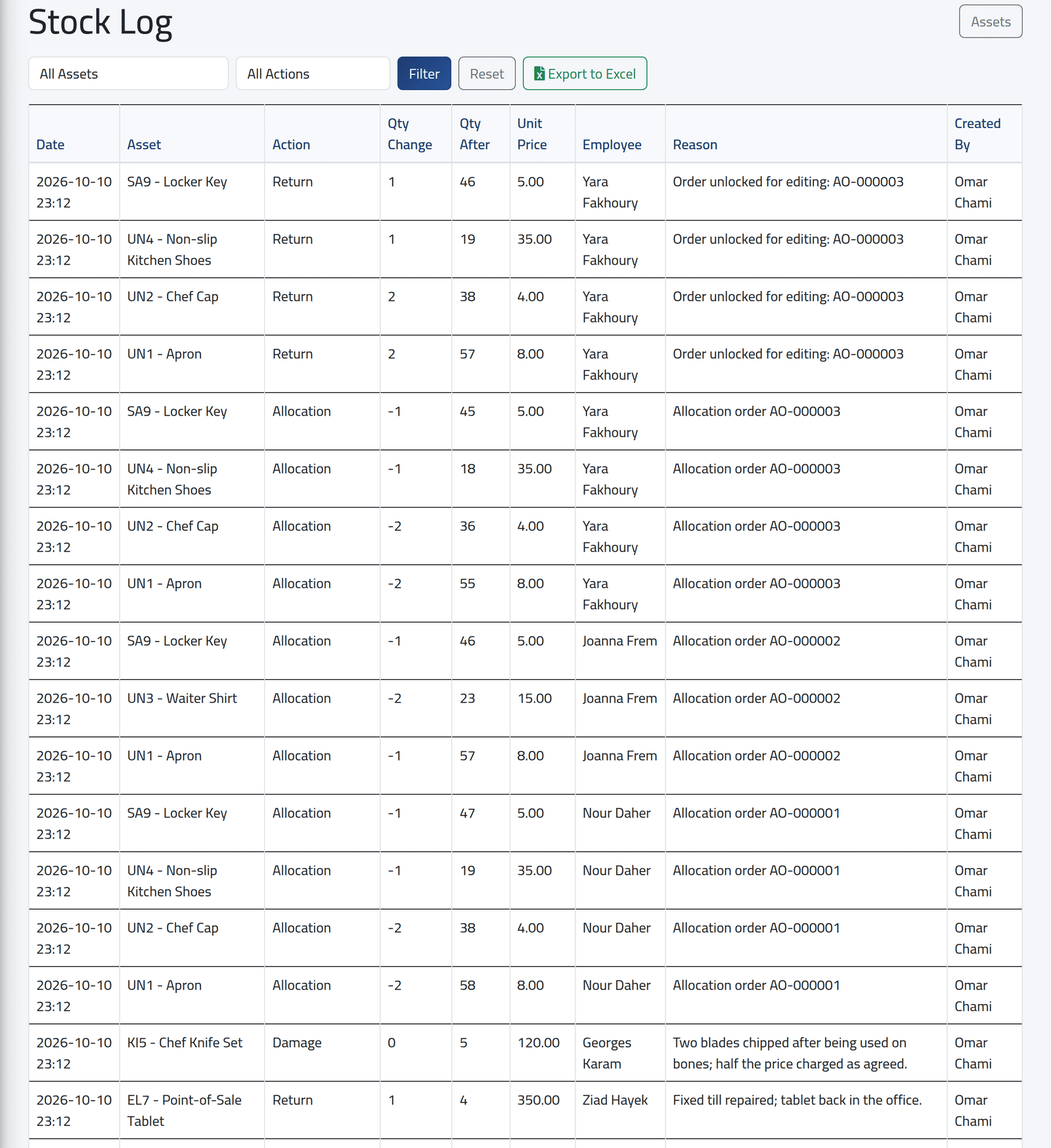
In the menu on the left, under Assets Management, click Stock Log. Newest first: the date, the asset, the Action, the change and the stock after it, the price, the employee, the reason, and who did it.
| Action | What happened |
|---|---|
| Initial | the opening stock, when the asset was added |
| Adjustment (Add) / (Subtract) | a stock adjustment, with its reason |
| Allocation | given out — by itself, or on an order |
| Return | back to stock — returned, or an order unlocked |
| Damage | came back damaged; the stock does not change |
Choose an asset or an action and click Filter; Export to Excel downloads what is shown.
What happens next
Nothing here can be edited: a mistake is corrected by a new adjustment, with its reason. The same list for one asset is on its page — see Giving out an asset and adjusting stock.
If it goes wrong
| What you see | What it means |
|---|---|
| No Stock Log in the menu | Your account may not see the stock log. |