ClockWise HRGuideSigning in for the first time
Signing in for the first time
Your email address, a password your administrator gives you, and — if your account requires it — an authenticator app on your phone, set up before anything else will open.
You need two things from your administrator: the email address your account was created with, and a password. This manual never prints either, and neither should anyone else.
If your administrator has told you that two-factor authentication is required, you also need a phone with an authenticator app — Google Authenticator, Authy or similar. Install it before you begin.
1Open the sign-in page
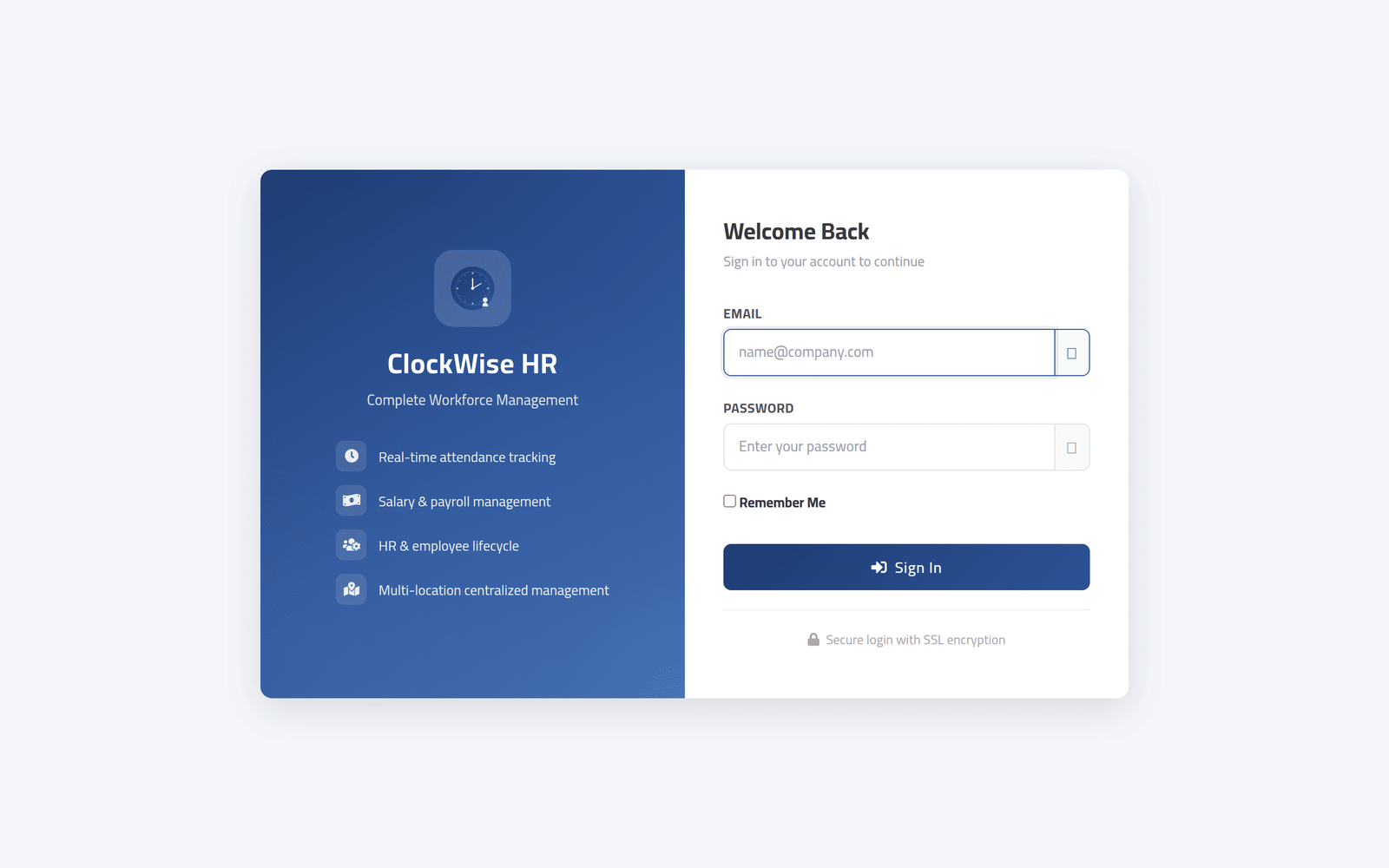
Open the address your administrator gave you. The sign-in page asks for Email and Password.
This page is in English whichever language you use afterwards. You choose your language once you are in — see Finding your way around.
2Sign in
Type your email address and your password, and click Sign In.
Tick Remember Me only on a computer nobody else uses. It keeps you signed in after the browser is closed.
3If two-factor is required, set it up now
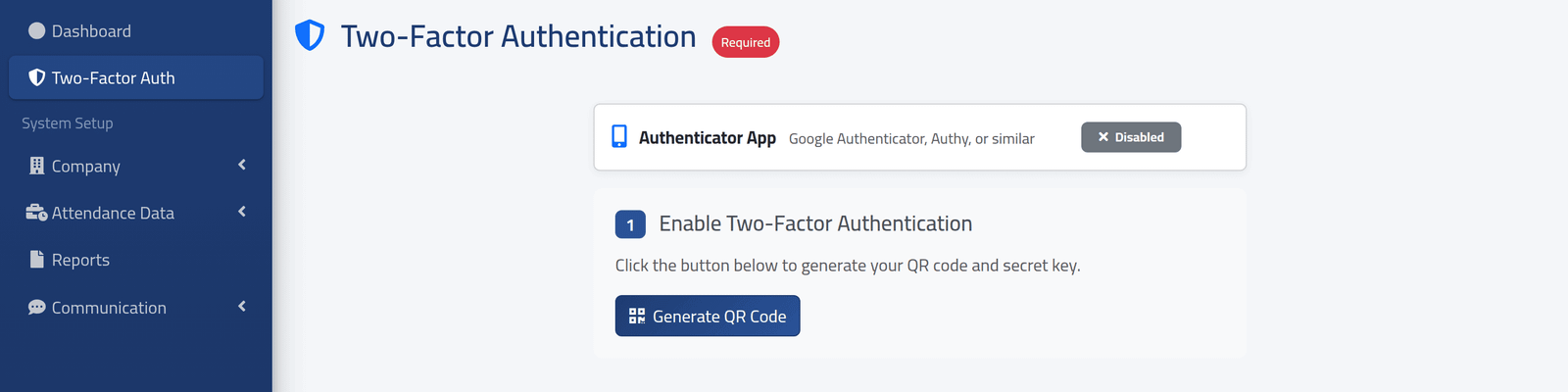
If your account requires two-factor authentication and you have not set it up, ClockWise takes you straight to the Two-Factor Authentication page, marked Required. The sidebar still shows the rest of the system, but every link brings you back here until you finish.
Click Generate QR Code. A QR code and a written key appear.
Two-factor means a password alone is not enough to sign in as you: whoever signs in also needs your phone. Your administrator decides who needs it — for everyone holding a particular role, or for one person.
4Scan the code with your phone
Open the authenticator app, add an account, and scan the QR code. If the camera will not read it, type the key shown under Or enter this key manually: instead.
The app now shows a six-digit code that changes every 30 seconds.
5Confirm it
Type the current six-digit code into the page and click Confirm & Activate.
6Keep the recovery codes
ClockWise shows a list of Recovery Codes. Each one lets you sign in once without your phone.
Store them somewhere safe and private — not in an email to yourself and not on a note beside the computer. If you lose your phone and your recovery codes, only your administrator can let you back in.
What happens next
You land on the dashboard. From now on, signing in asks for your password and then for the six-digit code from your phone. If you do not have the phone, click Use a recovery code instead.
If you leave ClockWise unused for a while — two hours, as it is normally set up — you are signed out and need to sign in again.
If it goes wrong
| What you see | What it means |
|---|---|
| These credentials do not match our records. | The email or the password is wrong. Check for a capital letter or a space at the end. |
| Too many login attempts. Please try again in … seconds. | Five wrong tries in a minute pause sign-in for that email address on that computer. Wait, then try once, carefully. |
| You have forgotten your password | There is no “forgot password” link. Ask your administrator to set a new one for you — they can, from your account’s page. |
| Every page you open takes you back to Two-Factor Authentication | Your account requires two-factor and it is not finished. Complete the steps above. |
| You lost your phone | Sign in with a recovery code, then ask your administrator to reset two-factor for your account so you can set it up on a new phone. |
| A page called System Locked | The ClockWise licence needs attention. Nobody can work until it is fixed — tell your administrator. |