ClockWise HRGuideSetting an employee's pay
Setting an employee's pay
One choice decides what the rate means — fixed, daily or hourly — and only hourly pay earns overtime. Allowances and recurring deductions are added beneath it as add-ons.
You need an account that can see pay, and change it. Without the first you will not see Salary Info at all; without the second its fields are greyed out.
Add-ons are chosen from a list your administrator keeps under General Settings › Salary Add-on Types. If the allowance you need is not on it, it has to be added there first.
1Open Salary Info
On the person’s file, on the Employee Info tab, click Salary Info.
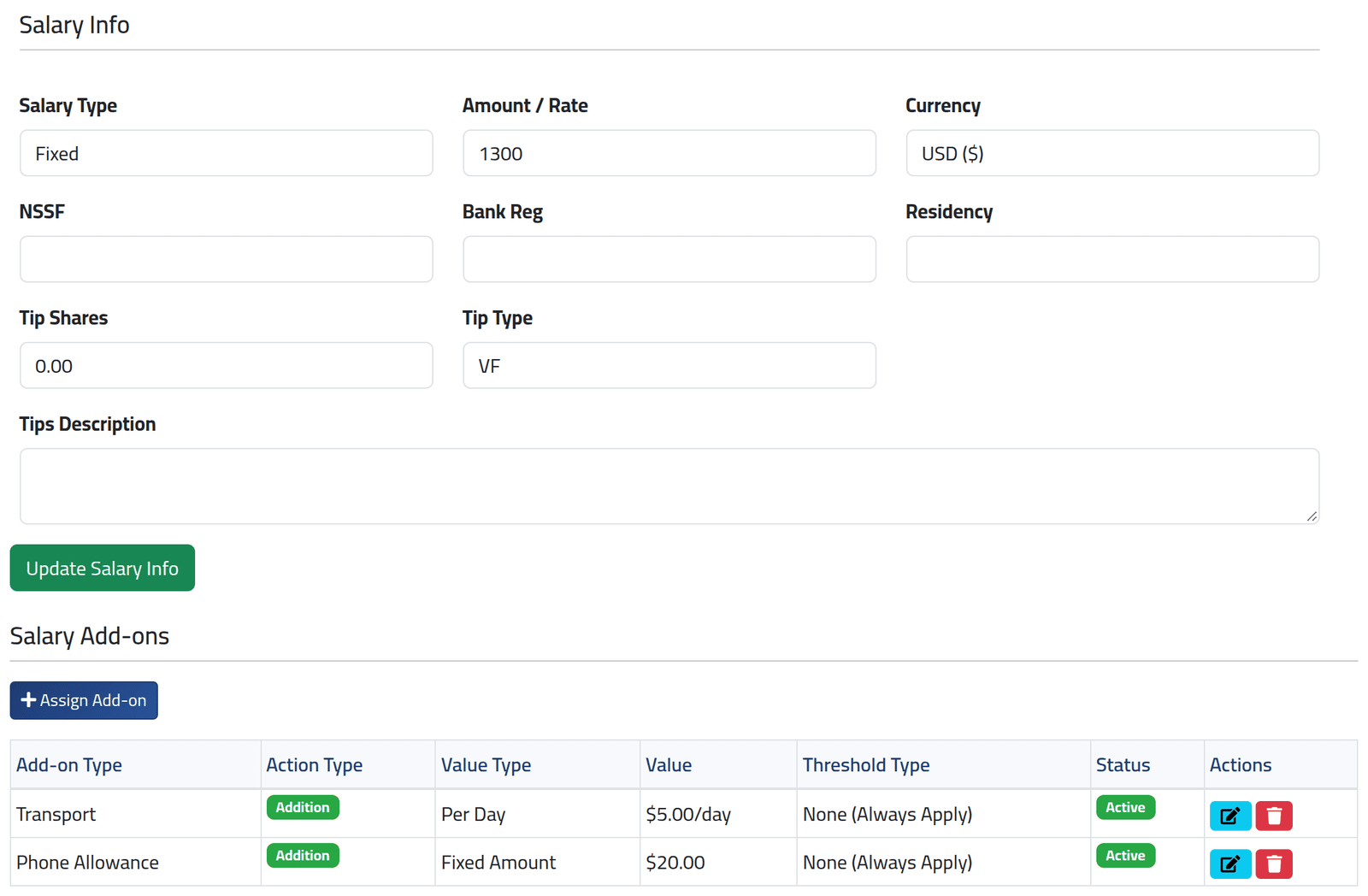
2Choose the salary type
Salary Type decides what the number in Amount / Rate means:
| Salary Type | Amount / Rate is | The person is paid |
|---|---|---|
| Fixed | the monthly salary | that amount, whatever their attendance |
| Daily | pay for one day | the rate for each day they worked |
| Hourly | pay for one hour | the rate for each hour they worked |
Only hourly employees are paid for overtime. ClockWise still records overtime for everyone on fixed and daily pay — you will see it in their attendance — but it adds nothing to their salary. If somebody on a fixed salary is owed for extra hours, it has to be paid another way, for example as an adjustment.
Overtime for hourly employees is paid at the rate your company set in System Settings — one and a half times, in the picture’s company.
3Set the amount and currency
Type the Amount / Rate and choose the Currency. NSSF, Bank Reg and Residency are reference numbers kept on the file.
The tip fields, Tip Shares and Tip Type, belong to the Tips pages of this manual.
Click Update Salary Info.
4Add an allowance or a deduction
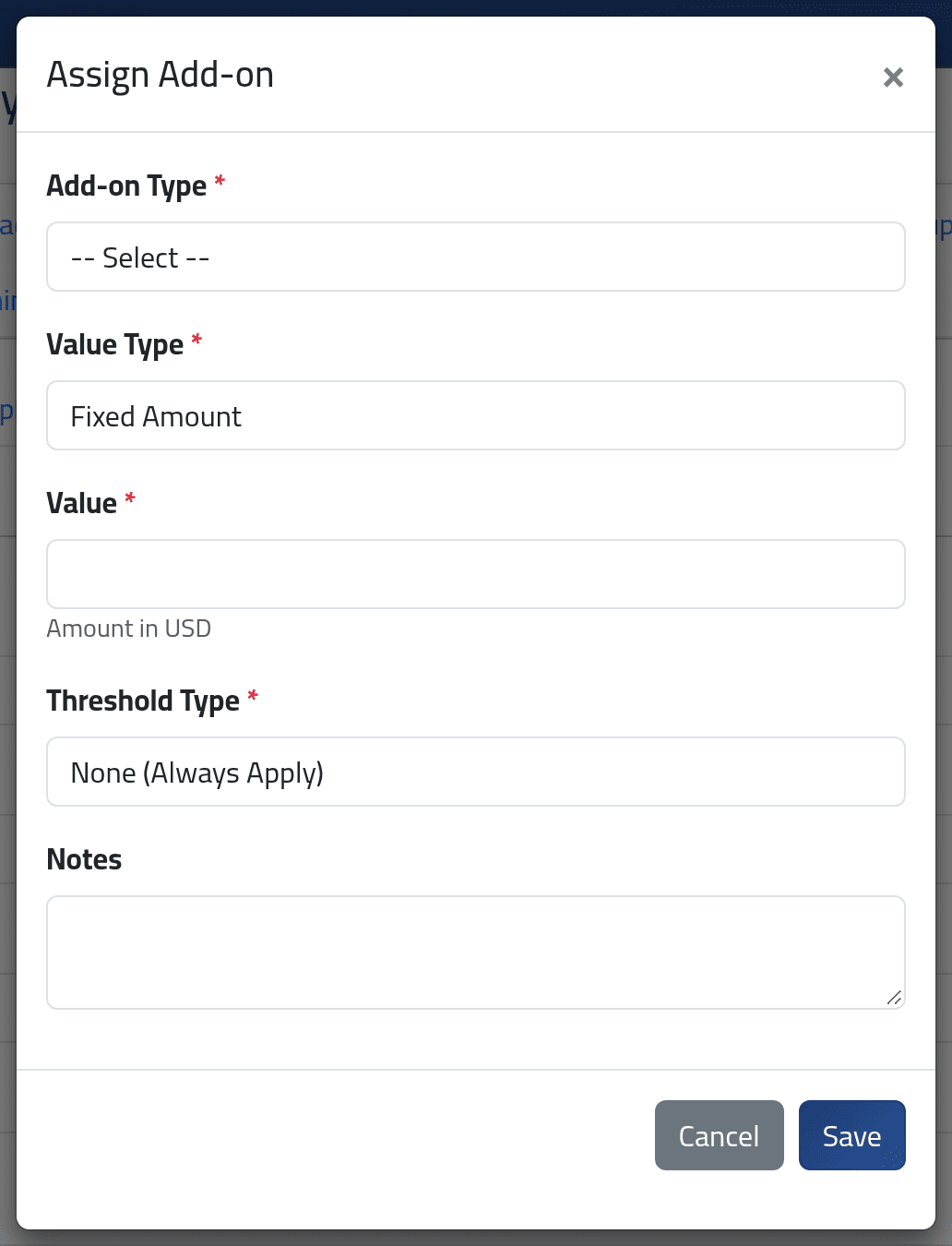
Under Salary Add-ons, click Assign Add-on.
- Add-on Type — the allowance or deduction. Whether it adds to the salary or takes away is decided by the type, not here.
- Value Type and Value — how much:
| Value Type | The add-on is |
|---|---|
| Fixed Amount | the value, once a salary period |
| Percentage | that percentage of the person’s base salary |
| Per Hour | the value for each hour worked |
| Per Day | the value for each day worked — leave days not counted, unless the type says they are; capped at the type’s maximum days |
- Threshold Type — None (Always Apply), or a minimum number of days or hours the person must work in the period before the add-on is paid at all.
Click Save.
What happens next
The add-on appears in the list with its value, threshold and status. Use the pencil to change it or switch it off, and the bin to remove it.
Changes to pay apply to salary periods that are still open, the next time they are calculated. A closed period keeps the figures it was closed with.
If it goes wrong
| What you see | What it means |
|---|---|
| There is no Salary Info | Your account cannot see pay. |
| The fields are greyed out | Your account can see pay but not change it. |
| This add-on type is already assigned to this employee. | Each type can be given to a person once. Edit the one they have. |
| The add-on you need is not in the list | It does not exist yet, or it has been switched off, under Salary Add-on Types. |
| A new employee shows Hourly at 0 | They were added by somebody who cannot set pay. Fill this page in. |