ClockWise HRGuideEmploying a candidate
Employing a candidate
Hire a candidate: the Add Employee form opens filled in from their record, and saving creates the employee with their contacts and papers. If your account may not set salaries, the employee is created with no pay — whatever is typed — and waits for someone who may.
The candidate must be Pending. Your account must be allowed to hire candidates and to add employees.
Check the candidate’s details and attachments first: they are copied as they are.
1Open the form
On the candidate’s profile, click Employ.
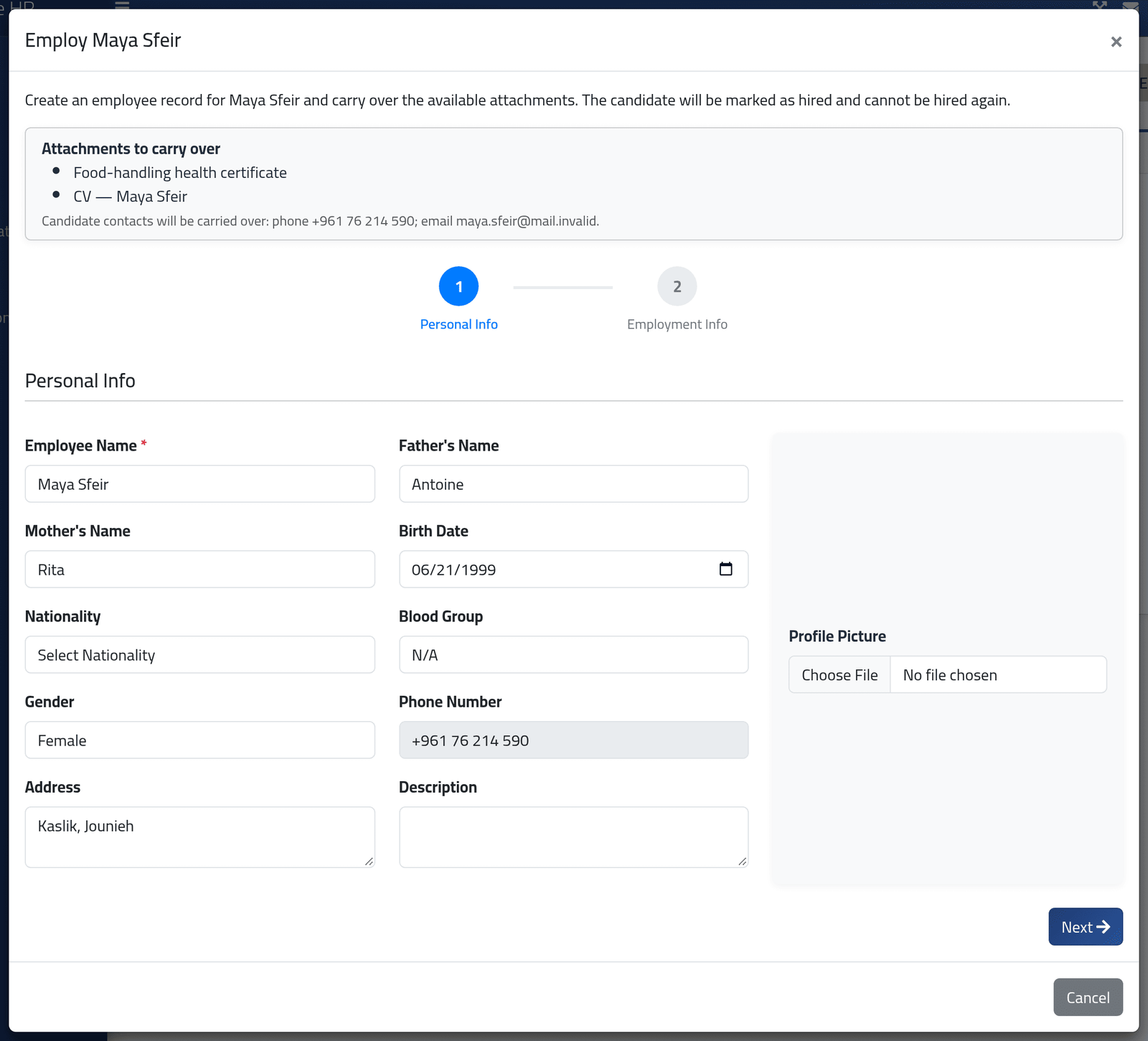
At the top, what will be carried over: the attachments, and the phone and email. Below, step 1 — Personal Info — filled in from the candidate. Correct anything, add a profile picture if you have one, and click Next.
2Employment details
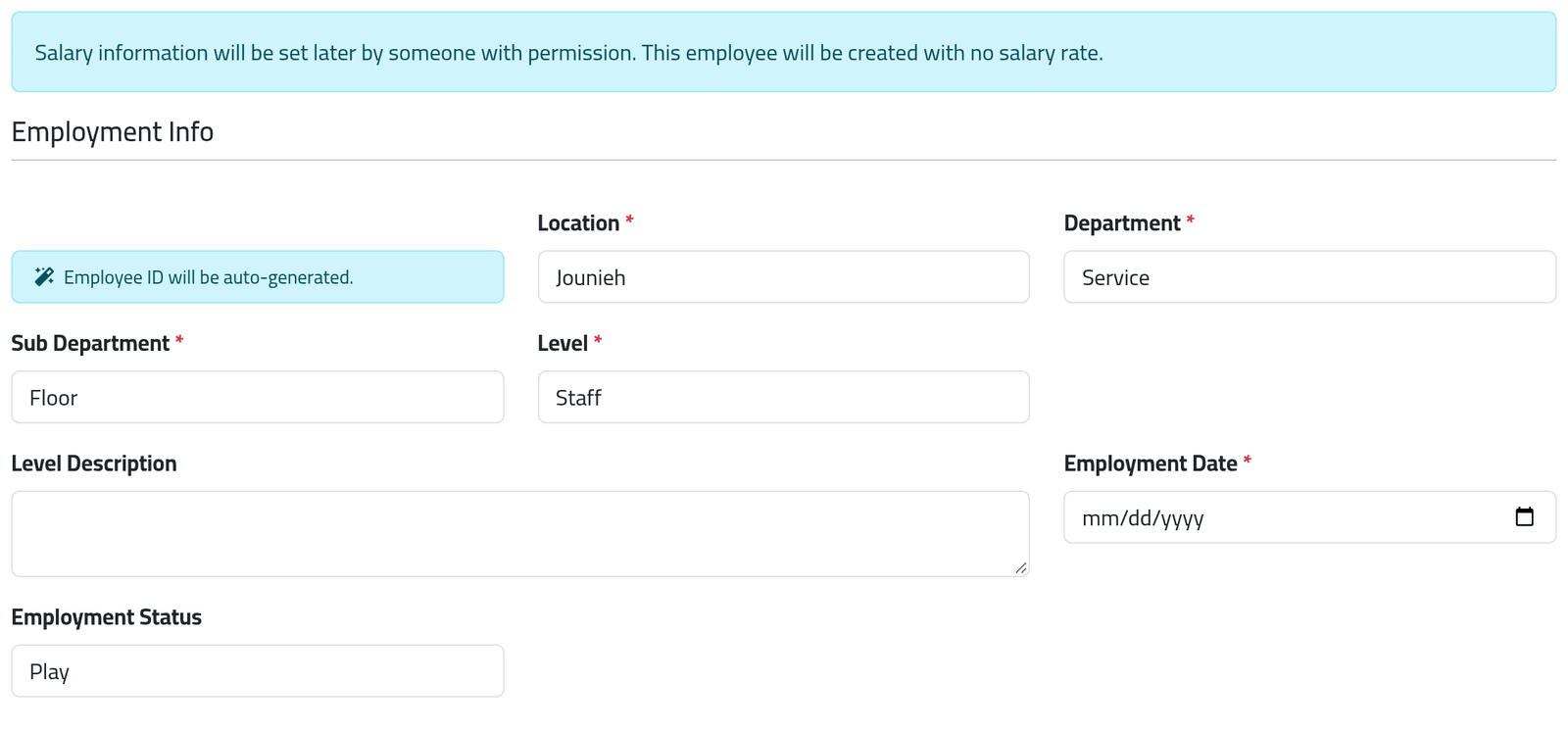
Step 2 — Employment Info — is the same as when an employee is added directly (see Adding an employee): branch, department and sub-department, level, employment date (required) and status. The Employee ID is given automatically if your company works that way.
If your account may not set salaries, the pay is not yours to set — and nothing you send counts. The form says so in a blue box. The employee is created paid by the hour at zero, in the company’s currency, even if a salary reaches the server. Someone allowed to set pay must then complete it — see New hires waiting for a salary.
Click Save Employee.
What happens next
ClockWise creates the employee, and:
- copies the phone (as the default contact) and the email to their file;
- moves every attachment to their Documents;
- marks the candidate Hired, with who hired them and when, and locks the record — it cannot be edited, rejected or deleted, and View linked employee opens the employee.
The new employee’s file opens if your account can see it.
The employee has no schedule yet, so ClockWise works out no attendance for them. Give them one (see Giving someone a schedule), and a payment account (see Payment accounts).
If it goes wrong
| What you see | What it means |
|---|---|
| This candidate is no longer pending or already has a linked employee and cannot be hired. | Somebody hired them first, or they are rejected — reopen them. |
| The employee id has already been taken. | The Employee ID typed is in use. |
| The form reopens with errors listed | A required field is missing — often the employment date. |
| No Employ button | The candidate is not Pending, or your account may not hire or may not add employees. |
| The new employee is paid nothing | Your account may not set salaries. They are on New hires waiting for a salary. |