ClockWise HRGuideAn employee's training record
An employee's training record
The Training tab on an employee's file gathers everything about them: sessions, results, certificates, and which mandatory programs they have or lack — with a way to put them on the next session.
Your account must be allowed to open the employee’s file and to view the training tab; the employee must be in your branches. Certificate columns need permission to see certificates; the Enroll buttons need permission to assign people.
1Open the tab
Open the employee’s file (see Finding an employee) and click the Training tab.
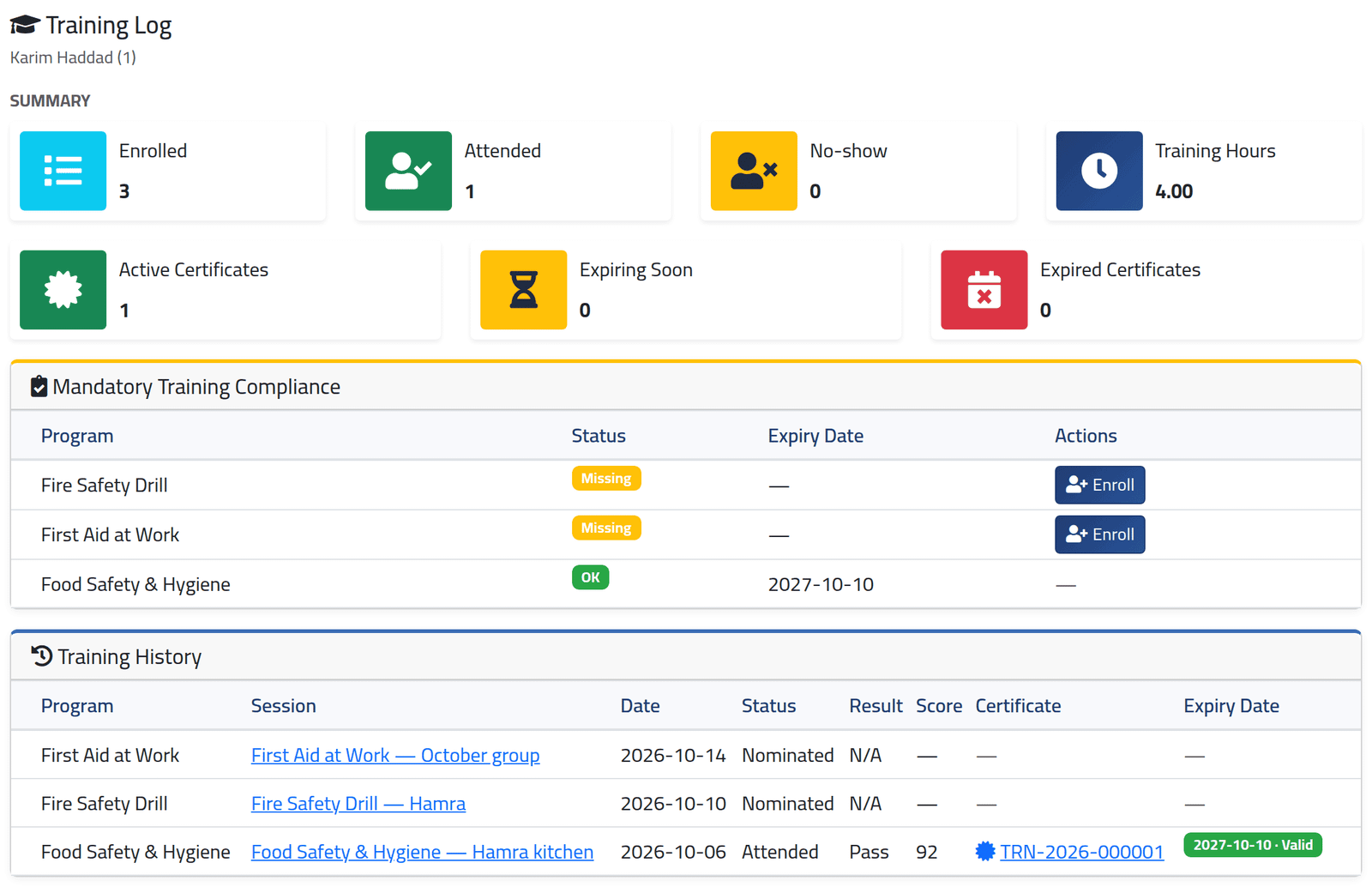
- Summary — sessions enrolled in, attended, missed, the training hours (each attended program’s duration), and certificates active, expiring within 30 days, and expired.
- Mandatory Training Compliance — every active mandatory program: OK, Missing or Expired, with the expiry of the certificate that covers it.
- Training History — every session, newest first, with status, result, score and certificate. A session’s name opens it.
Karim Haddad, in the picture, holds Food Safety until October 2027 and has neither the fire drill nor first aid yet.
2Put them on a session
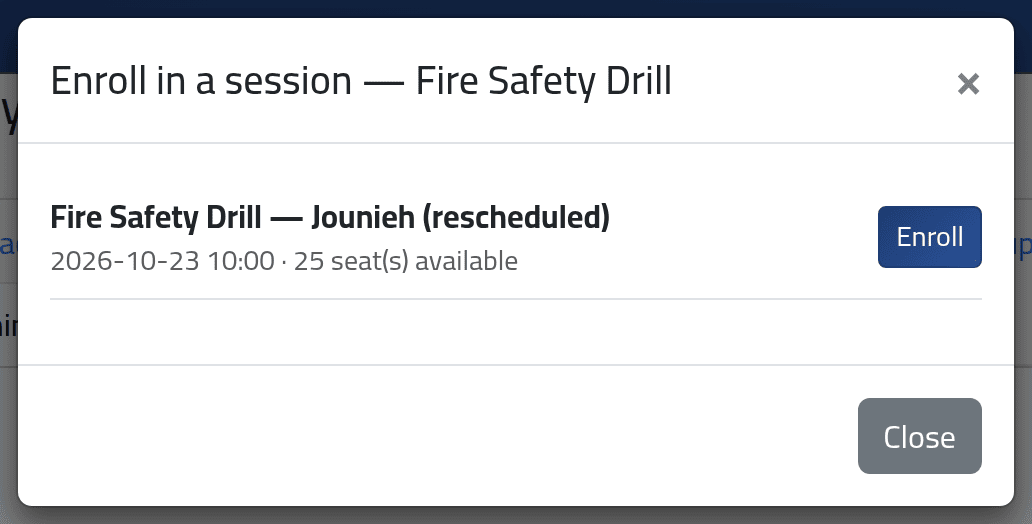
Beside a Missing or Expired program, click Enroll. The list offers that program’s scheduled sessions still to come that have free seats and that the employee is not already on. Click Enroll beside one.
The employee joins it as Nominated — see Assigning people and marking attendance.
3Read compliance with care
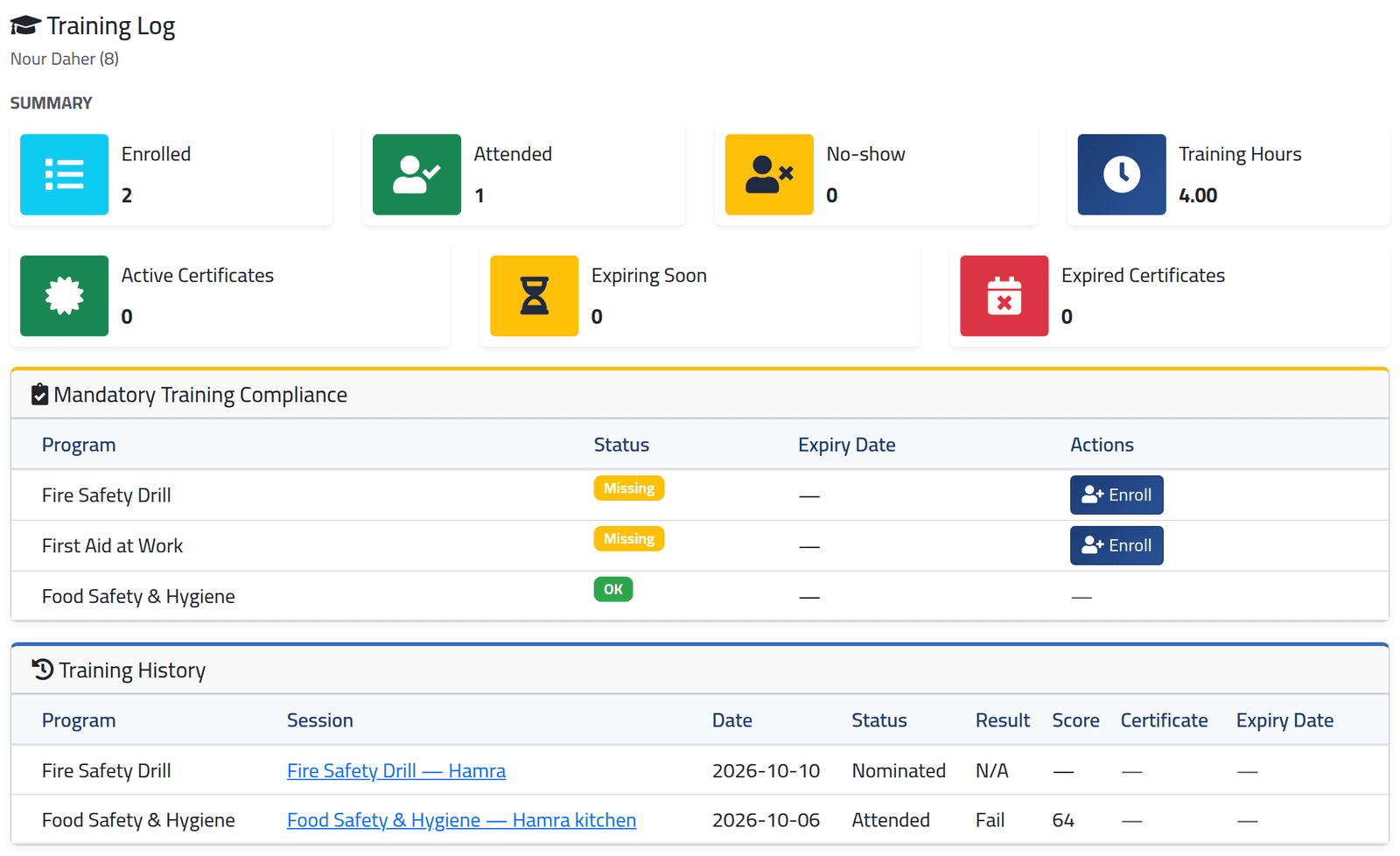
OK means “attended”, not “passed”. A program counts as held once the employee has attended any session of it — whatever the result, and even with no certificate. Nour Daher failed Food Safety & Hygiene with 64 and was given no certificate, yet the program shows OK. Check the history below it before relying on the badge. Expired appears only once a certificate has been issued and has run out.
What happens next
The record updates as attendance is marked and certificates issued. Nothing here changes the employee’s work attendance or pay.
If it goes wrong
| What you see | What it means |
|---|---|
| No Training tab | The Training module is off, or your account may not view employees’ training. |
| No Enroll button | Your account may not assign people to sessions, or the program is not missing. |
| No upcoming sessions for this program. | Nothing of it is scheduled ahead with free seats — schedule one (see Scheduling a training session). |
| A program shows Missing although they are on a session | They are only nominated; it counts once they attend. |