ClockWise HRGuideRoles
Roles
A role is a set of permissions given a name — HR Officer, Payroll Officer — and every user has exactly one. A new role can start as a copy of another; after that the two are separate, and changing one never changes the other.
Adding, editing and deleting roles are separate permissions.
Holding a role gives someone its permissions in every branch they can see. Which branches those are is set per person — see Deciding what someone can see.
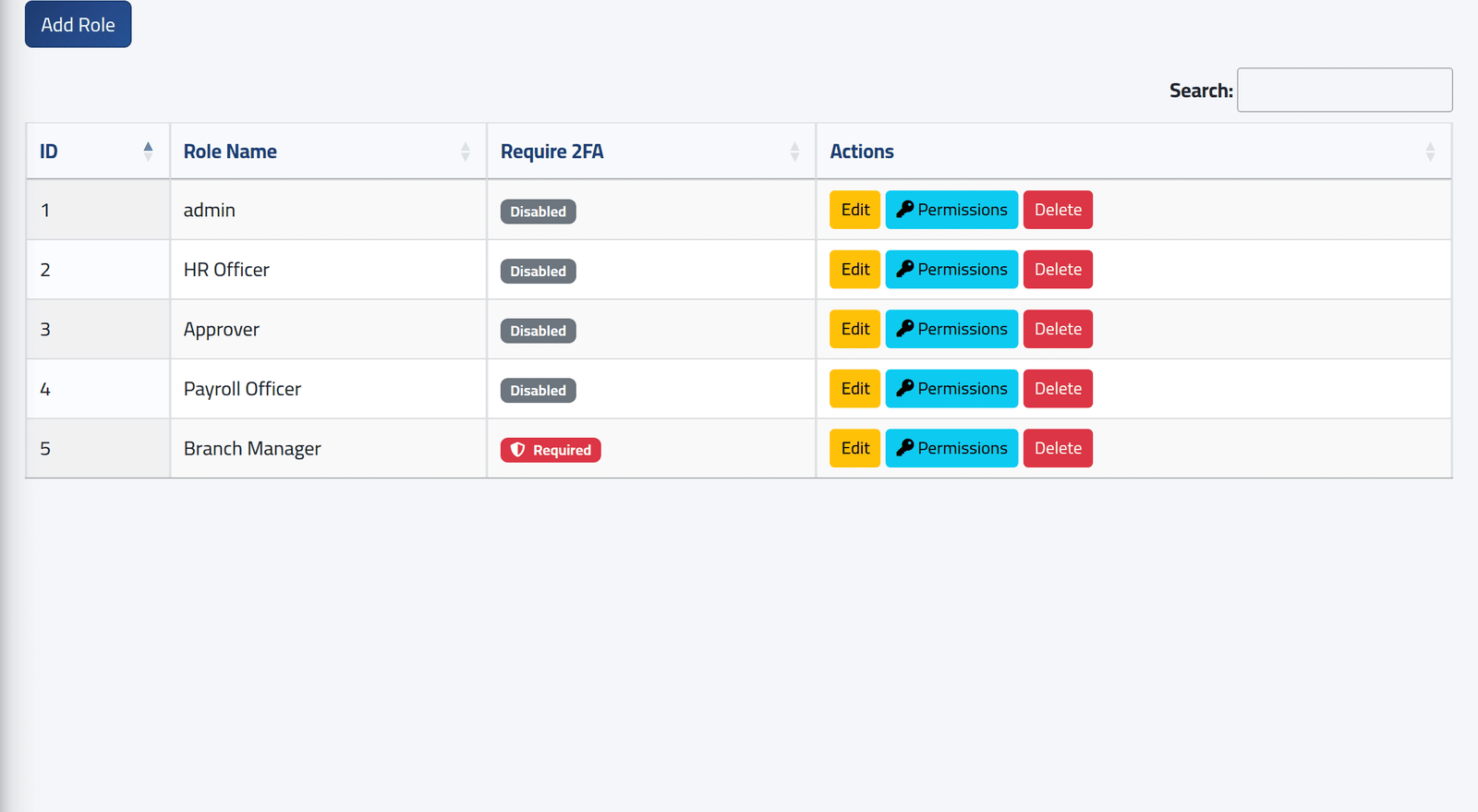
1Open the roles
In the menu on the left, under Users, click Roles.
Each role, whether it requires two-factor, and Edit, Permissions and Delete.
2Add a role
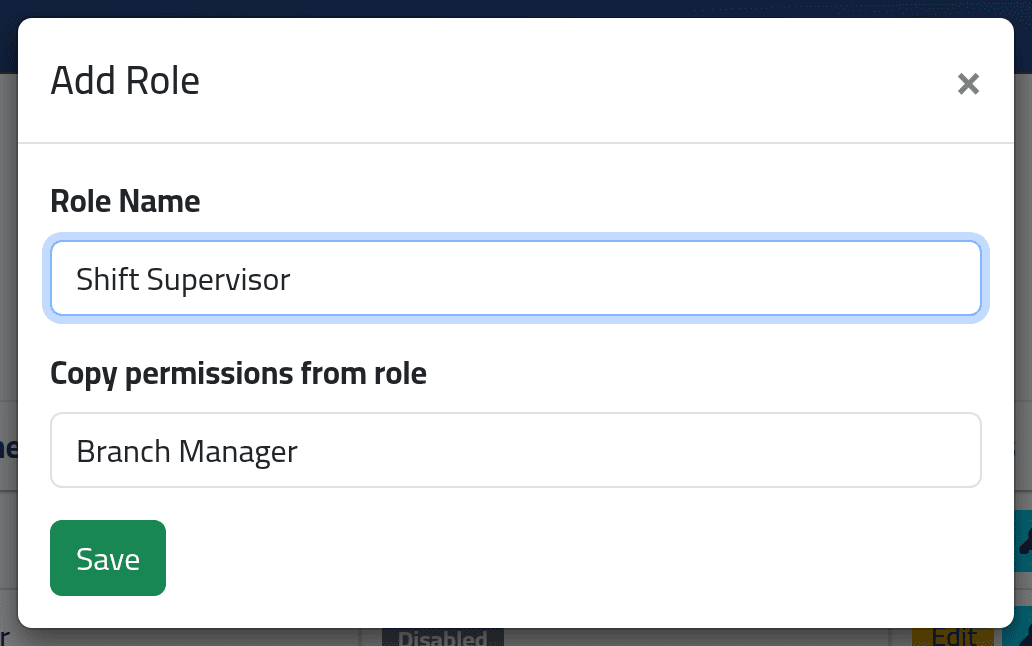
Click Add Role, give a Role Name and, to start from an existing role, choose it in Copy permissions from role. Click Save.
The copy is taken once, now. Changing the original later does not change the new role.
Then set what the role may do — see What a role may do.
3Rename a role
Edit changes the name, and whether it requires two-factor (see Requiring two-factor sign-in).
Do not rename the role called admin. ClockWise looks for that name in a few places — the Locations list shows every branch to it, for one — and those stop working under any other name.
4Delete a role
Delete, then confirm. A role that anyone still holds cannot be deleted: give those users another role first.
What happens next
Users holding a role get its permissions at their next page — no need to sign out.
If it goes wrong
| What you see | What it means |
|---|---|
| Role has … related users | Someone still holds it. Change their role first. |
| The name has already been taken. | Another role has that name. |
| A copied role changed when the original did not | It cannot: the copy is separate. Check you are editing the right one. |