ClockWise HRGuideDay-by-day attendance
Day-by-day attendance
Every day of every employee in a period — punches, hours, breaks, overtime and penalties — as a PDF with one page per employee, or as an Excel sheet to work with.
On Reports, open Attendance Reports. The PDF needs permission to export attendance as well as to run the report.
1As a PDF
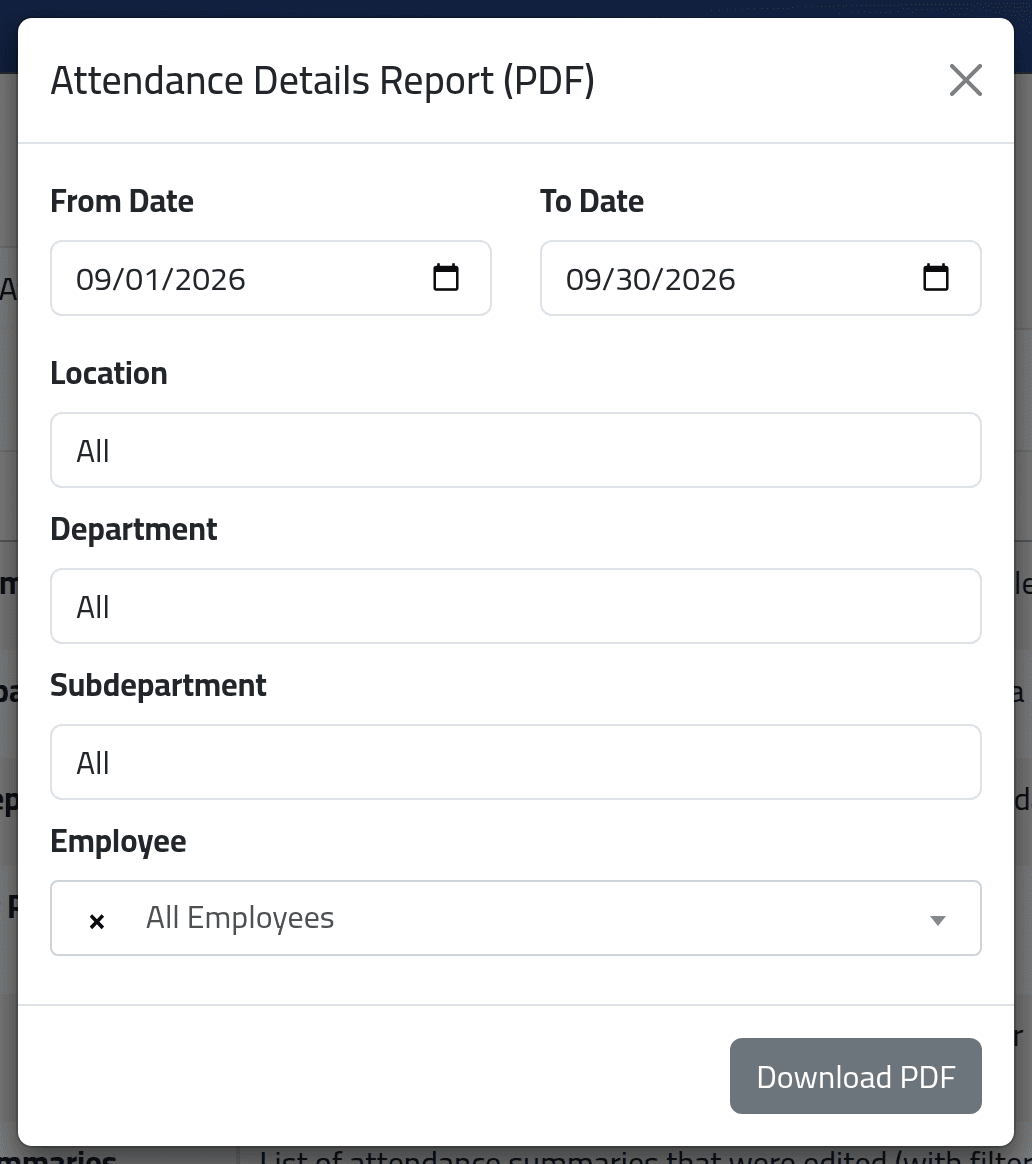
Attendance Details Report (PDF), Download PDF: dates, and a branch, department, sub-department or one employee. Click Download PDF.
Each employee on their own page: their branch and department, then one line per day — the shift, first in and last out, hours worked, the breaks taken, break, overtime and penalty minutes, and the day’s status — and the totals and number of days worked at the end.
Read the totals line with care. Its figures sit one column to the right of their headings: the hours worked appear under the break column, the break under overtime, and so on. Count from the left: hours, break, overtime, penalty.
2As Excel
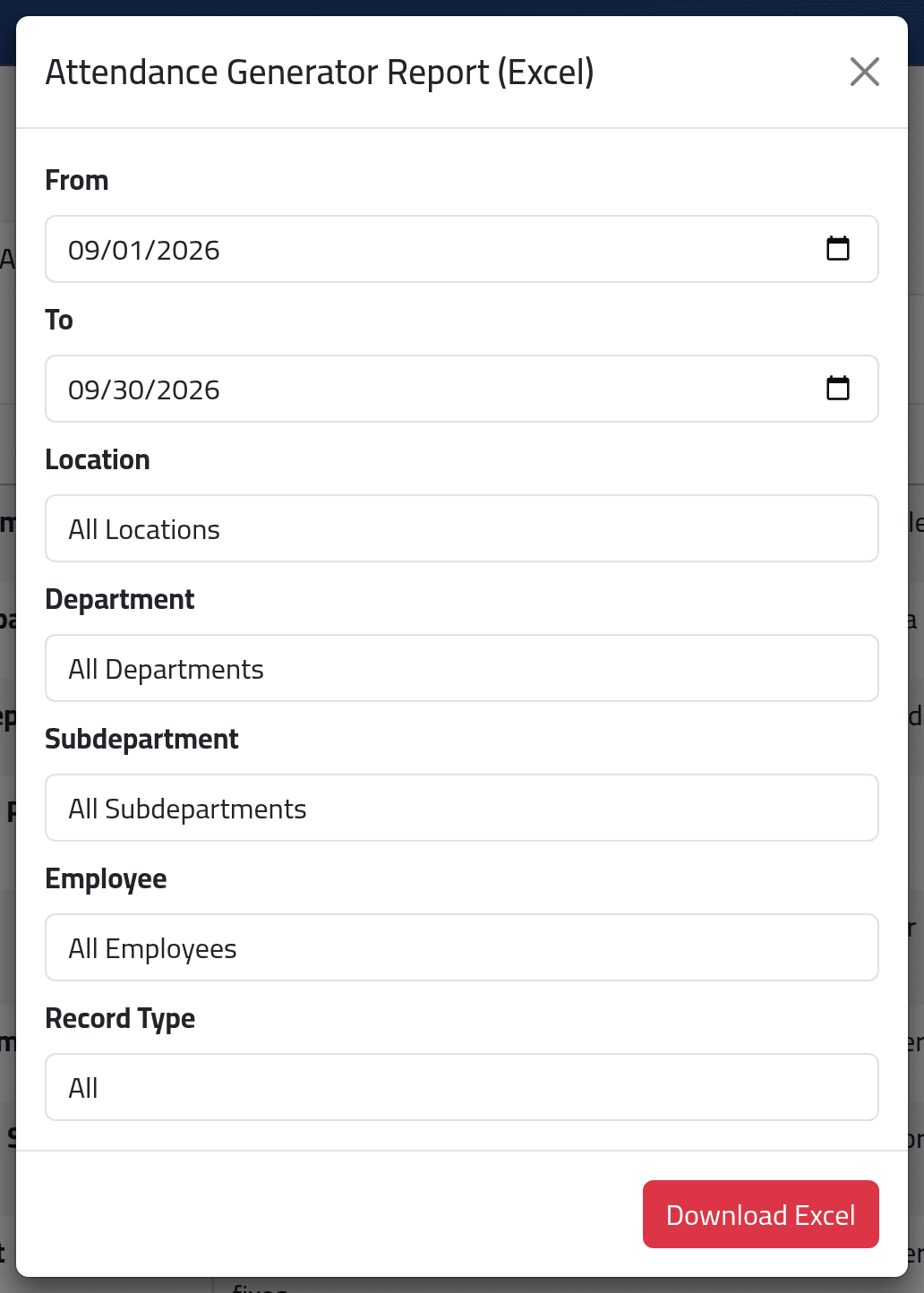
Attendance generator Report (Excel), Download Excel: the same choices plus Record Type. One line per employee per day, with the shift, punches, hours, break and its detail, late, early leave, overtime, penalty, status and message, and who last changed the day.
What happens next
Both are built from the attendance as it stands when you download them.
Closed periods and the history limit. The PDF does not go back before the date your account may see (see Reading a day’s attendance); the Excel does not apply that limit. Choosing Normal under Record Type exports every day, not only normal ones.
If it goes wrong
| What you see | What it means |
|---|---|
| The PDF starts later than the date you chose | Your account may not see attendance before a closed period. |
| No day is marked absent | The PDF never marks absences; use the Excel’s status column. |
| A 403 page from Download PDF | Your account may not export attendance. |