ClockWise HRGuideContacts
Contacts
Phone numbers, email addresses and the person to call in an emergency. One of them is always the default.
Open the person’s file and click the Contacts tab.
1Read the list
Each contact has a type, a description that says whose it is, and the number or address itself. One of them carries Default Contact.
The column holding that badge is headed employees.default — a label the system is missing. The column is the right one.
A phone number typed into Adding an employee is already here, as the default.

2Add a contact
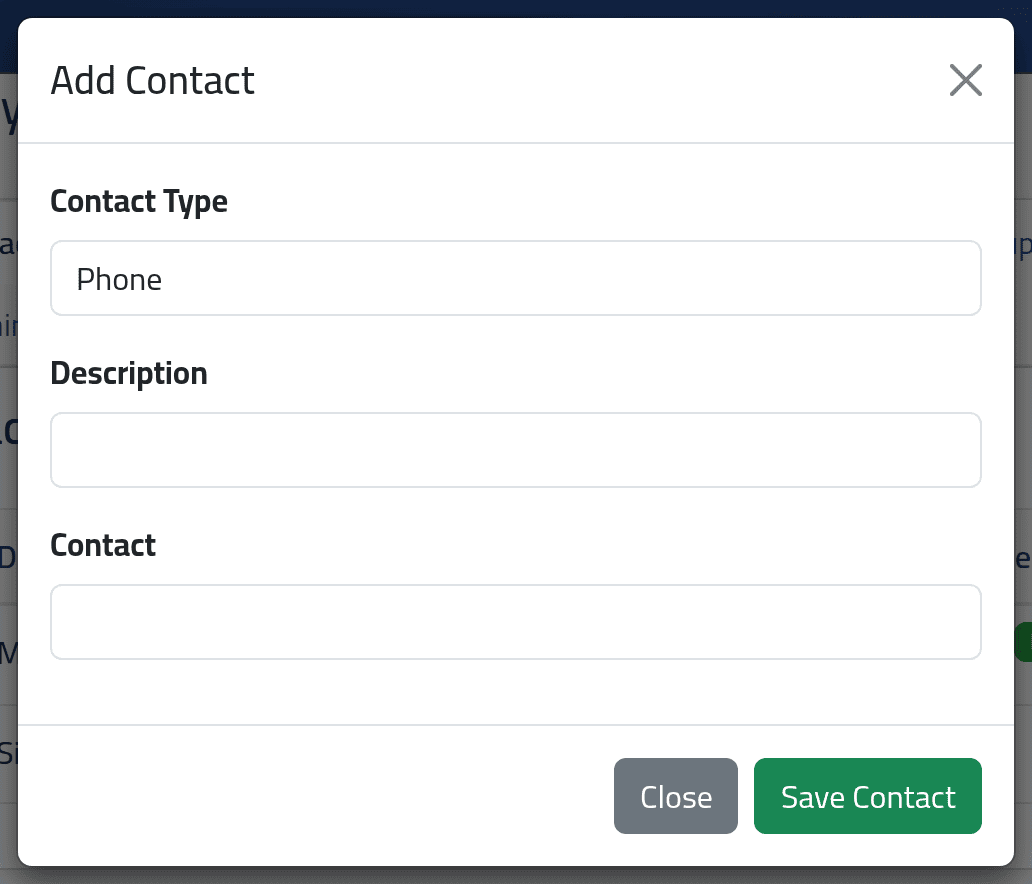
Click Add Contact.
Choose the Contact Type — Phone, Email, Emergency or Other. In Description say whose it is: “Mobile”, or for an emergency contact the person’s name and relationship. Type the Contact itself and click Save Contact.
3Change which contact is the default
Click Edit on the contact that should be the default, tick Set as Default and save. The one that was the default stops being it.
What happens next
Contact added successfully. appears at the top of the page. The first contact a person ever has becomes their default by itself. If you delete the default, another of their contacts takes its place.
If it goes wrong
| What you see | What it means |
|---|---|
| A new contact did not become the default | Only the first contact does that by itself. Edit it to make it the default. |