ClockWise HRGuideAttendance totals
Attendance totals
Hours worked over a period, added up by department, by sub-department or by employee — with the days each employee actually worked.
The figures come from the daily attendance as it stands — correct the days first (see Correcting a day). On Reports, open Attendance Reports.
1By department
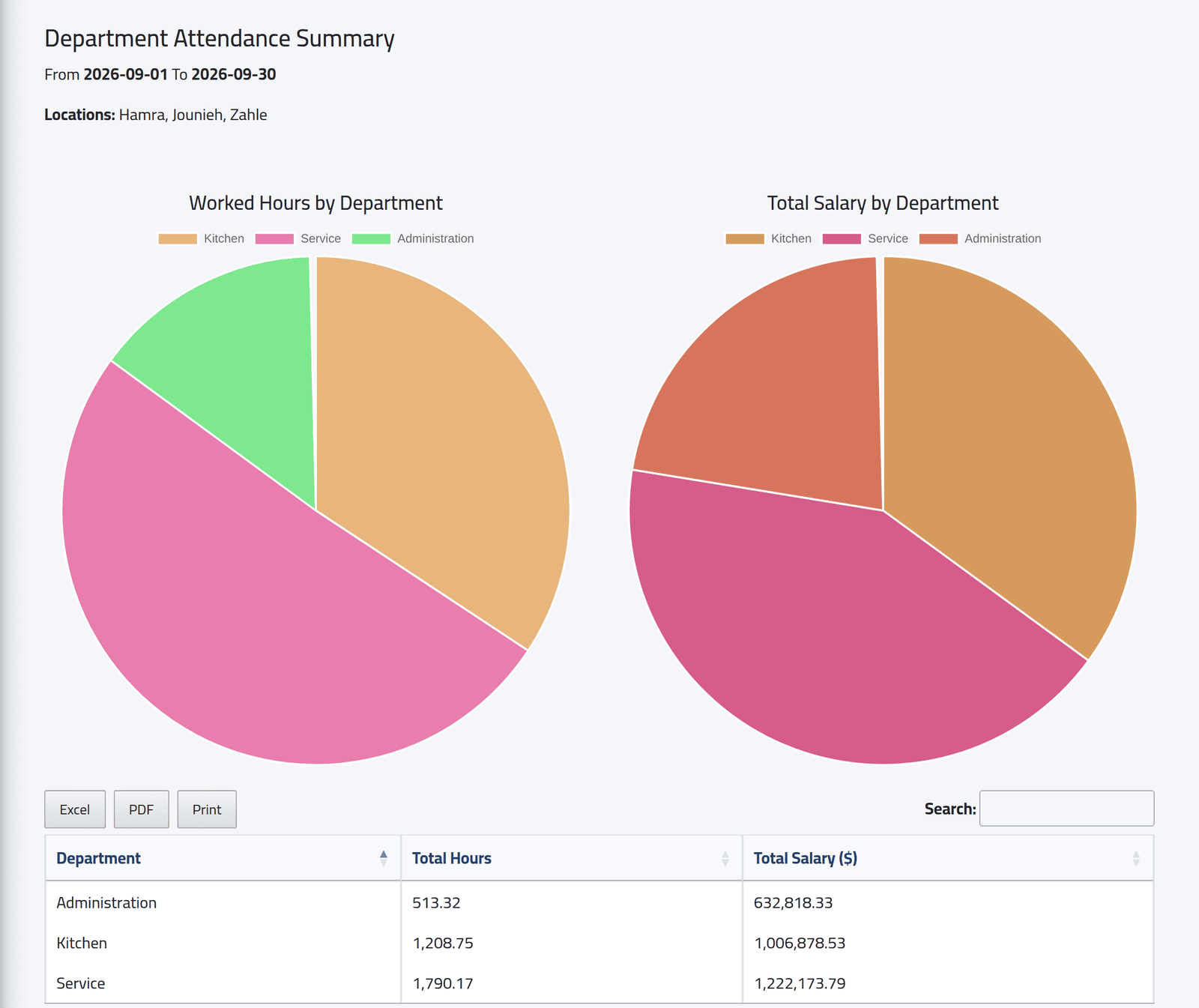
Attendance by Department (or Attendance by Subdepartment), Generate Report: choose the dates and, if you like, one branch. Two charts and a table: each department’s total hours worked in the period.
Ignore the Total Salary ($) column and its chart. It multiplies the hours by each employee’s salary rate as if every rate were hourly, and adds currencies together: a month’s rate times 200 hours gives the seven-figure totals in the picture. For what people were paid, see Salary records.
2By employee
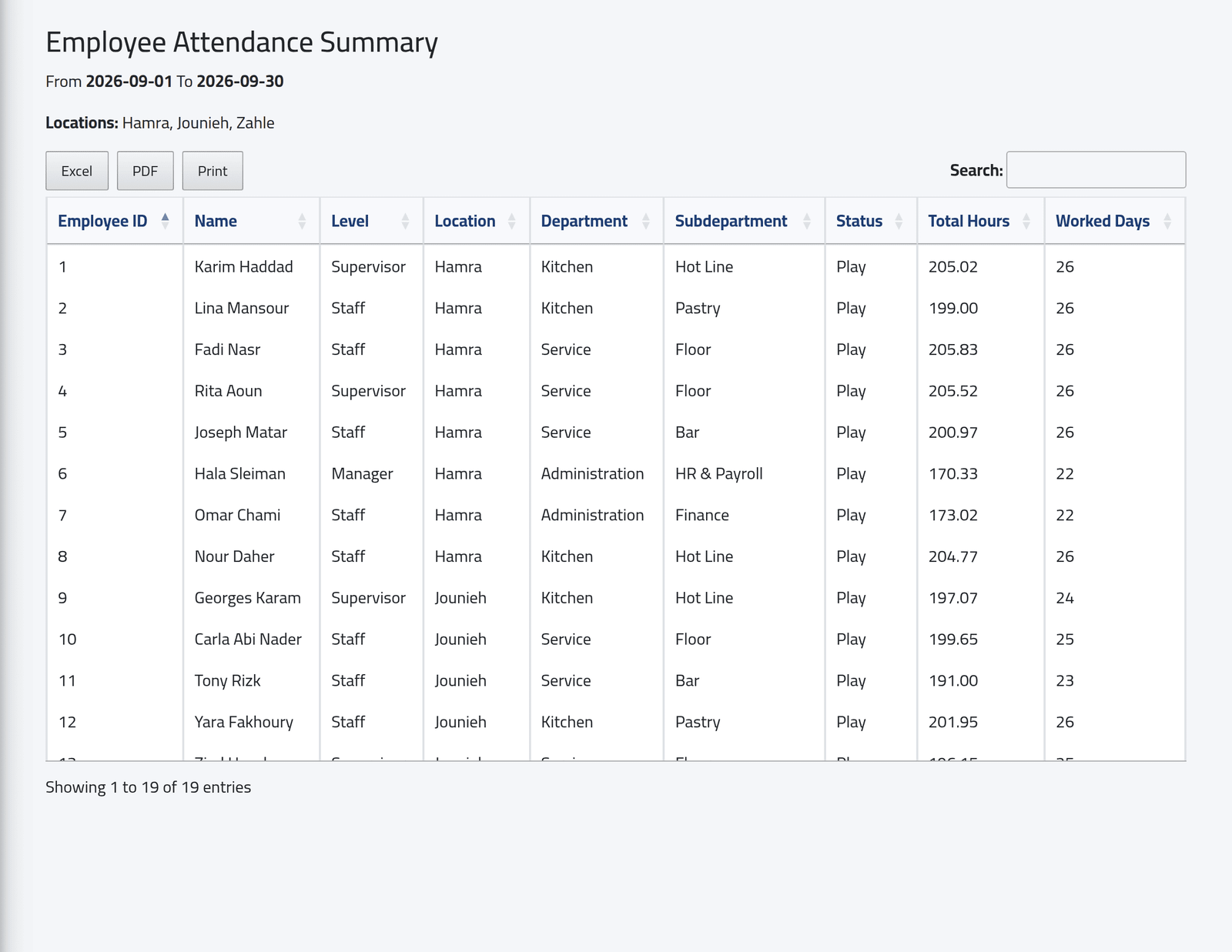
Employee Attendance Summary, Generate Report: dates, and optionally a sub-department or branch. One line per employee: their level, branch, department, status, the total hours worked, and Worked Days — days with work and no error. Someone with no attendance at all in the period is not listed.
What happens next
Excel, PDF and Print export the table.
These totals are hours worked only. Lateness, early leaving, overtime and absences are not in them, whatever the report’s description says — for those, see Day-by-day attendance.
If it goes wrong
| What you see | What it means |
|---|---|
| An employee is missing | They have no attendance in the period. |
| The totals look too high | Days still showing an error count too; correct them first. |