ClockWise HRGuideReading a tips run
Reading a tips run
Each run shows the pot, the house's share, and one line per person with how their hours became their amount. The status column says why someone got more, less or nothing.
You see the runs of your branches. Without permission to see amounts, the money columns are hidden.
1Find the run
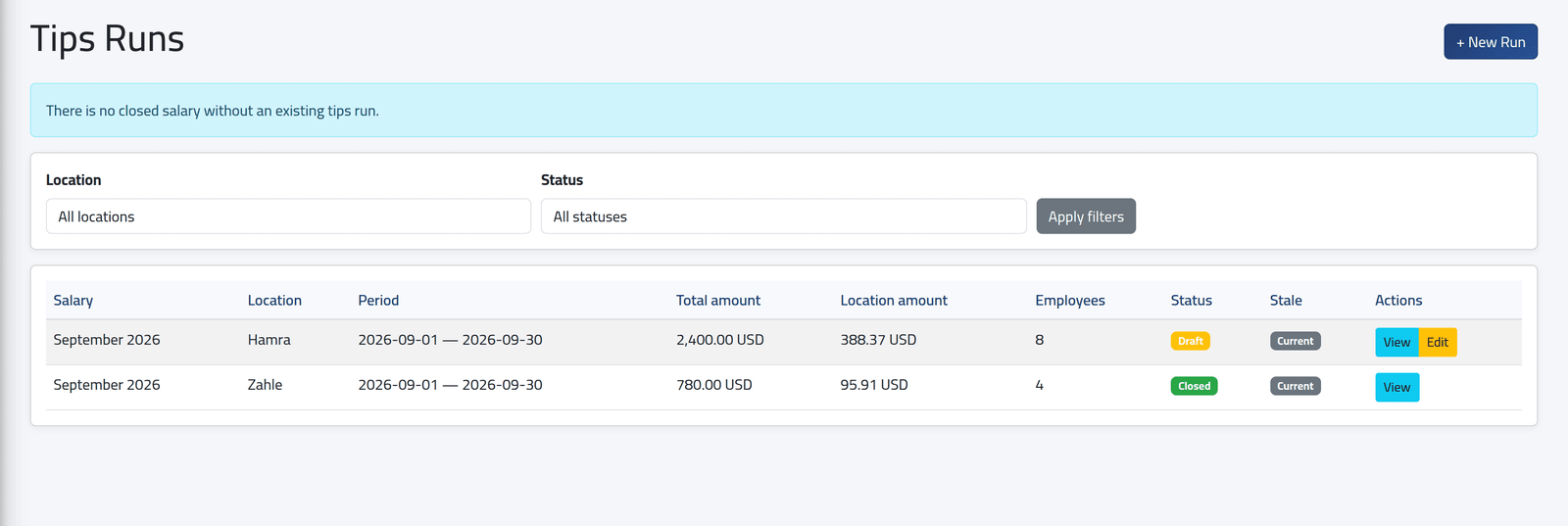
In the menu on the left, under Tips, click Tips Runs.
Each run with its salary period, branch, total, the house’s amount, how many people it covers and its Status — Draft or Closed. Stale says whether the salary period behind it has changed since the run was made.
Click View.
2Read it
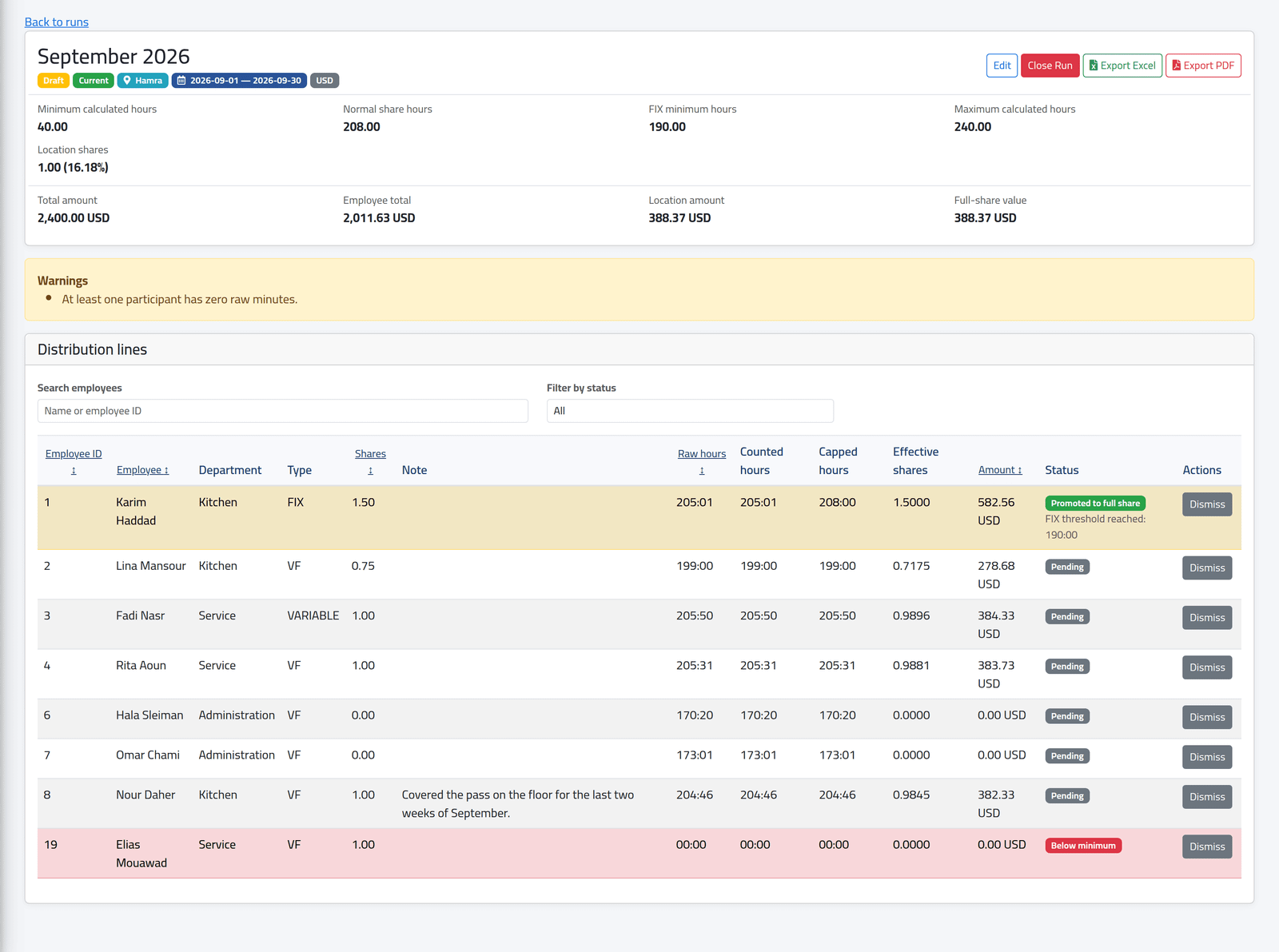
At the top: the four hour limits, the house’s shares and percentage, the total, the employees’ total, the house’s amount, and the Full-share value — what one share at Normal share hours is worth.
Each line:
- Raw hours — hours worked in the period, from attendance;
- Counted hours — after leave and hours-based adjustments, as the run’s switches say;
- Capped hours — after the limits for the person’s Type;
- Shares and Effective shares — what they hold, and what it came to: 0.99 means just under a full share;
- Amount, and Status with the reason — Promoted to full share, Below minimum, Dismissed, Paid.
Search by name, or filter by status.
What happens next
A draft can be changed — see Changing a draft run.
A run marked stale was made from a salary period that has changed since — deleted and recreated, for example. Its amounts are not recalculated by themselves. A stale draft must be rebuilt before it can be closed.
If it goes wrong
| What you see | What it means |
|---|---|
*** where amounts should be |
Your account may not see tip amounts. |
| A run is missing | It belongs to a branch your account cannot see. |
| At least one participant has zero raw minutes. | Someone has no attendance in the period — see Sharing out a tips box. |