ClockWise HRGuideApproving corrections
Approving corrections
Corrections people asked for, one by one or all at once. You see the day as it is and what it would become; approving applies it, rejecting needs a reason, and an approval can be taken back.
Your account must be allowed to approve, and allowed to approve each kind of request — punch changes, shift changes, leave, resets and day edits are granted separately. A request of a kind you may not approve cannot be decided by you.
1Open the waiting requests
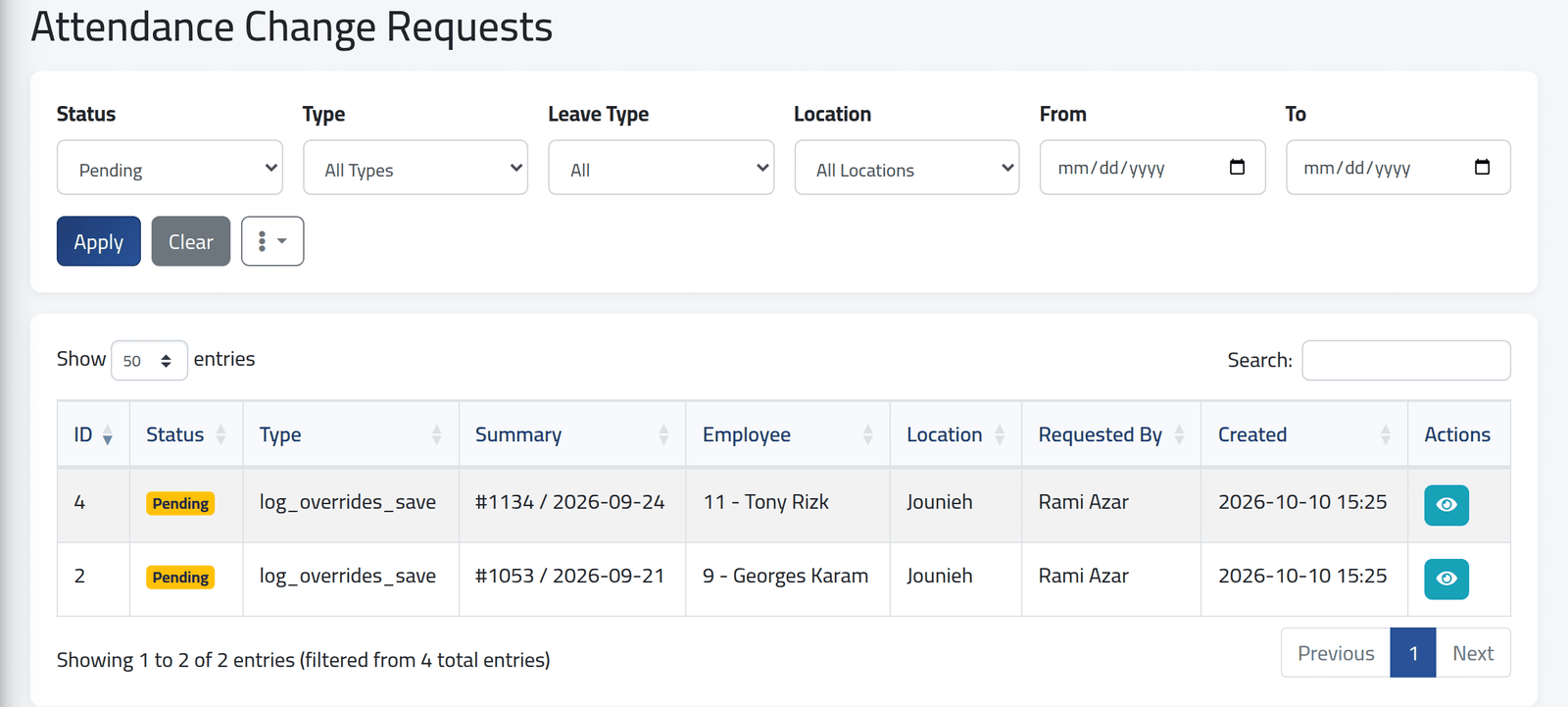
In the menu on the left, under Attendance Data, click Change Requests.
The list opens on Pending. Filter by status, type, leave type, branch or dates and click Apply.
2Look at one
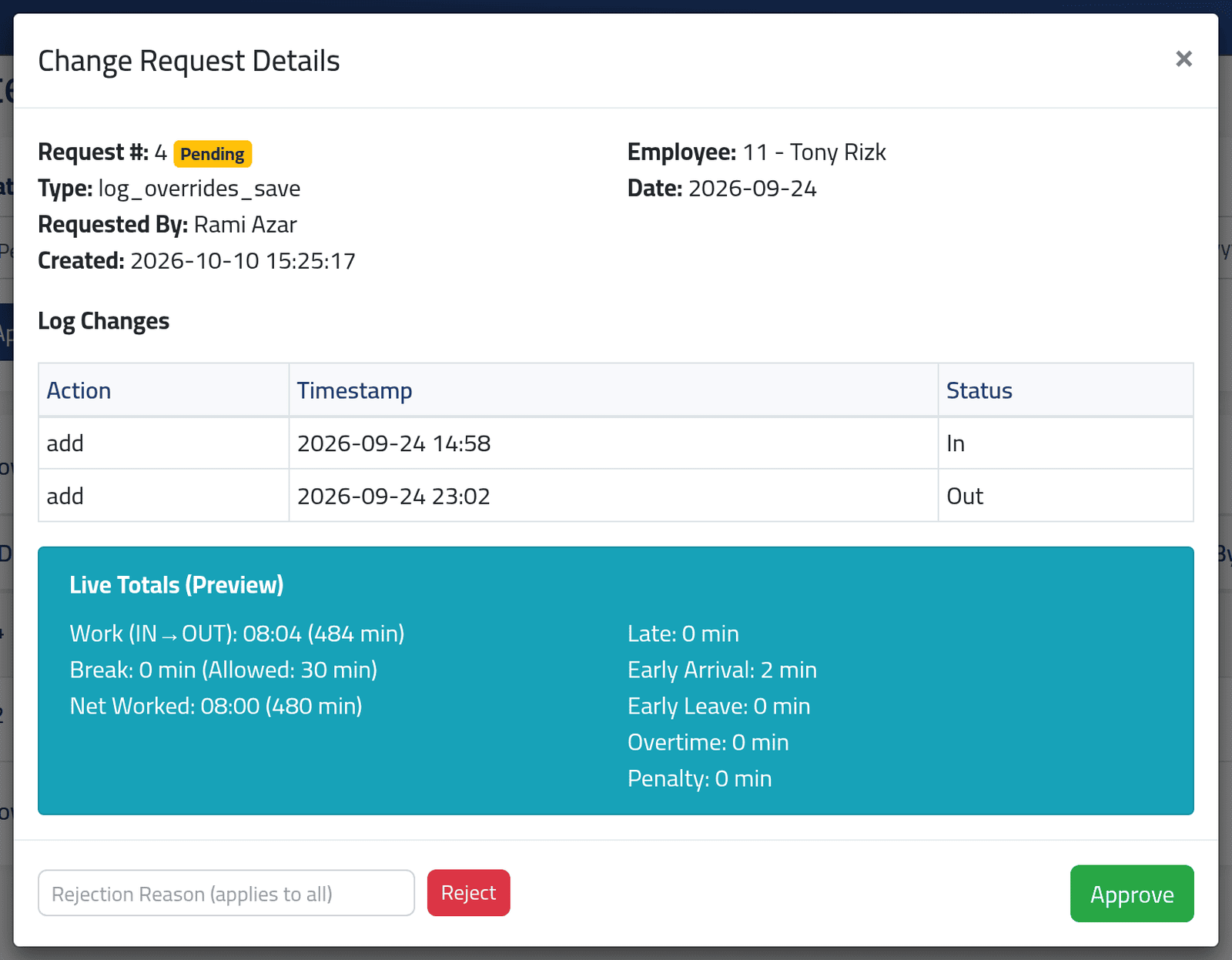
Click the eye on a request. Change Request Details shows who asked, for which employee and day, the punches they want added or changed, and Live Totals (Preview) — the day as it would be once approved.
In the picture, Rami Azar asks to give Tony Rizk a 14:58 In and a 23:02 Out on a day with no punches: an eight-hour day instead of an absence.
An approver is the only check between “somebody says they were there” and “they are paid for it”. The preview is there so the decision is made on the hours, not on the request.
3Approve or reject
- Approve applies the correction. The day is recalculated with it and marked as corrected by you.
- Reject needs a Rejection Reason; the person who asked sees it. The day stays as it was.
4Undo an approval
Open an approved request and use Reset to Pending. The correction is taken off the day and the request waits for a decision again.
5Decide many at once
Bulk Actions offers Approve All Pending and
Reject All Pending. Both apply to everything the current filter
shows — set the filter first. Type confirm to go ahead; rejecting all also
needs a reason.
When two pending requests concern the same day, approving all keeps the newer and rejects the older one automatically.
What happens next
The person who asked sees the decision in Following your requests.
Approving is not stopped by a closed salary period. A correction approved for a day already paid changes the day, but not the salary that was paid for it. Check the date before approving anything older than the open period.
If it goes wrong
| What you see | What it means |
|---|---|
| You do not have permission to approve this request type. | Your account may approve other kinds of request, not this one. |
| Request is not pending. | Somebody else decided it first. |
| You approved and the request is still pending | The day was changed by somebody else after the request was made. Open the day, see what it holds now, and decide again. |
| Only approved requests can be reset. | Only approvals can be taken back. A rejection is final. |