ClockWise HRGuideChanging many schedules at once
Changing many schedules at once
A grid of everyone's week, one shift per cell, saved the moment you pick it. Fast for a whole team — and unable to give anybody a day off.
Your account must be allowed to edit schedules. Decide the date the changes start before you touch anything — the grid saves as you go.
1Open the grid
In the menu on the left, under Company, click Easy Schedule Edit.
Set Effective from to the first day of the new pattern. It starts at today; the line under it gives the earliest date allowed.
Narrow the list with Location, Department, Subdepartment or Employee if you need to, and click Load Schedules.
Each row is one person’s schedule as it stands on that date: a shift for every day of the week.
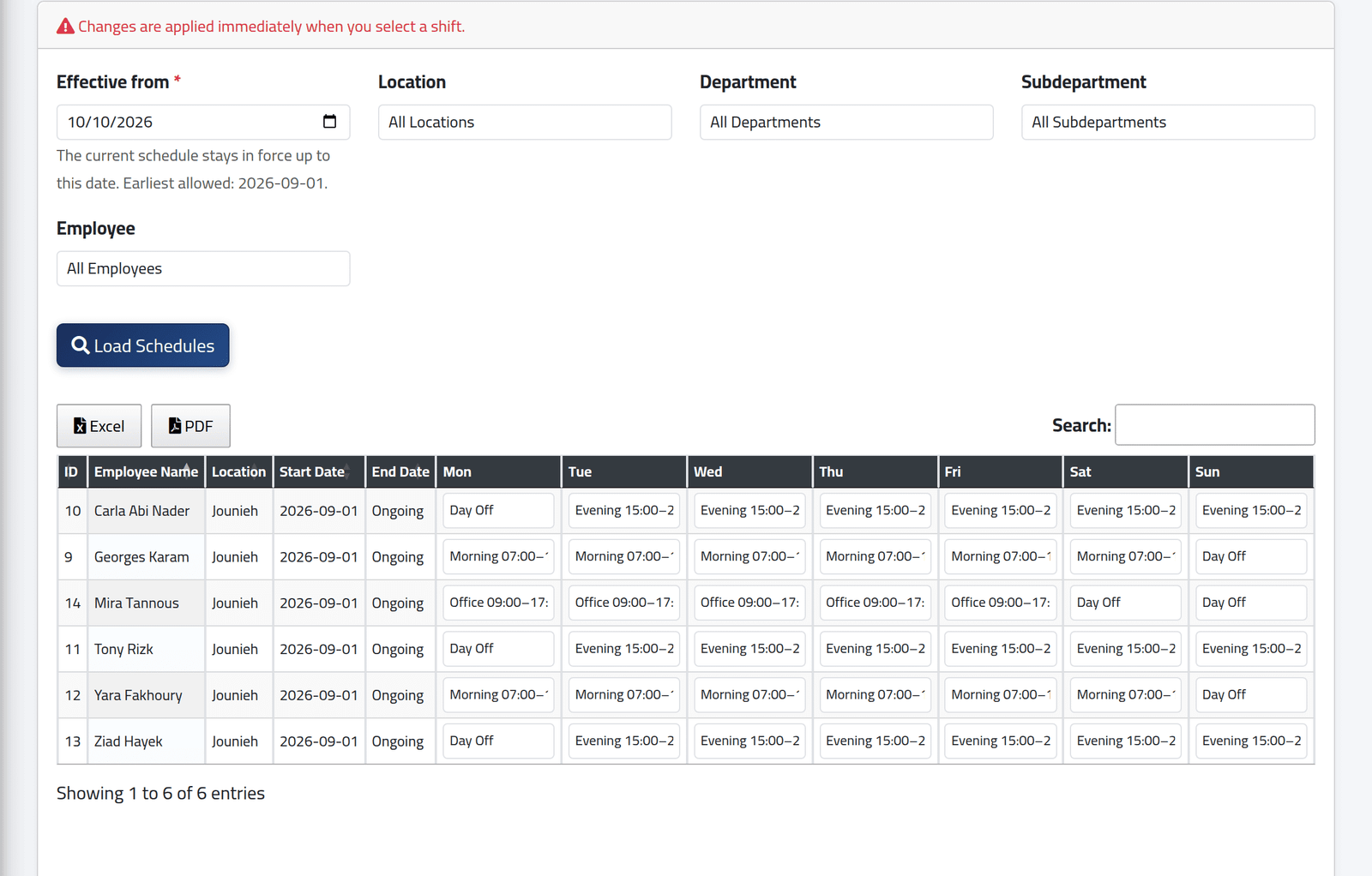
2Change a shift
Choose a different shift in a cell.
It is saved the moment you choose it — the red line at the top says so. There is no Save button and no undo. Each choice starts a new version of the person’s schedule from Effective from, and the days from then on are recalculated.
Choosing Day Off here does nothing. The cell shows it, ClockWise reports the schedule as saved, and the day keeps its shift. To give somebody a day off, use the pencil on their schedule instead — see Giving someone a schedule.
What happens next
Each person you changed has a new schedule version from Effective from. Excel and PDF export the grid as it is now.
If it goes wrong
| What you see | What it means |
|---|---|
| A day you set to Day Off still shows a shift after reloading | This screen cannot set days off. Use the person’s own schedule. |
| An error saying the effective date must be … or later | Earlier days belong to a closed or locked salary period. |
| People are missing from the grid | They are in a branch your account does not cover, or the filters exclude them. |
| The menu item is there but the page refuses you | Your account can see the menu entry but is not allowed to edit schedules. |