ClockWise HRGuideRecording leave
Recording leave
Give each person an allowance for the year, then apply leave to a range of days. A leave day counts as a day worked — and nothing can be applied without an allowance to take it from, unpaid leave included.
The leave types must exist — see Leave types. Your account must be allowed to edit employees.
Know which leave year your company uses: the calendar year, or a year counted from each person’s employment date. It is set once in System Settings, and the allowances follow it.
1Read the allowance
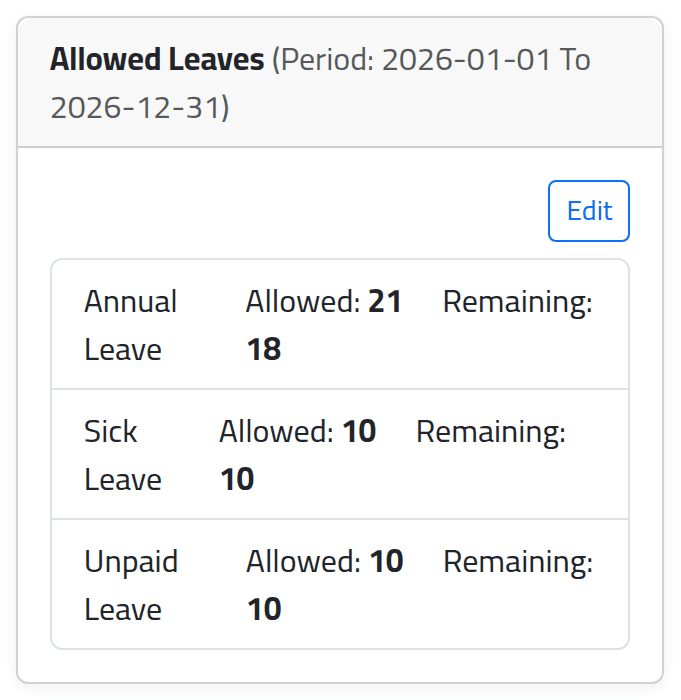
Open the person’s file and click Attendance Setup. Allowed Leaves, on the right, shows the leave year and, for each type, how many days are allowed and how many remain.
2Set the allowance
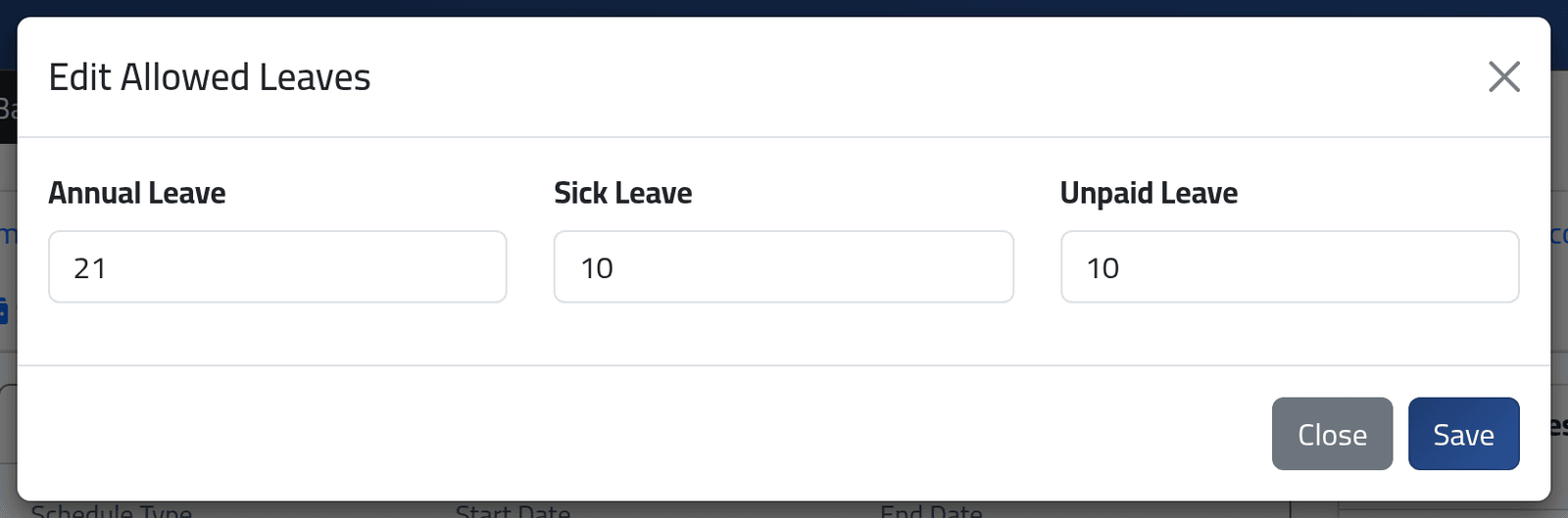
Click Edit. Type the number of days allowed for each type this leave year, and click Save. A type left at 0 has no allowance.
Every leave type needs an allowance before it can be used — unpaid leave and sick leave too. Leave is only applied if the days remaining cover every day in the range. A type with no allowance refuses even one day.
Allowances are set for the current leave year only. A new year starts with none, so set them again when it begins.
3Apply leave to a range of days
Open the ⚙ menu at the top of the tab and choose Apply Leave Range.
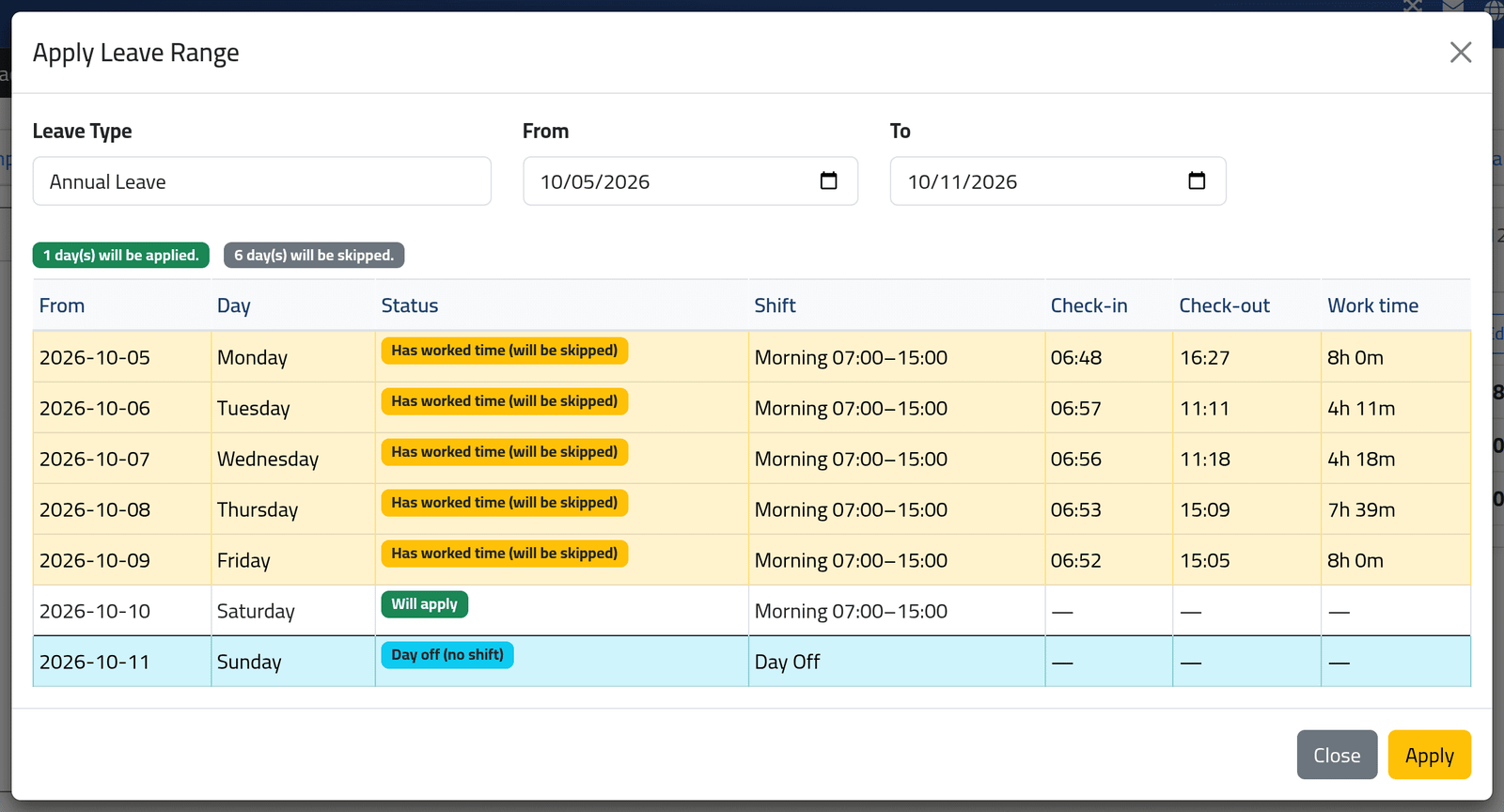
Choose the Leave Type and the From and To dates. ClockWise lists every day in the range and says what it will do with each:
| Status | Means |
|---|---|
| Will apply | The day becomes leave. |
| Has worked time (will be skipped) | The person worked that day; it stays as worked. |
| Day off (no shift) | The day is a day off; no leave is used. |
Check the count above the list, then click Apply.
Whether days off inside a range use up leave is a company setting — Apply Leave on Day Off. In the picture it is off, so Sunday is skipped.
What happens next
Leave applied successfully. Each day applied is now a leave day in the person’s attendance, marked as corrected by you, and the remaining days in Allowed Leaves go down.
A leave day is recorded as a full day worked — the company’s default leave hours, or the length of the person’s shift that day. That is what keeps the person’s pay whole: their attendance shows a complete day, not an absence. The same is true of every leave type. See Leave types for what that means for unpaid leave.
Leave applied here goes straight in — it is not sent to anybody for approval.
If it goes wrong
| What you see | What it means |
|---|---|
| Insufficient remaining leaves | The days remaining for that type do not cover the range. Raise the allowance, or shorten the range. |
| No days available to apply in this range. | Every day in it was worked, is already leave, or is a day off. |
| A day you expected to apply says it will be skipped | The person has worked time on it. Correct the day’s attendance first if the punches are wrong. |
| In Arabic, the ⚙ menu opens behind the side menu | Collapse the side menu with ☰ first. |