ClockWise HRGuideBuilding an inspection form
Building an inspection form
A form — a template — is a set of areas of the branch, each holding categories from the library. The builder adds them, shows the form's totals, and lists what still stops it from being published.
The categories you need must be in the library — see The checklist library. Building needs permission to manage templates; publishing is a permission of its own.
1Find the form
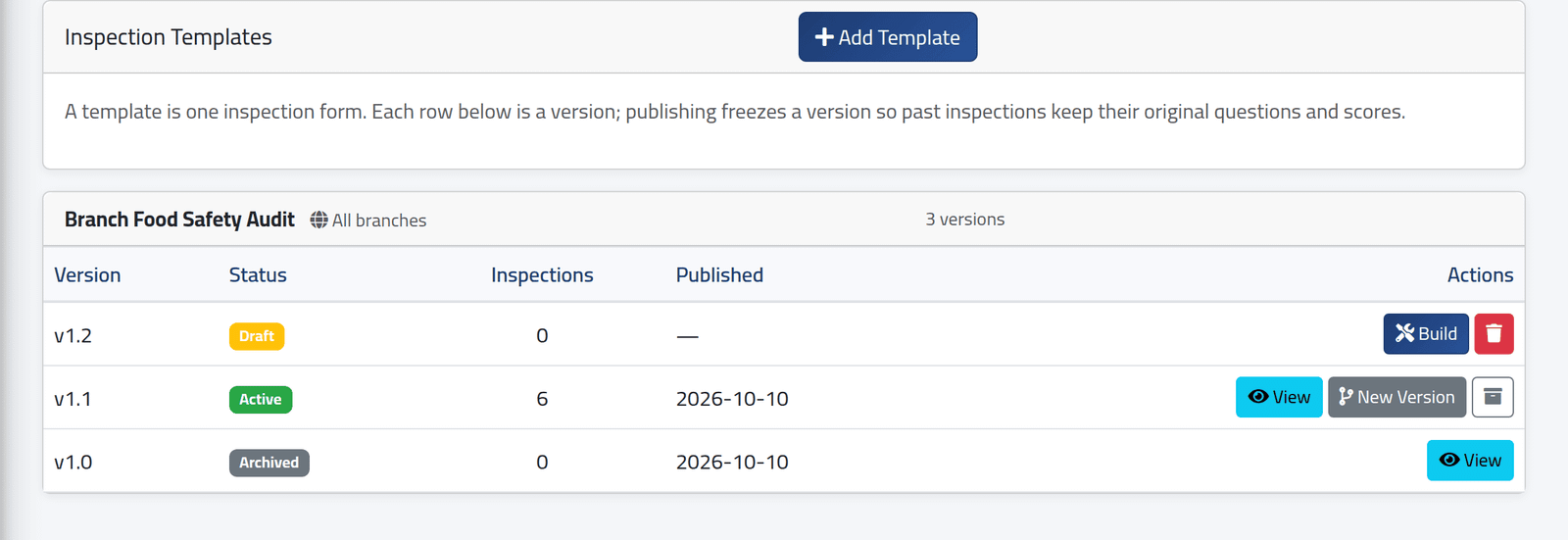
In the menu on the left, under Inspections, click Inspection Templates. Each form is a block, and each line in it is one version: Draft, Active or Archived, with how many inspections used it.
+ Add Template starts a new form: its name, its version number, and
the report categories it groups its scores into — for example
Back of house, Front of house. Build opens a draft.
2The builder
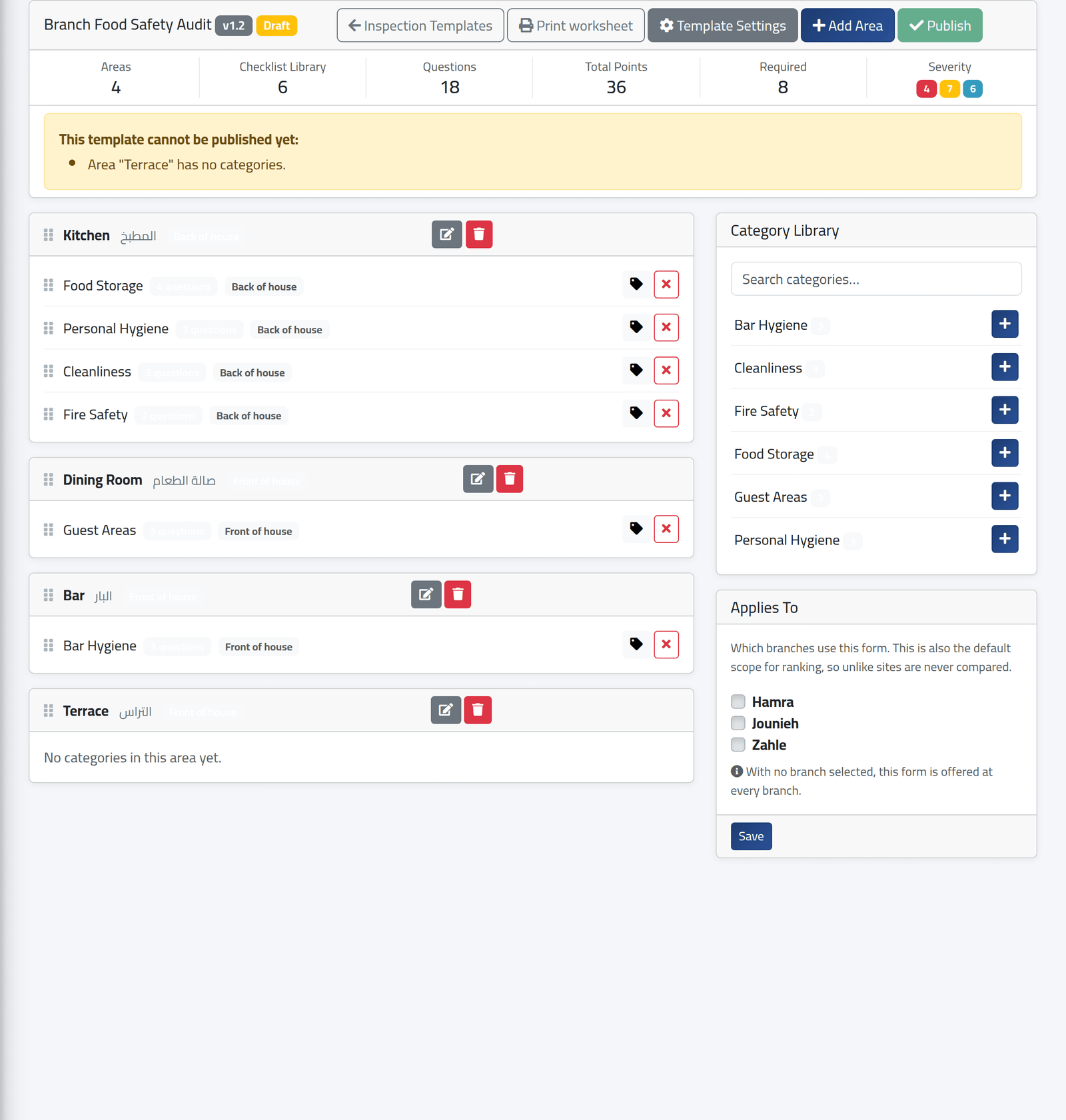
Along the top: the number of areas, categories, questions, total points, required questions, and failures by severity. Under them, in yellow, everything that stops the form from being published — here, an area with nothing in it — and Publish stays disabled until the list is empty.
- + Add Area — a part of the branch: Kitchen, Bar, Terrace, with its Arabic name and the report category its scores count towards.
- On the right, the Category Library: + beside a category adds it to an area.
- On each category in an area, the tag sets a different report category for that one; the red ✕ takes it out of the area.
- Drag areas and categories by their handles to reorder them. The order is the order the inspector sees.
3Add a category to an area
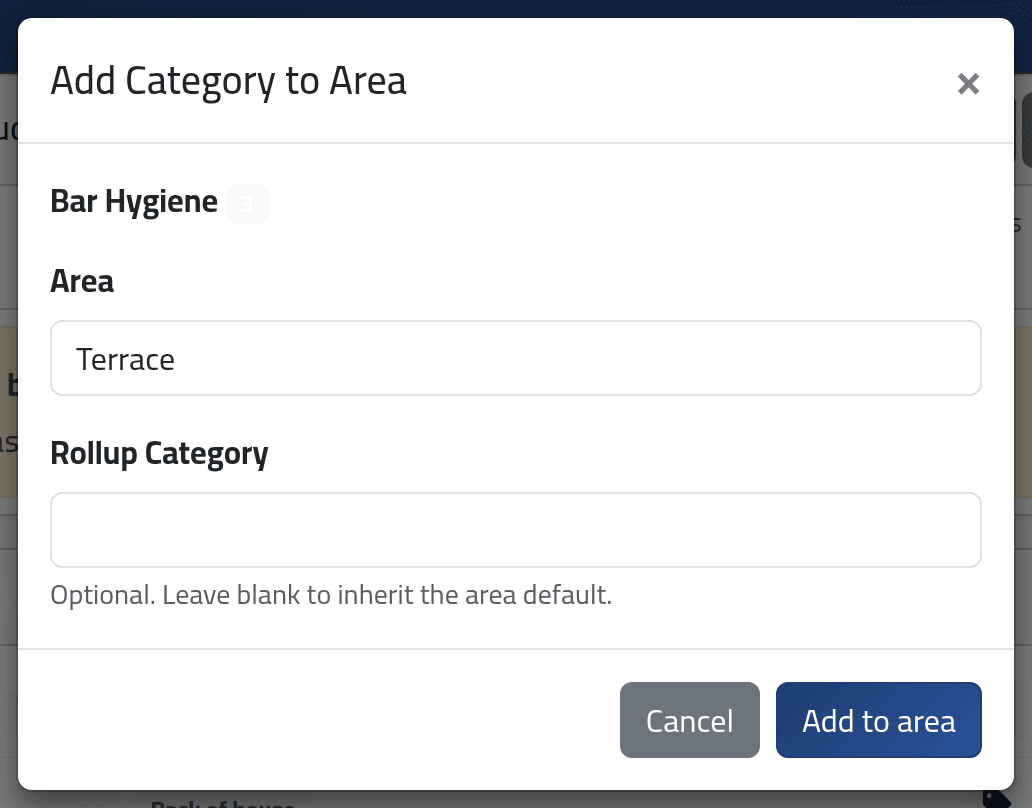
Choose the Area. Leave Rollup Category empty to use the area’s. Click Add to area.
Do not put the same category in two areas. The builder allows it, but an inspection on such a form can never be submitted — it fails with an error every time. If two areas need the same checks, duplicate the category in the library and give each copy its own name.
4Choose the branches
Applies To, under the library, limits the form to some branches. With none ticked, every branch can use it. It applies to every version of the form, and decides which branches the form’s reports compare.
What happens next
Print worksheet gives a paper copy of the form to fill in by hand: every question with its weight and boxes for Yes, No and N/A. When the problem list is empty, publish the form — see Publishing, versions and archiving.
If it goes wrong
| What you see | What it means |
|---|---|
| Area “Terrace” has no categories. | Add a category to it, or delete the area. |
| Category “…” has no active questions. | Add a question to it in the library. |
| Category “…” is not declared in this template’s rollup categories. | Its report category is not in the form’s list. Add it in Template Settings, or change the category’s tag. |
| The builder opens a read-only page | That version is published; make a new version. |