ClockWise HRGuideReading the punches
Reading the punches
Every punch exactly as the clocking machines sent it — before any correction. Use it to answer "did they punch?", not "what did they work?".
Your account must be allowed to view attendance logs. You see the punches recorded on machines in your own branches.
1Search
In the menu on the left, under Attendance Data, click Attendance Logs.
Fill in From and To — both are required — and narrow it if you need to with Location, Sub-Department, Level, Employee or Search. Each list narrows the next. Click Generate.
The newest punch comes first, a hundred to a page.
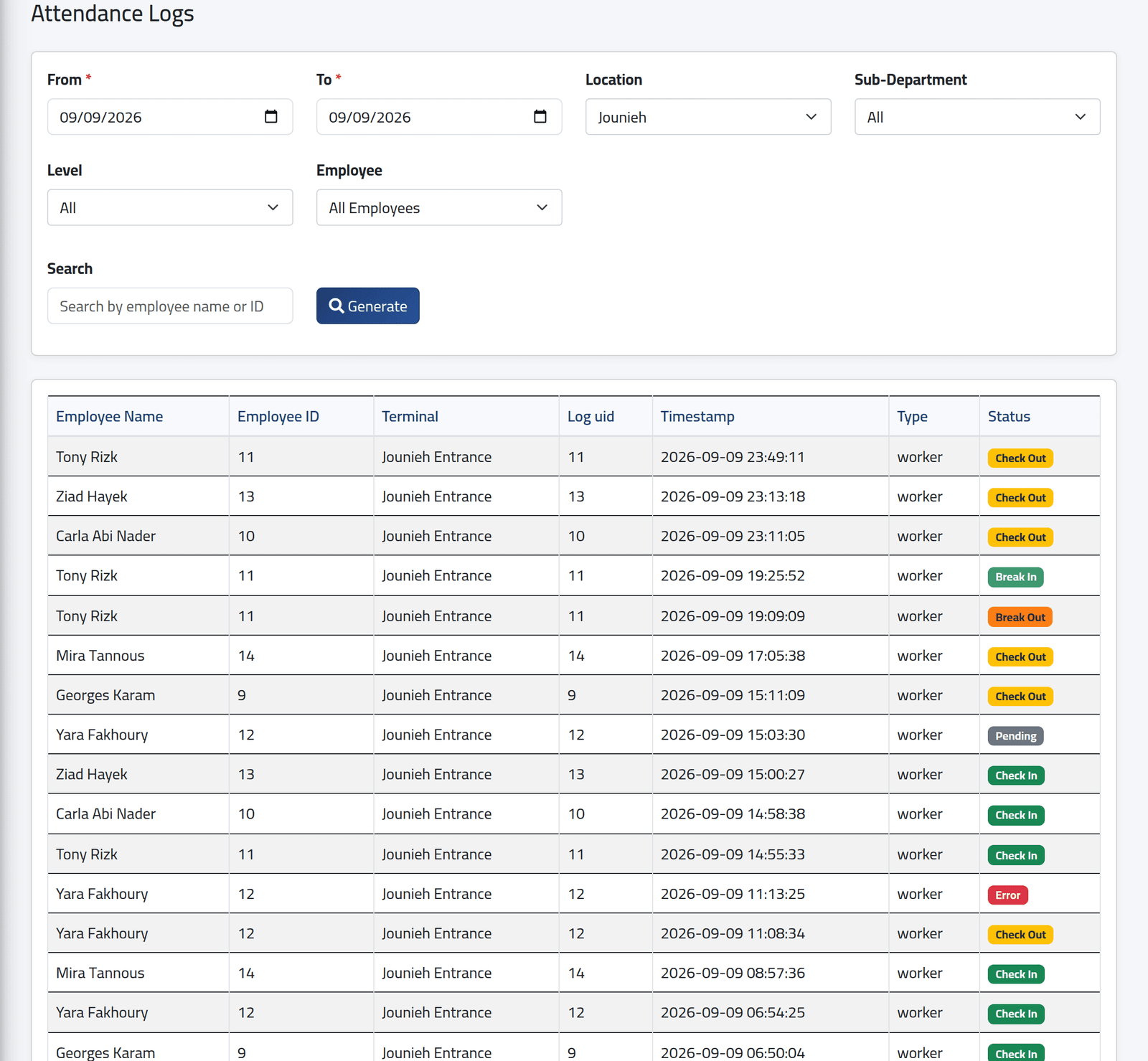
2Read the status of each punch
| Status | Means |
|---|---|
| Check In, Check Out | The first and last punch of the day’s shift. |
| Break Out, Break In | A pair in between. |
| Pending | Not used yet: either not processed — punches are processed every two hours — or set aside because the day had an odd number of punches. |
| Error | Ignored as a double press: it came within five minutes of the punch before. |
What happens next
This screen never changes. When a day is corrected, the correction lives on the day’s attendance — the punches here stay as the machine sent them. In the picture, Yara Fakhoury’s 15:03 punch still reads Pending although her day was corrected and approved. To see the day as it now counts, see Reading a day’s attendance.
If it goes wrong
| What you see | What it means |
|---|---|
| The page shows nothing until you click Generate | It needs dates first. |
| The From date moved forward by itself | Your account cannot look back into salary periods that are closed. Ask an administrator if you need older punches. |
| Somebody’s punches are missing | They punched on a machine in a branch you do not cover, or on a machine that has no branch set — see Adding a clocking machine. |
| A person who left is not in Employee | People on Stop are not offered. |