ClockWise HRGuideReading a day's attendance
Reading a day's attendance
One row per person per day: when they came and left, how late, how long their break, how much overtime — and whether ClockWise could work the day out at all.
Your account must be allowed to view the attendance calculation.
1Choose what to look at
In the menu on the left, under Attendance Data, click Attendance Calculation.
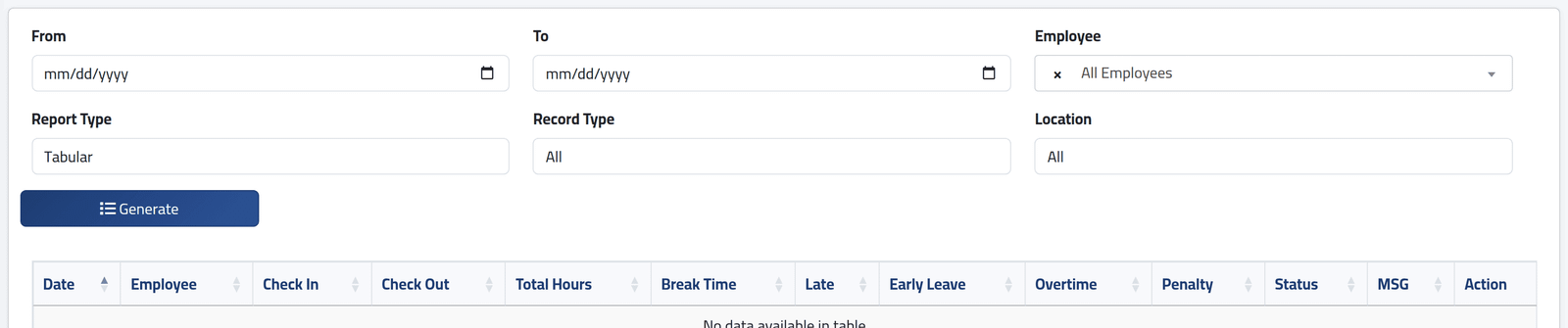
Set From and To, choose an Employee or leave All Employees, and click Generate.
- Report Type — Tabular for the table below, Visual for a day-by-day timeline.
- Record Type — show only Normal days, only Error days or only Absent ones. Filtering to errors is the quickest way to find what needs correcting.
- Export downloads the same days to Excel, if your account may.
2Read the table
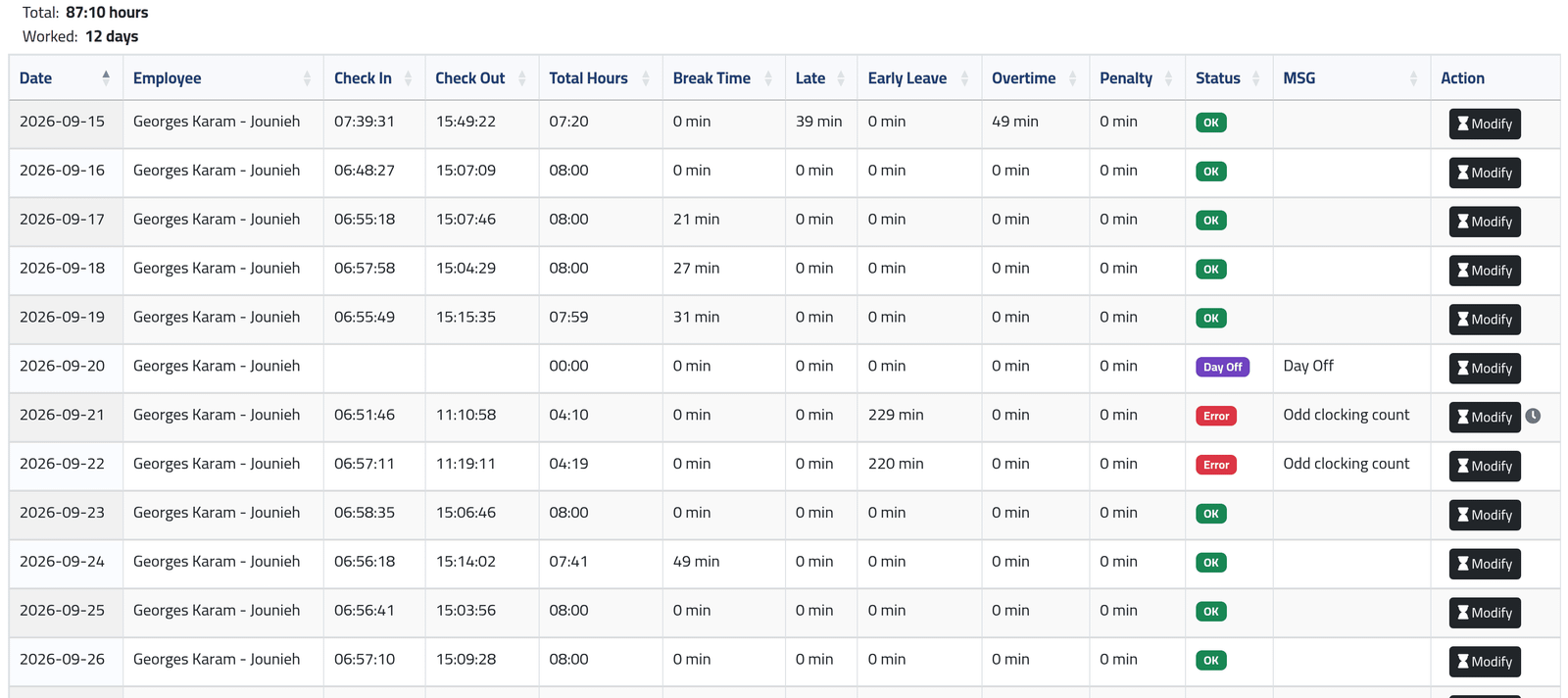
Above the table, the total hours and the number of days worked.
Each row is one day:
- Check In, Check Out — the punches that count.
- Total Hours — time worked inside the shift, less any break beyond the allowance and any penalty. Arriving early does not add to it.
- Break Time, Late, Early Leave, Overtime, Penalty — in minutes.
- Status and MSG:
| Status | Means | MSG says |
|---|---|---|
| OK | The day was worked out. | — or the leave type, on a leave day |
| Error | It could not be. | Odd clocking count, Missing schedule, Missing shift detail |
| Absent | A working day with no punches. | No Clocking |
| Day Off | Not a working day. | Day Off |
Late and overtime are counted separately. Somebody who arrives 39 minutes late and stays 49 minutes after the end has 39 minutes late and 49 minutes overtime — one does not cancel the other.
3Read the marks beside Modify
- A clock beside Modify — a correction is waiting for approval. Click it to see what was asked.
- A green flag — the day was corrected by hand. Hover over it for who and when.
What happens next
To correct a day, click Modify — see Correcting a day.
An Error day is not a paid day. Hourly pay counts only the hours worked out, and daily pay counts only days with no error. A day left as Odd clocking count costs the person money until somebody corrects it — which is why filtering by Error before each salary period closes matters.
If it goes wrong
| What you see | What it means |
|---|---|
| Modify is missing on some days | Those days belong to a closed salary period. They cannot be changed. |
| The From date moved forward by itself | Your account cannot look into closed periods. |
| A day you corrected still shows the old figures | The correction is waiting for approval — look for the clock. |
| There is no Export button | Your account is not allowed to export attendance. |