ClockWise HRGuideMy inspections
My inspections
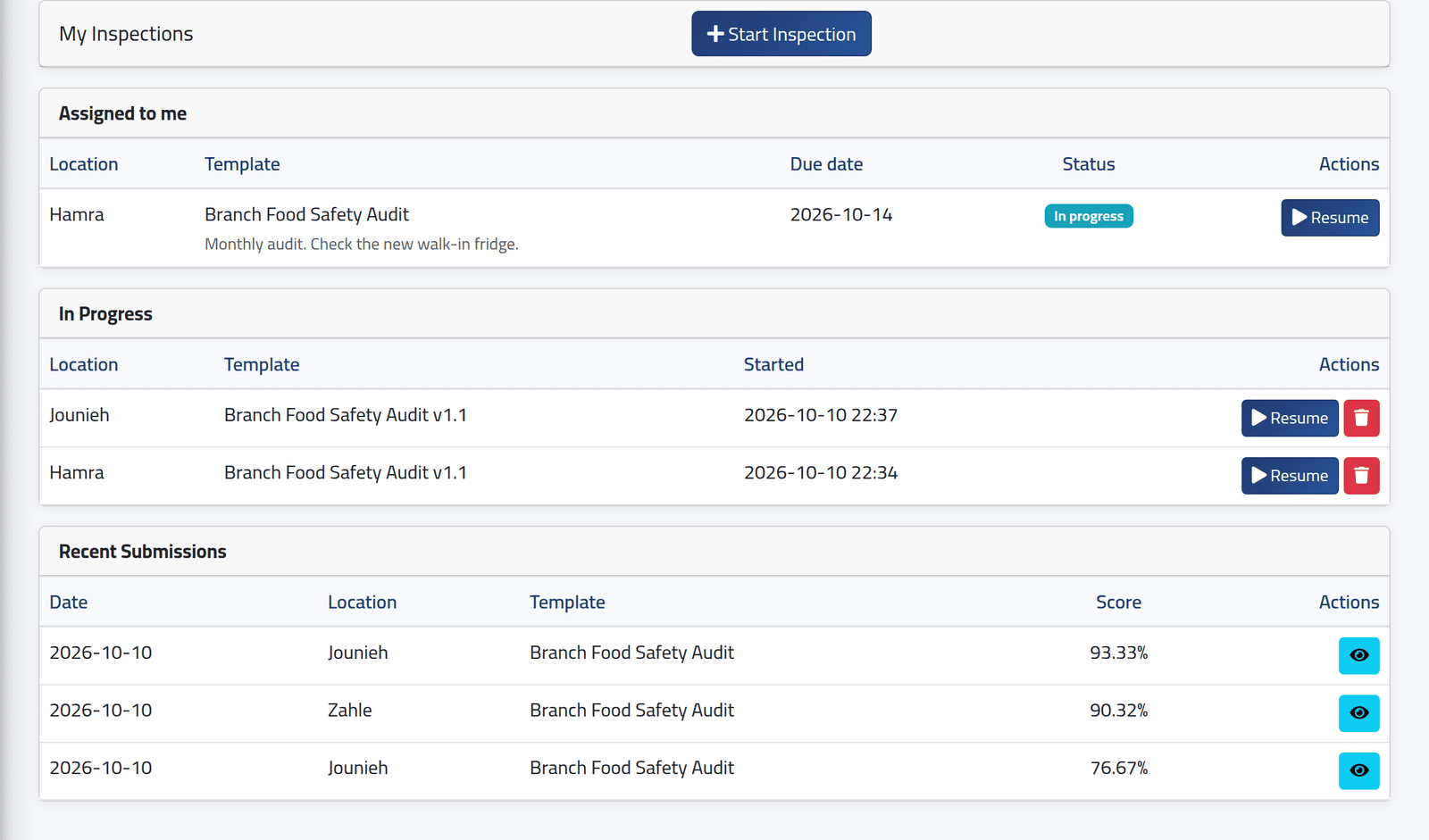
The inspector's own page: the inspections assigned to you, the ones you have started and not yet submitted, and your latest results.
The Inspections module must be switched on, and your account must be allowed to perform inspections. An account becomes an inspector through its role: everyone whose role can perform inspections can be assigned them.
1Open the page
In the menu on the left, under Inspections, click My Inspections.
- Assigned to me — work the office has given you, overdue first, then by due date, with the office’s note under the form’s name. Start opens the inspection; once started, the button reads Resume.
- In Progress — every inspection you have started and not submitted, assigned or not. An assigned one appears in both lists.
- Recent Submissions — your last ten, with their scores. The eye opens the record (see Inspection records).
Start Inspection, at the top, begins one nobody assigned — see Starting an inspection yourself.
2Throw away a draft
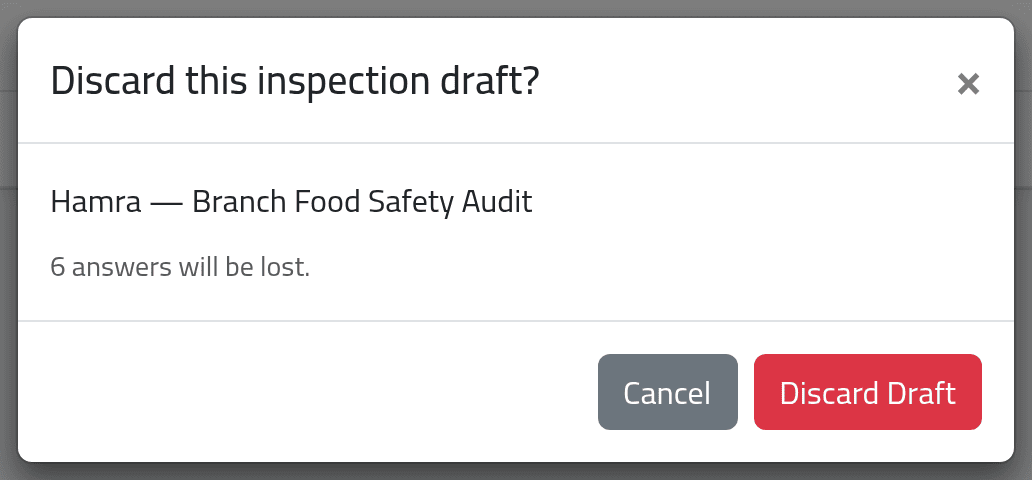
The red button beside a draft discards it, with every answer and photo in it. The dialog names the branch and form and how many answers will be lost.
What happens next
Resuming opens the form where it was left — see Filling in an inspection. Once submitted, an inspection leaves In Progress, its assignment leaves Assigned to me, and it appears under Recent Submissions.
Discarding cannot be undone. If the draft came from an assignment, the assignment stays on your list — starting it again begins an empty form.
If it goes wrong
| What you see | What it means |
|---|---|
| This assignment is no longer open. | The office cancelled or reassigned it. |
| No Start Inspection | Your account may do assigned inspections only. |
| A due date in red | The assignment is overdue. |