ClockWise HRGuideFilling in an inspection
Filling in an inspection
The form is made for a phone or tablet: one category at a time, three buttons per question, a note, an action plan and photos for anything that fails. Every answer is saved as it is given — and kept on the device if the connection drops.
Open the inspection from My Inspections — Start or Resume. Keep the page open in the browser for the whole visit.
1Find your way
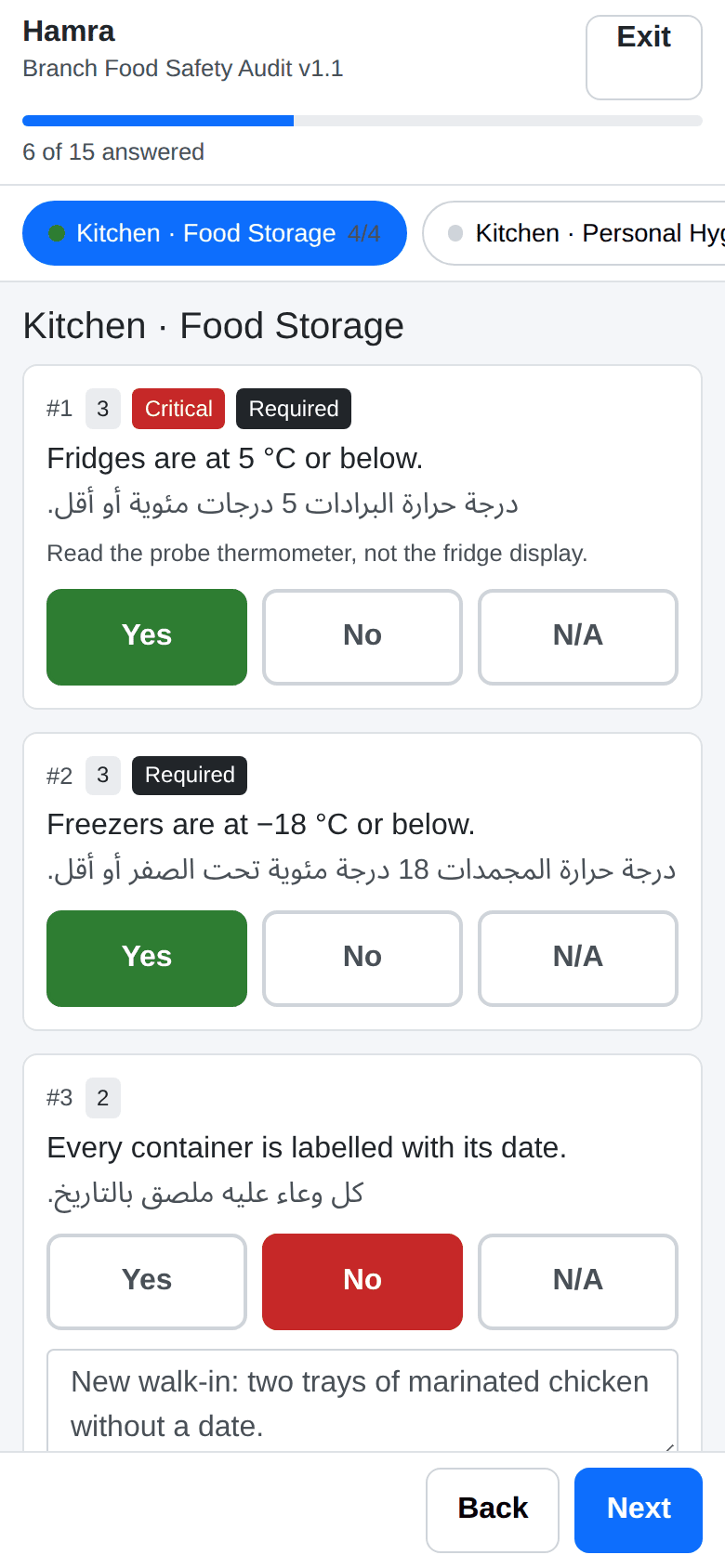
At the top: the branch, the form and its version, and how many questions are answered. Below, a strip with one button per category — scroll it sideways. A green dot means the category is done; a red square means a required question in it is still unanswered.
Each question shows its number, its weight in points, and badges: Critical for the most serious items and Required for those that must be answered. The question is in English and Arabic, with the office’s guidance under it where there is any.
Answer with Yes, No or N/A.
2Record a failure
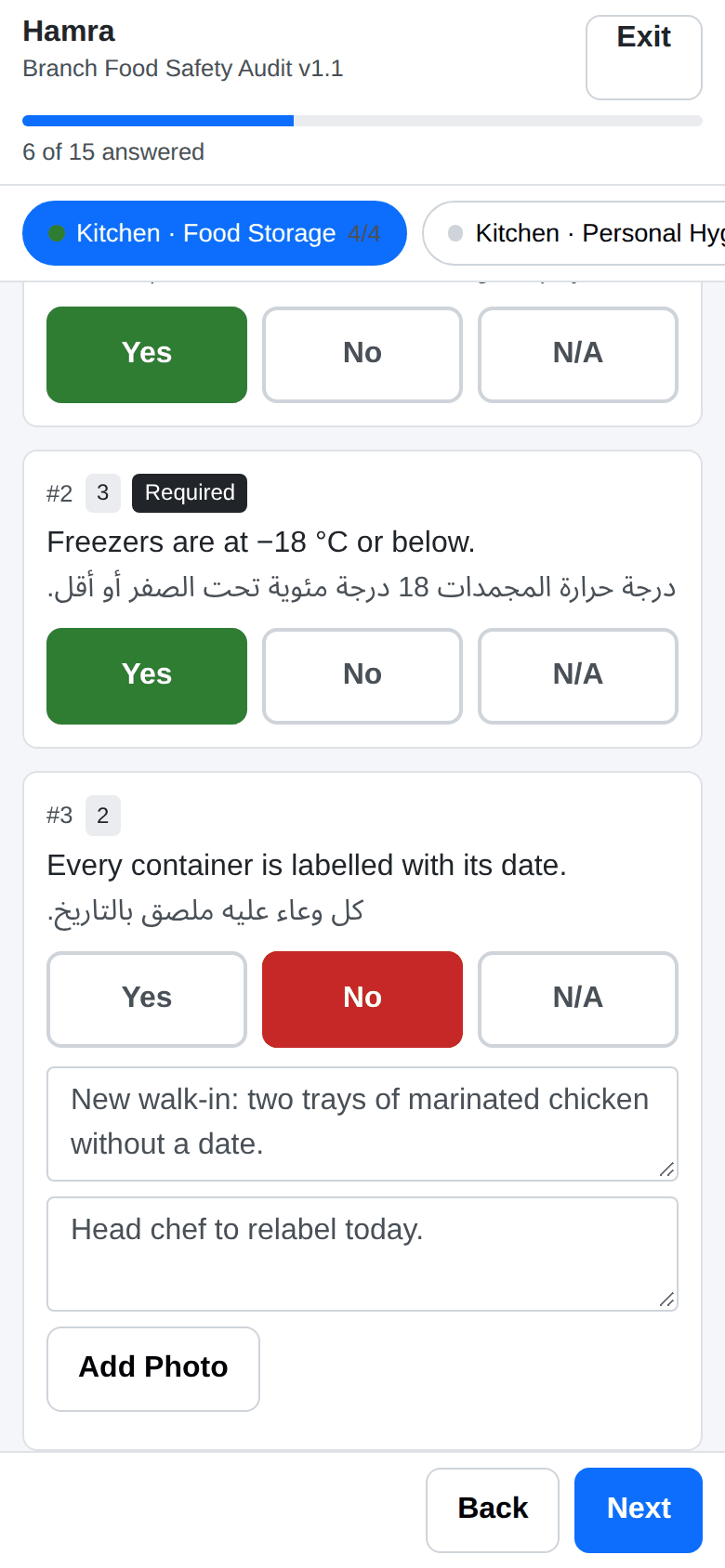
Answering No opens two boxes and a button under the question:
- the note — what you found;
- the action plan — what will be done about it;
- Add Photo — opens the camera on a phone. Photos are made smaller on the device before they are sent.
3Move between categories
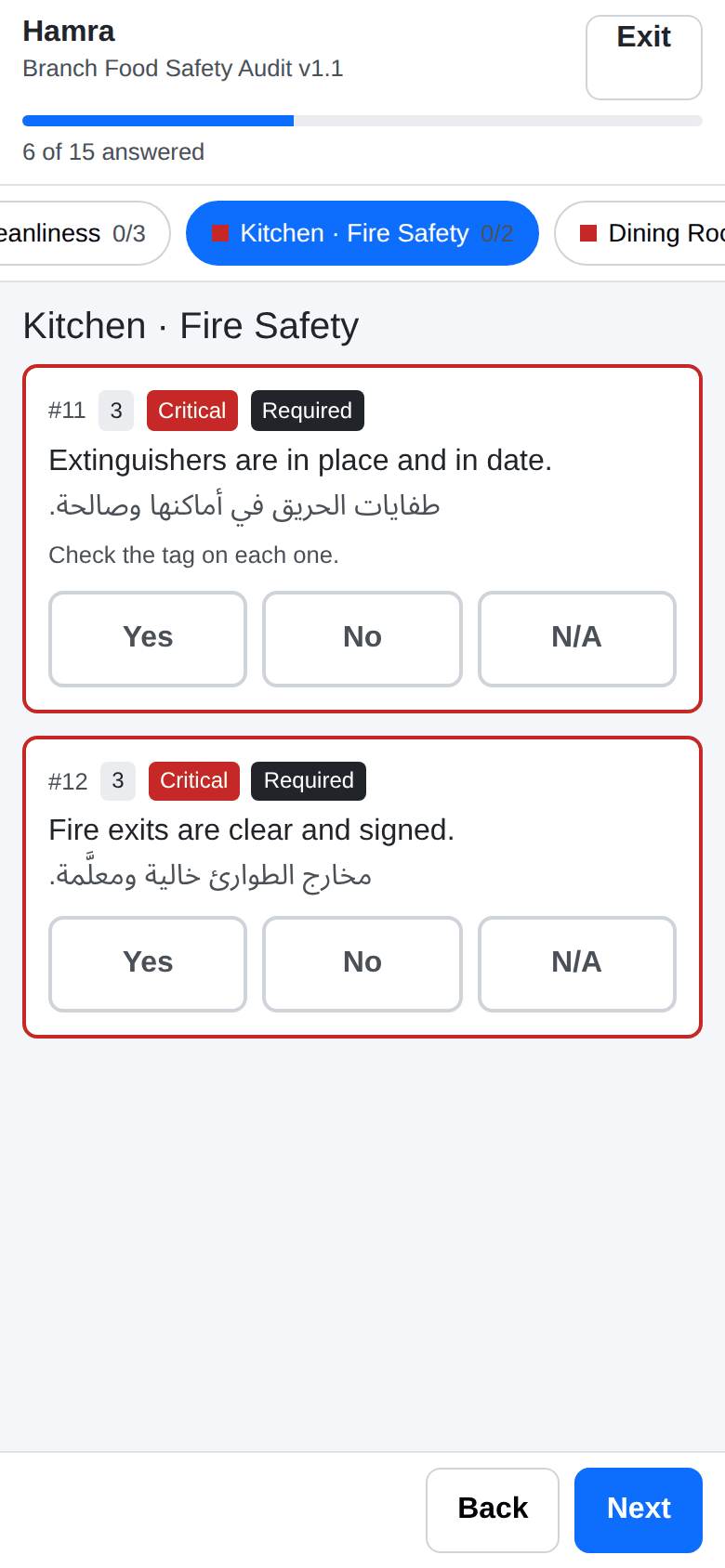
Next and Back move one category at a time; a button on the strip jumps straight to one. Required questions still unanswered are outlined in red.
On the last category, Next becomes Review & Submit — see Reviewing and submitting an inspection.
What happens next
Every answer, note and photo is kept on the device first, then sent; the bottom of the form says when it was last saved. Exit leaves the form at any time — nothing is lost, and Resume brings you back.
N/A is not zero. A question answered N/A leaves the score entirely: it counts neither for nor against. Use it only when the item does not exist at this branch — a bar with no ice machine — not when it was not checked.
If it goes wrong
| What you see | What it means |
|---|---|
| No connection. Your answers are saved on this device and will sync automatically. | Carry on; the answers are sent when the connection comes back. Do not close the browser’s data for this site. |
| Your session has expired. … | Sign in again in another tab, then reload the form. Nothing is lost. |
| The server rejected the save … | The answers are on the device but not being stored. Reload; if it happens again, tell the office before you leave the branch. |
| Offline storage unavailable … | The browser cannot keep answers on the device (a private window, for example). Stay connected and keep the tab open. |