ClockWise HRGuideNationalities
Nationalities
The list offered in the Nationality box of every employee and candidate file: its names, short codes and order.
Seeing the list, changing it and deleting from it are three separate permissions. The names are stored as typed: they appear the same in English and Arabic.
1Open the list
In the menu on the left, under General Settings, click Nationalities.
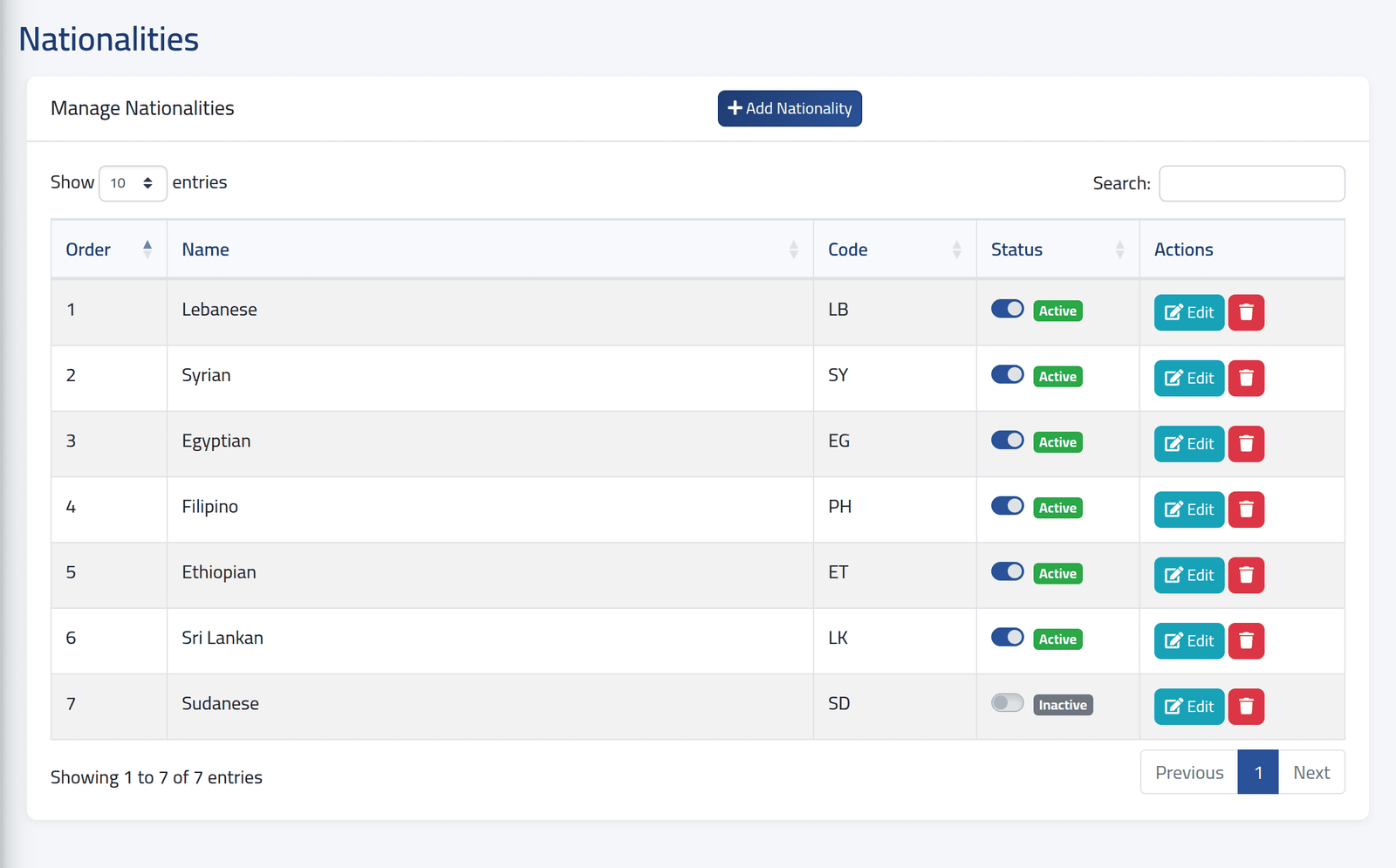
Each nationality with its Order, Name and Code. The switch under Status takes it off the employee form, or puts it back, at once — no save needed.
In the picture, Sudanese is switched off.
2Add one
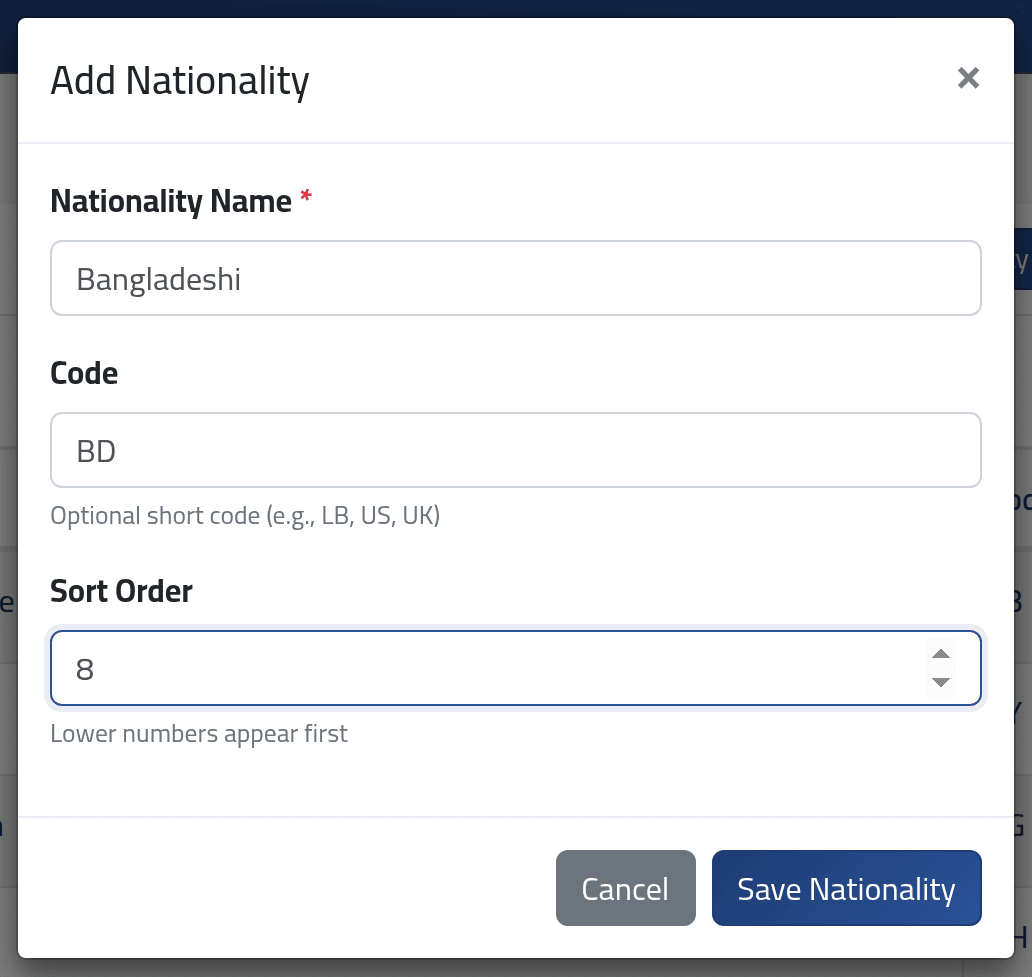
Click Add Nationality:
- Nationality Name — each name once.
- Code — optional, two letters such as
LB. - Sort Order — lower numbers come first in the list.
Click Save Nationality.
Edit changes a nationality’s name, code or order everywhere it is used.
What happens next
The nationality is offered at once in Adding an employee and Recording a candidate, in the order given.
Switching a nationality off also hides it from the files of people who already have it. Their form shows no nationality — and if anyone saves that form, the nationality is cleared. Switch it off only when nobody active holds it.
Delete removes the nationality from everyone who has it. The confirmation names the nationality but not who holds it. Switch it off instead.
If it goes wrong
| What you see | What it means |
|---|---|
| The name has already been taken. | That nationality exists — perhaps switched off. Switch it on. |
| A nationality is not offered on the employee form | It is switched off. |
| No Add Nationality, no Edit | Your account may only view the list. |
| A delete ends on an Unauthorized action page | Your account may change nationalities but not delete them. |