ClockWise HRGuideGiving someone a schedule
Giving someone a schedule
A schedule says which shift a person works on each day of the week. A change never rewrites the old one: it starts a new version from a date you choose — and that date starts at the beginning of the open salary period, not today.
The shifts must exist — see Adding a shift. Your account must be allowed to add and edit schedules.
1Open Attendance Setup
Open the person’s file and click Attendance Setup.
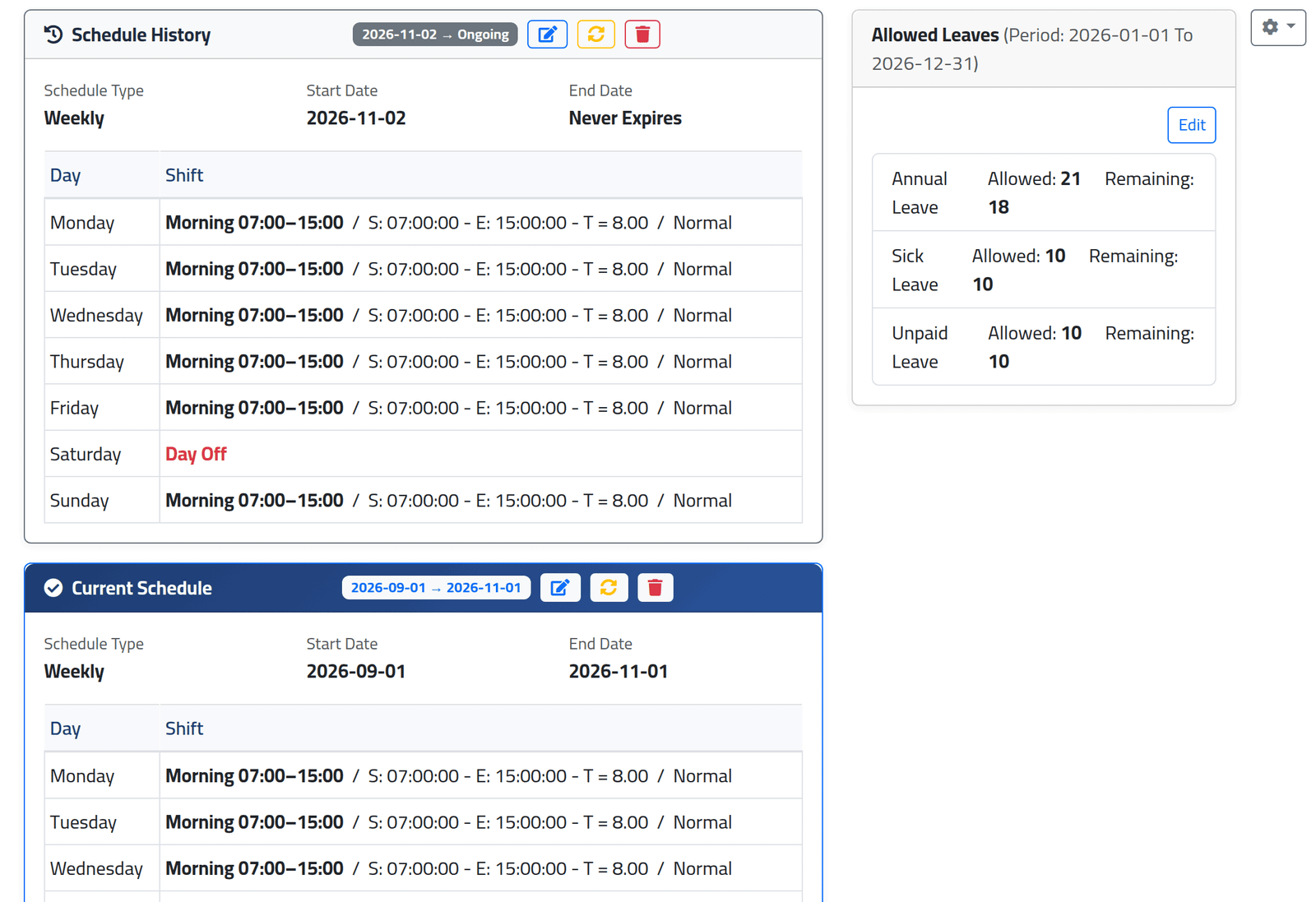
Current Schedule, in blue, is the one in force today, with its dates and a shift for each day. Other versions are listed under Schedule History — including one that has not started yet, like the version from 2026-11-02 in the picture.
Each version has three buttons: edit (the pencil), recalculate the days it covers, and delete.
2Add a first schedule
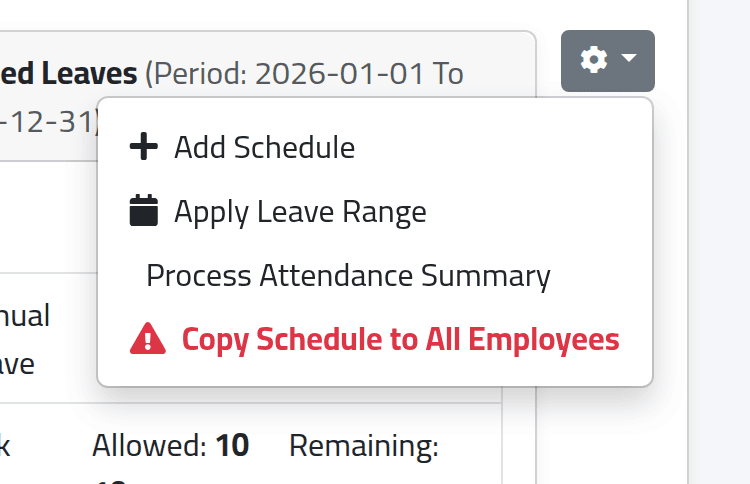
For somebody new, open the menu at the top right of the tab (⚙) and choose Add Schedule. Choose Weekly, pick a shift — or Day Off — for each day, and give a start date. Leave the end date empty for a schedule that runs until it is changed.
The same menu holds Copy Schedule to All Employees, in red. It copies this person’s first ever schedule — not the current one — onto every other employee in the company, in every branch, including people who have left. Their own schedules are cut off the day before. There is no undo: putting it right means correcting every employee’s schedule one by one. Do not use it to give one branch a pattern: see One schedule for a whole branch.
3Change a schedule from a date
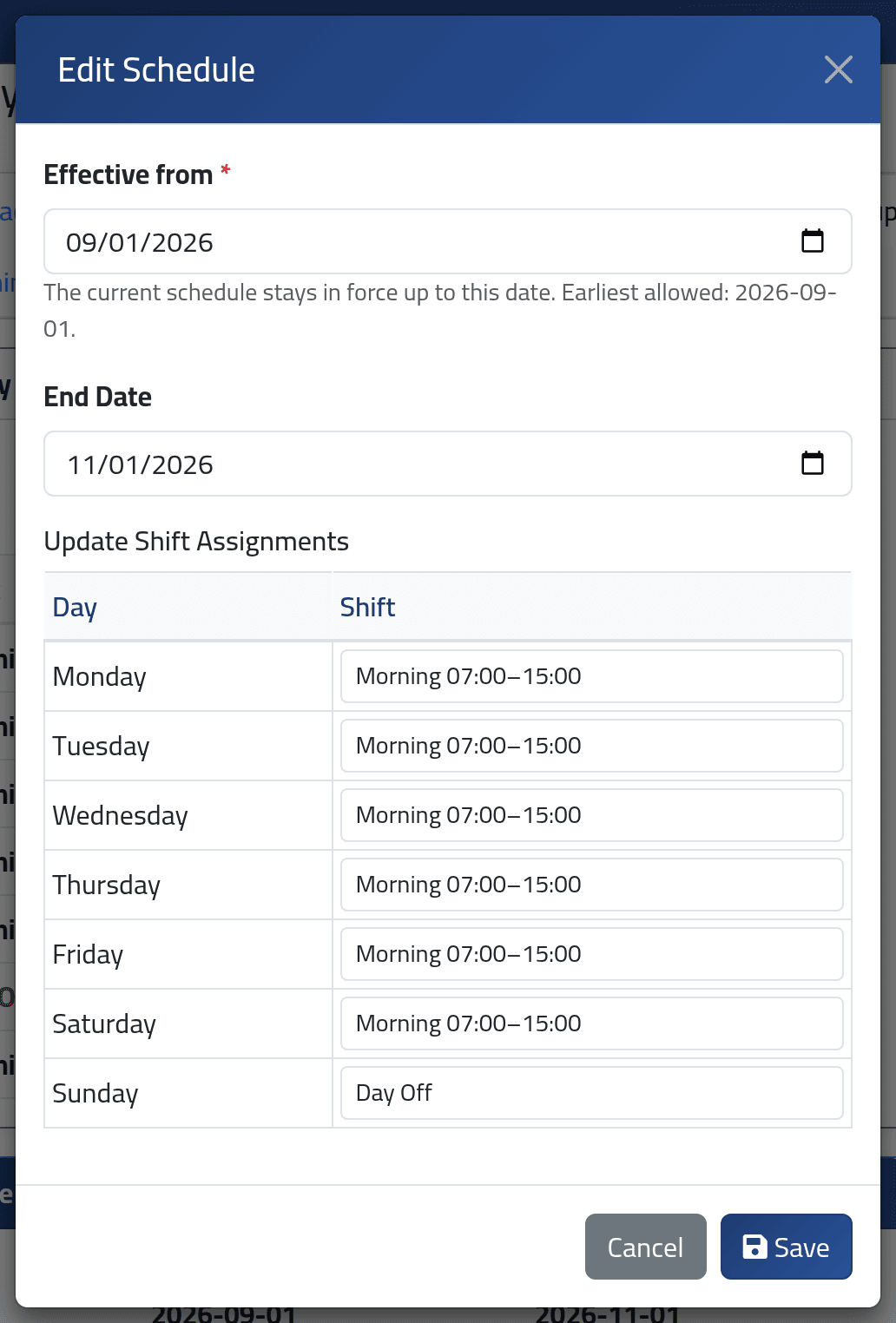
Click the pencil on Current Schedule. Change the shifts for the days that change.
Then set Effective from — the first day of the new pattern. The current schedule stays in force up to the day before.
Effective from does not start at today. It starts at the earliest date allowed — usually the first day of the salary period that is still open. Saved as it is, the new pattern applies to the whole of that period, every day already worked included, and all of them are recalculated. Set the date to the day the change really starts.
Click Save.
What happens next
The old version now ends the day before Effective from, and a new version starts on it. The days from that date on are recalculated in the background.
Each day is measured against the schedule that was in force on that day. If changing next week’s pattern rewrote the old schedule, every past Monday would be measured against next week’s shifts the next time it was recalculated. Versions keep the past as it was worked.
If it goes wrong
| What you see | What it means |
|---|---|
| The effective date must be … or later. | Earlier days belong to a salary period that is closed, or locked because its hours were checked. They cannot change. |
| On a branch with no salary period yet, the earliest date is today | Nothing can be scheduled into the past until a salary period exists. Open one first — see Creating a salary period. |
| This schedule cannot be deleted because it covers days … that belong to a closed or locked salary period. | Give it an end date instead. |
| This schedule already ended on … | You are editing an old version. Add a new schedule instead. |
| Every day shows Missing schedule | The person has no schedule covering those days. |
| In Arabic, the ⚙ menu opens behind the side menu | Collapse the side menu with ☰ first, then open ⚙. |