ClockWise HRGuideImporting data from a file
Importing data from a file
Load many records at once from a spreadsheet saved as CSV — emergency contacts, leave balances, pay rates, adjustments, add-ons, payment accounts. You see what every line will do before anything is written.
- Your account needs the import permission, and a permission for each kind of data — someone may import contacts but not pay rates.
- Save the spreadsheet as CSV, comma-separated, at most 10 MB. The first line holds the column headings; each line after it is one record, with the same number of columns.
- Each line names its person by employee ID, the number on their file.
What each kind of import does:
| Import target | Each line |
|---|---|
| Emergency Contact | adds a contact to the person’s file, or updates the one already there |
| Annual Leave Balance | sets the person’s remaining days of annual leave for the current calendar year |
| Salary Rates | changes the pay type and rate on the person’s file |
| Deduction & Appraisal Import | adds a deduction or appraisal for the coming salary |
| Salary Add-ons Import | gives the person an allowance or deduction — named exactly as under Salary add-on types |
| Employee Payment Accounts Import | adds a payment account — method and bank named exactly as under Payment methods and banks |
Main Contact (Phone) is listed but does not work yet: every line ends in an error.
1Upload the file
In the menu on the left, under General Settings, click data_imports, then New Import.
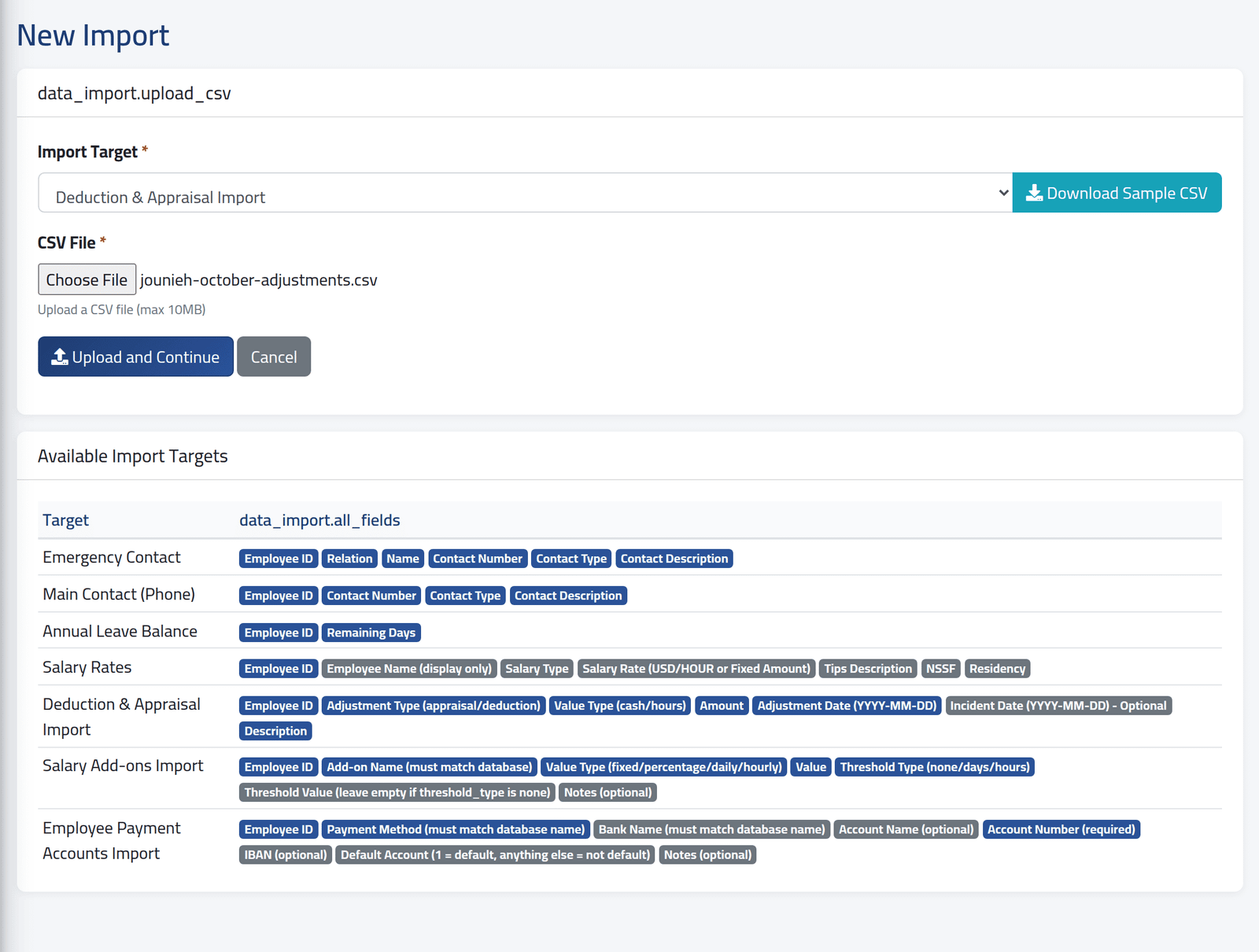
Choose the Import Target. Download Sample CSV gives a file to fill in. Below, Available Import Targets lists every field each one takes; dark blue fields are required.
Choose the CSV File and click Upload and Continue.
2Match the columns
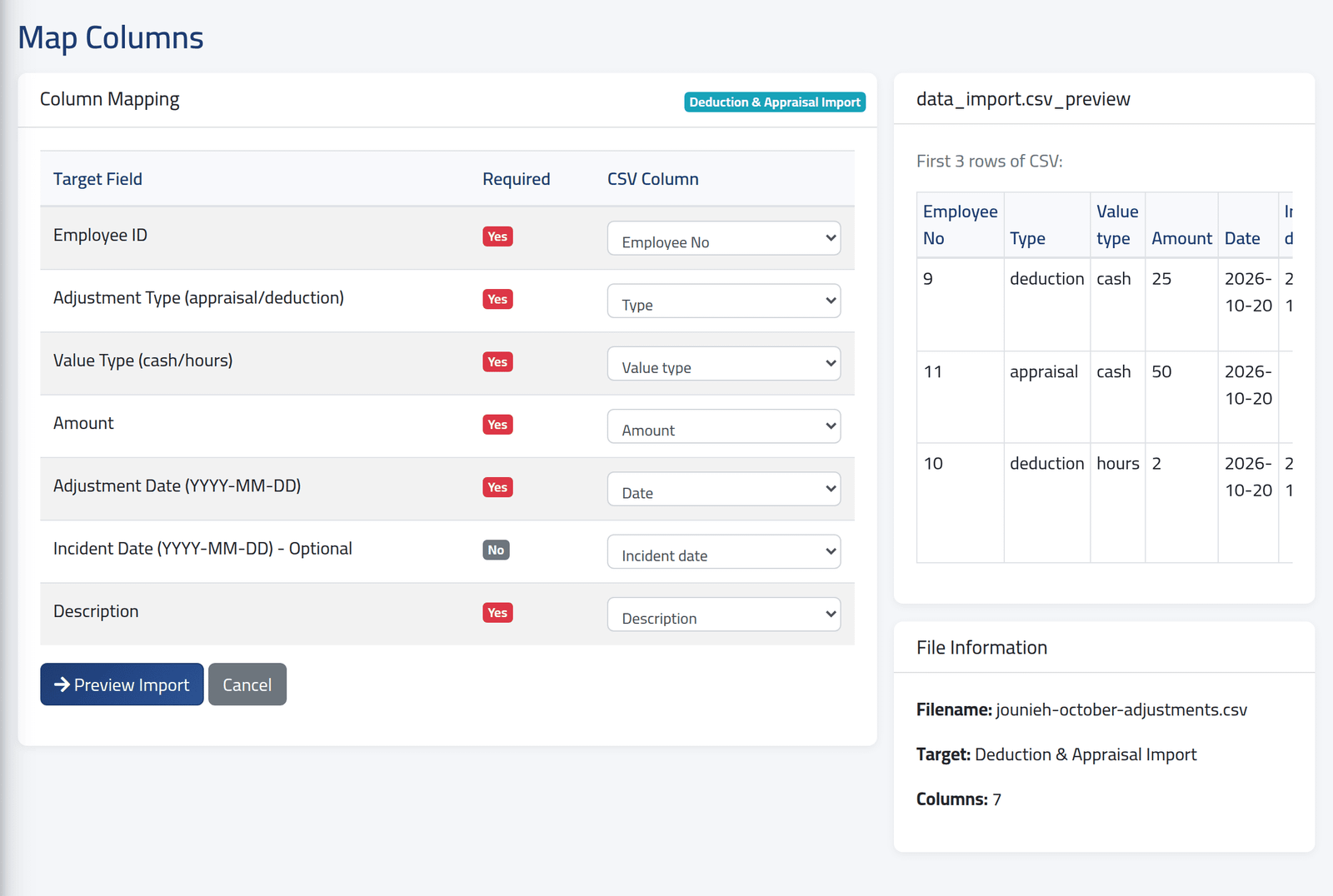
For each Target Field, choose the column of your file that holds it. Columns whose heading matches are chosen for you. The first three lines of the file are shown on the right, to check against.
Click Preview Import.
3Read the preview
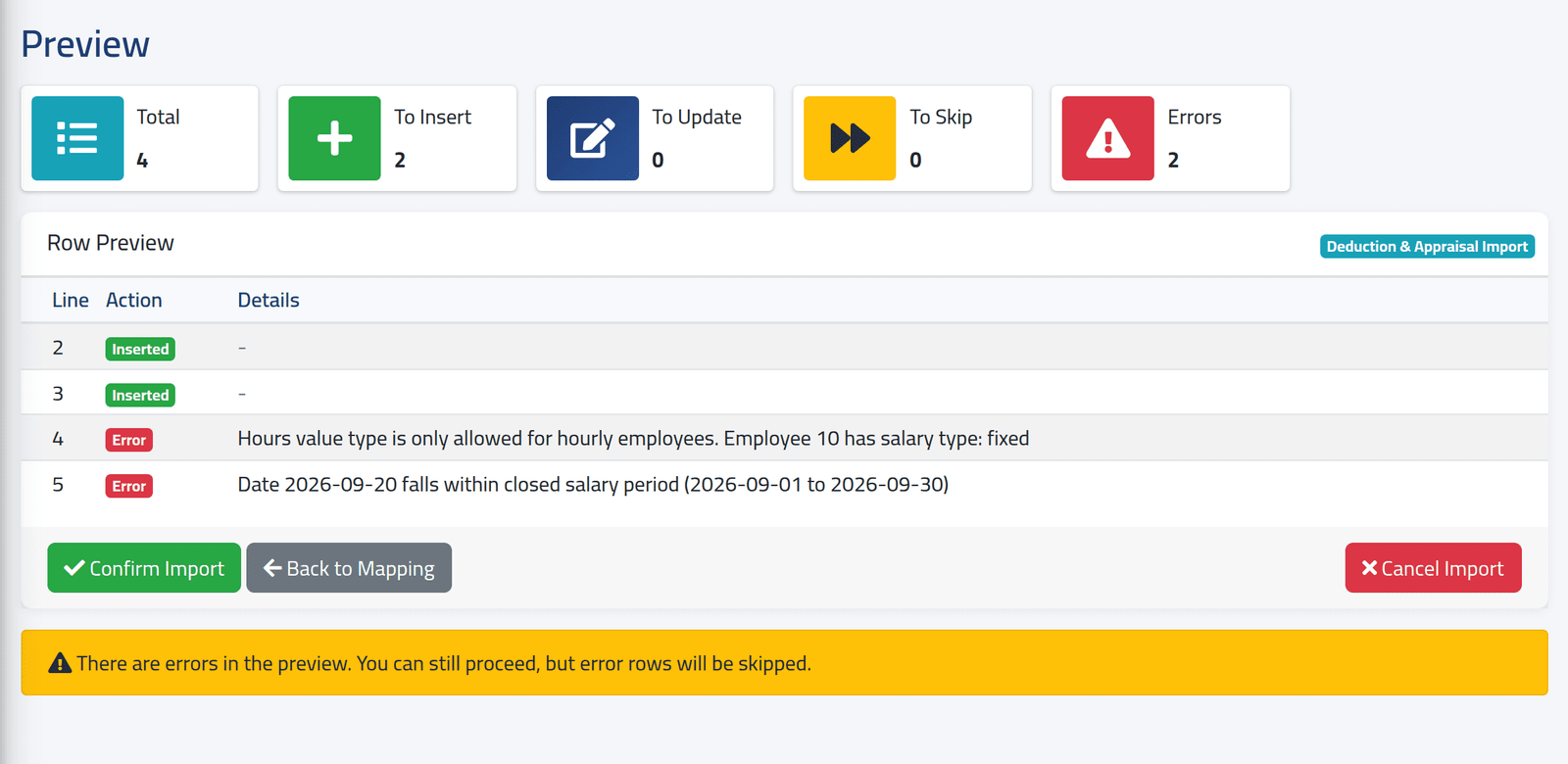
The preview runs the whole file without saving anything, and says what each line would do: Inserted, Updated, Skipped — or Error, with the reason.
In the picture, Jounieh’s October adjustments: two lines are fine. Line 4 is an hours deduction for someone on a fixed salary, and line 5 is dated in September, a closed period.
Correct the file and upload it again as a new import, or go on without the error lines.
4Apply it
Click Confirm Import and confirm. The good lines are written; the error lines are left out.
Back to Mapping changes the matching. Cancel Import drops the import without writing anything.
What happens next
The import, its counts and every line’s result stay in Import history. Only the person who uploaded a file can preview, apply or cancel it.
An import cannot be undone. Contacts, rates and balances it wrote must be corrected one by one. Read the preview before you confirm.
Annual Leave Balance always writes the calendar year, even when your company counts leave from each person’s anniversary (see Company settings) — and it writes the leave type whose name contains “Annual”.
If it goes wrong
| What you see | What it means |
|---|---|
| employee_not_found | No one has that employee ID. Check the number on their file. |
| Field ‘…’ is required and must be mapped. | A required field has no column chosen. |
| Hours value type is only allowed for hourly employees … | An hours adjustment for someone paid a fixed salary. Use cash. |
| Date … falls within closed salary period … | The date is in a closed period. Date it in the coming one. |
| An error page straight after uploading | A line has more or fewer columns than the heading line. Check the file in a text editor. |
| A target is missing from the list | Your account may not import that kind of data. |
| The status stays Running | The import stopped part-way. The lines before the stop were written; check them before trying again. |