ClockWise HRGuideGiving out several assets at once
Giving out several assets at once
An allocation order gives one employee several items in one go — a whole starter kit plus anything extra — with a printable sheet for them to sign.
Your account must be allowed to allocate assets.
1See the orders
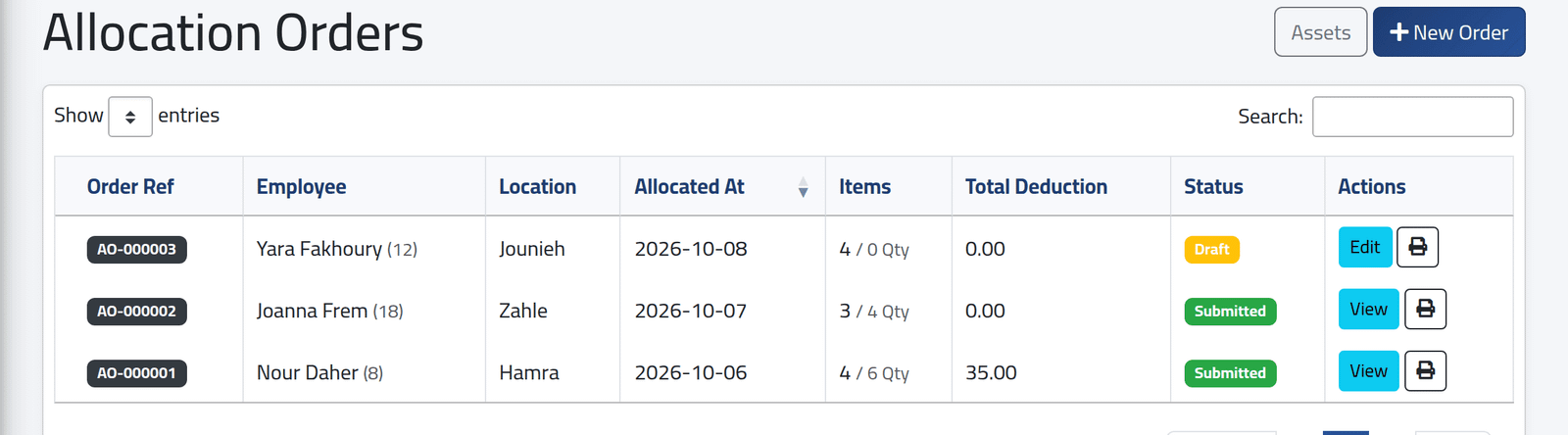
In the menu on the left, under Assets Management, click Allocation Orders. Each order with its reference, the employee and branch, the date, how many items and units, the charge, and whether it is Draft or Submitted. The printer opens the handover sheet.
2Fill in the order
Click + New Order.
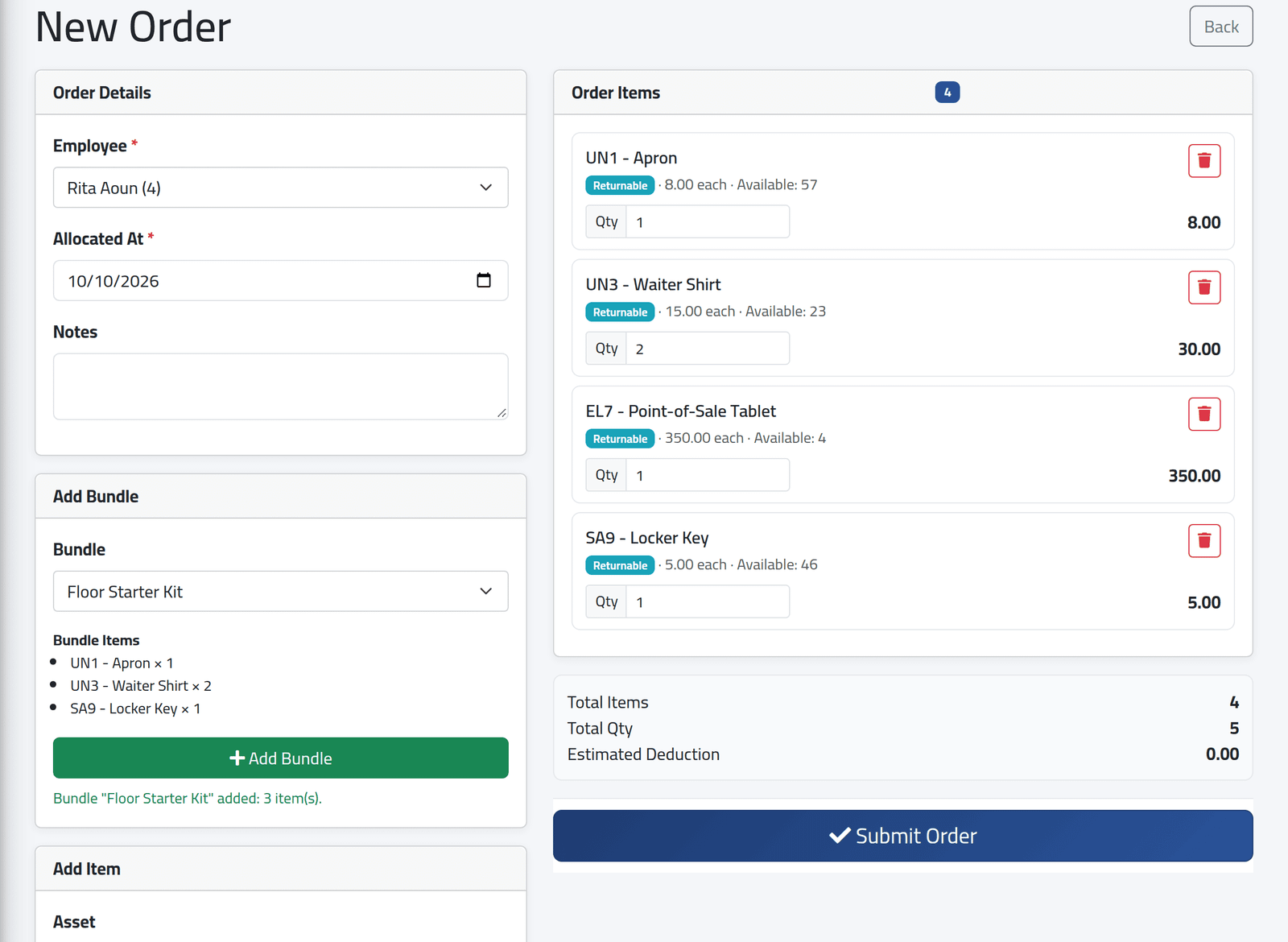
- Under Order Details, the Employee, the date and any notes.
- Under Add Bundle, choose a bundle — its items are listed — and click + Add Bundle. Its lines are added to the order; an item already on it has its quantity raised.
- Under Add Item, add anything else, one asset at a time.
On the right, each item with its type, price, stock and quantity, which you can change, and the totals — Estimated Deduction is what the permanent items will cost the employee. Click Submit Order.
What happens next
The order is Submitted with a reference such as AO-000004: the
stock falls, and each permanent item creates its deduction, taken from the
employee’s next salary. Each line can be returned on its own (see
Taking an asset back).
Print Order gives the handover sheet: the employee, every item with its type, quantity and price, the total value and deduction, and lines for the store and the employee to sign.
The bundle button does not check stock; submitting does. A kit can be added in full even if an item is short — the order is then refused on submit until the stock is there or the line is lowered.
If it goes wrong
| What you see | What it means |
|---|---|
| Insufficient stock for … (available: …) | Lower that line, or add stock first. |
| The bundle is not offered | It is disabled. |
| A bundle line is missing | That asset is disabled; the message under the button names it. |