ClockWise HRGuideLeave types
Leave types
The kinds of leave people can take. Each is marked paid or unpaid — and at present that mark changes nothing: every leave day counts as a day worked.
Your account must be allowed to manage leave types.
1Open the list
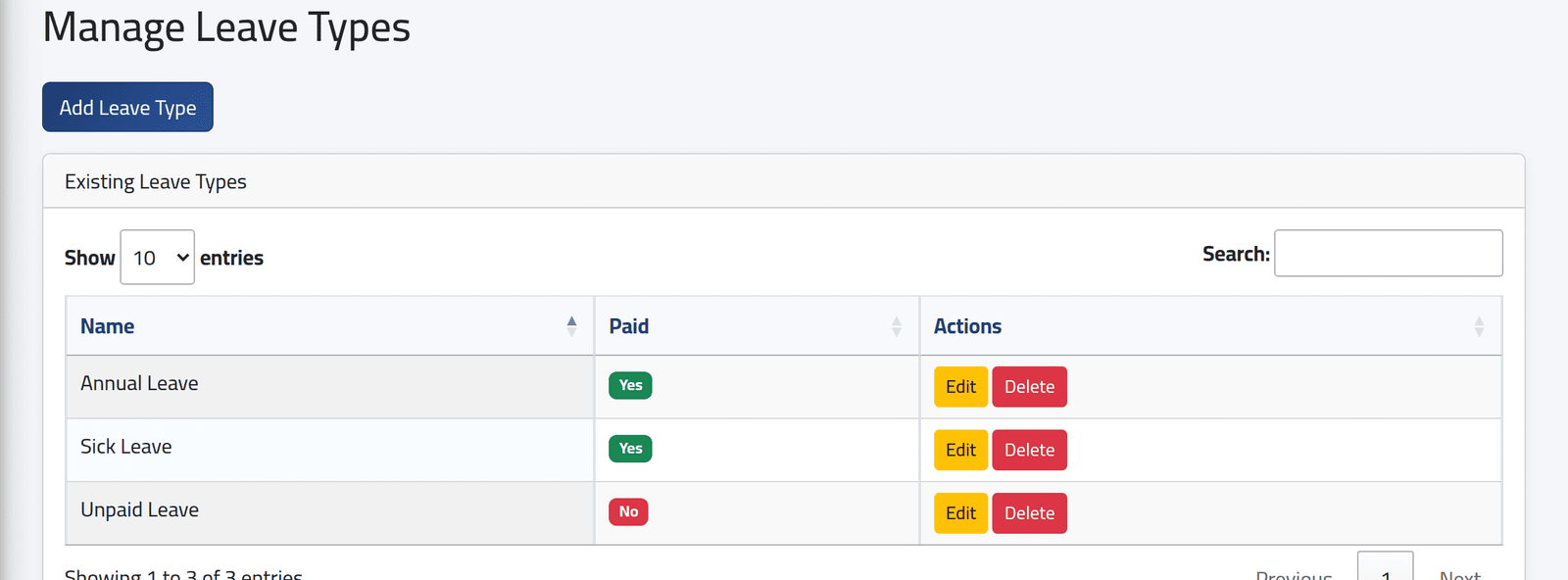
In the menu on the left, under Attendance Settings, click Leave Types.
2Add a type
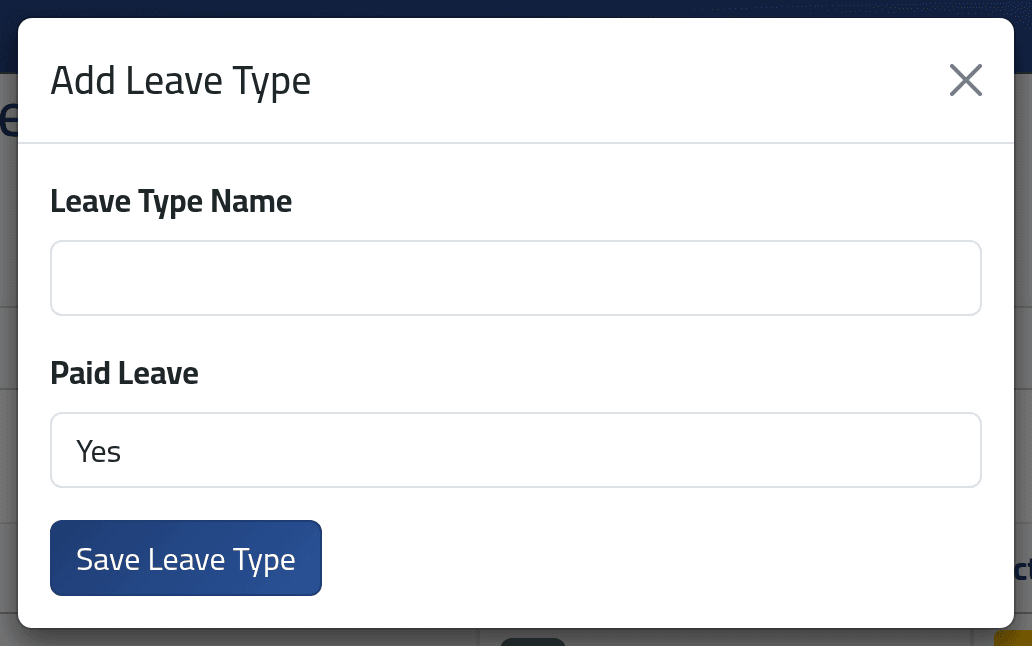
Click Add Leave Type. Give it a Leave Type Name, choose Paid Leave — yes or no — and save.
Paid Leave is recorded and not used. Nothing in the calculation of attendance or salaries reads it. A day of leave marked unpaid is counted exactly like one marked paid: as a full day worked, paid in full.
Until that changes, unpaid leave has to be handled another way — for example by not applying it as leave, so the day shows as an absence, or by recording a deduction for it. Agree the method with whoever runs payroll before the first unpaid day is entered.
What happens next
The new type appears in Recording leave, in the allowance form and in Apply Leave Range. Nobody can take it until they are given an allowance for it.
If it goes wrong
| What you see | What it means |
|---|---|
| An employee on unpaid leave was paid for it | The paid / unpaid mark has no effect. See above. |
| A type does not appear when applying leave | It was just added and the page is old — reload it. |
Deleting a leave type deletes every leave day of that type, for everybody, without saying so. Balances reset as though that leave was never taken. The attendance days themselves keep their leave hours but lose their type. Rename a type rather than delete it.