ClockWise HRGuideThe permissions list
The permissions list
The same permissions seen the other way round: one row per permission and the roles that hold it. It answers "who may do this?" — and it can take every permission from a role at once, the administrator's included.
Your account must be allowed to view permissions; assigning, removing and the all-at-once actions are each their own permission.
To set up a role, What a role may do is easier. Use this screen to see who holds one permission.
1Open the list
In the menu on the left, under Users, click Permissions.
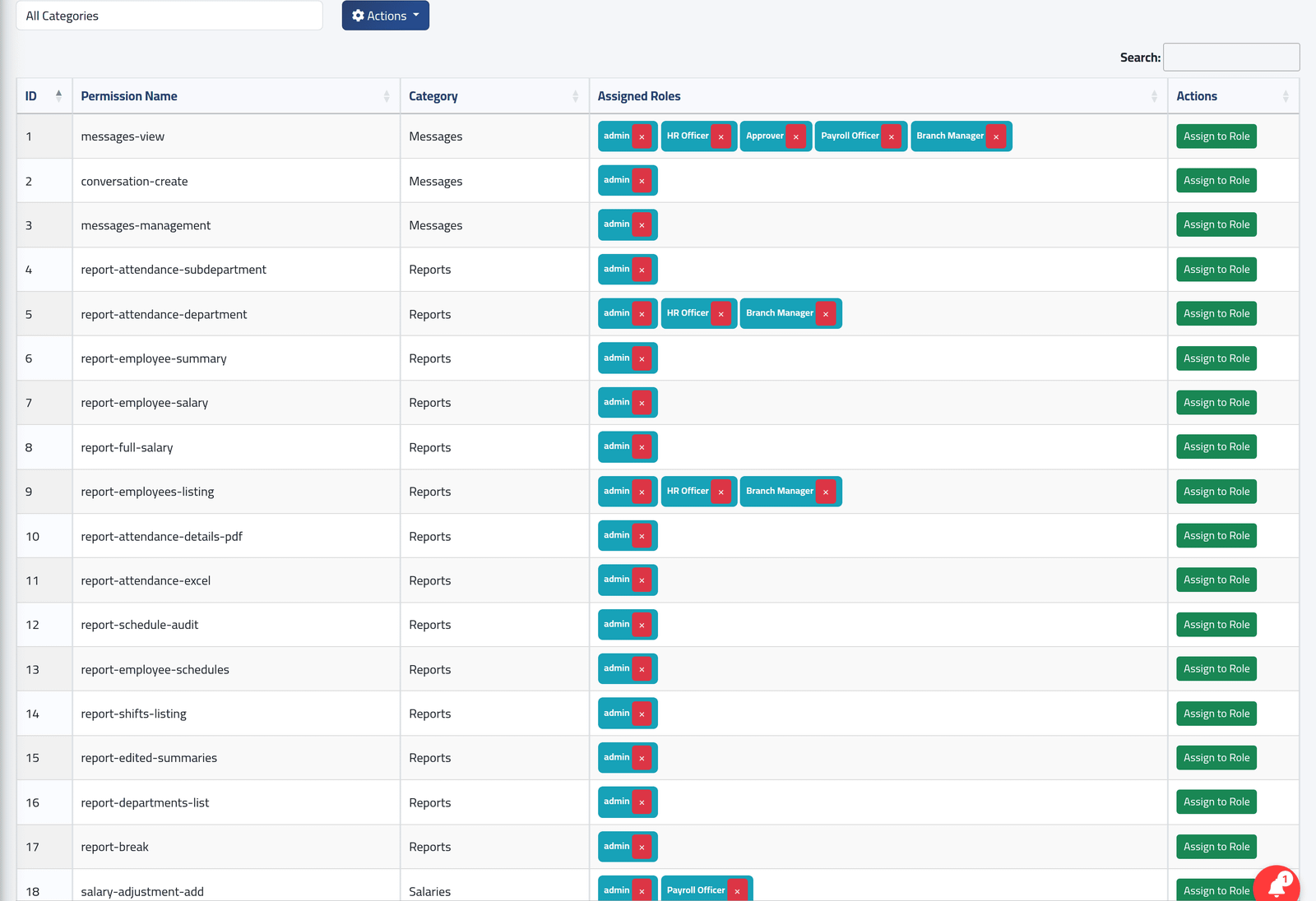
One row per permission: its Category and, in Assigned Roles, every role that holds it. Narrow it with the category list at the top, or Search.
2Give a permission to a role
Click Assign to Role on the permission’s row, choose the role and click Assign. The role’s name appears in the row.
3Take it away
Click the × beside the role’s name in the row, then Remove.
4Everything for one role
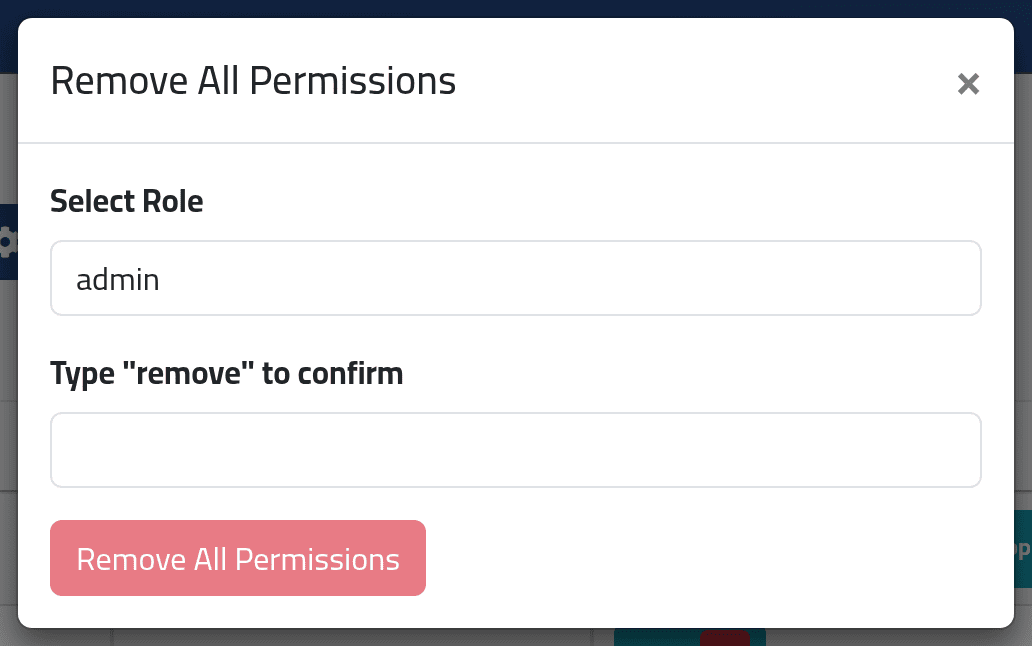
Actions offers Enable All Permissions and Remove All Permissions for one role, with a word to type to confirm.
Remove All Permissions opens on the admin role. Removing all of
the administrator’s permissions leaves nobody able to give them back from
within ClockWise — the administrator has no master key. Check the role before
you type remove.
Actions › Add Permission creates a new permission. That is only useful to whoever is developing ClockWise: a permission nothing in the application checks does nothing.
What happens next
Changes apply to everyone holding the role at their next page.
If it goes wrong
| What you see | What it means |
|---|---|
| No × beside the role names | Your account may not take permissions away. |
| No Assign to Role | Your account may not assign permissions. |
| A permission is in no category | It was added without one. It works the same. |