ClockWise HRGuideFinding an employee
Finding an employee
Every employee you are allowed to see, on one list you can search and export — and the reason a colleague's list is longer or shorter than yours.
Your account must include the Employees screen. If Employees is not under Company in your menu, ask your administrator.
1Open the list
In the menu on the left, under Company, click Employees.
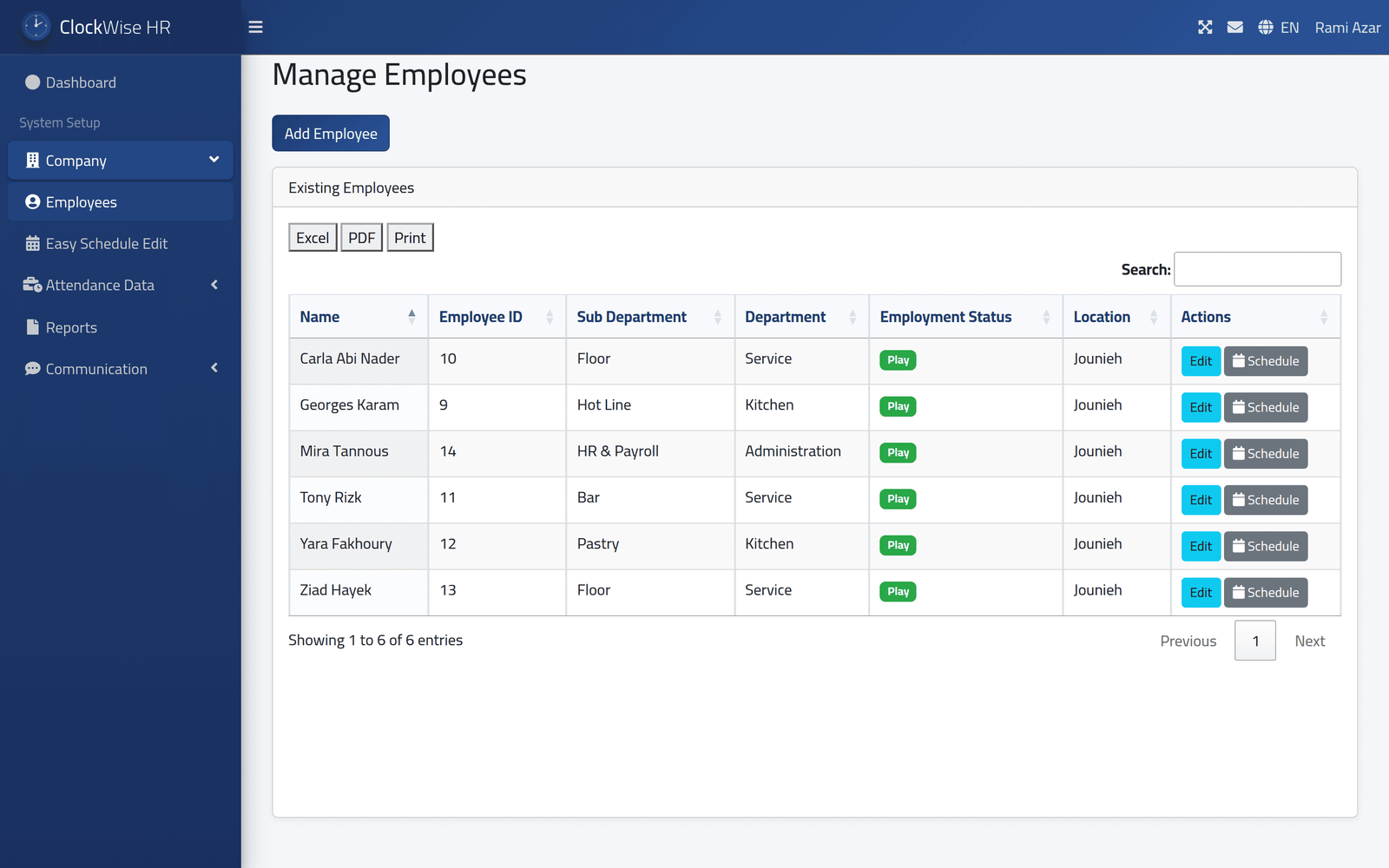
Manage Employees lists everybody in the branches your account covers, ten to a page, in alphabetical order. The picture is an HR officer at the Jounieh branch: six people. An administrator covering all three branches sees eighteen on the same screen.
What you see is decided by the branches your account covers, not by your job title. Two people with the same role can see different lists, and an employee missing from yours is almost always in a branch you do not cover. Your administrator sets this — see Deciding what someone can see.
2Search
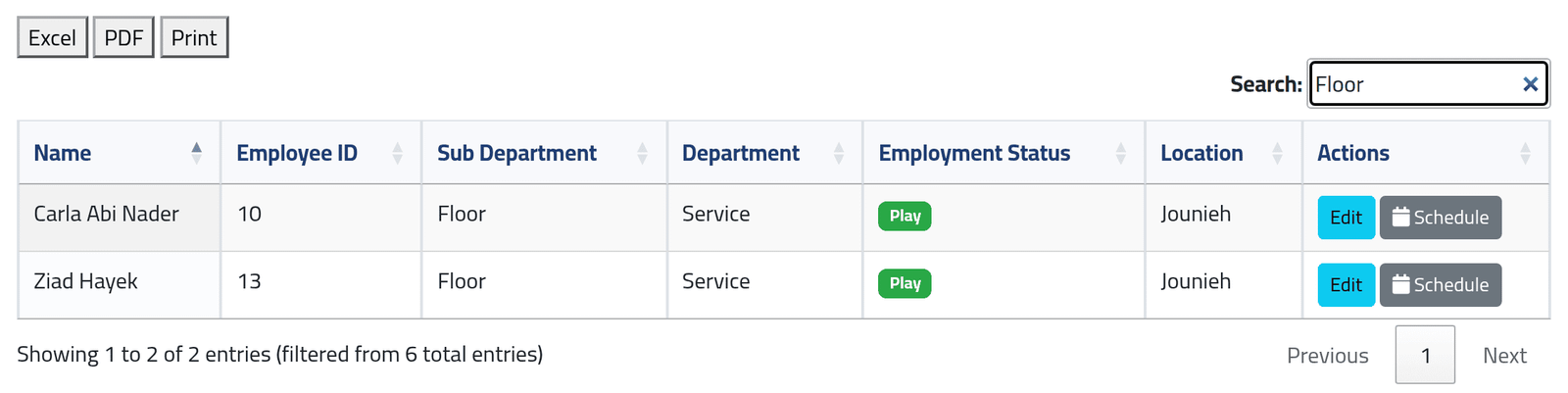
Type into Search. The list narrows as you type, and it searches every column at once — a name, an employee number, a department, a branch, or a status.
Here “Floor” leaves the two people in that sub-department.
Click a column heading to sort by it; click again to reverse.
3Read a row
Each row shows the person’s name, their Employee ID, where they work (Sub Department, Department, Location) and their Employment Status:
| Status | Means |
|---|---|
| Play | Working. Counted as active on the dashboard. |
| Pause | Temporarily not working — still on attendance screens and reports, not counted as active. |
| Stop | Gone. Left off attendance screens, reports and audits, but still on this list. |
On the right, Edit opens the person’s file and Schedule shows the shifts they work each day of the week.

4Export what you see
Excel, PDF and Print, above the table, export the list as it stands — after your search, every page of it, without the buttons column.
What happens next
From here, Edit leads to everything about one person: their details, salary, documents, schedule and attendance. Add Employee, above the list, starts a new file.
An administrator sees two more buttons on each row — Acc, the person’s loans and payments, and Delete — and an Actions menu above the list for recalculating attendance.
If it goes wrong
| What you see | What it means |
|---|---|
| Somebody is missing from the list | They are in a branch, or a sub-department, your account does not cover. |
| Edit opens a page saying the action is not authorised | The person has no branch set, or is outside your sub-departments. People with no branch appear on everyone’s list, but nobody can open them until a branch is set. |
| You want to remove somebody who has left | Set their status to Stop on their file. Delete does not work at present: pressing it does nothing. |
| The export has fewer people than expected | It exports what the search left. Clear Search first. |