ClockWise HRGuideA candidate's CV and papers
A candidate's CV and papers
The CV, ID and certificates a candidate hands in, kept on their profile. When they are hired, every attachment moves to their employee file — typed and dated the way you filed it here.
Your account must be allowed to manage candidate attachments.
1Open the candidate
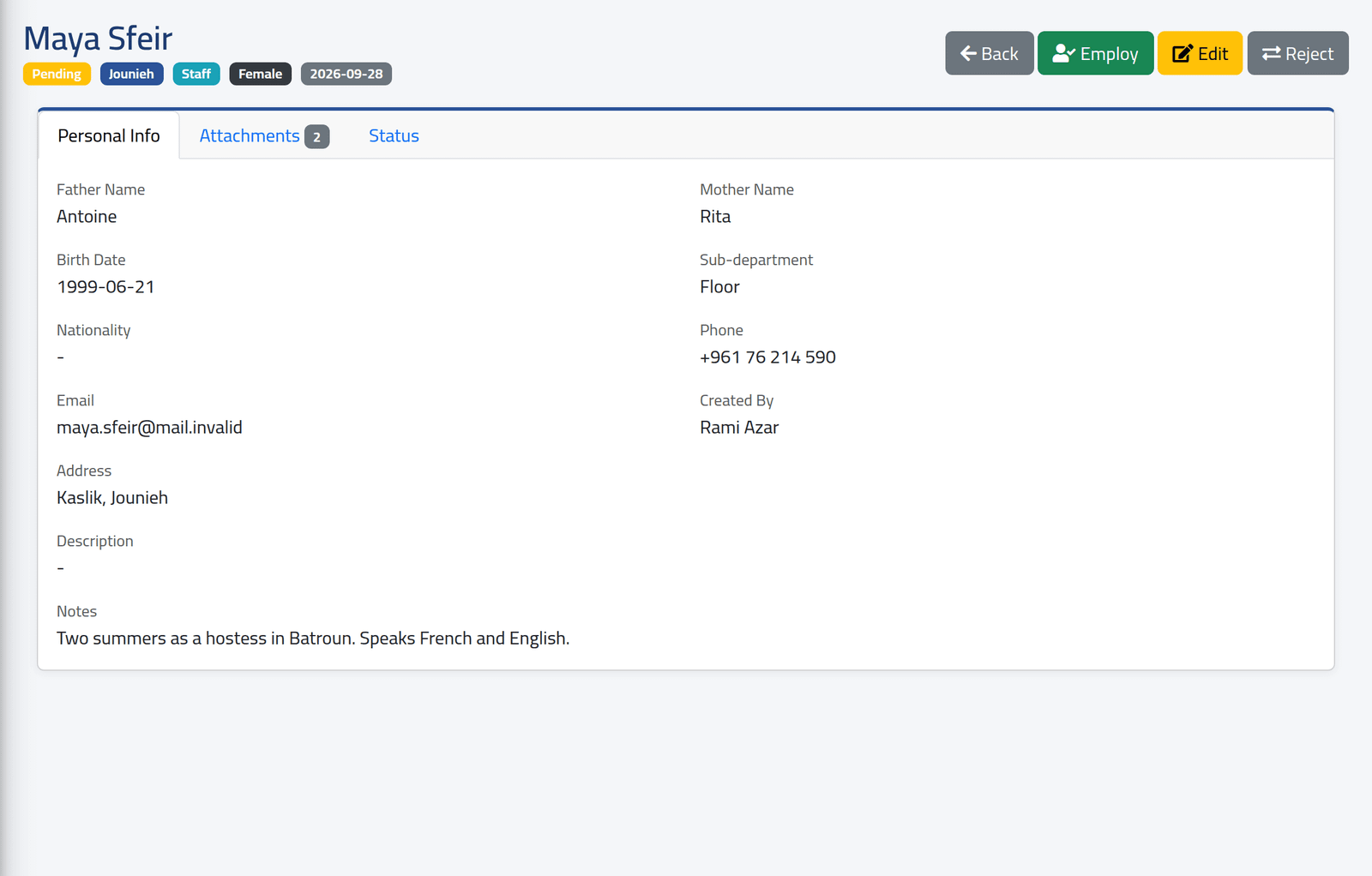
On Candidates, click the name or the eye. The profile shows the candidate’s status, branch, position and applied date at the top, the buttons for what you may do, and three tabs.
2Open the attachments
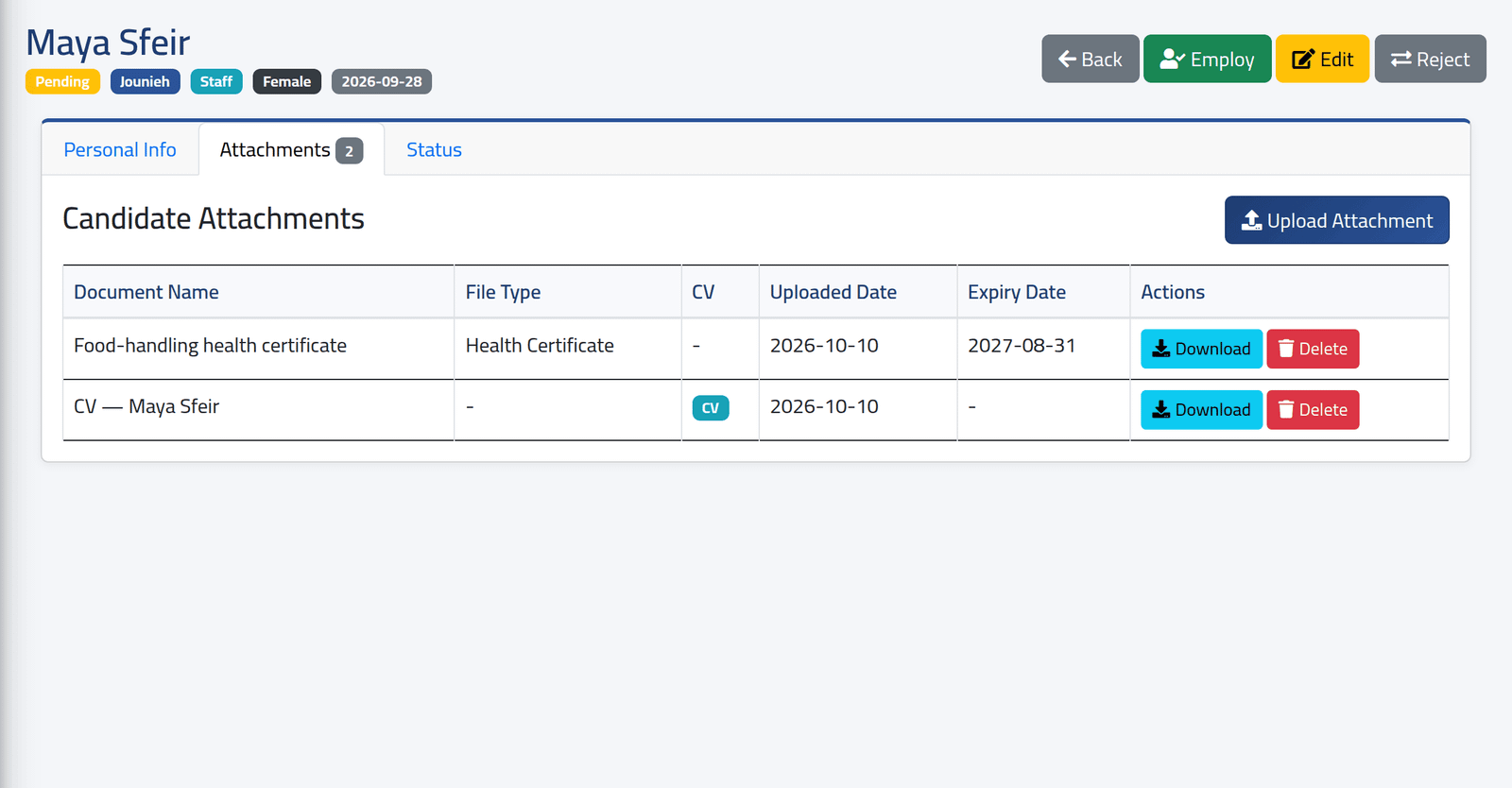
Click Attachments. Each paper with its File Type, whether it is the CV, when it was uploaded and when it expires. Download opens it.
3Upload one
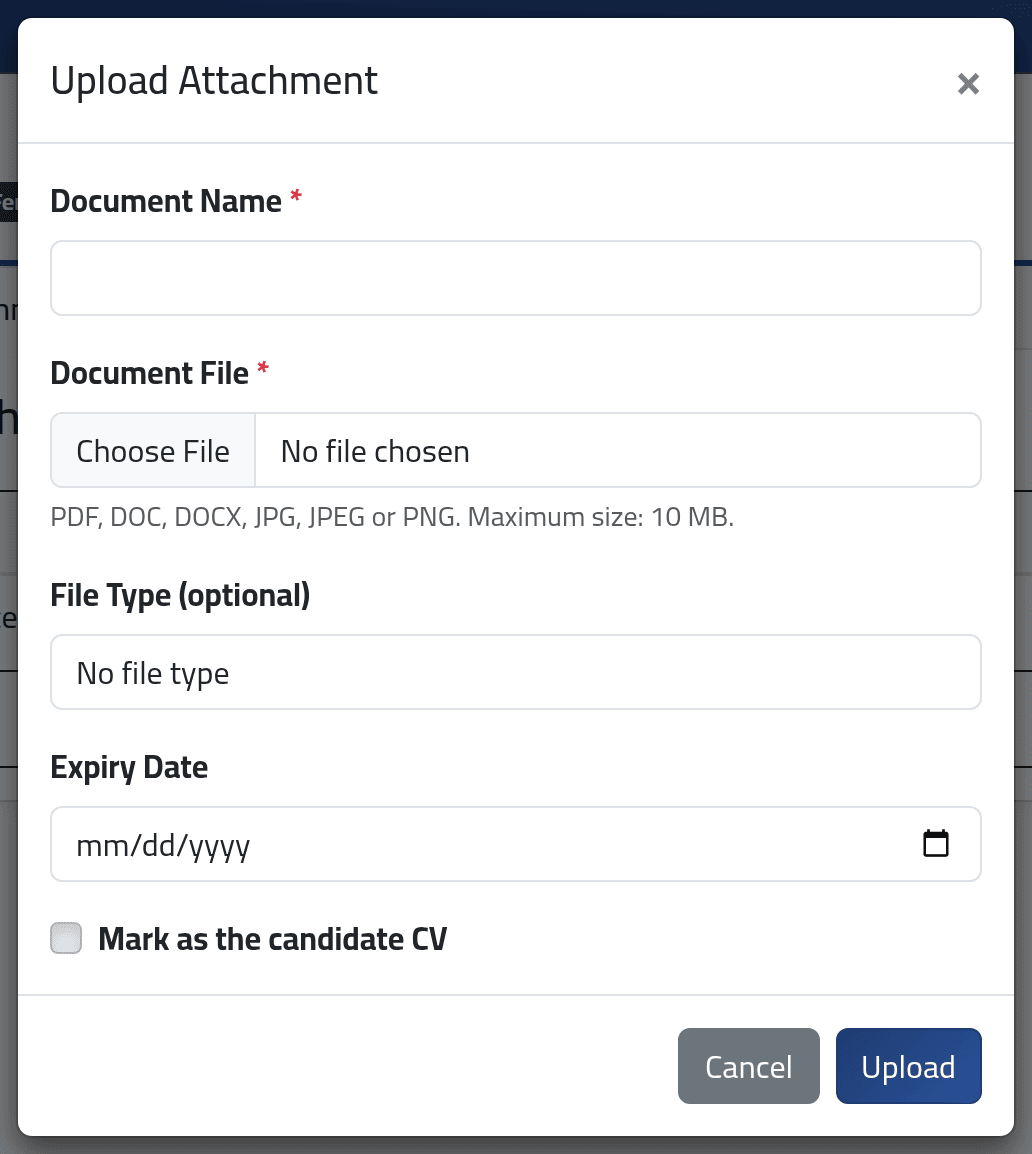
Click Upload Attachment.
- Document Name — what it is: CV — Maya Sfeir.
- Document File — PDF, Word, JPG or PNG, up to 10 MB.
- File Type (optional) — one of the File types.
- Expiry Date — for papers that expire.
- Mark as the candidate CV — one paper is the CV; marking another unmarks the first.
Click Upload.
What happens next
When the candidate is hired, every attachment is copied to their employee file (see Documents) with the same name, type and expiry, and the line here says Moved to the employee file. It can no longer be downloaded or deleted from the candidate.
Give each paper its file type and expiry here. The employee file does not ask again: a health certificate moved without an expiry date never warns anyone that it is running out — even if its file type says the expiry is mandatory.
Upload is still offered on a hired candidate. Anything uploaded then stays on the candidate and is not moved; add it to the employee file instead.
If it goes wrong
| What you see | What it means |
|---|---|
| The document file must be a file of type: pdf, doc, docx, jpg, jpeg, png. | Another kind of file. Save it as PDF. |
| The document file must not be greater than 10240 kilobytes. | Larger than 10 MB. |
| No Upload Attachment | Your account may not manage candidate attachments. |