ClockWise HRGuideOverseeing all conversations
Overseeing all conversations
Messages Management lets an administrator see every conversation in the company, read it, take it over, close or reopen it, and delete it — one at a time or several at once.
Your account must be allowed to manage messages. Use it for what it is for — a conversation of a person who has left, an inappropriate one — and tell people that it exists.
1Every conversation
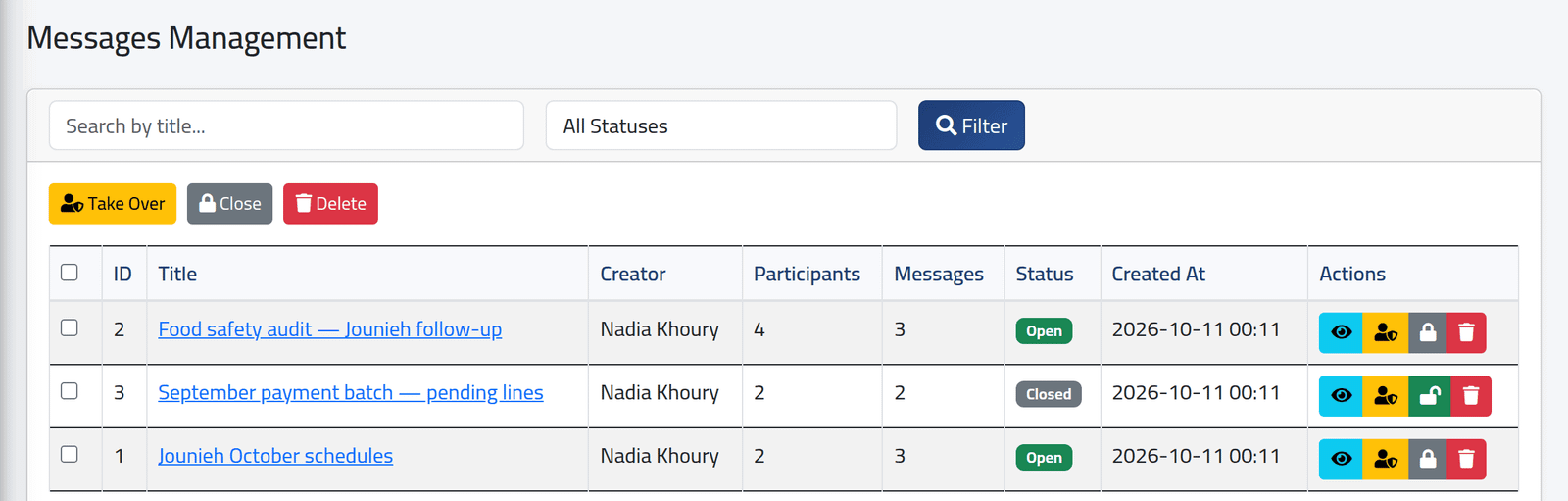
In the menu on the left, under Communication, click Messages Management. Every conversation, whoever is in it: its creator, participants, number of messages, status and date. Search by title or filter by status.
The buttons on each line view it, take it over, close or reopen it, and delete it. Tick several to Take Over, Close or Delete them together.
2One conversation
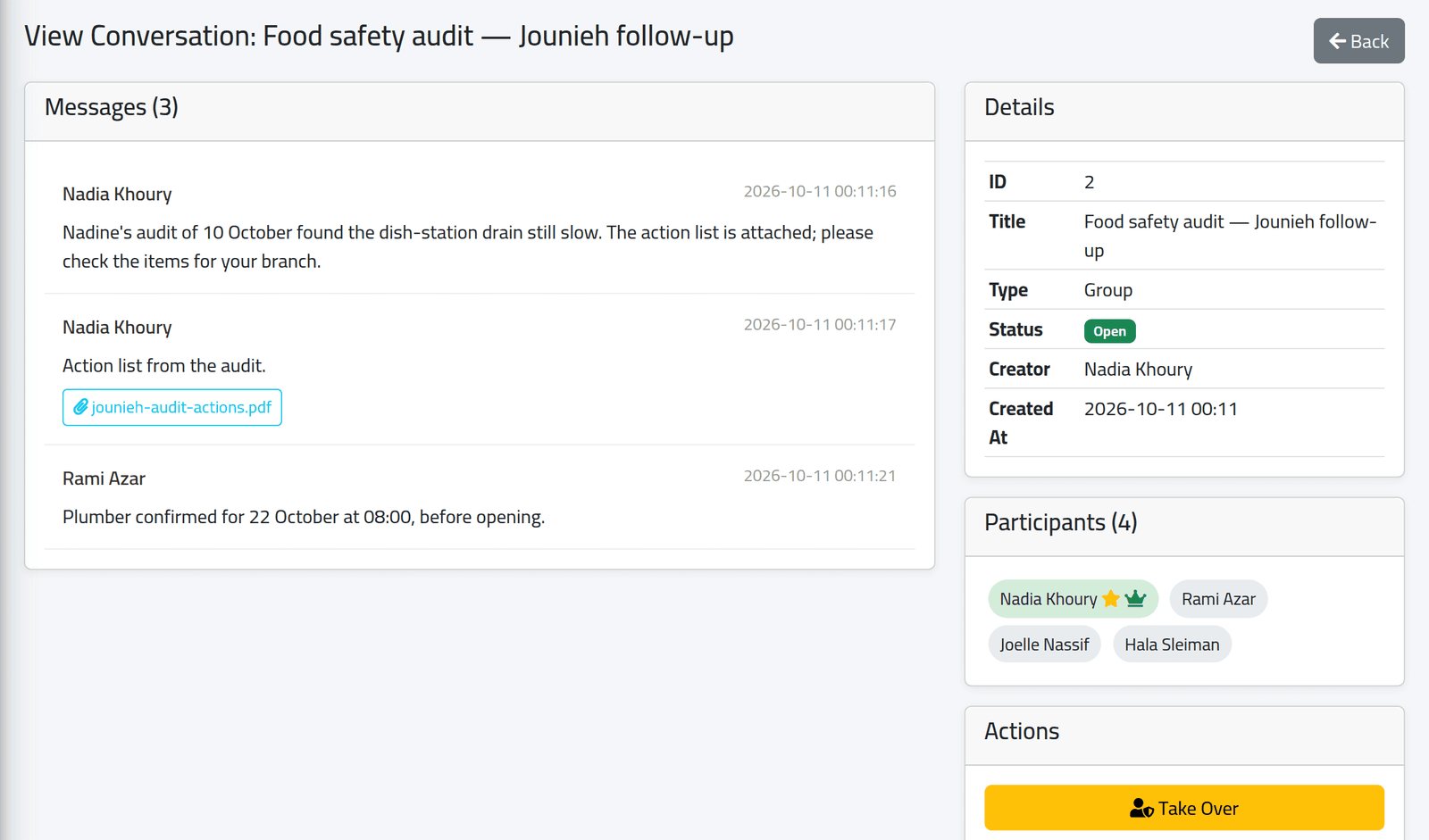
View shows every message and attachment, the details and the participants — without you joining it.
- Take Over makes you a participant and its owner, so you can add or remove people, rename, lock or close it as in Organising conversations.
- Close Conversation stops all replies; Reopen allows them again.
- Delete Conversation removes it, its messages and attachments.
What happens next
Deleting cannot be undone. Only a record remains — who deleted it, its subject, its participants and how many messages it had. The participants see it disappear from their inbox.
If it goes wrong
| What you see | What it means |
|---|---|
| No Messages Management in the menu | Your account may not manage messages. |