ClockWise HRGuideRecording a candidate
Recording a candidate
A candidate is someone who has applied — recorded with the same personal details an employee has, the branch and position they applied for, and their CV. They stay Pending until you hire or reject them. The list opens on Pending only.
Recruitment must be switched on for your company (see Finding your way around — the menu has a Recruitment group when it is). Seeing, recording, rejecting, attaching papers, hiring and deleting are each a permission.
You see — and can record — candidates only for your branches.
1Open the candidates
In the menu on the left, under Recruitment, click Candidates.
The list opens filtered to Pending. To see rejected or hired candidates, change Status at the top; Location and Position narrow it further.
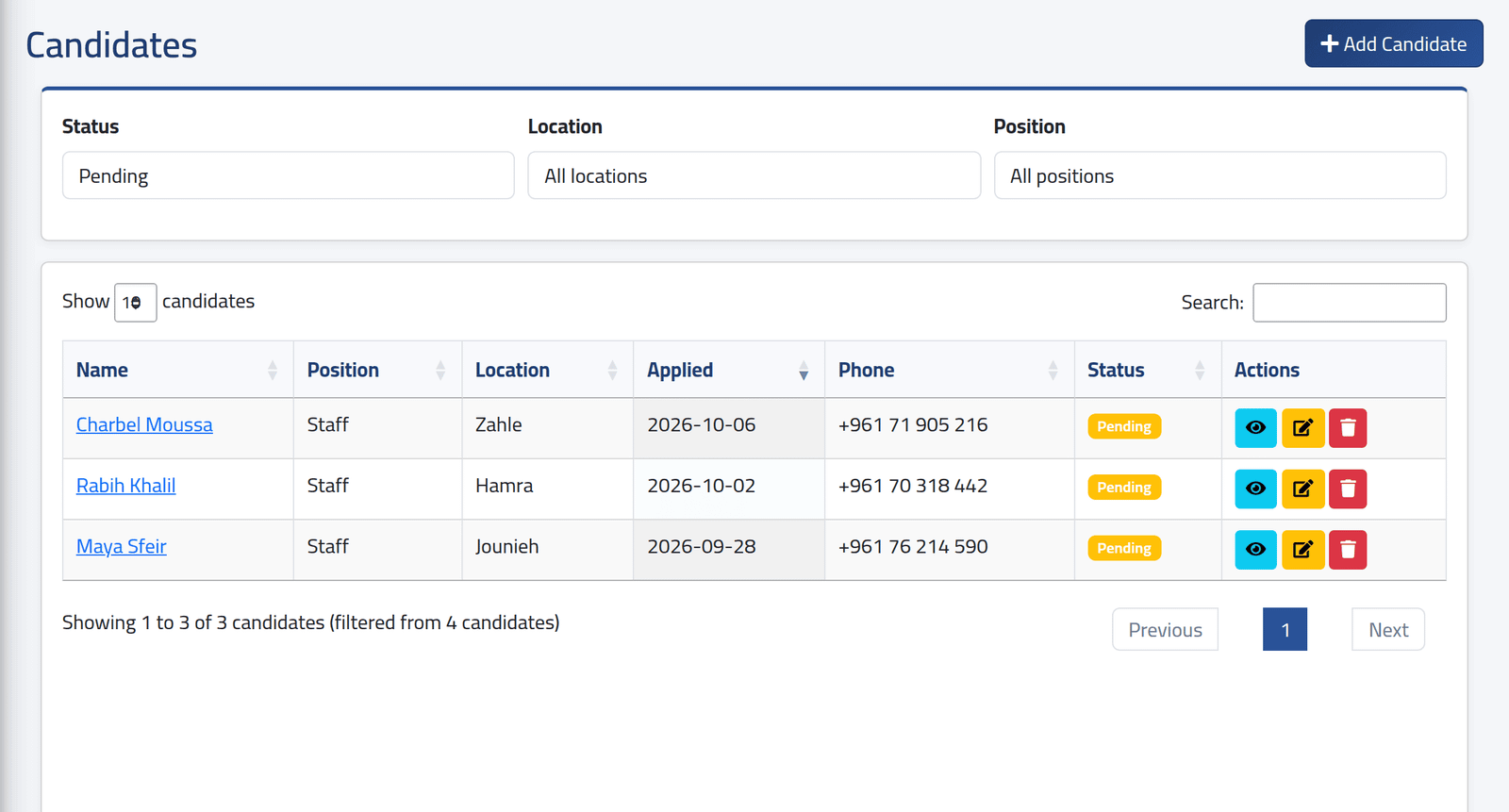
2Add one
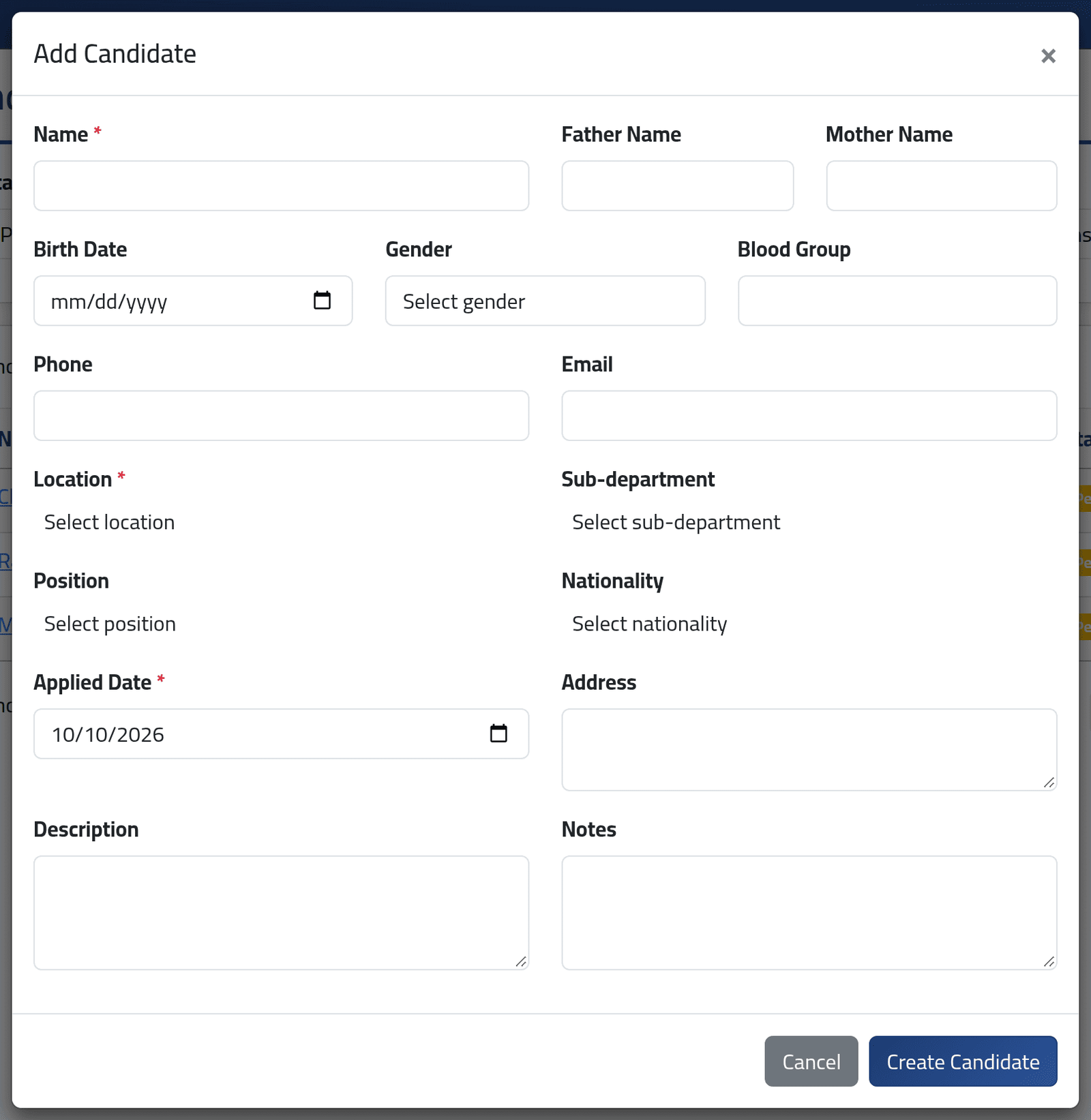
Click Add Candidate.
- Name — required.
- Personal details — father’s and mother’s names, birth date, gender, blood group, phone, email, address. Fill in what you have: they are copied to the employee file if the person is hired.
- Location — the branch they applied to. Required.
- Sub-department and Position — the position is one of the Employee levels.
- Applied At — required.
- Description and Notes — what you know about them.
Click Create Candidate. Their profile opens, where you add their CV — see A candidate’s CV and papers.
What happens next
The candidate is Pending. From their profile you can attach papers, correct their details (Edit), reject them (see Rejecting and reopening a candidate) or hire them (see Employing a candidate).
Deleting a candidate deletes their attachments for good. Keep candidates you turn down as Rejected instead — their record and reason stay. A hired candidate cannot be deleted or edited.
If it goes wrong
| What you see | What it means |
|---|---|
| There is no Recruitment in the menu | Recruitment is switched off, or your account may not see candidates. |
| A candidate you recorded is not in the list | The list shows Pending only by default — check Status. |
| A branch is missing from Location | Your account is not given that branch. |
| The selected location id is invalid. | The same. |