ClockWise HRGuideInspection reports
Inspection reports
For one form, the reports rank the branches on their latest inspection, draw their scores over a year, compare them category by category, and name the questions that cost the most points. A branch report shows one branch's trend and the failures that keep coming back.
Seeing reports, seeing the ranking, and exporting are three permissions. Only submitted inspections count; voided ones never do.
1The form's report
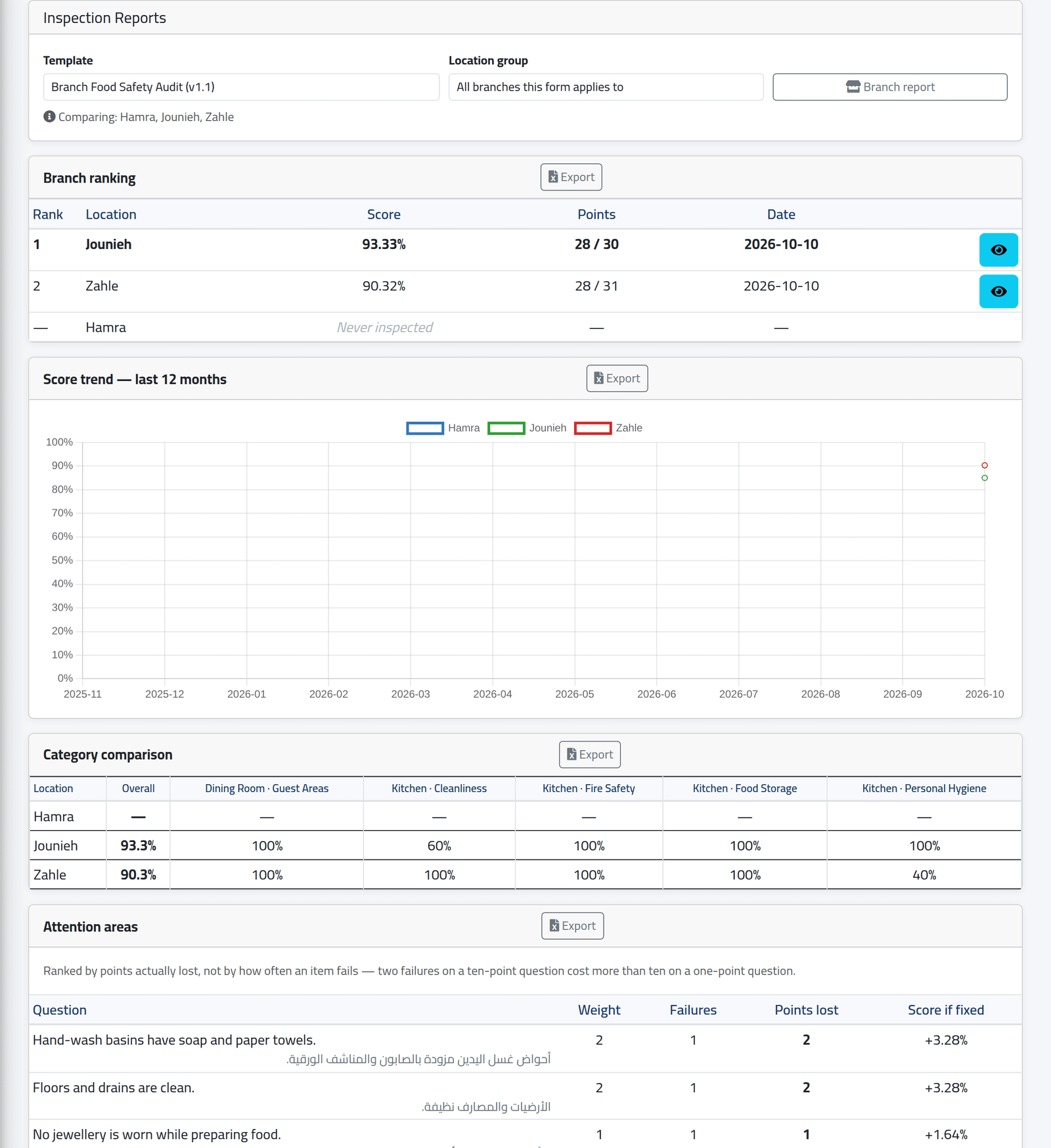
In the menu on the left, under Inspections, click Inspection Reports. Choose the Template, and a Location group to compare only like with like (see Location groups). The line under the choices names the branches compared.
- Branch ranking — each branch’s latest inspection, best first. A branch never inspected is listed last.
- Score trend — last 12 months — each branch’s average score per month.
- Category comparison — the latest inspection’s score in each area and category, branch by branch.
- Attention areas — the questions that lost the most points across the branches’ latest inspections, and how much the overall score would rise if each were fixed. A ten-point question failed twice outranks a one-point question failed ten times.
Export beside each one downloads it as an Excel file.
2One branch
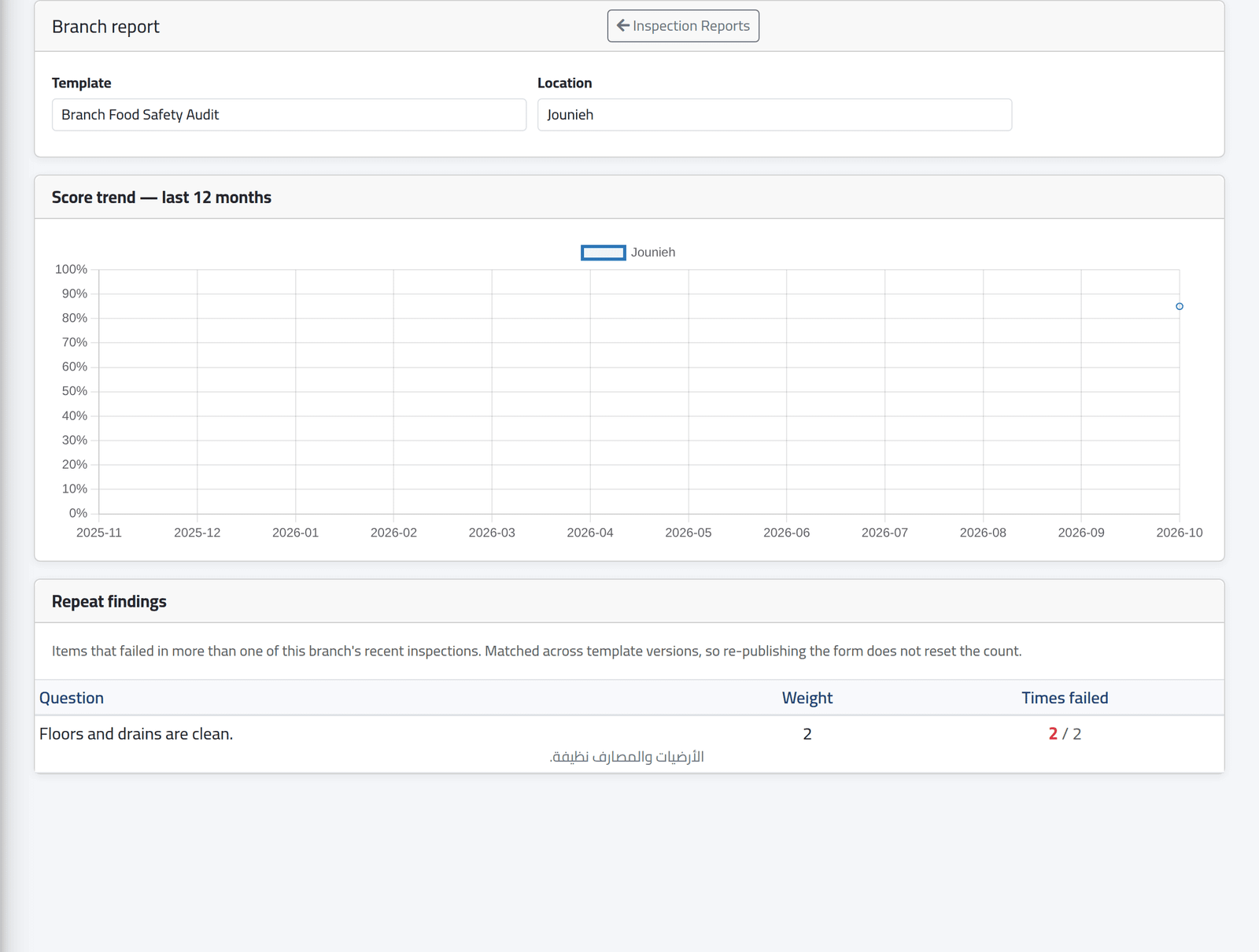
Branch report, then choose the Location: its trend, and the Repeat findings — questions failed in more than one of its last four inspections. At Jounieh, the floors and drains failed both times.
What happens next
Repeat findings follow a question across versions of the form, so publishing a new version does not reset them.
If it goes wrong
| What you see | What it means |
|---|---|
| No Branch ranking | Your account may see reports but not the ranking. |
| No Export | Your account may not export. |
| A branch is missing | The form does not apply to it, or it is outside the chosen group. |
| A recent inspection does not show | It is not submitted, or it was voided. |