ClockWise HRGuideChanging an employee's details
Changing an employee's details
Personal details, then where the person works. Moving them to another branch, sub-department, level or status asks for an effective date — which is recorded, but does not delay the change.
Open the person’s file: under Company, click Employees, then Edit on their row. It opens on the Employee Info tab, which has three parts along its top: Personal Info, Employment Info and — if your account can see pay — Salary Info.
1Change personal details
Personal Info holds the same fields as step 1 of Adding an employee, plus an ID Image — a scan or photograph of the person’s identity card.
Change what you need and click Update Personal Info.
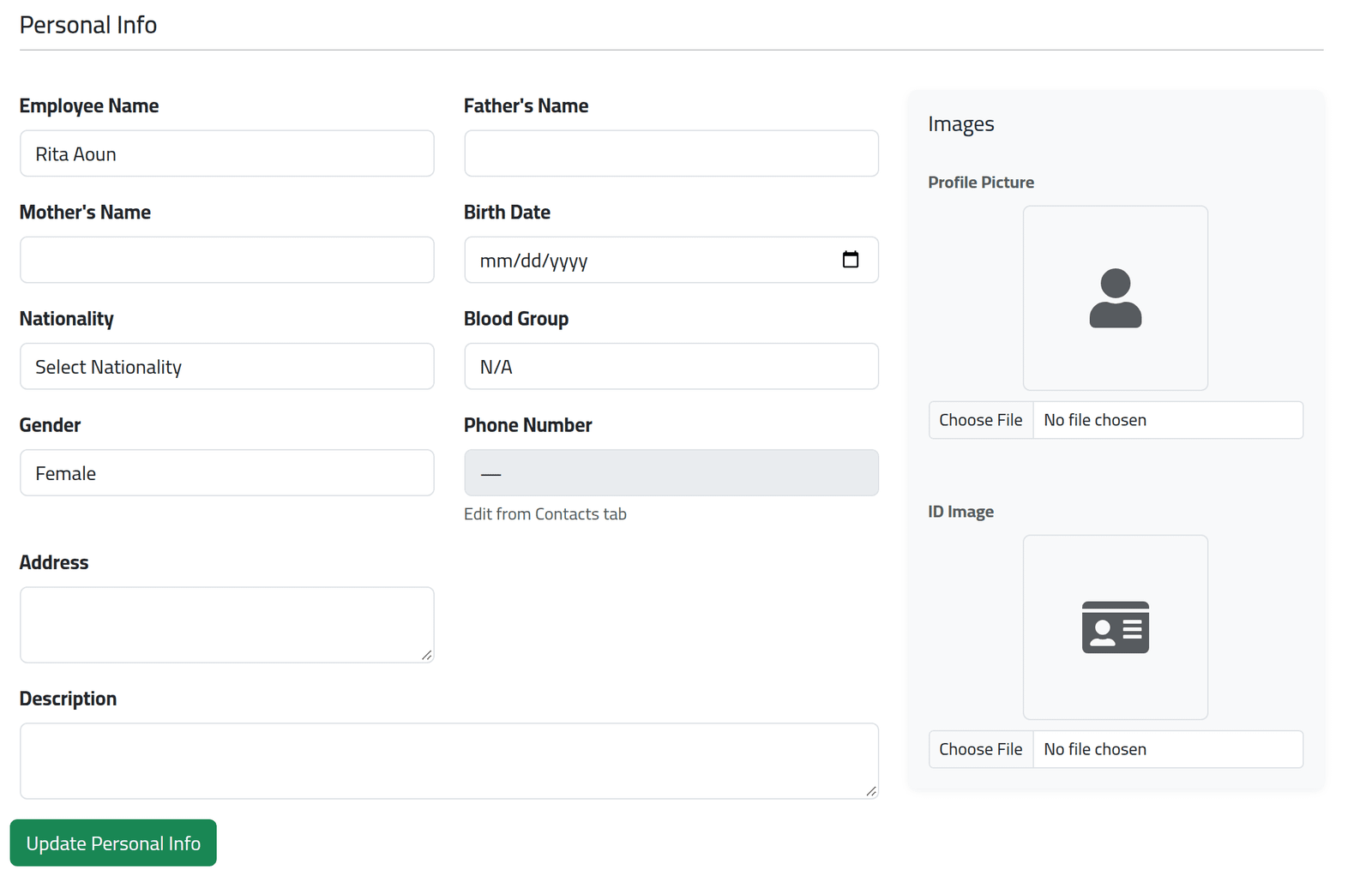
2Open Employment Info
Click Employment Info. Here are the branch (Location), Department, Sub Department, Level, Employment Date and Employment Status.
Underneath, Action History lists every change of branch, sub-department, level and status: what changed, who changed it, the date it took effect and when it was recorded.
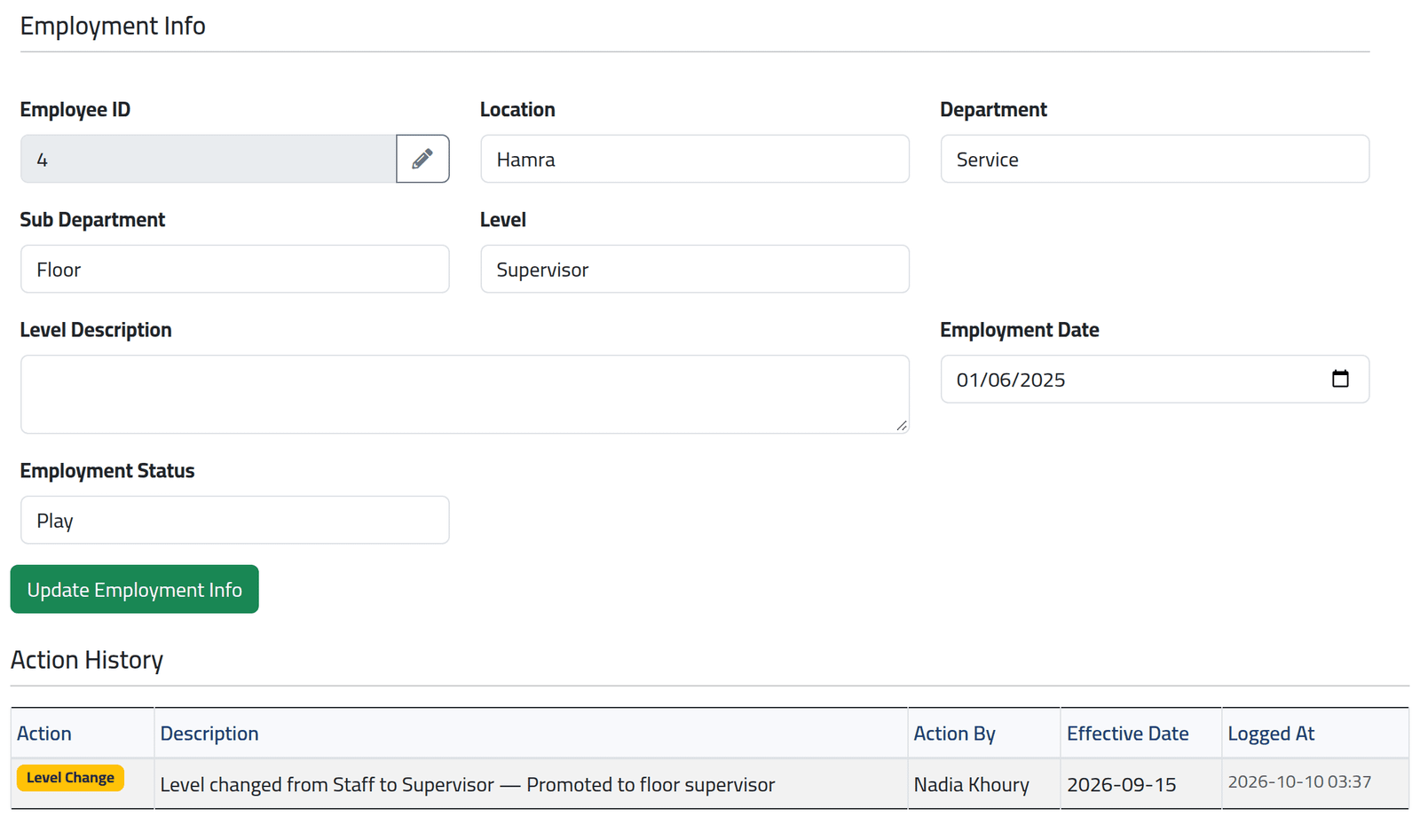
3Make the change, and give its date
Change the field and click Update Employment Info.
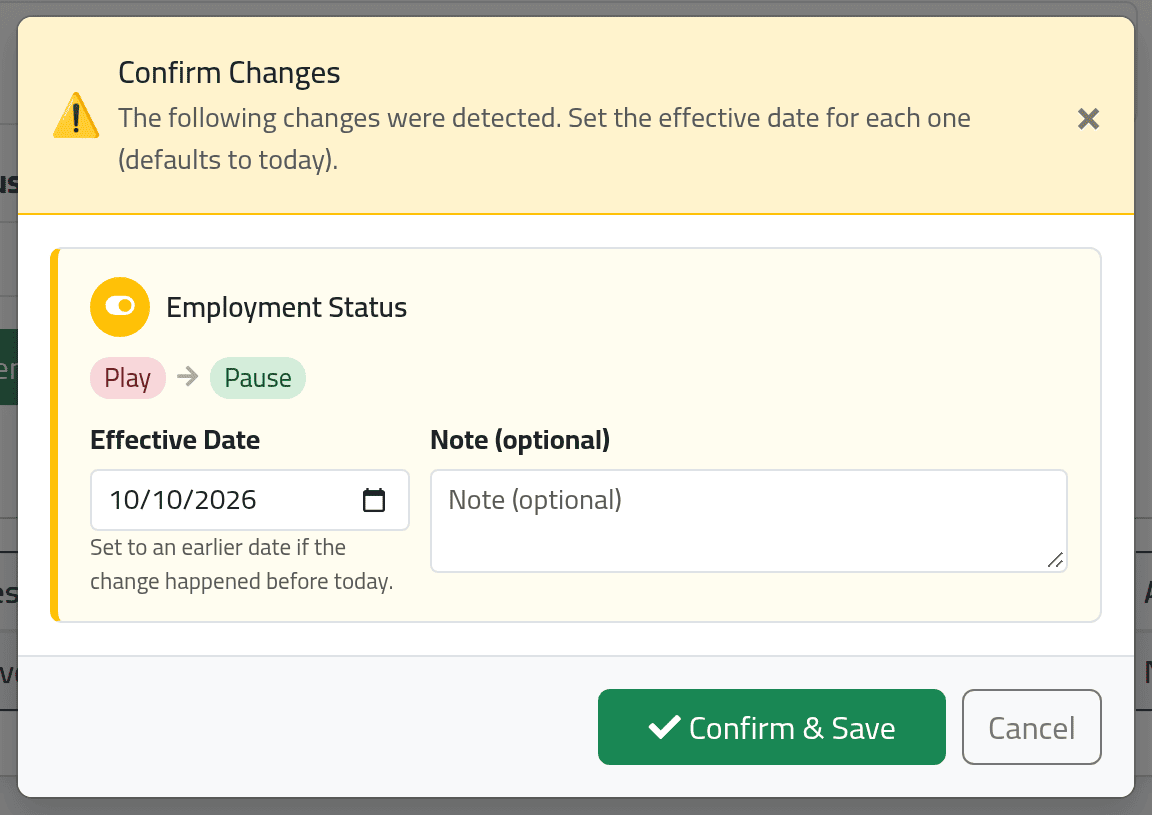
If you changed the branch, sub-department, level or status, a Confirm Changes box lists each change. For each one, set the Effective Date — it starts at today — and add a note if it helps. Click Confirm & Save.
The effective date goes into Action History and nowhere else. The change itself applies the moment you save: somebody moved to Zahle with an effective date last month is in Zahle from now on, on every screen, and last month’s attendance is not moved. Set the date honestly so the history is right — but do not use it to schedule a change for the future. Make that change on the day.
When somebody moves branch, adjustments of theirs still waiting in an open salary period move with them to the new branch’s period.
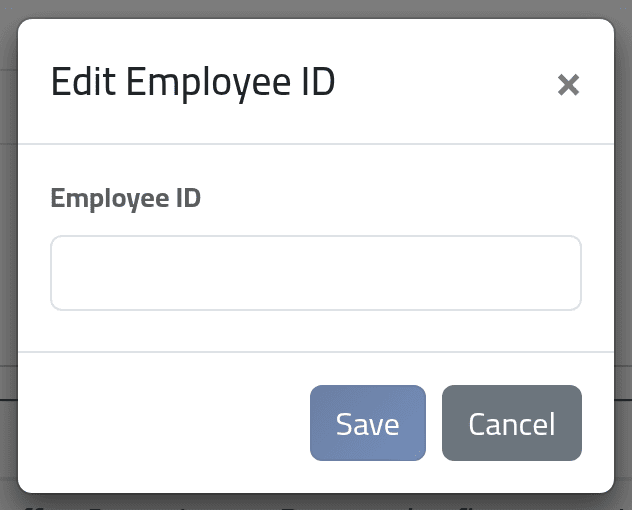
4Changing the employee ID — only if you must
The employee ID is not typed into the form. If your account is allowed to change it, a pencil sits beside it: click it, type the new number into the box — it opens empty — and click Save. The box tells you at once if the number is already in use.
Punches are matched to people by this number. Changing it does not move the punches already recorded under the old one: this file stops seeing them, and the next time those days are recalculated they show no punches at all. The new number must also be the one the person is enrolled under on the clocking machine, or nothing they punch from now on reaches them.
The change is not recorded in Action History either — nothing on the file shows that the number was ever different.
Change an employee ID only to correct a number that was wrong from the start, and only together with whoever looks after the machines.
What happens next
Employee updated successfully appears at the top of the page. The new details show everywhere at once — on the employee list, in reports, in attendance.
If it goes wrong
| What you see | What it means |
|---|---|
| A page saying the action is not authorised, after saving | You chose a branch your account does not cover. |
| This employee ID is already taken. | Another file uses that number. Find it before choosing another. |
| There is no pencil beside the employee ID | Your account is not allowed to change IDs. |
| There is no Salary Info | Your account cannot see pay. See Setting an employee’s pay. |
| The fields are greyed out and there is no Update button | Your account has view-only access to employee files. |
| Somebody’s attendance vanished after their ID was changed | The punches are still there under the old number. Changing the ID back, and recalculating those days, reattaches them. |