ClockWise HRGuideCorrecting a day
Correcting a day
Add the punch somebody forgot, relabel the ones in the wrong order, change the day's shift or record it as leave. Depending on your account the correction applies at once or waits for approval — and either way the day is then left alone by automatic recalculation.
Know what really happened that day — the times the person arrived, took their break and left. Your account must be allowed either to edit attendance or to submit corrections for approval.
The day must not be in a closed salary period: those days have no Modify button.
1Open the day
In Reading a day’s attendance, click Modify on the day.
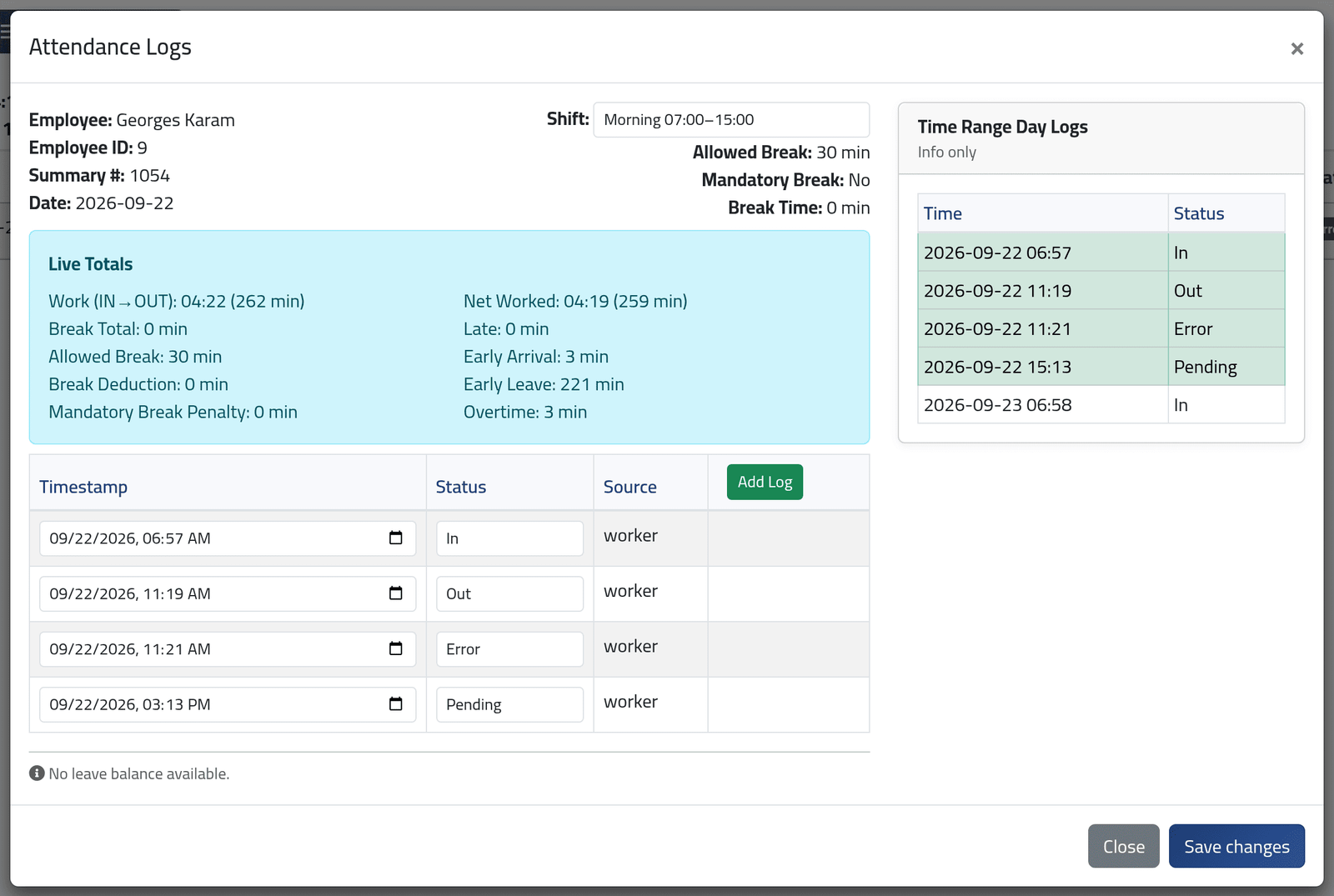
The Attendance Logs dialog shows:
- the Shift the day is measured against, and its break rules;
- Live Totals — the day as it would be calculated now, updating as you change things;
- the day’s punches, each with a Status and a Source (worker for a punch from a machine, otherwise one added by hand);
- Time Range Day Logs on the right, for reference only: every punch around that day, including any that fell outside the shift’s window.
In the picture, Georges Karam punched in at 06:57, out for a break at 11:19 and back at 11:21. The return came within five minutes, so it was taken as a double press and marked Error; that left an odd number of punches, so the last one, 15:13, was set aside as Pending.
2Correct the punches
Change a punch’s Status or time, or click Add Log for one that is missing. Here the right reading is: 06:57 In, 11:19 Break Out, 11:21 Break In, 15:13 Out.
The punches that count must:
- be even in number — every In has an Out;
- follow in order — a Break In always after a Break Out, never two Ins or two Outs in a row;
- fall between 04:00 on the day and 07:00 the next morning.
A punch from a machine cannot be deleted; set it to Ignored instead. Only punches added by hand can be deleted.
Watch Live Totals change as you go.
3Or change the day's shift
Choose another Shift at the top. This changes the shift for this one day only; the person’s schedule is untouched.
4Or record the day as leave
If the person has leave remaining, Apply as Leave lets you choose the type and give a reason. With no allowance, the dialog says No leave balance available. — see Recording leave.
5Save
Click Save changes.
If ClockWise refuses the save — Invalid logs, with the reason — what you typed may still have been kept. Close the dialog and open it again before trying anything else: if the punch you added is in the list, correct it, or use Reset to start again from the machine’s punches.
What happens next
What happens depends on your account:
- If you may edit attendance, the day is recalculated at once, and a green flag beside Modify records that it was corrected, by whom and when.
- If your corrections need approval, the dialog says Submitted for approval., a clock appears beside Modify, and the day stays as it was until somebody approves it. You can follow it in Following your requests.
A corrected day is never recalculated automatically again — not when the schedule changes, not when the shift changes, not by ClockWise’s two-hourly run. Your correction would otherwise be undone the next time anything moved. A day waiting for approval is left alone in the same way. To let a corrected day be calculated afresh, open it and use Reset.
Reset in the dialog throws away every correction to the day and
recalculates it from the machine’s punches. Type reset to confirm. It, too,
needs approval if your corrections do.
If it goes wrong
| What you see | What it means |
|---|---|
| A pending change request already exists for this record. | Somebody already asked for a correction to this day. Wait for it to be decided, or delete yours in Following your requests. |
| Invalid logs count. Non-ignored logs must be even | An In has no Out, or the reverse. |
| Invalid sequence: … | Two punches of the same kind in a row, or a Break In with no Break Out before it. |
| Timestamp out of allowed range | A time is before 04:00 on the day or after 07:00 the next morning. |
| Delete allowed for manual logs only | Set the machine’s punch to Ignored instead. |
| This summary is set as leave. Reset leave in order to edit shift or logs. | The day is leave. Reset it first. |
| A page saying the action is not authorised | Your account can neither edit attendance nor submit corrections. |