ClockWise HRGuideFinding your way around
Finding your way around
The menu on the left shows only what your account may open, the bar along the top switches the language, and your own name opens the menu for your password.
You are signed in. Everything here is the same on every page.
1Read the menu on the left
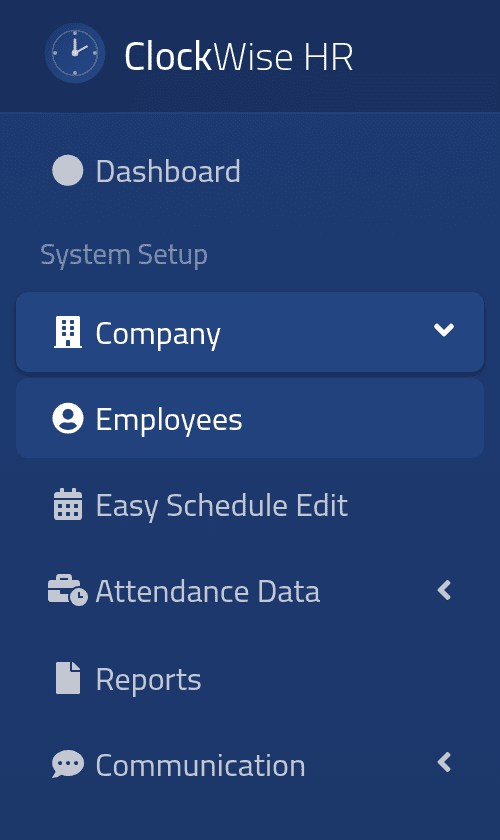
The menu on the left is where every part of ClockWise is opened from. Groups with an arrow open when you click them; the page you are on is highlighted.
This is the menu of an HR officer. An administrator’s is several times longer, with Users, General Settings, Salaries, Training, Inspections, Assets and more.
Each person’s menu shows only what their role is allowed to open. If a colleague has a menu item you do not, it is not a fault on your screen — your role does not include it. Ask your administrator if you need it.
To give the page more room, click the three-line button at the top of the menu. Click it again to bring the menu back.
2Change the language
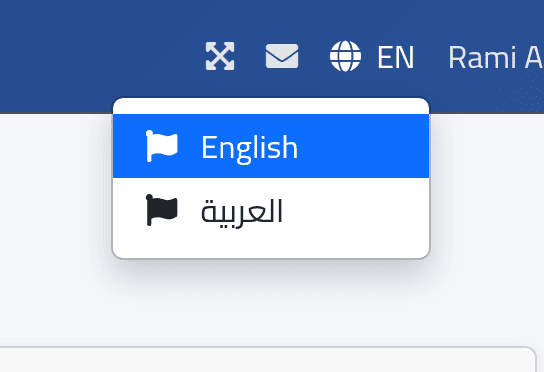
At the top right, click the globe. Choose English or العربية.
The whole interface switches, and in Arabic it reads from right to left — the menu moves to the right-hand side.
Names that people typed — employees, branches, departments, shifts — stay exactly as they were typed, in whichever language that was. Only the interface itself changes.
ClockWise remembers your choice until you sign out. The next time you sign in it starts in English again.
3Open your own menu
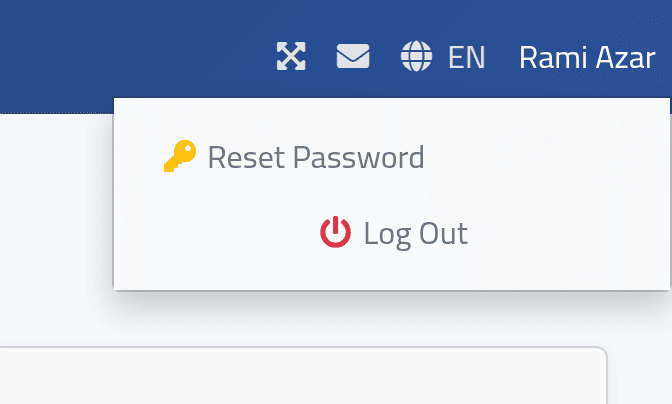
At the top right, click your name. Two choices appear: Reset Password and Log Out.
The other icons on the bar open your messages (the envelope) and fill the screen with ClockWise (the four arrows).
4Change your password
Click Reset Password.
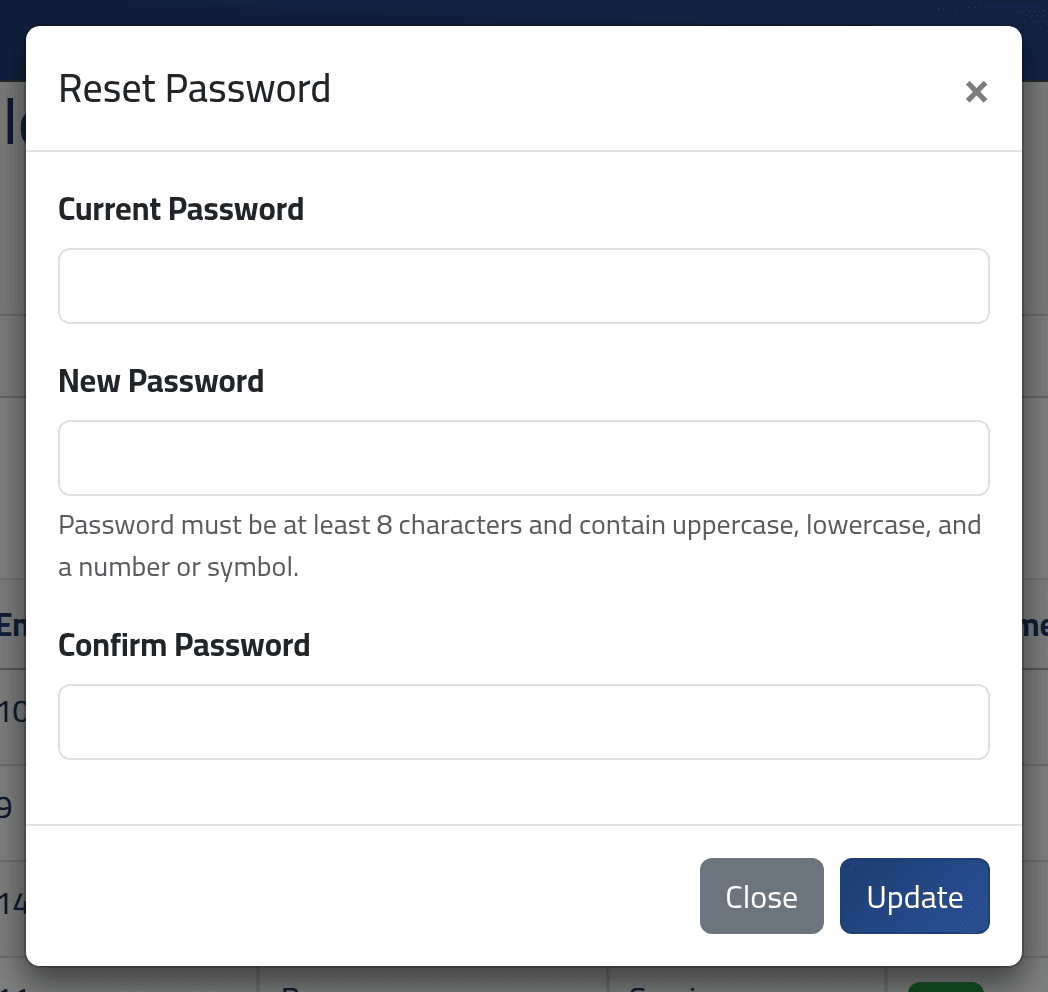
Type your Current Password, then the new one twice, in New Password and Confirm Password, and click Update.
The new password must be at least eight characters, with an uppercase letter, a lowercase letter, and a number or a symbol. The form says so under the field.
What happens next
Password updated successfully. appears in the form, and the new password is the one to use from now on. You stay signed in.
If it goes wrong
| What you see | What it means |
|---|---|
| Current password is incorrect. | The first box must hold the password you signed in with today. |
| Password must contain uppercase, lowercase, and a number or symbol. | Add the missing kind of character to the new password. |
| Password must be at least 8 characters long. | The new password is too short. |
| You opened a link a colleague sent and got a page saying the action is not authorised | Your role does not allow that page. The link works — for their role. |
| The language went back to English | You signed out, or were signed out after a while unused. Choose the language again. |