ClockWise HRGuideGiving out an asset and adjusting stock
Giving out an asset and adjusting stock
An asset's page gives one item to one employee, and corrects the stock when a delivery arrives or something goes missing. Every movement is written to the asset's stock log.
Allocating and adjusting stock are separate permissions. To give several items to one person at once — a starter kit — use an order instead: see Giving out several assets at once.
1Open the asset
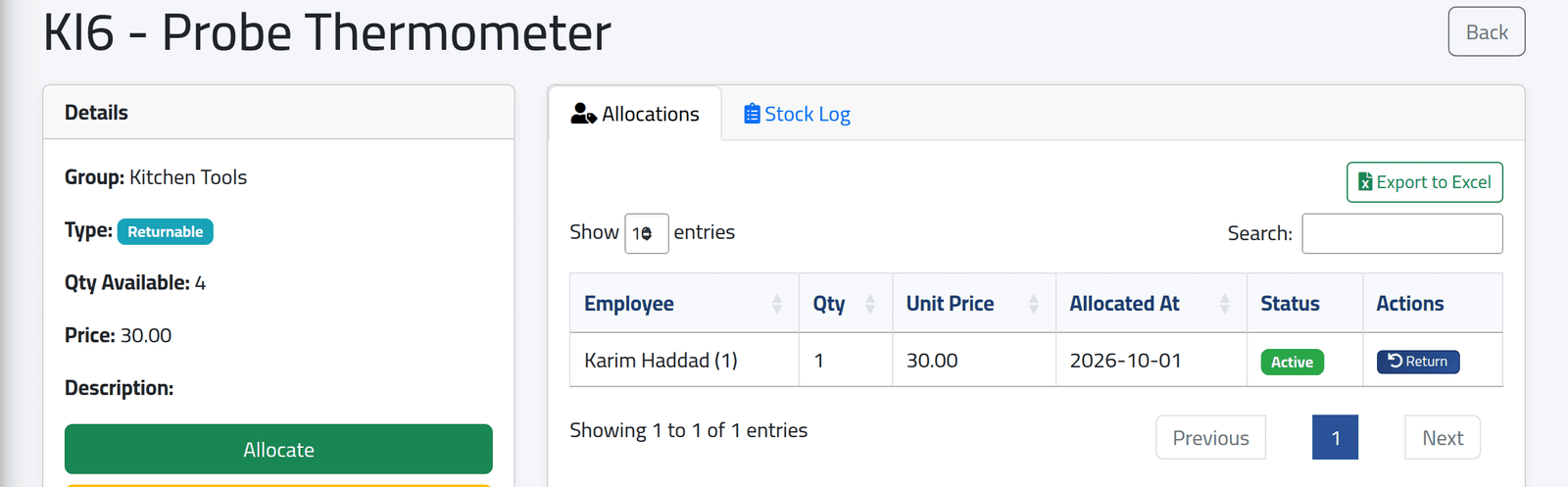
On Assets, click View. On the left, the asset’s details and how many are in stock; on the right, Allocations — who has it, how many, at what price, since when, and whether it is still out — and the Stock Log. Each tab exports to Excel.
2Allocate
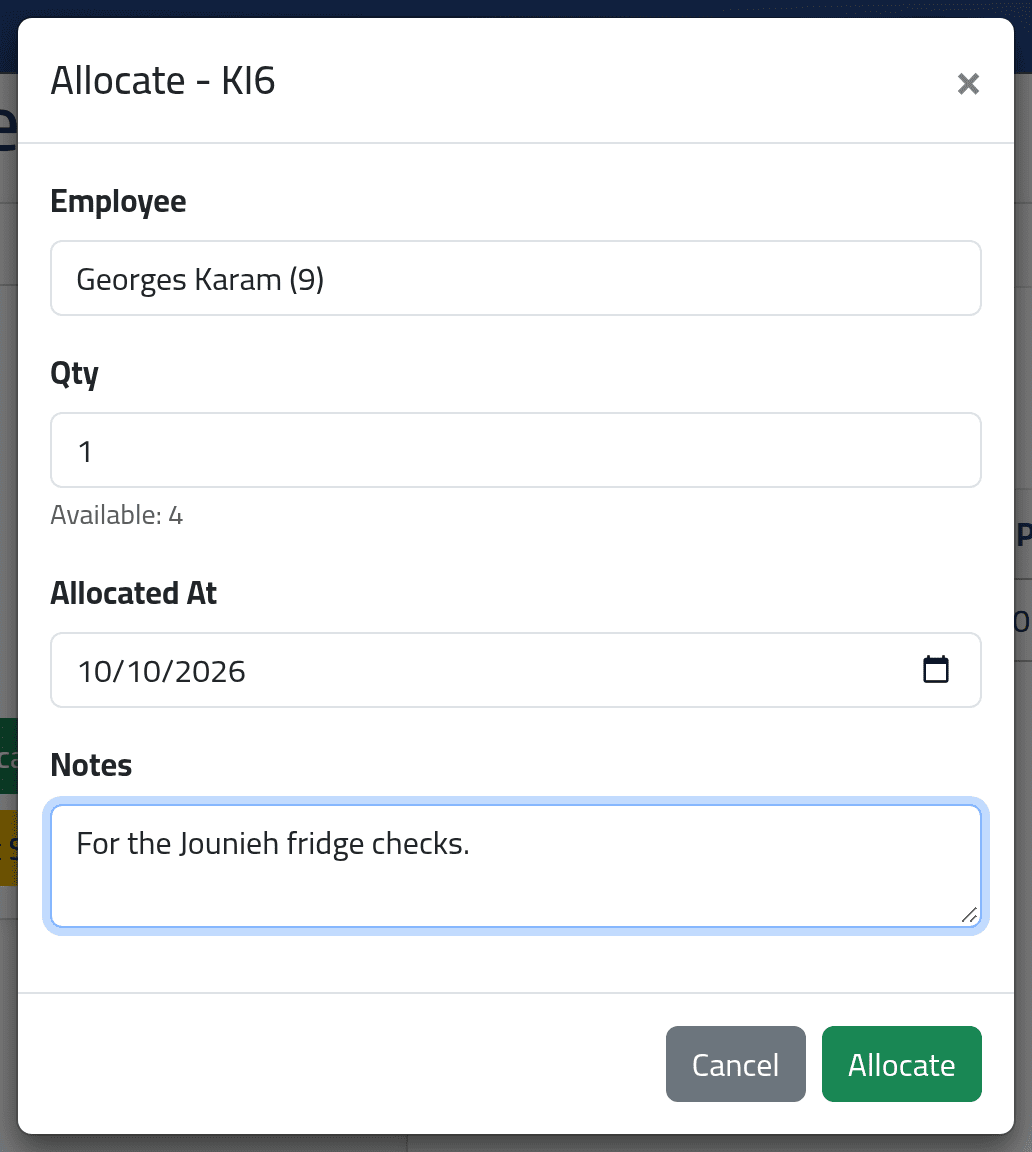
Click Allocate. Choose the Employee, the Qty — no more than is in stock — the date and any Notes. Click Allocate.
3Adjust the stock
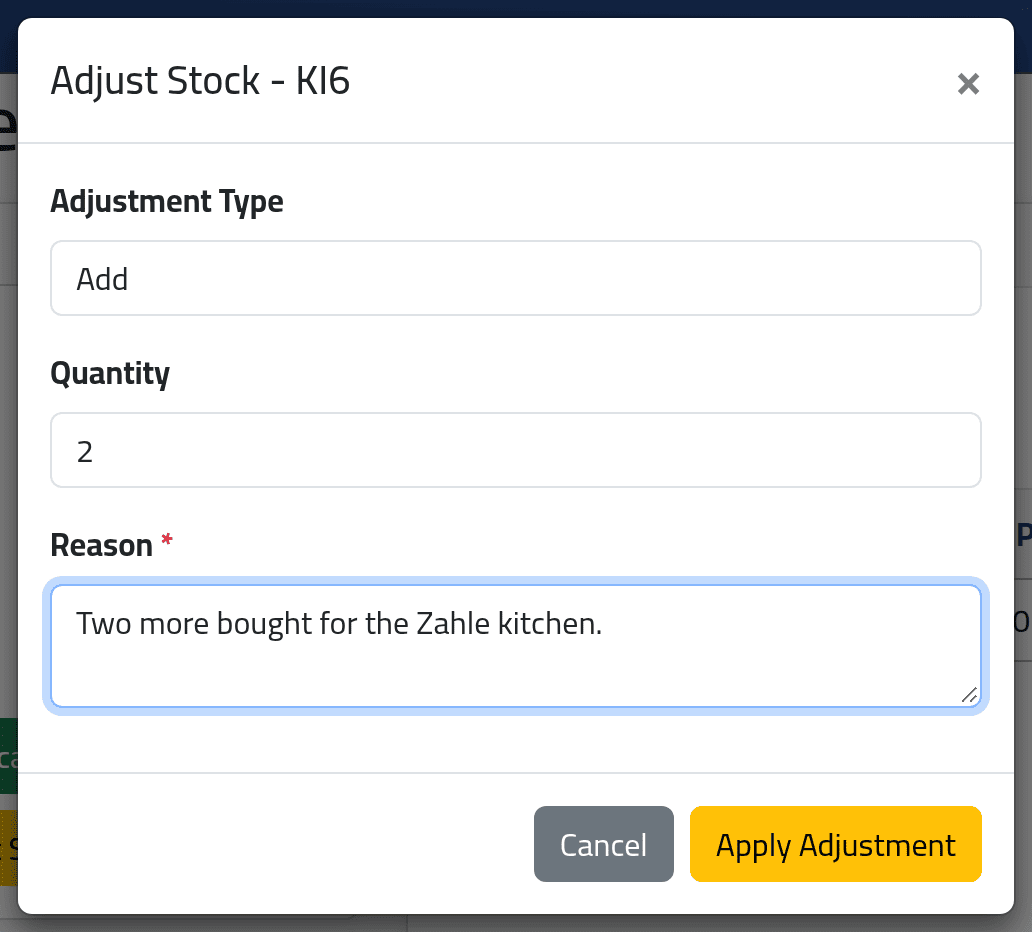
Click Adjust Stock. Choose add or subtract, the quantity, and the Reason — a delivery and its invoice, a count, a loss. Click Save.
4Read the movements
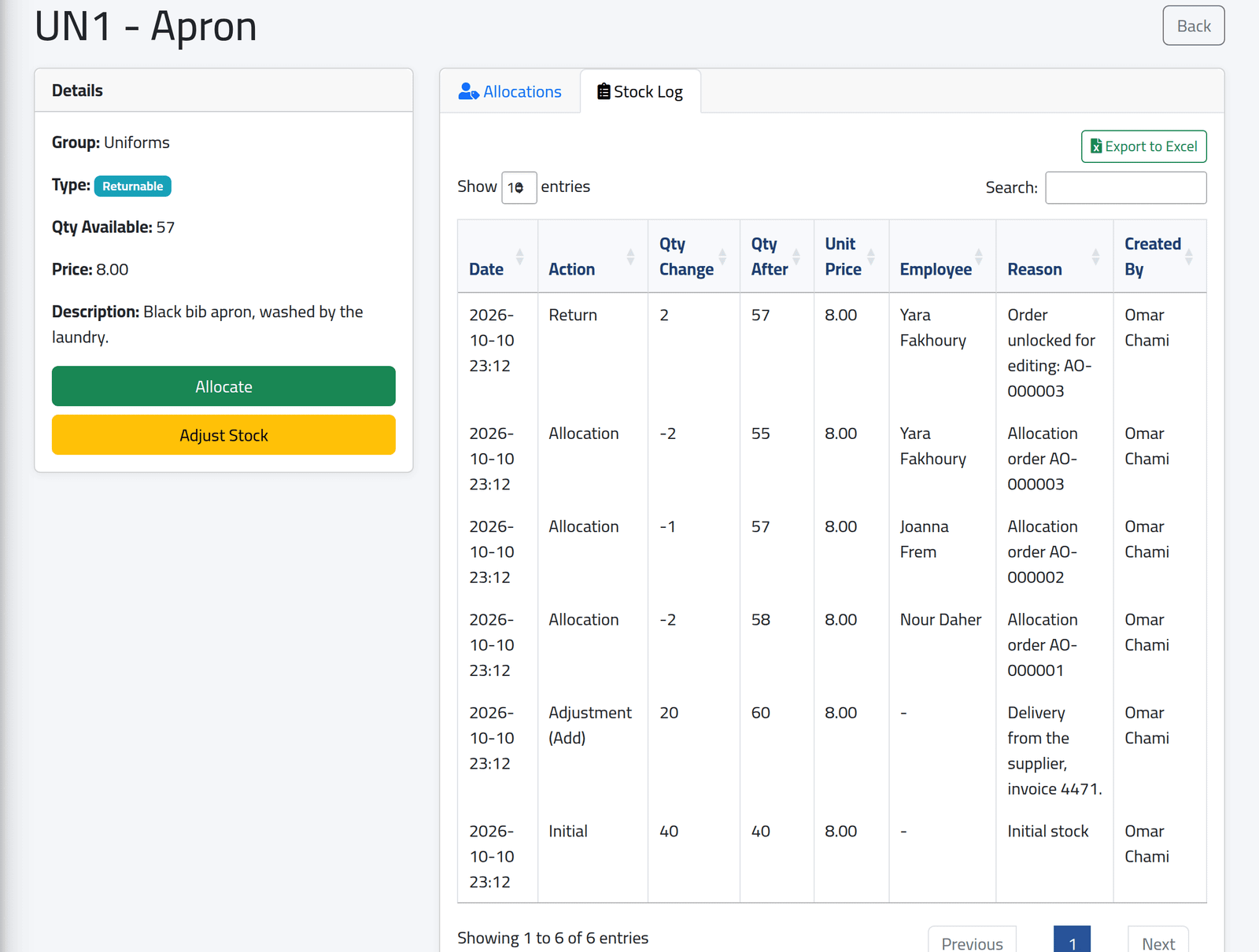
The Stock Log tab lists every movement of this asset, newest first: the change, the stock after it, the price, the employee, the reason and who did it. The Apron, here, from its opening 40 through a delivery and three orders to the return made when an order was unlocked.
What happens next
The stock falls by the quantity given out. For a permanent asset, a cash deduction of price × quantity is created for the employee at once. It is dated two days after the end of their branch’s last closed salary period, so it is taken from the next salary — see Adjustments for the coming salary.
If it goes wrong
| What you see | What it means |
|---|---|
| Not enough stock available. | Add the stock first, or give out fewer. |
| The employee is not in the list | The list shows every employee on file; check the name. |
| No Allocate or Adjust Stock | Your account may not allocate or adjust. |