ClockWise HRGuideRecurring notifications
Recurring notifications
A recurring notification reminds a user of something every few days — to check pending payments, to confirm next month's schedules — from a start date onwards.
Your account must be allowed to edit scheduled notifications. On Notifications, click Scheduled Notifications.
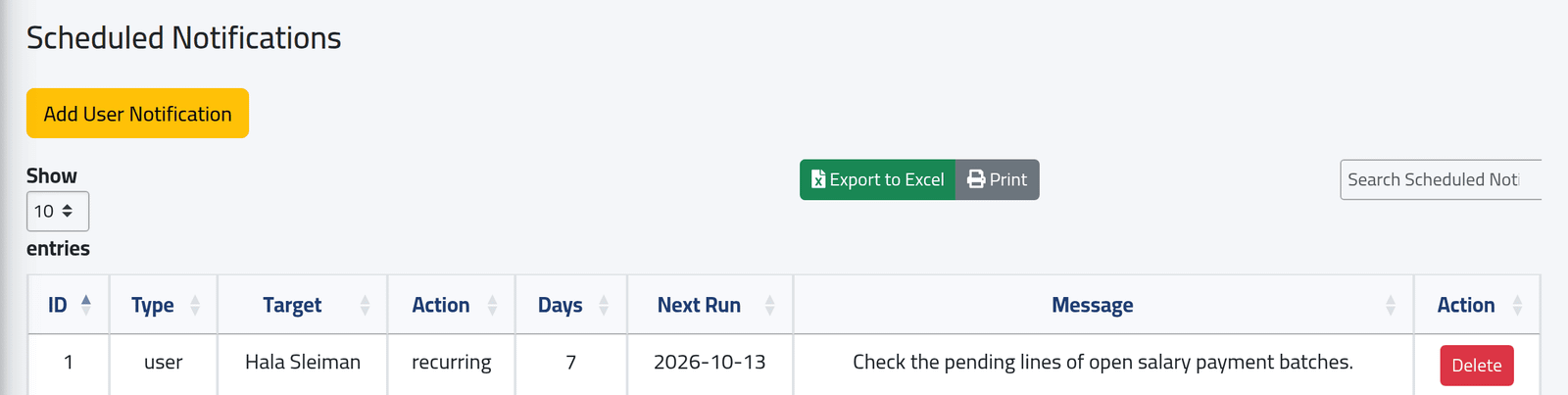
1The schedules
Each with its target, the interval in days, the Next Run and the message. Delete stops it; schedules cannot be edited — delete and add again.
2Add one
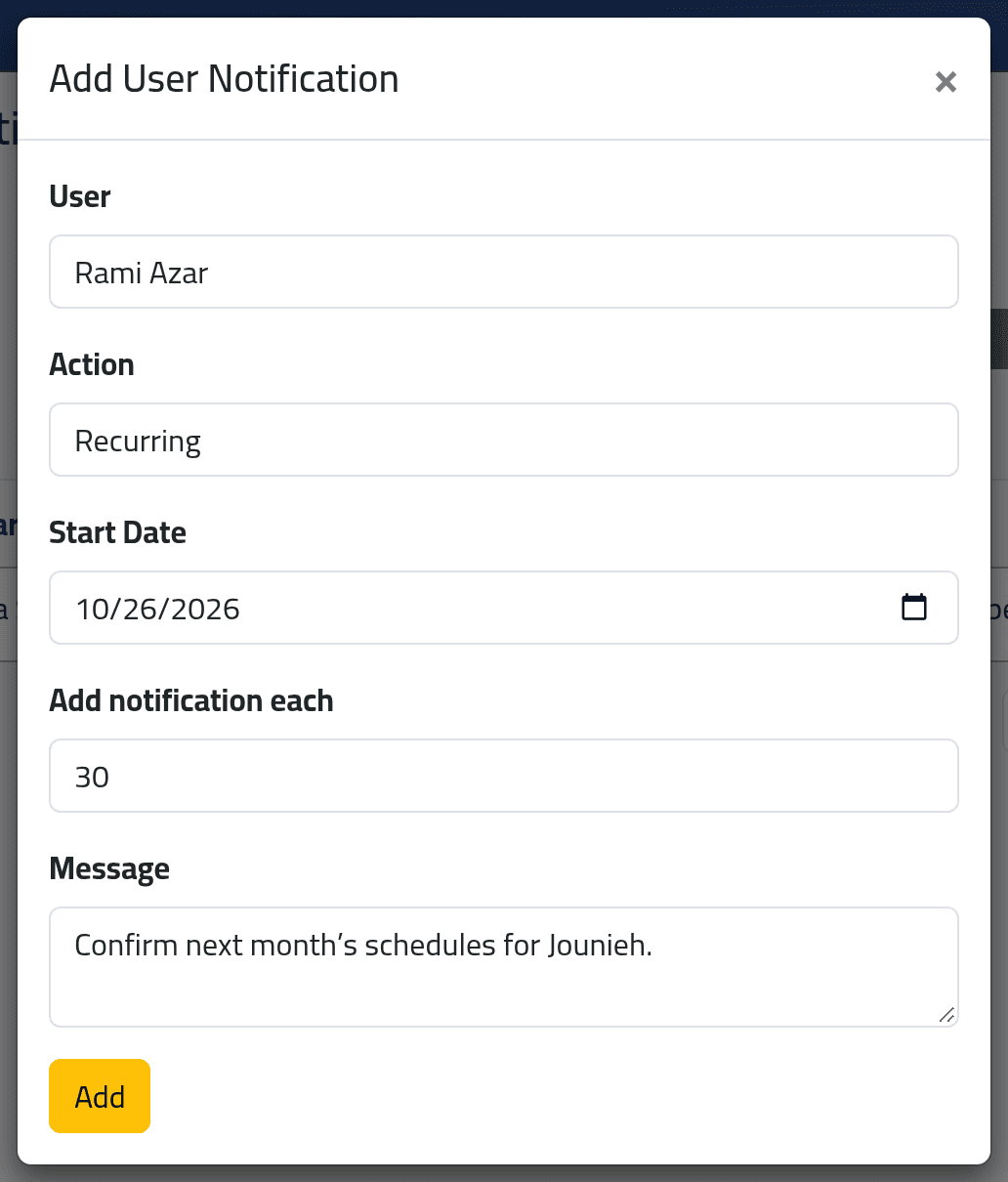
Click Add User Notification. Choose the User, the Start Date of the first notification, how many days apart they are under Add notification each, and the Message. Click Add.
What happens next
On the start date the user gets the notification on their bell, and the next run moves on by the interval.
Notifications are sent only when someone opens the dashboard that day. There is no timer behind them: the first person to open the Dashboard on the run date sends them. If nobody opens it that day, the run is missed — and the schedule never runs again, because its next run is never moved on. Check the Next Run dates here after weekends and holidays; a date in the past means the schedule has stopped. Delete it and add it again.
If it goes wrong
| What you see | What it means |
|---|---|
| Next Run is in the past | The schedule has stopped — see above. |
| A notification arrived later in the day than expected | It is sent when the dashboard is first opened that day. |