ClockWise HRGuideFinding a report
Finding a report
All of ClockWise's reports are on one page, in three tabs — lists, attendance and salaries. Each opens a short dialog asking what to include, then shows the result on screen or downloads it.
Each report is a permission of its own: you see only the reports your account is allowed to run. Ask your administrator for the ones you need.
1Open the reports
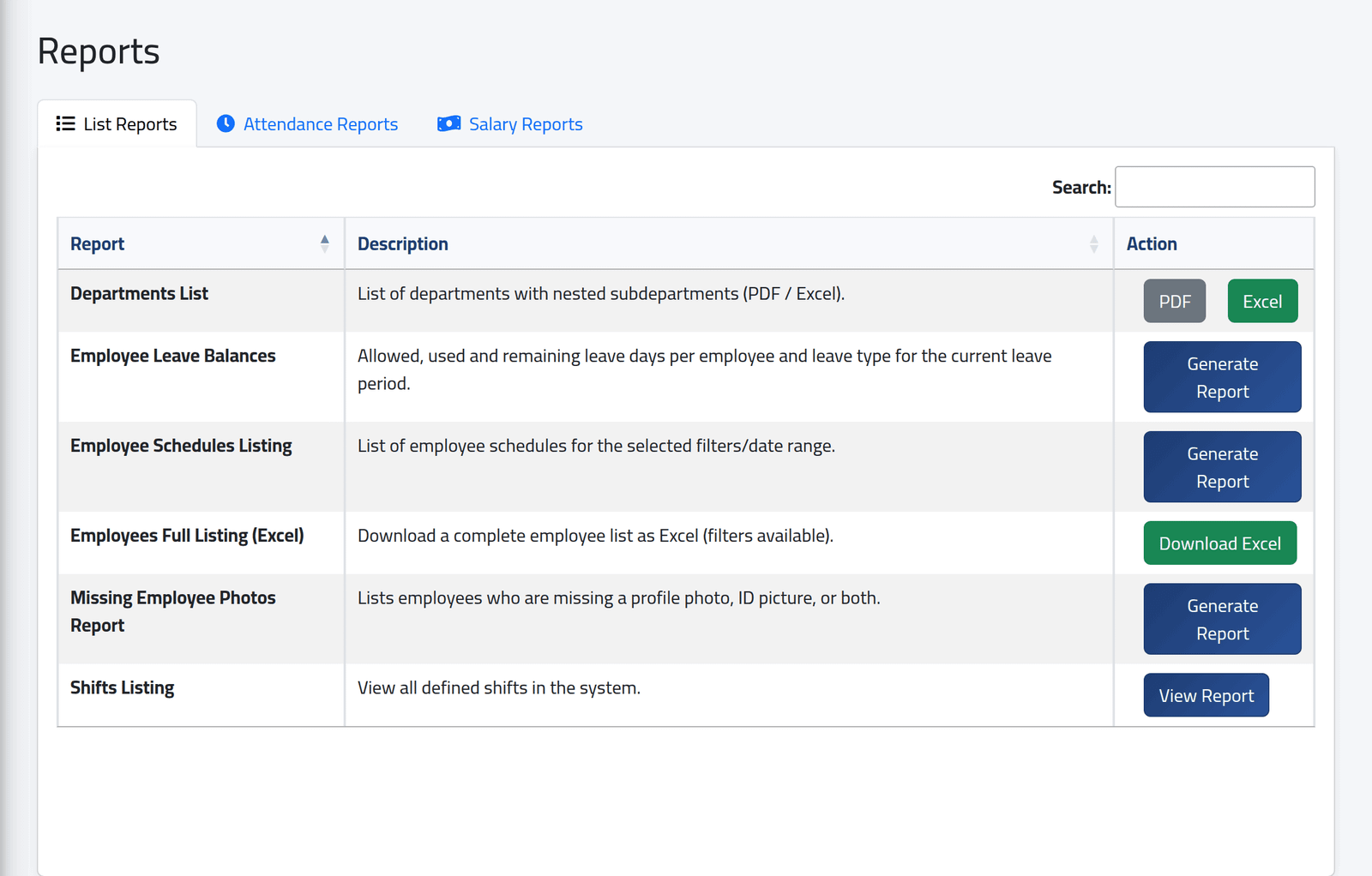
In the menu on the left, click Reports. Three tabs:
- List Reports — people and the company’s structure: who is employed, their schedules, leave balances, missing photos, shifts, departments.
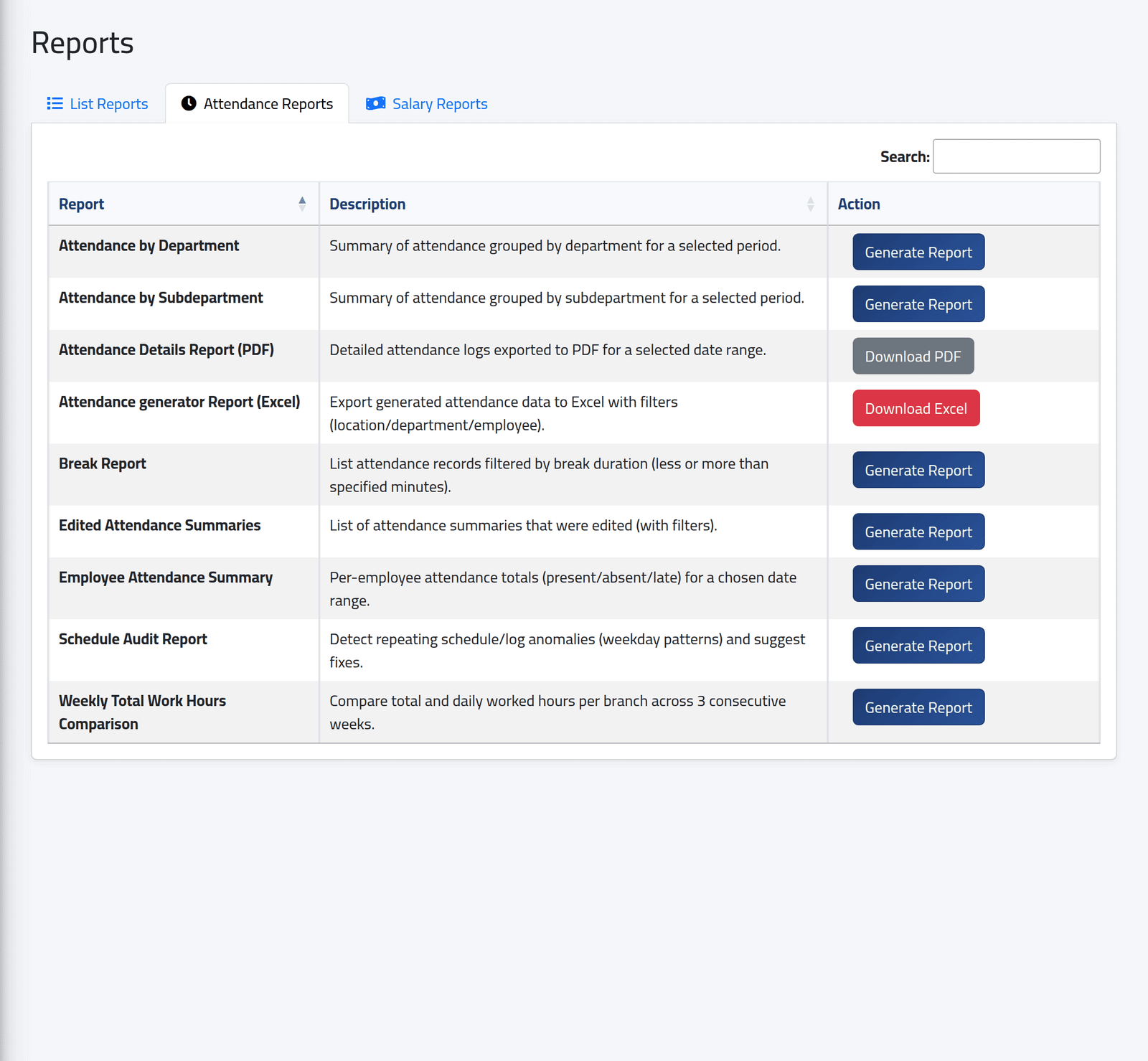
- Attendance Reports — hours worked, day-by-day detail, breaks, schedule problems.
- Salary Reports — payroll, payments, loans and advances; see Salary records.
Each line names the report, says what it shows, and has its button. The Search box finds a report by name.
2The attendance reports
The second tab, for an account allowed to run all of them.
3Say what to include
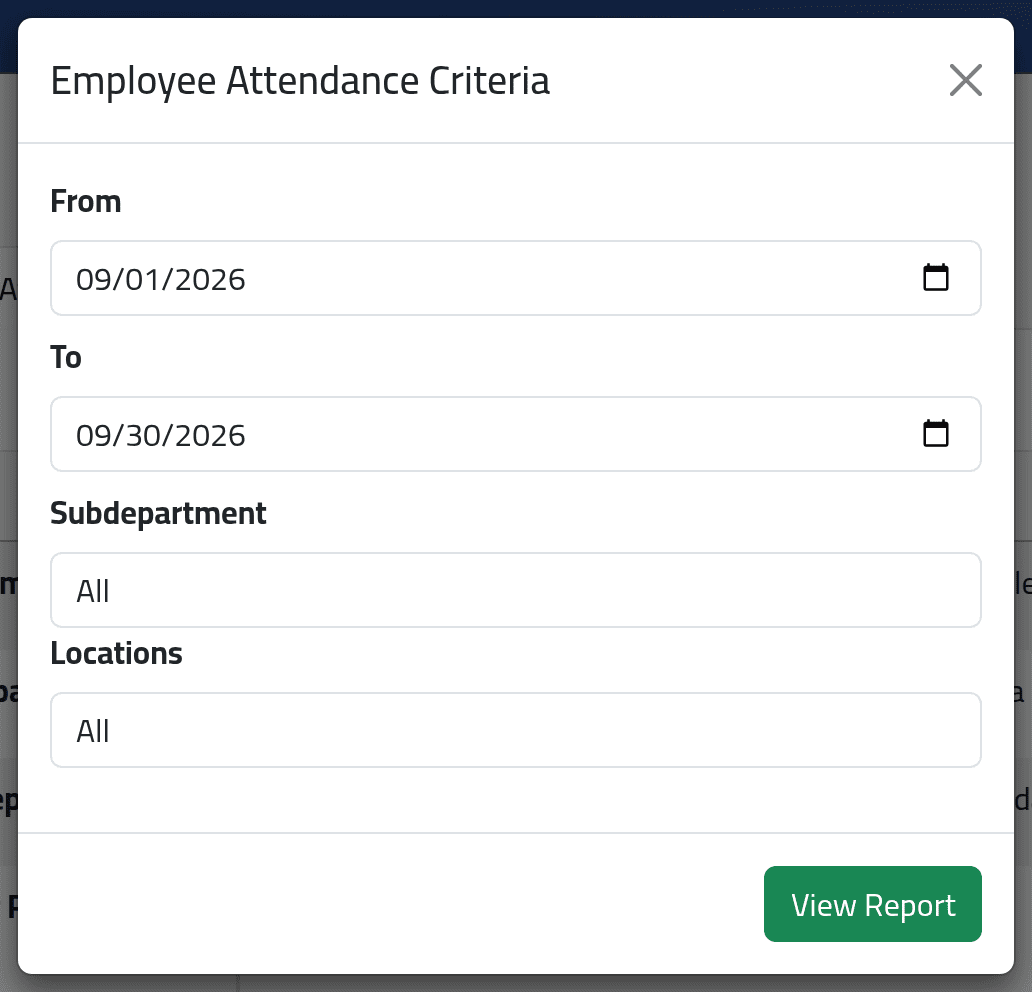
The button opens a dialog. Most attendance reports need a From and To date; most offer a branch, a department or sub-department, and sometimes one employee. Leaving a choice on All includes everything you may see. Click View Report, Download PDF or Download Excel.
What happens next
On-screen reports open as a page with Excel, PDF and Print buttons above the table, a search box, and sortable columns. The heading repeats the dates and branches the report covers.
A report covers the branches your account is allowed to see — see Deciding what someone can see. Two exceptions show every branch to everyone who can run them: the shifts listing and the departments list. An account with no branches set sees every branch in most reports. The department and sub-department choices in the dialogs list every department, whatever your access.
If it goes wrong
| What you see | What it means |
|---|---|
| A report is not on the page | Your account may not run it. |
| A report is empty | Nothing matches the dates and choices, or the branch is not one of yours. |
| An error page instead of a report | See the report’s own page — one report is known to fail (Schedule audit). |