ClockWise HRGuideRecalculating and locking a period
Recalculating and locking a period
Recalculate pulls into a period whatever belongs to it and is not there yet. Lock says the hours have been checked: from then on no schedule change may land inside the period. Locking does not stop corrections to the days themselves.
Both work only on an open period. Recalculating needs permission to edit salaries; locking and unlocking need their own permission.
1Open the period's actions
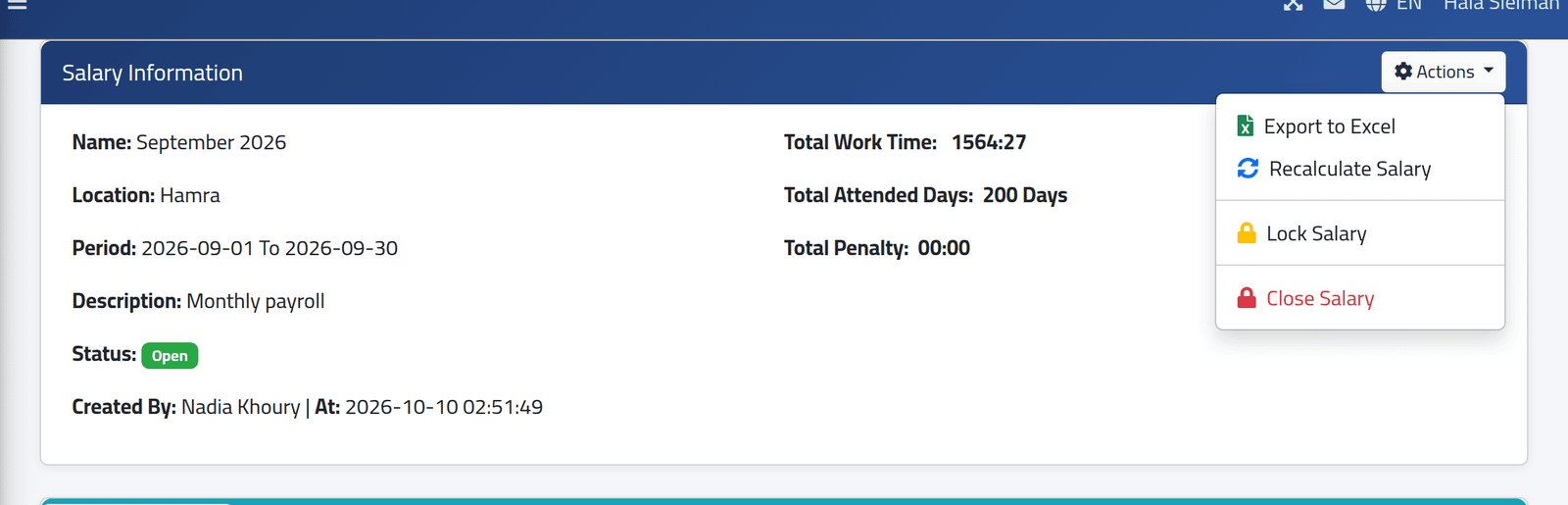
Open the period (see Reading a salary period) and click Actions.
2Recalculate
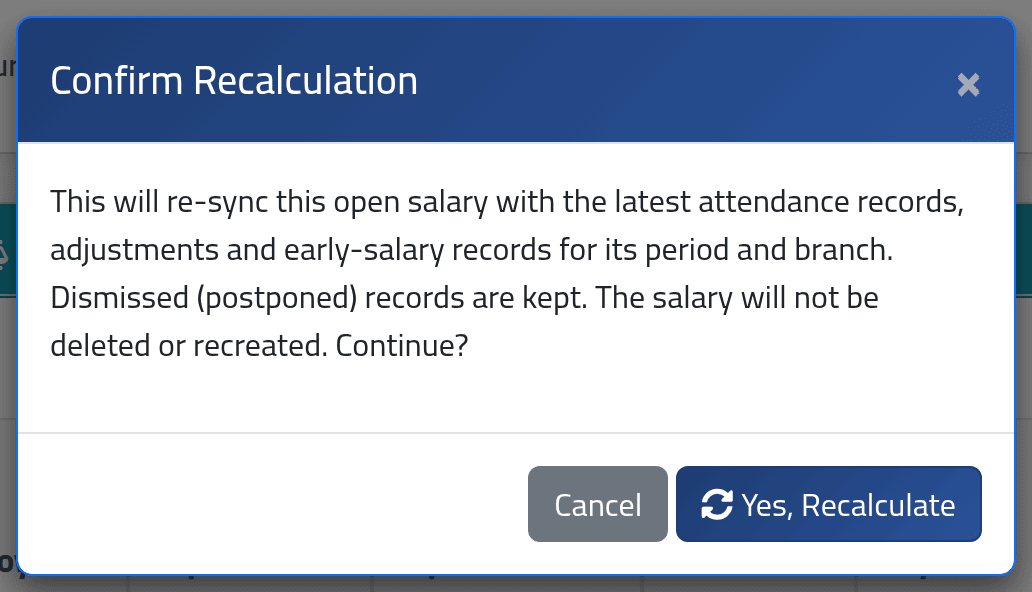
Click Recalculate Salary, then Yes, Recalculate.
ClockWise goes through the branch and the dates again and brings the period up to date with what belongs to it:
- days of people who joined the branch, and days dropped for people who left it;
- people on leave with no punches;
- Orphaned adjustments dated inside the period;
- early salary payments waiting for a period.
Dismissed salaries stay dismissed.
Recalculate does not work the attendance days out again. If a shift or schedule changed and past days should follow it, that is Recalculating a branch; recalculate the period afterwards.
You do not need it for the everyday: corrected days and adjustments added on the period itself show at once. Use it after a transfer, after adding an adjustment on the Adjustments screen, and as the last thing before closing.
To bring every open period in your branches up to date at once, use Actions › Recalculate All Open Salaries on Current Salaries.
3Lock
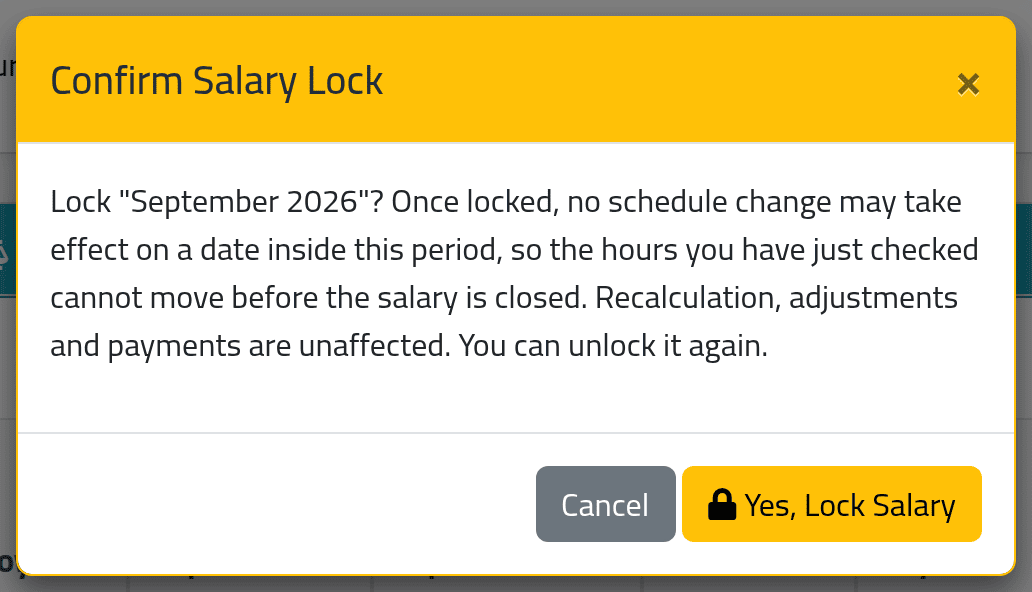
When the hours have been checked, click Lock Salary, then Yes, Lock Salary. On Current Salaries, the Lock Salary button on a row does the same.
Locked, the period refuses any schedule change dated inside it. Someone changing a schedule in Giving someone a schedule must pick a date after the period.
Locking does not stop:
- corrections to a day, and approvals of corrections (see Correcting a day);
- recalculating the period, or adding adjustments to it.
So a corrected day still changes a locked period’s pay. Only closing freezes it.
To undo, open Actions › Unlock Salary. It is possible as long as the period is open.
Lock All Open Salaries on Current Salaries locks every open period, including the month you are in. After it, no schedule change may be dated anywhere in the current month either. Lock the finished month on its own instead.
What happens next
- Recalculating: Salary recalculated successfully.
- Locking: a message that schedule changes dated inside the period will be refused. The status shows Open and Locked side by side.
The period still has to be closed — see Closing a salary period.
If it goes wrong
| What you see | What it means |
|---|---|
| A schedule change refused: The effective date must be … or later. Earlier days belong to a salary period that is already closed, or locked because its hours have been checked. | The period is locked (or closed). Choose a later date, or unlock the period if the change really must apply to it. |
| Recalculate Salary is not in Actions | The period is closed, or your account lacks the add-salaries permission this menu item asks for. |
| Only open salaries can be recalculated. | The period is closed. |
| No Lock Salary button on a period’s row | The period is closed, or you are on History, which never shows the button. Lock it from the period’s own Actions. |
| An adjustment is still Orphaned after recalculating | Its date is outside the period, or the person is in another branch. |