ClockWise HRGuideDeciding what someone can see
Deciding what someone can see
A role decides which screens a person can open. Their branches decide whose data those screens show — and an account with no branches ticked sees almost nobody, administrator included.
You need an account that can edit users. Know which branches the person works for, and whether they should see every department in them or only some.
Read this before anybody else signs in for the first time. Until it is done for an account, that account sees an almost empty system.
1Open the list of accounts
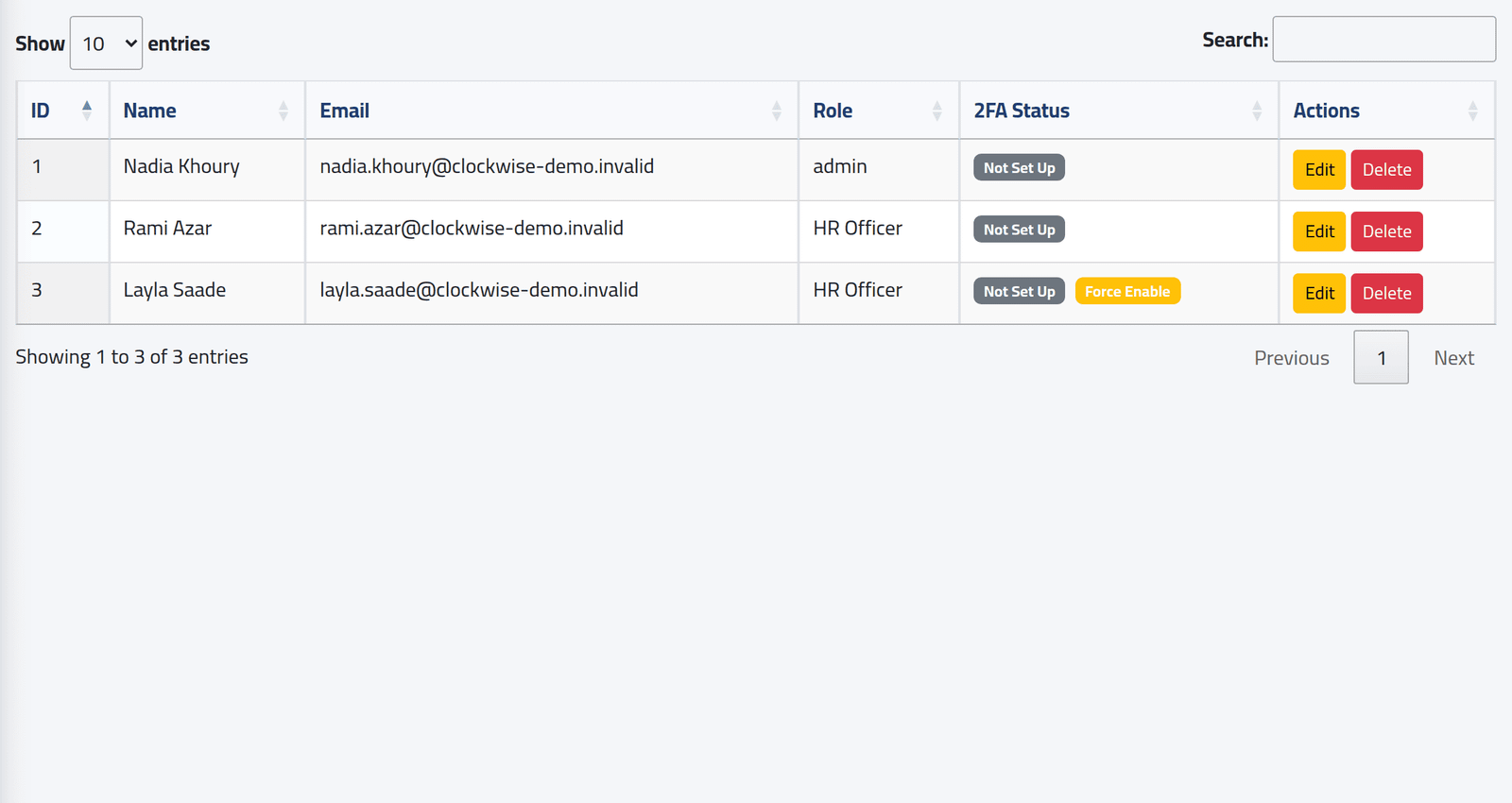
In the menu on the left, under Users, click Users List.
Manage Users shows every account, its role and its two-factor status.
2Open the person's account
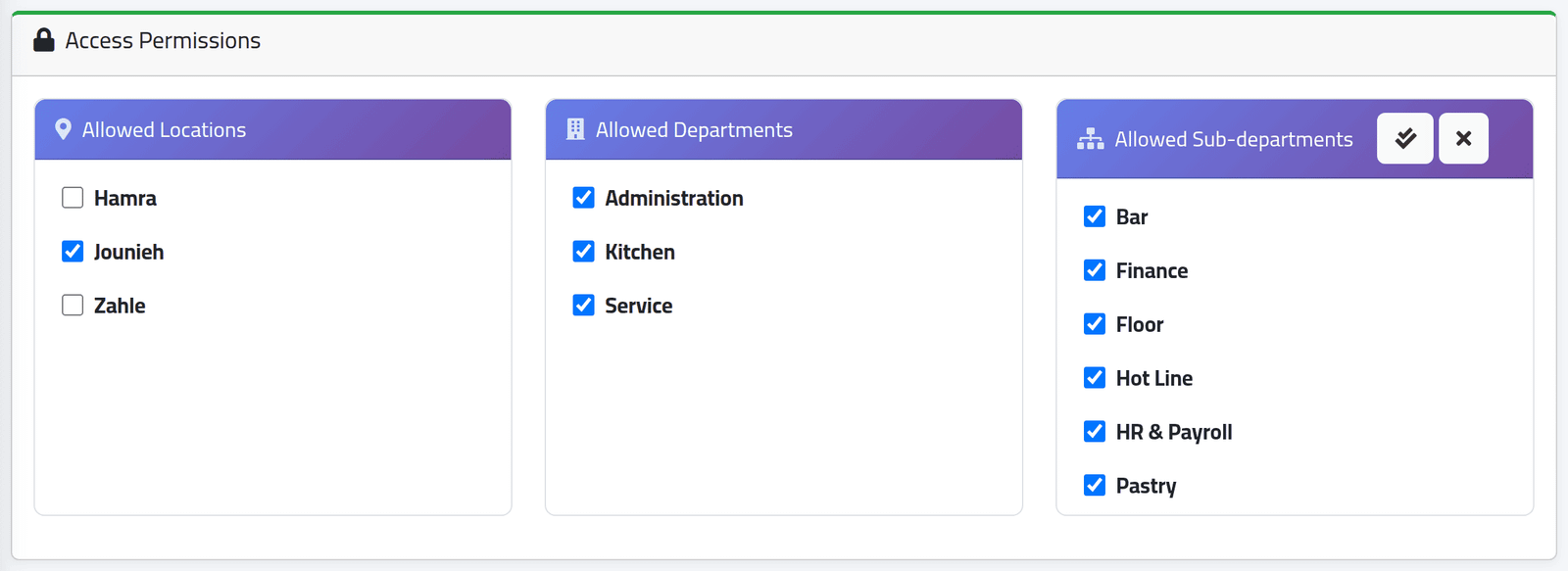
Click Edit on their row, and scroll down to Access Permissions. It holds three lists.
3Tick their branches
Under Allowed Locations, tick every branch whose people this person should see. In the picture, Rami Azar covers Jounieh only.
Nothing ticked here means almost nothing visible — for the administrator too. The employee list then shows only people who have no branch at all, and none of them can be opened. Being an administrator does not get round this: a new administrator’s account has no branches until somebody ticks them, and opening an employee gives a page saying the action is not authorised.
4Narrow to sub-departments, if you need to
Under Allowed Sub-departments, leave every box ticked — or every box empty — for a person who should see the whole of their branches. Both mean “all”.
Tick only some to limit them to those. The two buttons at the top of the list tick all and clear all.
5Leave Allowed Departments as it is
Allowed Departments is saved, but nothing in ClockWise reads it at present. Ticking or clearing departments changes nothing a person can see. To limit somebody to part of the business, use Allowed Sub-departments.
6Save
Click Update.
What happens next
The change applies the next time the person opens or refreshes a page. They do not need to sign out.
What they can see is now the overlap of two things: the screens their role opens, and the branches — and sub-departments — ticked here.
The role and the branches answer different questions. The role says what somebody may do: edit an employee, close a salary. The branches say to whom. An HR officer in Jounieh and one in Zahle can share one role and still never see each other’s people.
If it goes wrong
| What you see | What it means |
|---|---|
| A person sees no employees, or only a few with no branch | No branch is ticked under Allowed Locations. |
| A person’s dashboard shows every branch, although they cover one | The dashboard and some reports treat an account with no branches as covering all of them — the opposite of the employee list. Tick their branches and both agree. |
| Somebody still sees a department you cleared | Allowed Departments has no effect. Clear the sub-departments instead. |
| After you saved, a person’s two-factor setting changed | When the Two-Factor Authentication card is not on the page — on your own account, or if your role cannot manage two-factor — saving sets the person’s two-factor back to whatever their role requires. Check it after saving. |