ClockWise HRGuideThe checklist library
The checklist library
Inspection forms are built from reusable categories of questions — Food Storage, Fire Safety, Guest Areas. Each question carries its weight in points, how serious a failure is, and whether it must be answered.
Your account must be allowed to manage checklist categories. Write each question so that Yes is the good answer — “Fridges are at 5 °C or below”, not “Fridges are too warm” — because Yes earns the points.
1Open the library
In the menu on the left, under Inspections, click Checklist Library.
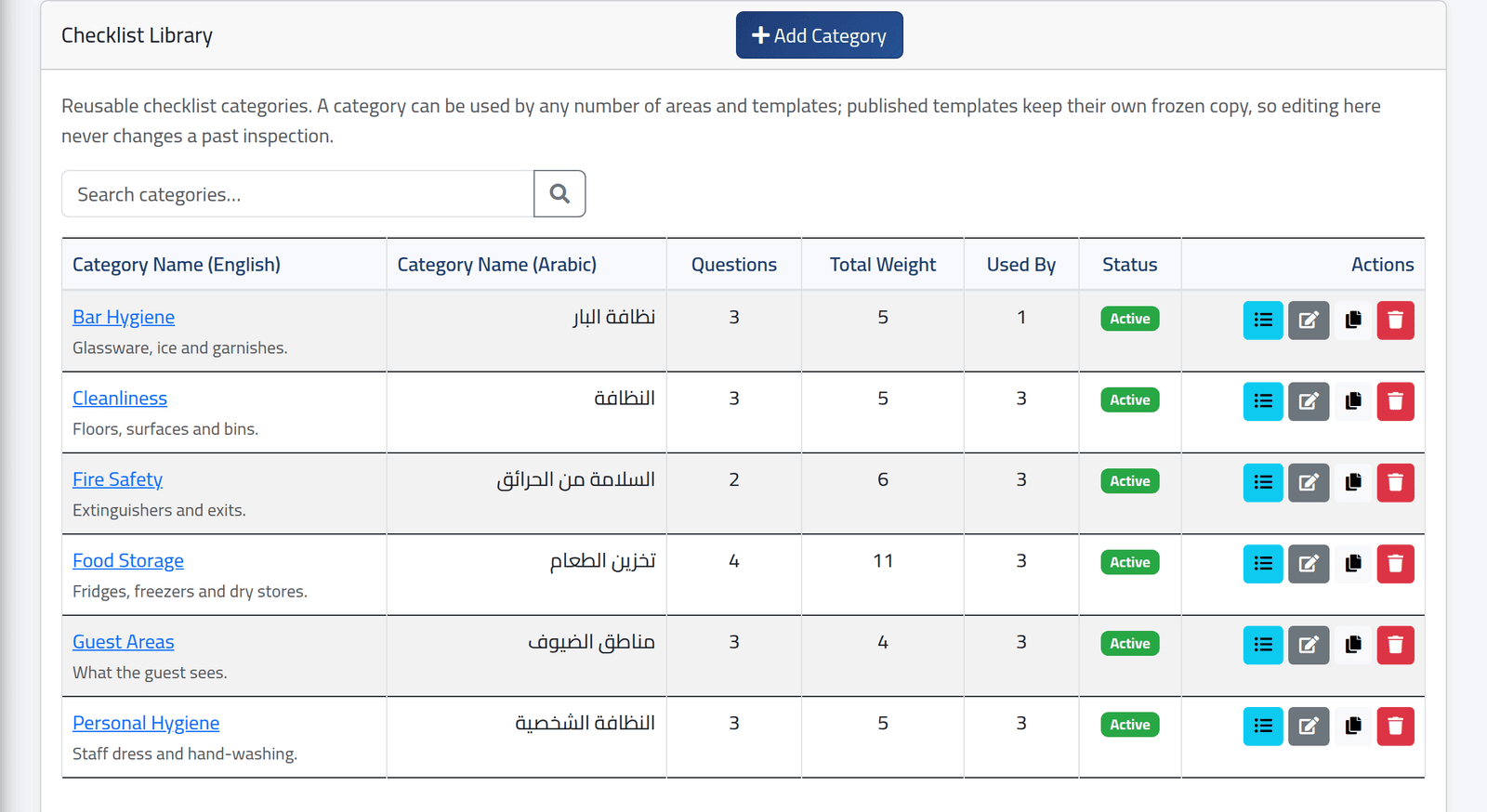
Each category with its English and Arabic name, how many questions it has, their total weight, how many forms use it, and whether it is active. The buttons on each line open its questions, edit its name, duplicate it, or delete it.
+ Add Category creates one: an English name (unique), an Arabic name and a short description.
2Open a category
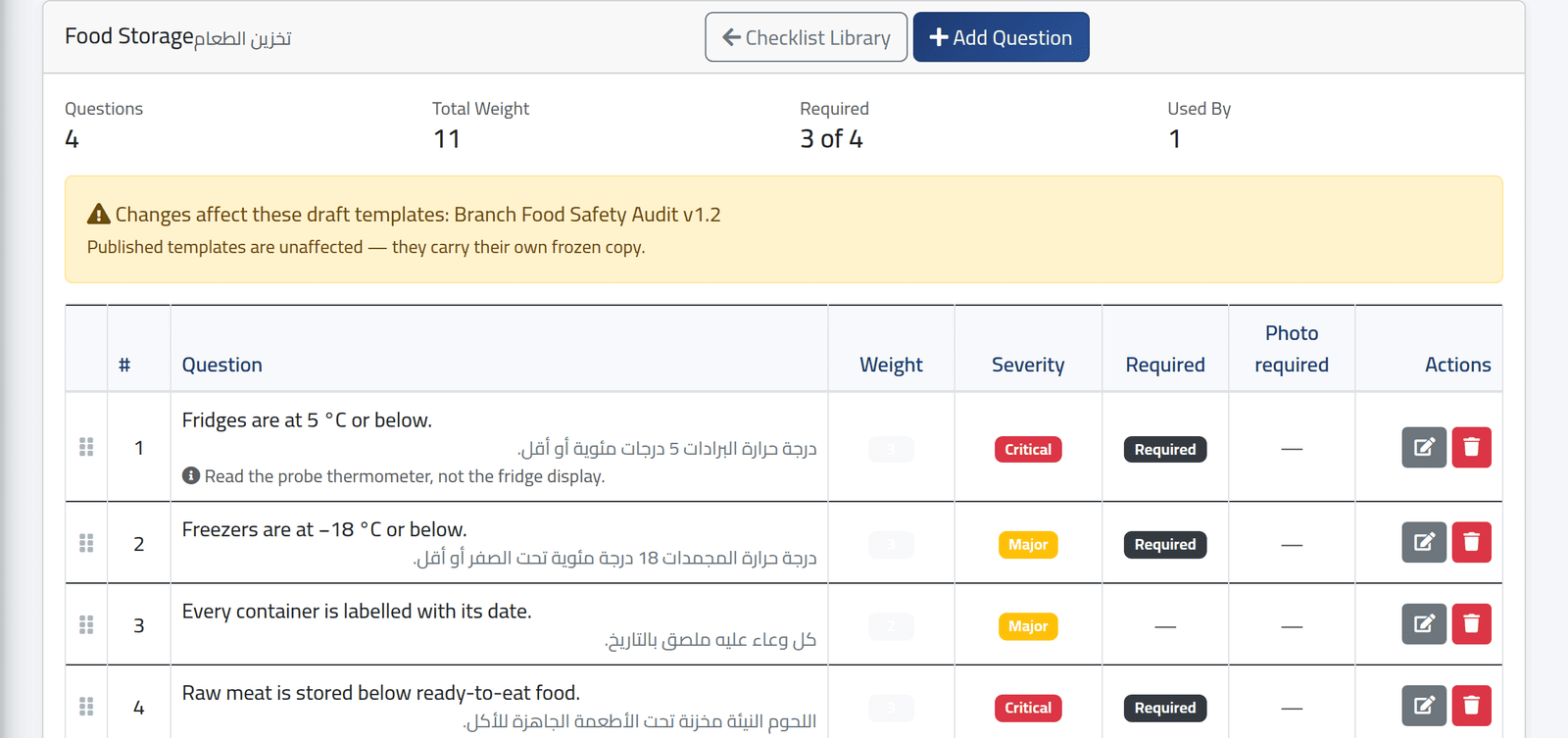
Its questions in order, each in English and Arabic, with its weight, severity, and whether it is required or needs a photo. Drag the handle on the left to reorder them.
The yellow panel names the draft forms that will take your changes. Published forms keep their own frozen copy: nothing you change here alters a form already in use, or any past inspection.
3Add a question
Click + Add Question.
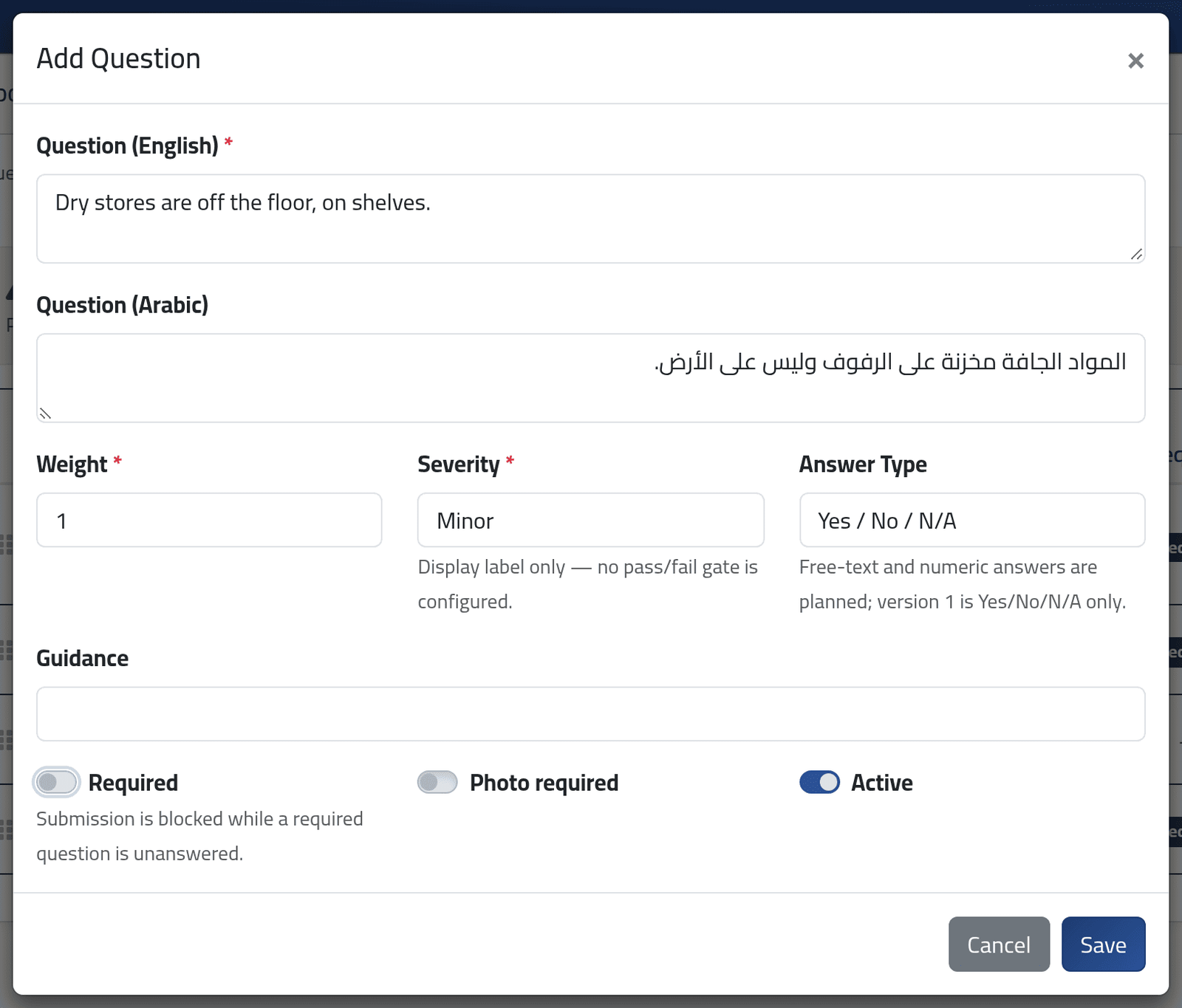
- Question (English) and Question (Arabic) — both are shown to the inspector, one under the other.
- Weight — the points it is worth: 1, 2, 5, 10, or Custom… for any other number.
- Severity — Critical, Major, Minor or none. It labels failures in the findings and reports; it does not change the score.
- Guidance — a line under the question telling the inspector how to check it.
- Required — the inspection cannot be submitted until it is answered.
- Active — an inactive question is left out of forms built afterwards.
Click Save.
Check every field before saving. The Add Question dialog opens filled in with the last question in the list — its wording, weight, severity and Required — and saving it unchanged creates a copy of that question. Clear what does not belong to the new one.
What happens next
The question is in the category at once, and in every draft form that uses the category. To reach forms already published, make a new version of each — see Publishing, versions and archiving.
Photo required is not enforced. The inspector is not stopped from submitting without a photo; treat it as an instruction, and say so in the guidance.
If it goes wrong
| What you see | What it means |
|---|---|
| Cannot delete: this category is used by draft template(s) … | Remove it from those drafts first. A category used only by published forms can be deleted; they keep their copy. |
| A refusal on the name | Another category already has that English name. |
| A change does not appear on inspectors’ forms | Those forms are published; make a new version. |