ClockWise HRGuideSending a notification
Sending a notification
A notification is a short line that appears on someone's bell. Send one now or for a date; the log lists every notification in the company, read or not.
Seeing the log, adding notifications, and seeing everyone’s rather than only your own are three permissions. For a conversation, send a message instead (see Sending a message).
1The log
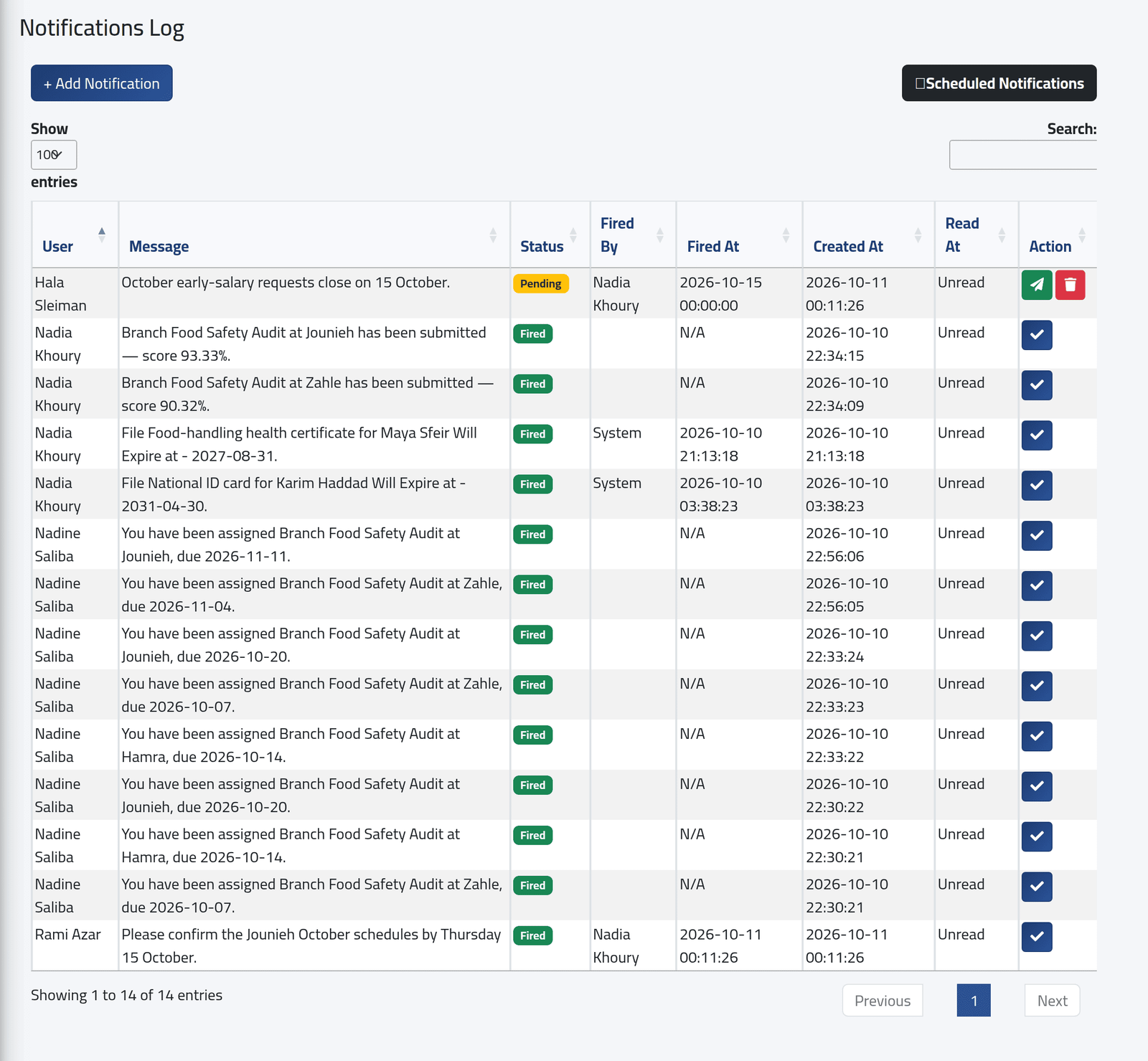
In the menu on the left, under Communication, click Notifications. Every notification, newest first: who it is for, the message, Pending or Fired, who fired it and when, and whether it has been read.
On a pending one, the green button fires it now and the red one deletes it; on a fired one, the tick marks it read.
2Send one
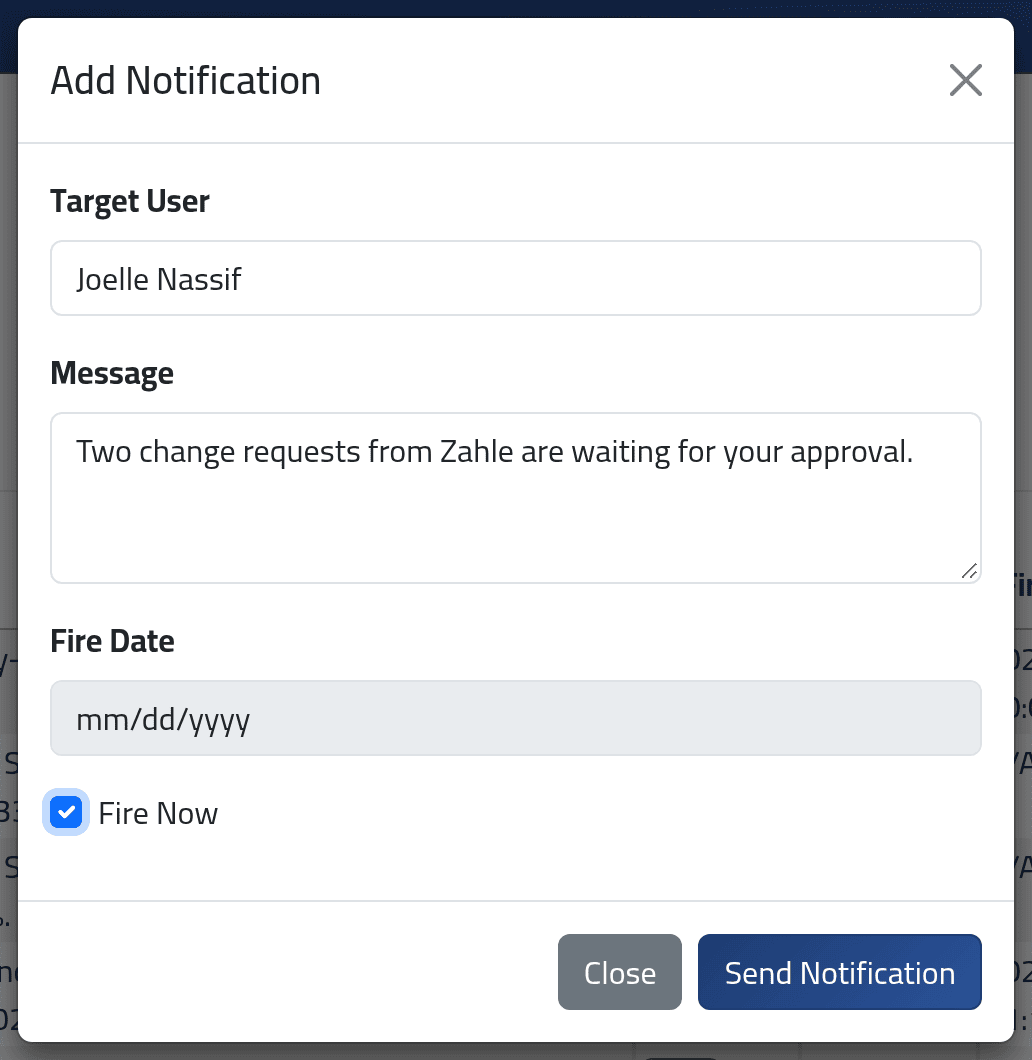
Click + Add Notification. Choose the Target User, write the Message, then either tick Fire Now or give a Fire Date. Click Send Notification.
What happens next
Fired now, it appears on the person’s bell the next time they open a page.
A notification with a date is not sent on that date. It waits as Pending until someone clicks the green button — nothing fires it automatically. Hala’s notice for 15 October, in the picture, will wait until it is fired by hand. For a reminder that repeats, see Recurring notifications.
If it goes wrong
| What you see | What it means |
|---|---|
| No + Add Notification | Your account may see the log but not add to it. |
| Only your own notifications in the log | Your account may not see everyone’s. |