ClockWise HRGuideAssigning people and marking attendance
Assigning people and marking attendance
A session's roster is who is expected to attend. Assign people before it starts; afterwards, mark each one attended, partly attended, absent or excused — with a score where the program is assessed. A session cannot be completed until everyone is marked.
- Assigning people and marking attendance are separate permissions.
- People can be assigned while the session is a draft, scheduled or in progress. Attendance can be marked once it is scheduled or in progress.
- You can assign only active employees of your own branches and departments.
Training attendance is separate from work attendance. Marking someone attended here changes nothing in their punches, worked hours, leave or pay.
1Assign people
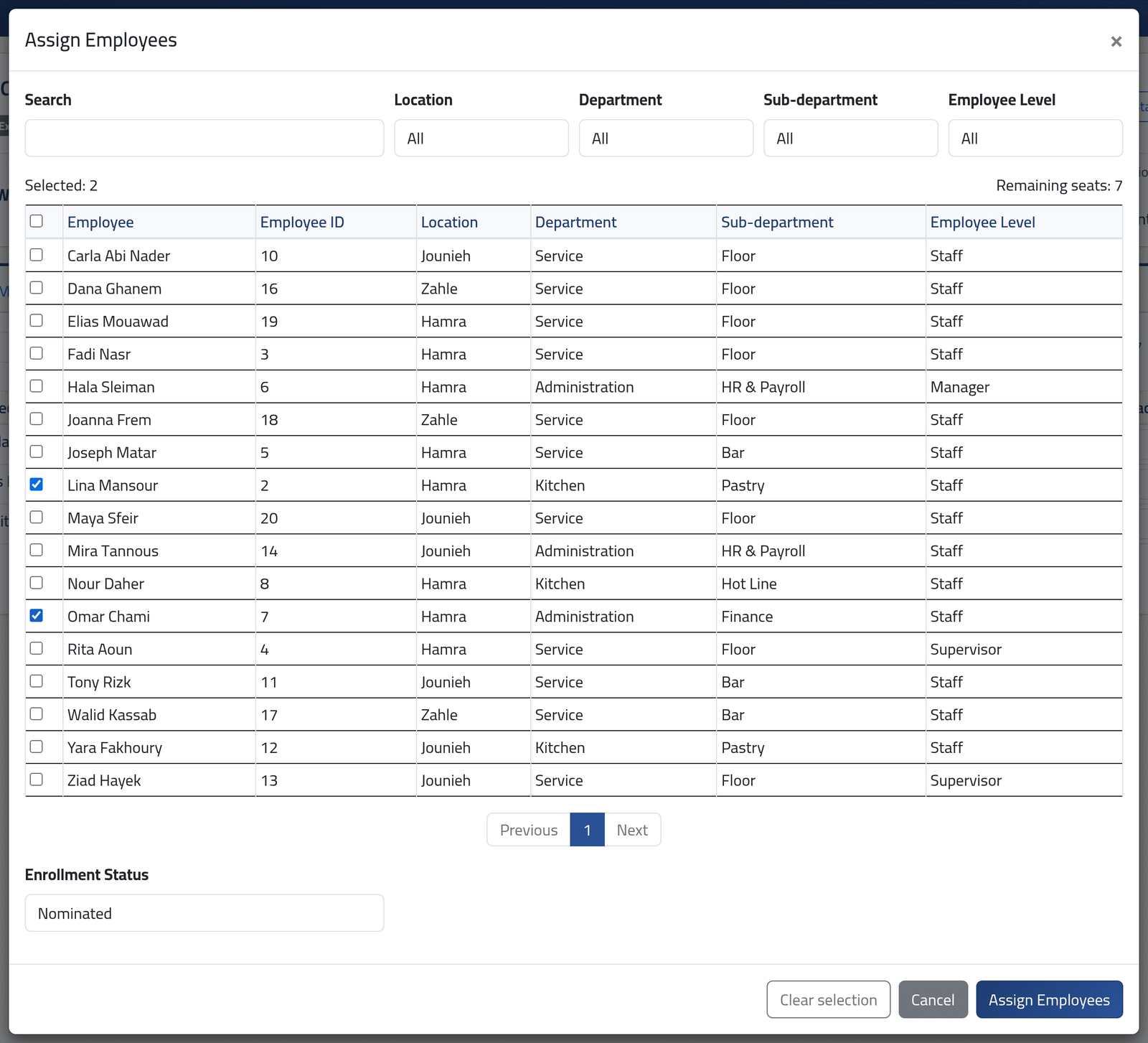
On the session, open the Roster tab and click Assign Employees.
The list holds everyone you may assign who is not already on the session. Narrow it by name or ID, location, department, sub-department or level, and tick the people — up to 100 at a time, and no more than Remaining seats. Choose whether they join as Nominated or Confirmed, then click Assign Employees.
The message afterwards says how many were added, and how many were skipped because they were already on it or outside your branches.
2Mark attendance
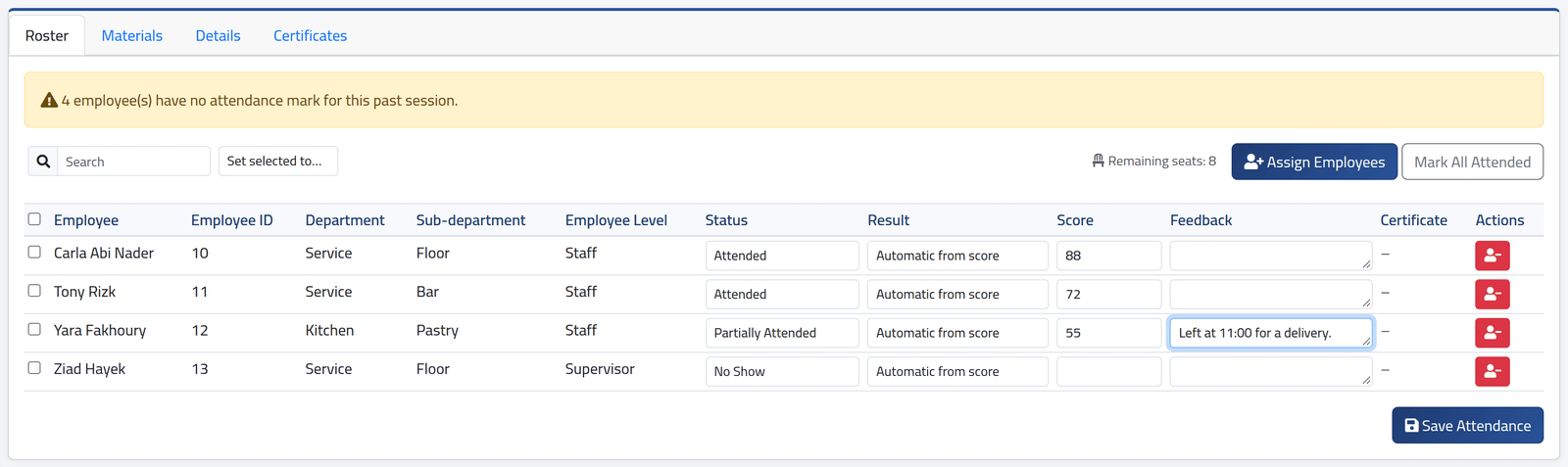
After the session, open its Roster again. A yellow banner counts the people not yet marked on a session that has ended.
For each person choose a Status: Attended, Partially Attended, No Show or Excused. Mark All Attended sets everyone not yet marked; tick several and use Set selected to… to give them the same status.
Where the program is assessed, type the Score, out of 100, for those who attended. Leave Result on Automatic from score: a score at or above the program’s pass score is a pass. Add Feedback where it helps.
Click Save Attendance. In the picture, Yara Fakhoury is partly attended at 55 with the reason, and Ziad Hayek did not come.
3After completion
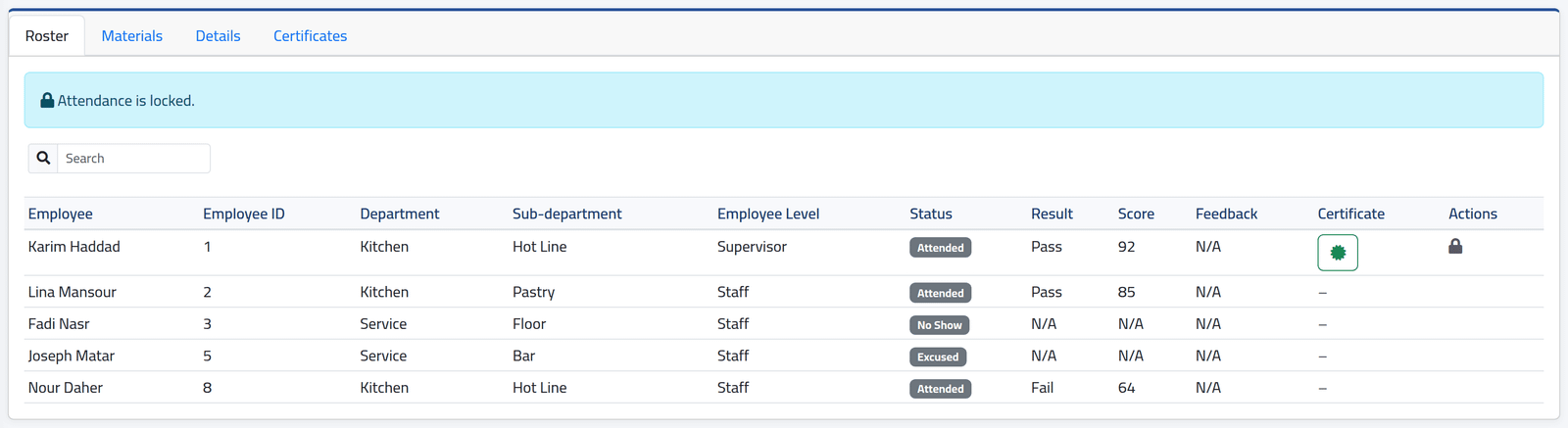
Once the session is completed, its roster says Attendance is locked. The results stay as marked: here Karim Haddad passed with 92 and holds a certificate, Nour Daher failed with 64.
An account allowed to edit a completed session’s attendance sees Unlock to Edit. Anyone who already holds a certificate stays locked until it is revoked — see Training certificates.
What happens next
When everyone is marked, the session can be completed — see A session’s status. Each mark also appears on the employee’s file — see An employee’s training record.
To take someone off a session, click the red button on their line:
- if they were never marked, they are removed completely;
- if they were marked, they are set to Cancelled and the record of what happened is kept.
If it goes wrong
| What you see | What it means |
|---|---|
| Only 2 seat(s) remaining in this session. | You ticked more people than there are seats. Raise the session’s capacity, or assign fewer. |
| Someone is missing from the list | They are already on the session, not active, or outside your branches or departments. |
| A score is required when the result is pass or fail. | Type the score, or leave the result on automatic. |
| A scored assessment cannot have an N/A result. | Clear the score, or set the result back to automatic. |
| Attendance can only be marked for scheduled or in-progress sessions. | The session is still a draft, or it is completed or cancelled. |
| A certificate exists for this employee. Revoke it before changing attendance. | See Training certificates. |
| No Assign Employees | The session is completed or cancelled, or your account may not assign people. |