ClockWise HRGuideThe notification bell
The notification bell
The red bell in the bottom corner of every page appears when you have unread notifications — from colleagues, from schedules, and from ClockWise itself about documents, inspections and assignments.
Nothing to set up: every user has the bell. It appears only when something is unread.
1Open it
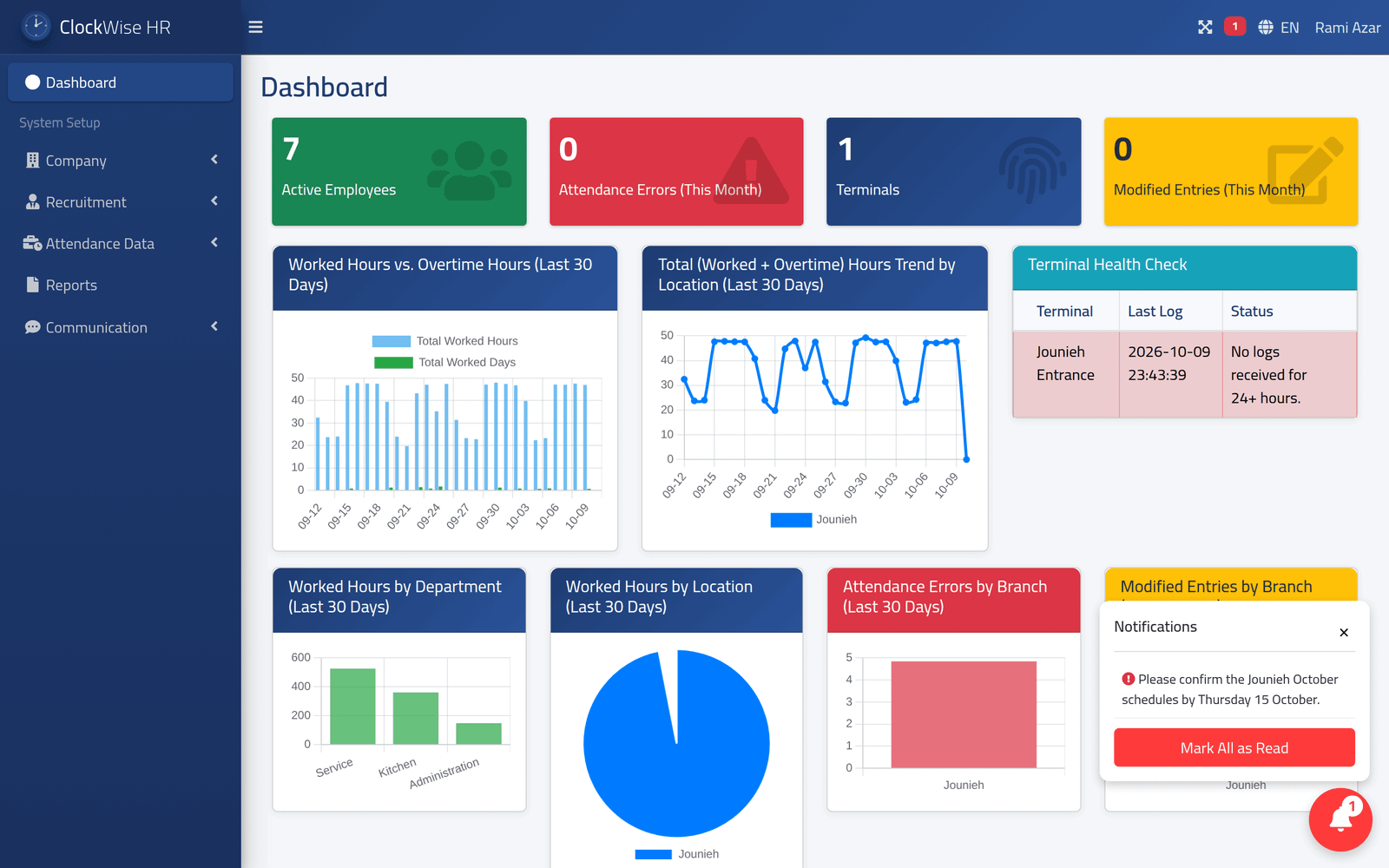
Click the bell at the bottom right of the page; the number on it is how many notifications are unread. Each opens in the list: click one, confirm, and it is marked read. Mark All as Read clears them all.
Rami Azar, in the picture, has the one the administrator sent him.
What happens next
A notification marked read leaves the bell; it stays in the log (see Sending a notification). The list is checked when a page opens, so a new notification shows on the next page you open.
What ClockWise notifies by itself:
| Notification | Who receives it |
|---|---|
| A document of an employee will expire | users allowed to be told about expiring documents |
| An inspection was assigned, is due soon, is late, was submitted | the inspector, and whoever assigned it |
| A message from a colleague or a schedule | the person it was sent to |
Document notices come back. Every employee document that has not expired more than ten days ago is reported — including one that expires years away, such as Karim Haddad’s ID card in 2031 — and once marked read, it is reported again the next time the dashboard is opened.
The red number at the top of the page, next to the language, counts unread messages, not notifications — see Sending a message.
If it goes wrong
| What you see | What it means |
|---|---|
| No bell | Nothing is unread. |
| The same document notice keeps returning | See the warning above. |