ClockWise HRGuideChecking a clocking machine
Checking a clocking machine
See who is enrolled on a machine, read its details, or restart it. Each talks to the machine directly and waits up to a minute if it cannot reach it. Two of the menu's actions do not work.
Every action here connects to the machine from the ClockWise server. If the server cannot reach it, the action waits about a minute and then says so. Each action has its own permission.
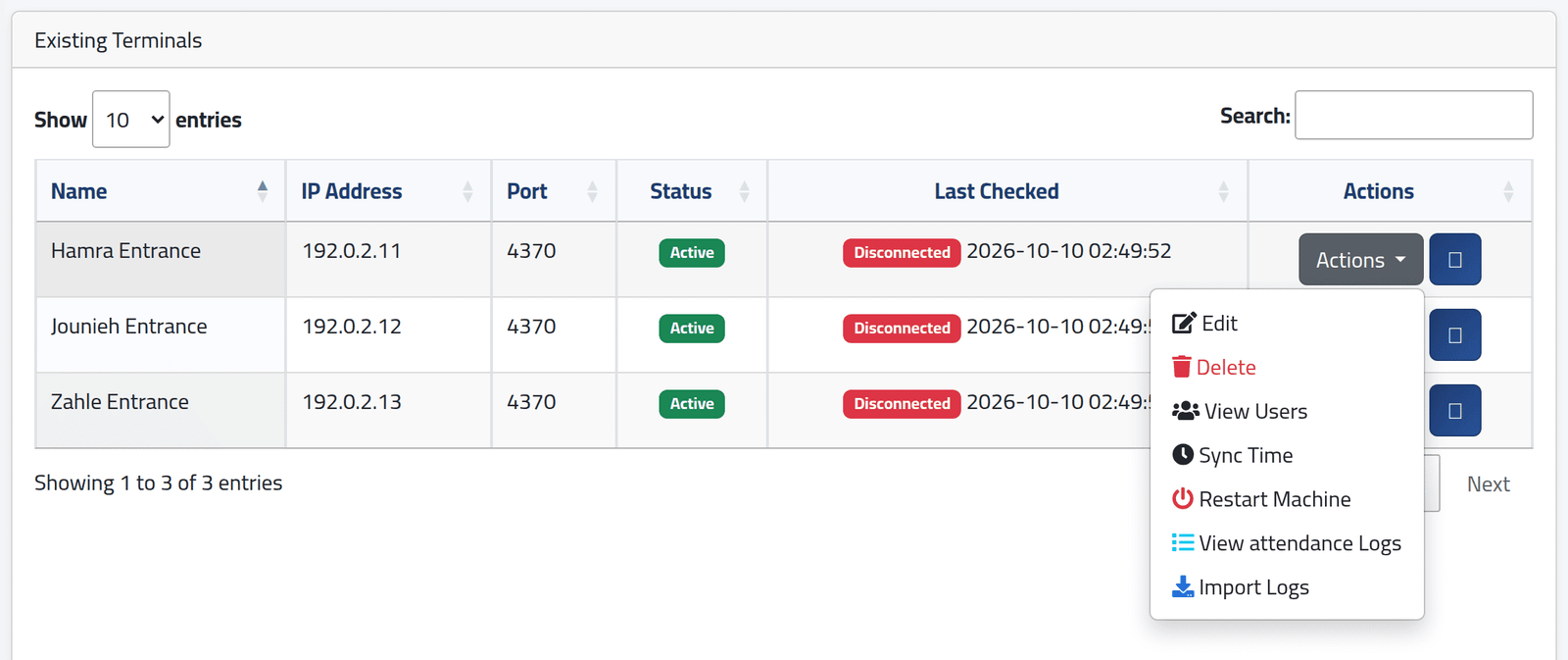
1Open the machine's actions
On Terminals, click Actions on the machine.
2See who is enrolled
View Users lists every user stored on the machine: name, card number and privilege, and in the last column Already Added when a ClockWise employee has that user’s number as their Employee ID.
The ID column is the machine’s own record number, not the user number punches are matched by. Someone without Already Added is enrolled under a number no employee has — their punches belong to nobody. See Adding a clocking machine.
Add as Employee and Add All Users as Employees do not work on a standard installation: they file people under one fixed sub-department, chosen by its internal number, which a standard installation does not have — and fail with an error page. Even where it exists, the person is filed with no branch and no pay. Add people with Adding an employee, giving them the Employee ID they have on the machine.
3Read its details
The blue button beside Actions shows the machine’s name, the time on its clock, how many users it holds, its serial number and firmware.
The machine’s clock matters: a punch is recorded at the machine’s time. If it is wrong, every punch is wrong by the same amount.
4Restart it
Restart Machine, then confirm. The machine is unavailable for a minute or two.
What happens next
Nothing in ClockWise changes; these actions only read from or restart the machine.
Sync Time is refused for every account, the administrator included — it asks for a permission that does not exist. Set the machine’s clock on the machine itself.
If it goes wrong
| What you see | What it means |
|---|---|
| A refusal from Sync Time | It does not work — see above. |
| An error page after Add as Employee | It does not work — see above. |
| Unable to connect to the machine. after a minute | The server cannot reach the machine. |
| The information button shows an empty square | Its icon is missing. It still works. |